
1. Product Overview
The Acer Kids Bluetooth Headphones (Model OHR668) are designed to provide a safe and enjoyable audio experience for children. These over-ear wireless headphones feature volume limiting technology to protect sensitive hearing, a long-lasting battery, and a built-in microphone for communication. They are foldable for easy portability and constructed with durable, child-friendly materials.
Key Features
- Safe Volume Limiting: Built-in technology limits volume to 85dB (Study Mode) or 94dB (Travel Mode) to protect children's hearing.
- Extended Playtime: Up to 60 hours of battery life on a single charge.
- Bluetooth 6.0 Connectivity: Ensures stable and reliable wireless audio streaming.
- Built-in Microphone: Facilitates clear voice calls and interactive learning.
- Durable and Foldable Design: Reinforced headband and foldable earcups for resilience and portability.
- Comfortable Fit: Soft memory foam ear cushions and an adjustable headband for prolonged comfort.
- Wired Option: Compatible with 3.5mm audio cables for high-definition, lossless audio.
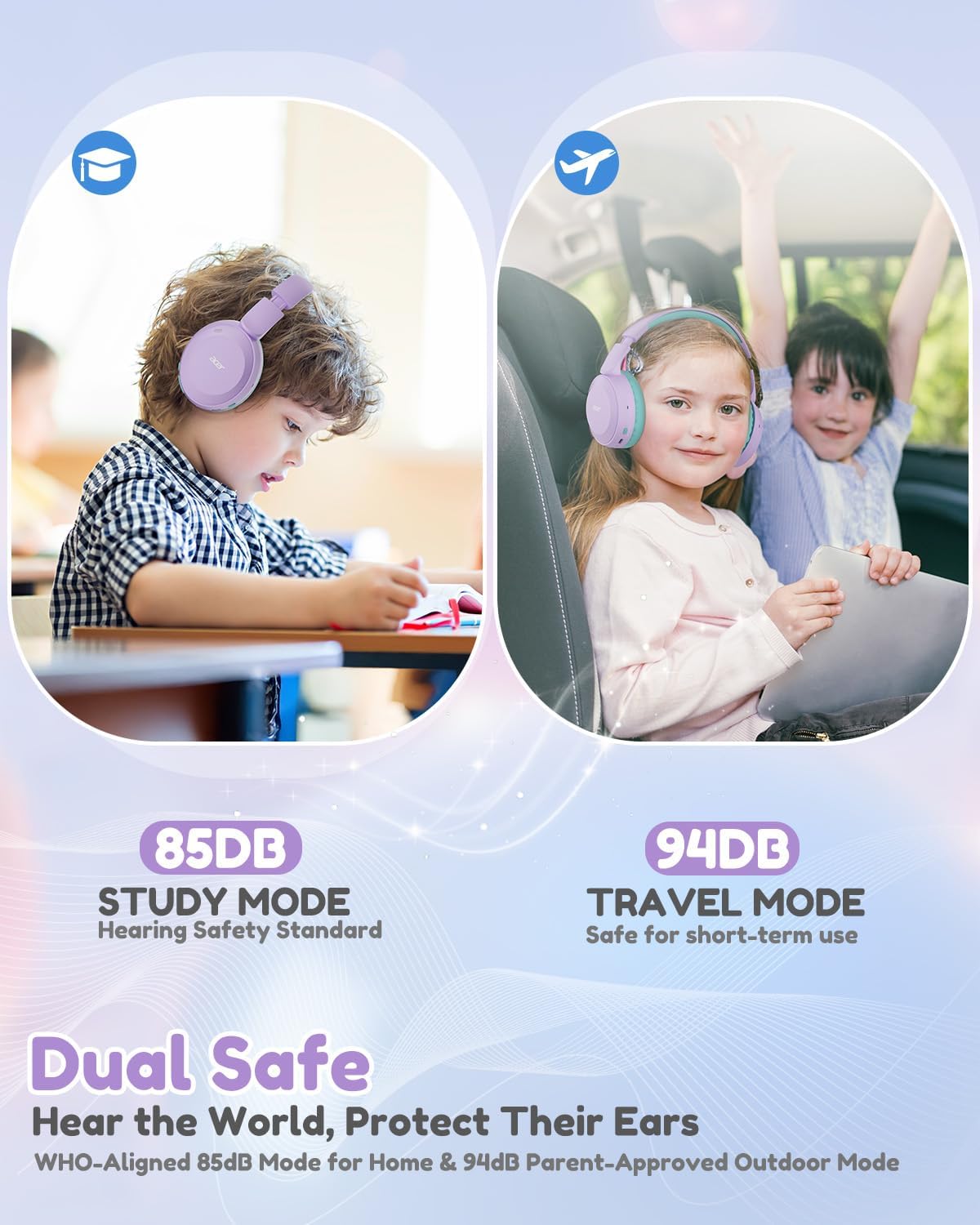
Image: Dual Safe Volume Modes (85dB Study Mode, 94dB Travel Mode).

Image: Kid-Proof Durability with BPA-Free and CPSIA certification icons.

Image: Built for All Day Comfort, highlighting soft ear cushions, soft headband, adjustability, and foldable design.
2. Setup
2.1 What's in the Box
- 1x Acer Kids Bluetooth Headphones (Model OHR668)
- 1x USB-C Charging Cable
- 1x 3.5mm Audio Cable
- 1x User Manual

Image: Contents of the product package.
2.2 Charging the Headphones
- Locate the USB-C charging port on the headphones.
- Connect the provided USB-C charging cable to the headphones.
- Connect the other end of the USB-C cable to a compatible USB power source (e.g., wall adapter, computer USB port).
- The LED indicator will show charging status (refer to the LED indicator section for details). A full charge takes approximately 2.5 hours and provides up to 60 hours of playtime. A 5-minute quick charge provides 2 hours of playtime.
2.3 Power On/Off
- To Power On: Press and hold the Power button for approximately 3 seconds until the LED indicator lights up.
- To Power Off: Press and hold the Power button for approximately 3 seconds until the LED indicator turns off.
2.4 Bluetooth Pairing
- Ensure the headphones are powered off.
- Press and hold the Power button for approximately 5 seconds until the LED indicator flashes blue and red alternately, indicating pairing mode.
- On your device (smartphone, tablet, laptop), enable Bluetooth and search for available devices.
- Select "Acer OHR668" from the list of devices.
- Once paired, the LED indicator will show a solid blue light or flash blue slowly.

Image: Broad compatibility with various devices via Bluetooth 6.0.
2.5 Wired Connection (3.5mm Audio Cable)
For a wired connection, use the provided 3.5mm audio cable.
- Plug one end of the 3.5mm audio cable into the 3.5mm audio jack on the headphones.
- Plug the other end into the audio output port of your device.
- The headphones will automatically switch to wired mode. Bluetooth functionality will be disabled when the audio cable is connected.
3. Operating Instructions
3.1 Controls and Ports

Image: Headphone controls and ports (Volume Up/Down, 3.5mm Jack, Type-C Charging Port, Volume Limiter Switch).
- Volume Up/Down Buttons: Press to adjust volume.
- 3.5mm Audio Jack: For wired connection.
- Type-C Charging Port: For charging the headphones.
- Volume Limiter Switch: Toggle between 85dB (Study Mode) and 94dB (Travel Mode).
- Multi-function Button (Power Button):
- Press and hold for 3 seconds to Power On/Off.
- Press and hold for 5 seconds to enter Bluetooth pairing mode.
- Short press to Play/Pause music.
- Short press to Answer/End calls.
- Double press for Next Track (if supported by device).
- Triple press for Previous Track (if supported by device).
3.2 Adjusting Volume Limiter
The headphones feature a physical switch to select between two volume limiting modes:
- 85dB (Study Mode): Recommended for extended listening sessions and quiet environments, aligning with WHO hearing safety standards.
- 94dB (Travel Mode): Suitable for short-term use in noisier environments, providing a slightly higher volume while still protecting hearing.
Slide the "Volume Limiter Switch" to select the desired mode.
3.3 Folding for Storage and Travel
The headphones are designed to be foldable for compact storage and easy transport. Gently fold the earcups inwards towards the headband until they are compact. This helps protect the headphones when not in use or during travel.
4. Maintenance
4.1 Cleaning
- Use a soft, dry cloth to wipe the exterior surfaces of the headphones.
- For ear cushions, gently wipe with a slightly damp cloth and allow to air dry completely before use.
- Do not use harsh chemicals, cleaning solvents, or strong detergents.
- Avoid getting moisture into any openings or ports.
4.2 Storage
- When not in use, store the headphones in a cool, dry place, away from direct sunlight and extreme temperatures.
- Utilize the foldable design to make them compact for storage, reducing the risk of damage.
- Avoid placing heavy objects on top of the headphones.
5. Troubleshooting
5.1 No Power
- Ensure the headphones are fully charged. Connect them to a power source using the USB-C cable.
- Verify that the charging cable and power source are functioning correctly.
5.2 Cannot Pair via Bluetooth
- Make sure the headphones are in pairing mode (LED flashing blue and red).
- Ensure Bluetooth is enabled on your device and it is within 33 feet (10 meters) of the headphones.
- Turn off and on Bluetooth on your device, then try pairing again.
- If previously paired, try "forgetting" or "unpairing" the headphones from your device's Bluetooth settings and then re-pair.
- Ensure no other Bluetooth devices are interfering with the connection.
5.3 No Sound or Low Sound
- Check the volume levels on both the headphones and your connected device.
- Ensure the volume limiter switch is set to the desired mode (85dB or 94dB).
- If using a wired connection, ensure the 3.5mm audio cable is fully inserted into both the headphones and the device. Try a different 3.5mm cable if available.
- If connected via Bluetooth, try disconnecting and reconnecting the headphones.
- Test with a different audio source or device to rule out device-specific issues.
6. Specifications
| Feature | Detail |
|---|---|
| Brand | Acer |
| Model Number | OHR668 |
| Ear Placement | Over Ear |
| Volume Limiting | 85dB / 94dB (Switchable) |
| Connectivity Technology | Wireless (Bluetooth), Wired (3.5mm Jack) |
| Bluetooth Version | 6.0 |
| Bluetooth Range | 33 Feet (10 meters) |
| Battery Life | Up to 60 Hours |
| Battery Charge Time | 2.5 Hours (5 min quick charge for 2 hours playtime) |
| Built-in Microphone | Yes |
| Audio Driver Size | 40 Millimeters |
| Frequency Range | 20Hz - 20,000Hz |
| Weight | 6.63 Ounces |
| Material | Memory Foam, Durable Material (BPA-Free, CPSIA Certified) |
| Additional Features | Adjustable Headband, Foldable Design |
7. Warranty and Support
7.1 Warranty Information
The Acer Kids Bluetooth Headphones (Model OHR668) come with a 1-Year Limited Warranty from the date of purchase. This warranty covers manufacturing defects in materials and workmanship. It does not cover damage caused by misuse, accidents, unauthorized modifications, or normal wear and tear. Please retain your proof of purchase for warranty claims.
7.2 Customer Support
For technical assistance, warranty claims, or any questions regarding your Acer Kids Bluetooth Headphones, please visit the official Acer support website or contact their customer service.
Online Support: Visit www.acer.com/support
Phone Support: Refer to your product packaging or the Acer support website for regional contact numbers.


