
Leadfan US02-QYY-SW340-1
Leadfan 9-inch Car Radio Stereo User Manual
For Subaru Forester (2008-2012) and Impreza WRX (2007-2011)
Model: US02-QYY-SW340-1
1. Introduction
This manual provides detailed instructions for the installation, operation, and maintenance of your Leadfan 9-inch Car Radio Stereo. This unit is designed to enhance your driving experience with features such as wireless Apple CarPlay, Android Auto, GPS navigation, Bluetooth connectivity, and more. Please read this manual thoroughly before installation and use to ensure proper function and safety.
2. Vehicle Compatibility
This car radio stereo is compatible with the following vehicle models:
- Subaru Forester: 2008, 2009, 2010, 2011, 2012
- Subaru Impreza WRX: 2007, 2008, 2009, 2010, 2011
Important Note:
This unit is designed for vehicles without a factory large screen or amplifier. Please verify your vehicle's dashboard configuration before installation. Refer to the image below for visual guidance on compatible and incompatible dashboard types.
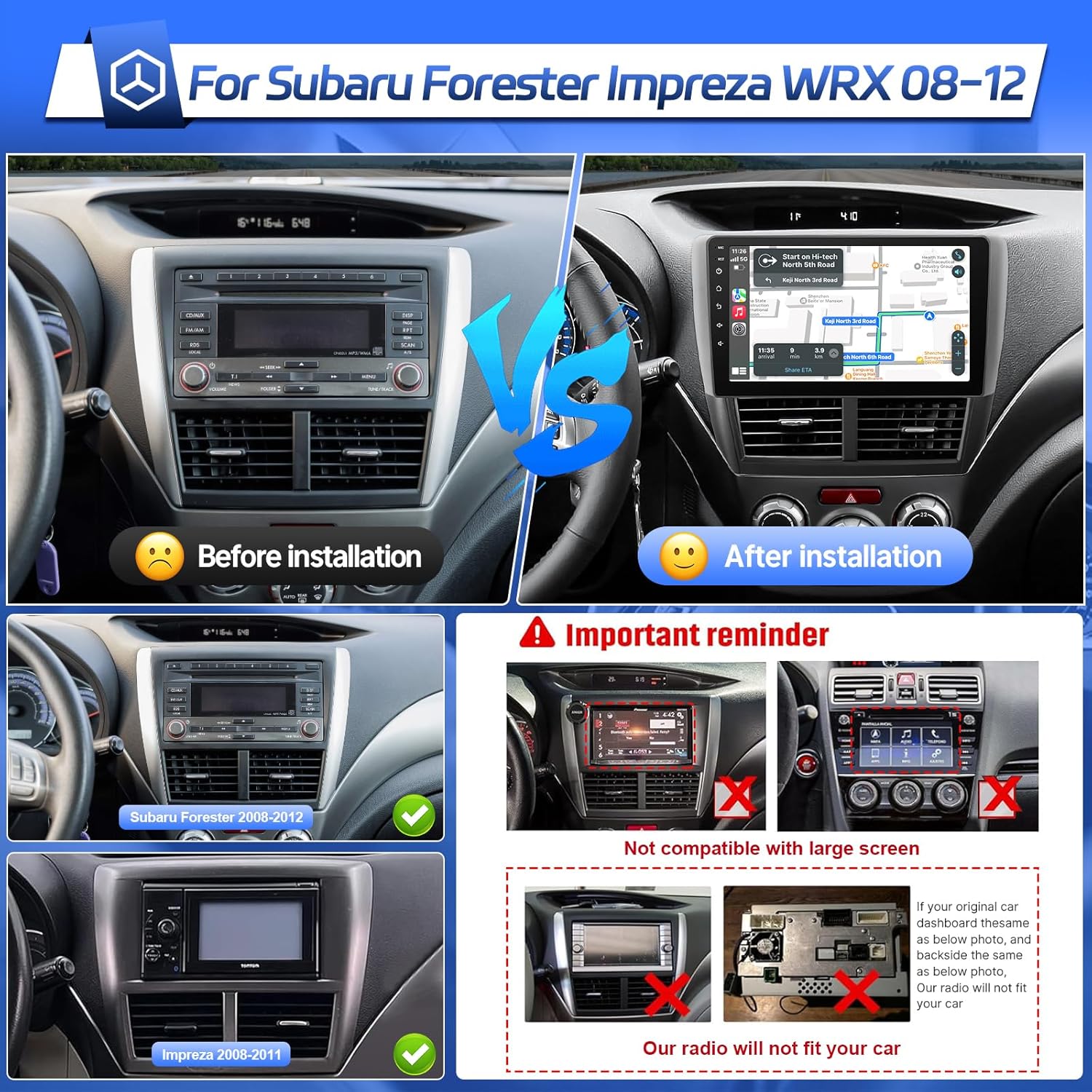
Image: Comparison of a Subaru Forester dashboard before and after the Leadfan car radio installation. It also illustrates compatible dashboards for Subaru Forester (2008-2012) and Impreza (2008-2011), and highlights incompatible dashboards with existing large screens or specific factory radio designs.
3. Package Contents
Please check the package for the following items:
- Leadfan 9-inch Car Radio Stereo Unit
- Power Cable
- RCA Cables
- USB Cables (x2)
- GPS Antenna
- Backup Camera
- Microphone (MIC)
- Vehicle Mount
- User Manual
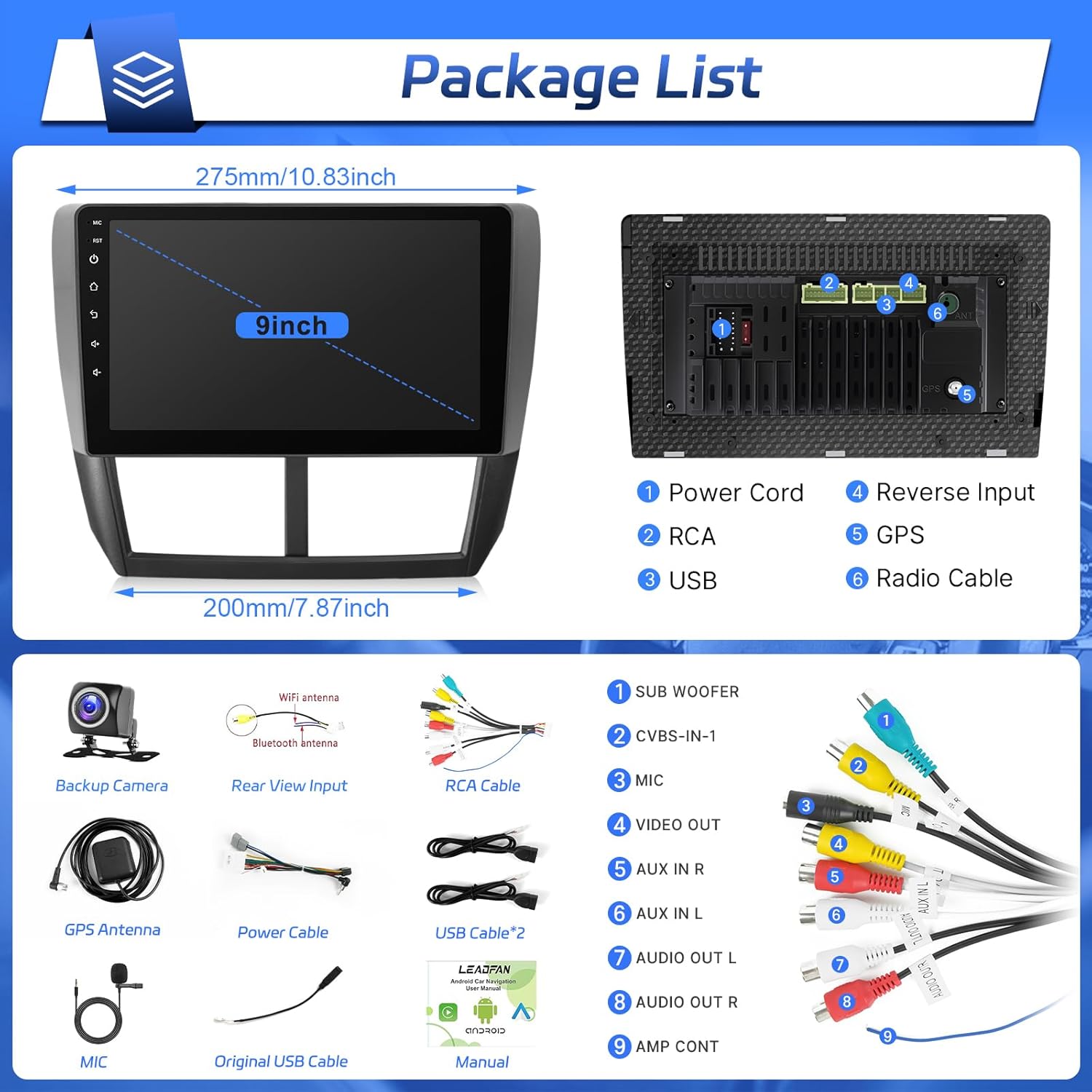
Image: A visual representation of the car radio unit's dimensions and its rear connection ports, alongside all accessories included in the package, such as various cables, antennas, and the backup camera.
4. Setup and Installation
Installation of this unit is designed to be plug-and-play for compatible Subaru models. However, professional installation is recommended if you are unfamiliar with car audio wiring.
4.1 Pre-Installation Checklist
- Ensure the vehicle's ignition is off and the battery's negative terminal is disconnected.
- Confirm all package contents are present.
- Review your vehicle's existing dashboard and wiring to ensure compatibility.
4.2 Installation Steps
- Remove Factory Radio: Carefully remove the trim panels and screws securing your existing factory radio.
- Connect Wiring Harness: Connect the provided power cable and RCA cables to the corresponding ports on the new Leadfan unit and your vehicle's wiring harness. Ensure all connections are secure. Refer to the wiring diagram in the 'Package Contents' section for port identification.
- Install GPS Antenna: Mount the GPS antenna on the dashboard or another location with a clear view of the sky. Route the cable to the unit and connect it to the 'GPS' port.
- Install WiFi Antenna: Connect the WiFi antenna to the designated port on the unit.
- Connect USB Cables: Route the USB cables to a convenient location (e.g., glove compartment) and connect them to the unit.
- Connect Microphone: Plug in the external microphone for improved call quality and voice commands. Position it near the driver for optimal performance.
- Install Backup Camera (Optional): If installing the included backup camera, route the video cable from the rear of the vehicle to the unit and connect it to the 'Reverse Input' port. Connect the camera's power to the vehicle's reverse light circuit.
- Mount the Unit: Secure the Leadfan unit into the dashboard opening using the provided vehicle mount and screws.
- Reconnect Battery: Reconnect the vehicle's negative battery terminal.
- Test Functionality: Turn on the ignition and test all functions of the new car radio stereo.
5. Operating Instructions
This section details the primary functions and how to operate your Leadfan car radio stereo.
5.1 Wireless Apple CarPlay & Android Auto
Connect your smartphone wirelessly to access navigation, music, calls, and messages directly on the car's display.
- Ensure Bluetooth and Wi-Fi are enabled on your smartphone.
- On the car stereo, navigate to the CarPlay or Android Auto application.
- Follow the on-screen prompts to pair your phone. For Apple CarPlay, select your device from the list. For Android Auto, ensure the Android Auto app is installed on your phone.
- Once connected, your phone's compatible apps will appear on the stereo screen.

Image: The user interface of the car radio displaying both Apple CarPlay and Android Auto. CarPlay shows a grid of applications including Phone, Music, Waze, and Messages. Android Auto shows a similar layout with navigation and media controls.
5.2 Bluetooth Connectivity
Pair your phone via Bluetooth for hands-free calling and wireless audio streaming.
- On the car stereo, go to the Bluetooth settings.
- Enable Bluetooth on your smartphone and search for available devices.
- Select the car stereo's Bluetooth name (e.g., "Leadfan Car BT") from your phone's list and confirm pairing.
- Once connected, you can make/receive calls and play music through the car's speakers.

Image: A driver interacting with the car radio's Bluetooth interface for hands-free calling. The screen displays a dial pad and call options, while a smartphone shows an active call, demonstrating the integrated Bluetooth functionality.
5.3 GPS Navigation & Wi-Fi Function
Utilize built-in GPS for navigation and connect to Wi-Fi for online features.
- GPS Navigation: The unit comes with a built-in GPS module. You can use pre-installed offline maps or download online navigation apps via the Play Store.
- Wi-Fi Connection: Go to Settings > Wi-Fi. Turn on Wi-Fi and connect to an available hotspot (e.g., from your smartphone) to access online features, download apps, and get live traffic updates.

Image: The car radio screen showing a GPS navigation map with route information and various application shortcuts. Another inset image demonstrates the unit connected to Wi-Fi, displaying a web browser with YouTube content.
5.4 FM Radio
Access your favorite radio stations with the integrated FM tuner.
- Select the 'FM Radio' application from the main menu.
- Use the scan function to automatically find and save available stations, or manually tune to a specific frequency.
- Save your preferred stations as presets for quick access.
5.5 Steering Wheel Control (SWC)
Configure your vehicle's steering wheel buttons to control the car stereo.
- Go to 'Settings' and find the 'Steering Wheel Control' or 'SWC' option.
- Follow the on-screen instructions to map each physical button on your steering wheel to a corresponding function on the stereo (e.g., volume up/down, track skip, mode).
5.6 Rear View Camera
The unit supports a rear view camera for safer parking and reversing.
- When the vehicle is shifted into reverse gear, the screen will automatically display the rear view camera feed.
- The camera provides a 170° viewing angle to assist in detecting obstacles.
5.7 EQ Settings
Customize your audio experience with the equalizer settings.
- Access the 'EQ' or 'Sound Settings' application.
- Adjust bass, treble, balance, and fader. Choose from preset sound modes (Rock, Pop, Jazz, Classical, etc.) or create a custom profile.
5.8 Mirror Link
Mirror your smartphone's screen directly onto the car stereo display.
- Open the 'Mirror Link' application on the stereo.
- Follow the instructions to connect your Android or iOS device. This typically involves connecting via USB or Wi-Fi and enabling screen mirroring on your phone.

Image: A multi-panel image illustrating several features: the audio equalizer (EQ) settings, a smartphone screen mirrored onto the car radio display, the interface for configuring steering wheel controls, and the view from the backup camera with parking guidelines.
5.9 Split Screen Function
Multitask by running two applications simultaneously on the screen.
- Open the first application you wish to use.
- Press and hold the recent apps button or swipe from the side (depending on the interface) to activate split-screen mode.
- Select the second application to display it alongside the first.

Image: The car radio screen demonstrating the split-screen feature, with the YouTube application running on the left side and a local music player interface on the right side, allowing for simultaneous use of two apps.
6. Maintenance
Proper care will ensure the longevity and optimal performance of your car radio stereo.
- Cleaning: Use a soft, dry cloth to clean the screen and unit. For stubborn smudges, slightly dampen the cloth with water or a screen-safe cleaner. Avoid abrasive materials or harsh chemicals.
- Software Updates: Periodically check for software updates via the system settings. Connecting to Wi-Fi will allow you to download and install updates that may improve performance or add new features.
- Temperature: Avoid exposing the unit to extreme temperatures for extended periods.
7. Troubleshooting
If you encounter issues, refer to the following common problems and solutions:
| Problem | Possible Cause | Solution |
|---|---|---|
| Unit does not power on. | Loose power connection, blown fuse, incorrect wiring. | Check power cable connections. Inspect vehicle's fuse box and the unit's fuse. Verify wiring against the diagram. |
| No sound from speakers. | Volume too low, incorrect audio source, speaker wiring issues. | Increase volume. Select correct audio source. Check speaker connections. |
| Bluetooth not connecting. | Bluetooth off on phone/unit, incorrect pairing process. | Ensure Bluetooth is enabled on both devices. Delete previous pairings and re-pair. Restart both devices. |
| GPS signal weak or inaccurate. | GPS antenna obstructed or improperly placed. | Ensure GPS antenna has a clear view of the sky. Check antenna connection. |
| Backup camera not displaying. | Incorrect wiring, camera malfunction, reverse trigger not connected. | Check camera video and power connections. Ensure reverse trigger wire is correctly connected to the vehicle's reverse light. |
| Touchscreen unresponsive. | Temporary software glitch. | Perform a soft reset (refer to unit's specific reset procedure, usually a small reset button). If issue persists, contact support. |
If the problem persists after attempting these solutions, please contact Leadfan customer support.
8. Specifications
| Feature | Detail |
|---|---|
| Model | US02-QYY-SW340-1 |
| Display Size | 9 Inches |
| Operating System | Android 12 |
| Processor | 4 Core |
| RAM | 2GB |
| Internal Storage | 32GB |
| Connectivity | Bluetooth, USB, Wi-Fi |
| Special Features | Wireless CarPlay, Android Auto, Touchscreen, GPS Navigation, FM Radio, Steering Wheel Control, Backup Camera Support, Mirror Link, Split Screen |
| Audio Output Mode | Stereo |
| Included Components | Power Cable, RCA Cables, USB Cables, GPS Antenna, Backup Camera, Microphone, Vehicle Mount |
| Product Dimensions | 5.08 x 5.08 x 5.08 cm; 1.3 kg |
9. Warranty and Support
For warranty information and technical support, please refer to the warranty card included in your package or visit the official Leadfan website. Keep your purchase receipt as proof of purchase for any warranty claims.
If you require assistance with installation, troubleshooting, or have any questions about your product, please contact Leadfan customer service through the contact information provided with your purchase or on the manufacturer's website.
Related documentsUS02-QYY-SW340-1


Ask a question about this manual
Ask about setup, troubleshooting, compatibility, parts, safety, or missing instructions. Manuals+ will review the question and use this page’s manual context to help answer it.