
Introduction
Thank you for choosing the KONNAO BH369A Bluetooth Headset. This wireless headset is designed for professional use, featuring AI noise-cancelling technology, Bluetooth 5.3 connectivity, and a convenient charging station. This manual provides detailed instructions for setup, operation, maintenance, and troubleshooting to ensure optimal performance.

Image: The KONNAO BH369A Bluetooth Headset, showcasing its design and included accessories like the charging base and USB dongle.
Setup
Package Contents
- KONNAO BH369A Wireless Headset
- USB Dongle
- Charging Station
- USB-C Charging Cable
- User Manual
Charging the Headset
Before first use, fully charge the headset. The headset offers two charging methods:
- Using the Charging Base: Place the headset onto the charging base. Ensure the charging contacts align. The LED indicator on the base will show charging status.
- Using the USB-C Cable: Connect the USB-C cable directly to the headset's charging port and to a USB power source (e.g., computer, wall adapter).
A full charge takes approximately 2 hours and provides up to 40 hours of continuous talk time.

Image: The headset can be charged directly via a USB-C cable or conveniently placed on its dedicated charging base.
Connecting the Headset
The KONNAO BH369A headset supports dual-mode connectivity: Bluetooth 5.3 and USB Dongle.
1. Connecting via USB Dongle (Plug-and-Play)
- Insert the USB dongle into an available USB port on your computer.
- The LED indicator on the dongle will flash blue and red alternately, indicating pairing mode.
- Turn on your headset. It will automatically attempt to connect to the dongle.
- Once connected, the LED indicator on the dongle will turn solid blue.
- PC Connection Settings:
- Go to your computer's Sound Settings.
- Set "BH369A-Dongle" as the default input and output device.
- Conference Software Settings (e.g., Zoom, Teams, Skype):
- Open your conference software and navigate to its Audio/Video settings.
- Select "BH369A-Dongle" as your microphone and speaker device.
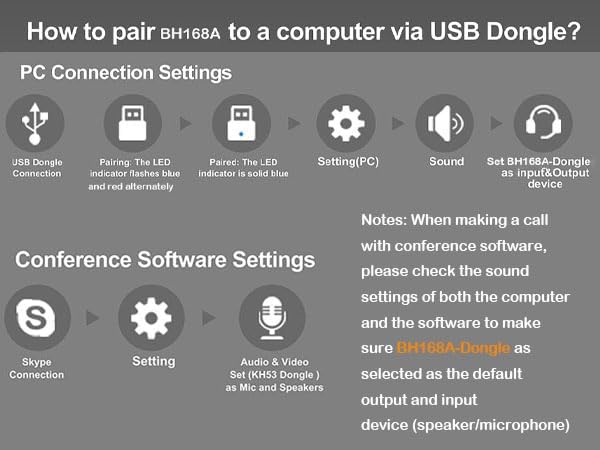
Image: Step-by-step guide for connecting the headset to a computer using the USB dongle and configuring audio settings for PC and conference applications.
2. Connecting via Bluetooth 5.3
- Ensure the headset is charged and powered off.
- Press and hold the Multi-Function Button (MFB) on the headset until the LED indicator flashes blue and red alternately, indicating pairing mode.
- On your device (smartphone, tablet, Bluetooth-enabled computer), go to Bluetooth settings and enable Bluetooth.
- Search for available devices and select "KONNAO BH369A" from the list.
- Once paired, the headset's LED indicator will turn solid blue or flash blue slowly.
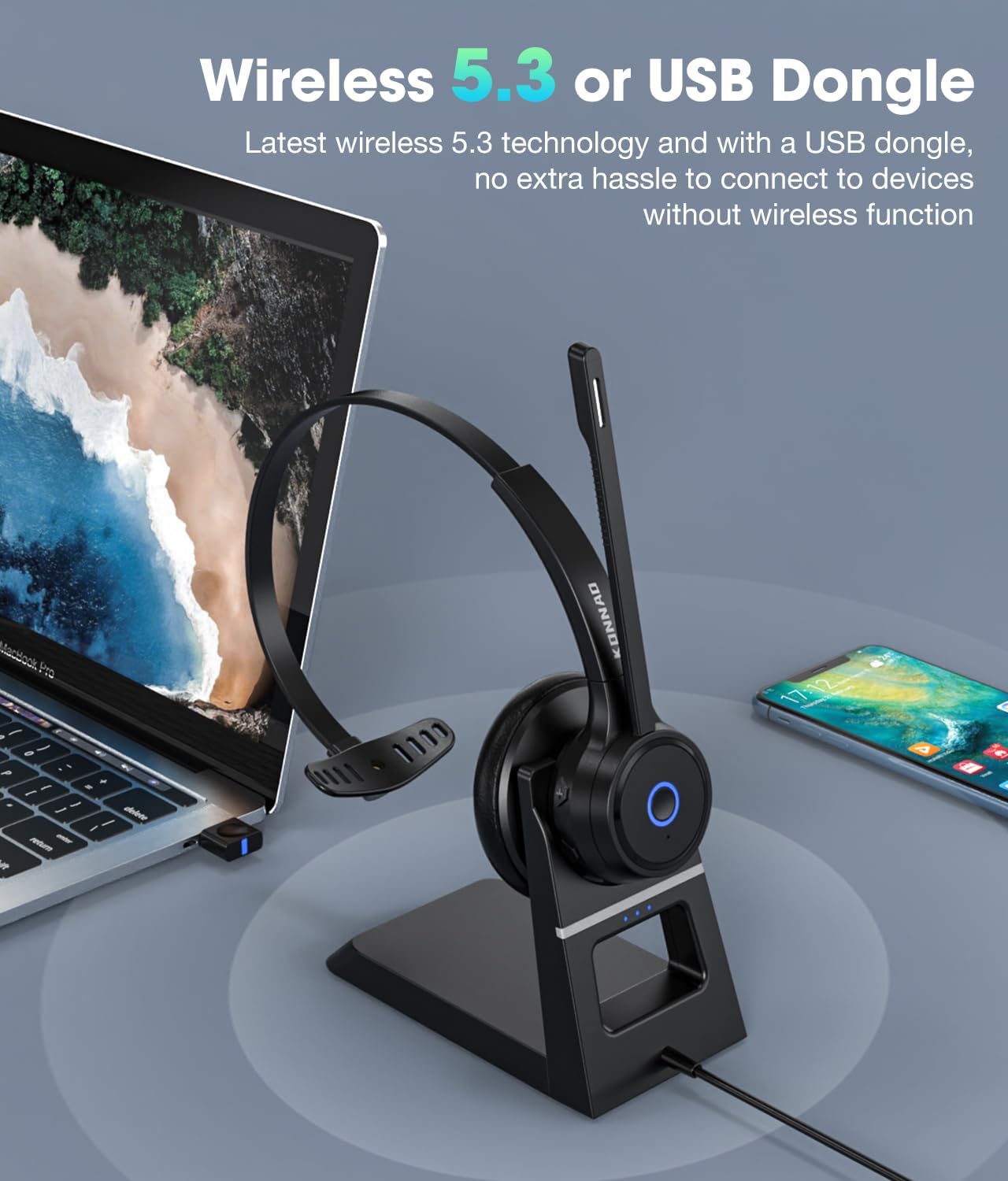
Image: The headset offers flexible connectivity via Bluetooth 5.3 or the included USB dongle, compatible with various devices.
Operating Instructions
Headset Controls

Image: Detailed view of the headset's controls and features for easy identification and use.
- Multi-Function Button (MFB):
- Press and hold for 3 seconds: Power On/Off.
- Short press: Play/Pause music, Answer/End call.
- Double press: Redial last number.
- Press and hold for 2 seconds during an incoming call: Reject call.
- Volume + / - Buttons:
- Short press: Adjust volume up/down.
- Long press: Next/Previous track (music mode).
- Microphone Mute Switch: Located on the microphone boom. Flip up to mute, flip down to unmute.
- LED Indicator: Displays power, pairing, and charging status.
AI Noise Cancellation
The KONNAO BH369A features advanced AI noise-cancelling technology that effectively eliminates up to 99.6% of ambient background noise. This ensures your voice is transmitted with clarity, making it ideal for busy office environments, call centers, or remote work.

Image: Visual representation of the headset's AI noise cancellation capabilities, ensuring clear communication.
Universal Compatibility
The headset is universally compatible with major Unified Communications (UC) platforms such as Zoom, Microsoft Teams, Skype, Google Meet, WebEx, and FaceTime. This ensures seamless integration into your existing work setup.
Maintenance
Cleaning
- Wipe the headset and charging base with a soft, dry, lint-free cloth.
- Do not use abrasive cleaners, solvents, or aerosol sprays.
- Avoid getting moisture into any openings.
Battery Care
- To prolong battery life, avoid fully discharging the headset frequently.
- Store the headset in a cool, dry place when not in use for extended periods.
- Charge the headset regularly, even if not used, to maintain battery health.
Troubleshooting
| Problem | Possible Solution |
|---|---|
| Headset does not power on. | Ensure the headset is fully charged. Press and hold the MFB for 3 seconds. |
| No sound or poor sound quality. |
|
| Microphone not working. |
|
| Headset disconnects frequently. |
|
Specifications
| Feature | Detail |
|---|---|
| Model Name | BH369A |
| Connectivity Technology | Wireless (Bluetooth, USB) |
| Bluetooth Version | 5.3 |
| Noise Control | AI Noise Cancellation (Microphone), Passive Noise Cancellation (Earcup) |
| Battery Life | Up to 40 Hours (Talk Time) |
| Charging Time | Approximately 2 Hours |
| Included Components | Wireless Headset, USB Dongle, Charging Station |
| Compatible Devices | Laptops, Desktops, Mobile Phones |
| Ear Placement | On Ear |
| Item Weight | 12 ounces |
Warranty Information
For warranty details, please refer to the documentation included with your purchase or visit the official KONNAO website. Keep your proof of purchase for warranty claims.
Customer Support
If you encounter any issues or have questions regarding your KONNAO BH369A Bluetooth Headset, please contact KONNAO customer support through their official website or the retailer from whom you purchased the product.