
Introduction
This manual provides essential information for setting up, operating, and maintaining your TCL 32S5K 32-inch HD QLED Google Smart TV. Please read this manual thoroughly before using your television to ensure safe and optimal performance. Keep this manual for future reference.
Safety Information
Always follow basic safety precautions when using this television to reduce the risk of fire, electric shock, and injury. Do not expose the TV to rain or moisture. Do not open the TV casing; refer all servicing to qualified personnel. Ensure proper ventilation and avoid placing the TV near heat sources. Use only the power cord and accessories specified by the manufacturer.
Package Contents
Verify that all items are present in the package:
- TCL 32S5K 32-inch HD QLED Google Smart TV
- Remote Control
- Power Cord
- TV Stand (2 pieces) and Screws
- Quick Start Guide
- Warranty Card
Setup
Physical Installation
Stand Installation: Place the TV screen-down on a soft, flat surface. Attach the two stand pieces to the designated slots on the bottom of the TV using the provided screws. Ensure the stand is securely fastened.
Wall Mounting: If wall-mounting, ensure you use a VESA-compatible wall mount (not included) and follow the wall mount manufacturer's instructions. Disconnect the power cord before mounting.
Connecting Devices
Connect your external devices to the appropriate ports on the TV. Refer to the image below for port locations and types.

Figure 1: Rear and Side Connectivity Ports. This image illustrates the various input and output ports available on the TCL 32S5K Smart TV, including USB 2.0, LAN, Antenna/Cable In, Digital Audio Out (Optical), HDMI 1, HDMI 2, and AV In adapter.
- HDMI Ports (1, 2): Connect Blu-ray players, game consoles, cable/satellite boxes, or other HDMI-enabled devices.
- USB 2.0 Port: Connect USB storage devices for media playback.
- LAN Port: Connect an Ethernet cable for a wired internet connection.
- Antenna/Cable In: Connect an antenna or cable TV signal.
- Digital Audio Out (Optical): Connect to an external audio receiver or soundbar for digital audio.
- AV In Adapter: Use the provided adapter to connect older devices with composite video and stereo audio outputs.
Initial Power On and Google TV Setup
After connecting all necessary cables, plug the power cord into an electrical outlet. Press the power button on the remote control or on the TV. Follow the on-screen instructions to complete the initial setup, which includes selecting your language, connecting to a Wi-Fi network, and signing in to your Google account to access Google TV features.
Operating
Remote Control Functions
The remote control allows you to navigate the Google TV interface, adjust volume, change channels, access apps, and control playback. Familiarize yourself with the button layout for easy operation.
Google TV Interface
Google TV organizes your favorite movies, shows, and live TV from across your apps and subscriptions. Use the remote to browse recommendations, search for content, and manage your watch list. Access the Google Play Store to download additional applications.
Connectivity Features
- Wi-Fi: Connects your TV to your home wireless network for internet access and streaming.
- Bluetooth: Pair Bluetooth-enabled devices such as headphones or game controllers for a personalized experience.
- Googlecast (Chromecast built-in): Cast content from your compatible mobile devices or computer directly to your TV screen.
Picture and Sound Settings
Your TCL 32S5K TV features QLED technology, Full HD resolution, HDR10 support, and Dolby Audio for an enhanced viewing and listening experience. Adjust picture modes (e.g., Standard, Vivid, Movie) and sound modes (e.g., Standard, Music, Movie) through the TV settings menu to suit your preferences.

Figure 2: Image Quality Features. This image highlights the key display technologies of the TCL 32S5K Smart TV, including QLED for vibrant colors, FHD (Full High Definition) for clear resolution, and HDR10 for enhanced contrast and brightness.
Maintenance
Cleaning Your TV
Always unplug the TV before cleaning. Use a soft, dry cloth to wipe the screen and cabinet. For stubborn marks, lightly dampen the cloth with water or a mild, non-abrasive screen cleaner. Never spray cleaner directly onto the screen or allow liquids to enter the TV's openings.
Software Updates
Your Google TV may receive automatic software updates. Ensure your TV is connected to the internet to receive these updates, which can improve performance and add new features. You can also manually check for updates in the TV's settings menu.
Troubleshooting
If you encounter issues with your TV, refer to the following common solutions:
- No Power: Check if the power cord is securely plugged into both the TV and the electrical outlet. Try a different outlet.
- No Picture/Poor Picture: Ensure all cables are correctly connected. Check the input source. Adjust picture settings. If using an antenna, check signal strength.
- No Sound/Poor Sound: Check volume levels and mute settings. Ensure external audio devices are properly connected and selected as the audio output.
- Remote Control Not Working: Replace the batteries. Ensure there are no obstructions between the remote and the TV's IR sensor.
- Network Connection Issues: Restart your router and modem. Reconnect to the Wi-Fi network in the TV settings. For wired connections, ensure the Ethernet cable is properly connected.
- Google TV Slow/Unresponsive: Restart the TV by unplugging it for a few minutes and plugging it back in. Clear cache for problematic apps in settings.
For persistent issues, consult the TCL support website or contact customer service.
Specifications
Below are the technical specifications for the TCL 32S5K Smart TV:
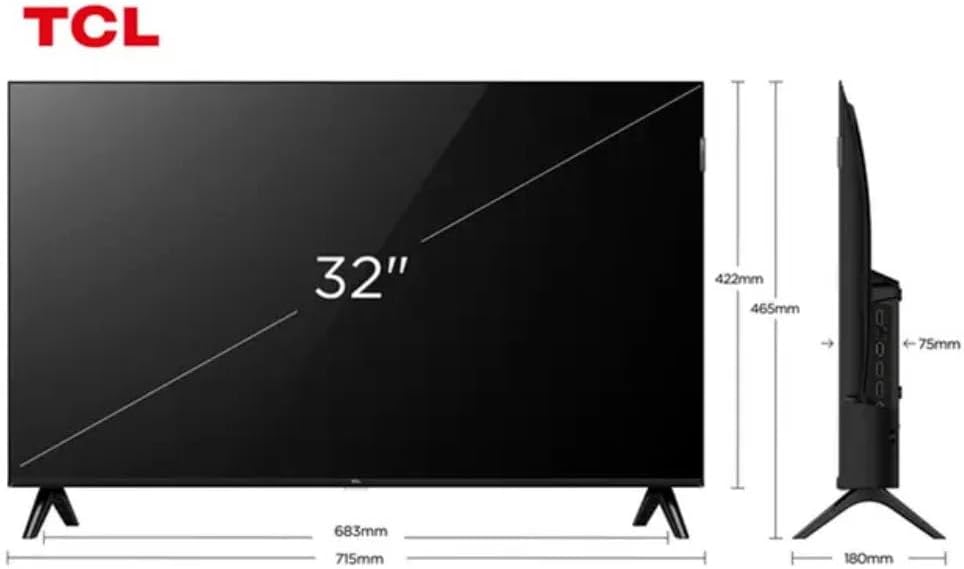
Figure 3: TV Dimensions. This image provides a detailed diagram of the TCL 32S5K Smart TV's physical dimensions, including screen size (32 inches), width (715mm), height (422mm without stand, 465mm with stand), and depth (75mm).
| Feature | Description |
|---|---|
| Model Name | 32S5K |
| Screen Size | 32 Inches |
| Display Technology | QLED |
| Resolution | 1080p (Full HD) |
| Refresh Rate | 60 Hz |
| Connectivity | Bluetooth, Ethernet, HDMI, USB, Wi-Fi |
| Total HDMI Ports | 2 |
| Special Features | Integrated Speaker, Google TV, Googlecast Integrated, HDR10, Dolby Audio |
| Product Dimensions (D x W x H) | 7.6P x 71.6L x 42.3A centimeters (approx. 3 x 28.2 x 16.7 inches) |
| Manufacturer | TCL |
| Country of Origin | Brazil |
Warranty and Support
Warranty Information
The TCL 32S5K Smart TV comes with a 1-year manufacturer's warranty. This warranty covers defects in materials and workmanship under normal use. Please retain your proof of purchase for warranty claims. For specific terms and conditions, refer to the warranty card included in your package or visit the official TCL website.
Customer Support
If you require technical assistance, have questions about your product, or need to initiate a warranty claim, please contact TCL customer support. You can typically find contact information on the TCL official website or in your product documentation.
Before contacting support, please have your TV model number (32S5K) and serial number ready, along with a detailed description of the issue.


