
Introduction
The Wanbo Cube 2 Pro is a smart home cinema projector that combines sophisticated design with intelligent functionality. This mini projector features automatic ToF correction for precise focus and alignment in under a second, eliminating manual adjustments. Its compact design allows for vertical storage, making it suitable for small spaces. Equipped with advanced WiFi and Bluetooth connectivity, integrated Android TV, and an 8-watt speaker, it provides seamless entertainment. The 230° rotating base offers versatile placement options. The Cube 2 Pro delivers high-quality home cinema performance in a compact form.
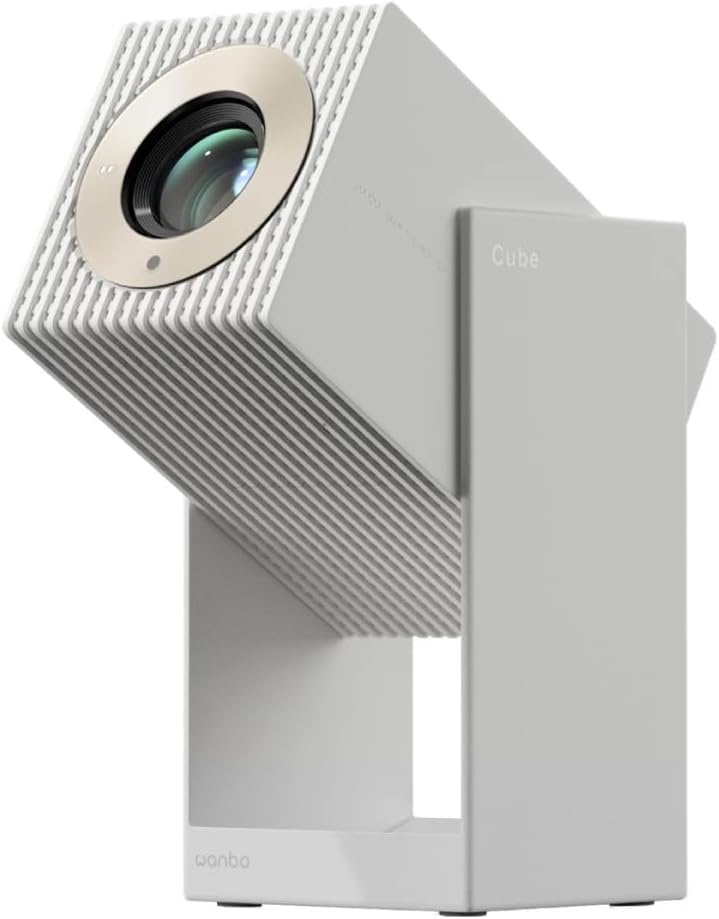
Figure 1: Front view of the Wanbo Cube 2 Pro Smart Projector.
What's in the Box
Please check the package contents upon unboxing:
- Wanbo Cube 2 Pro Projector
- Remote Control
- AC Power Cable
- User Manual
Setup Guide
1. Initial Placement and Power Connection
Place the projector on a stable, flat surface. The 230° rotating base allows for flexible projection angles onto walls or ceilings. Connect the AC power cable to the projector's power input port and then to a power outlet.

Figure 2: Rear view of the projector with power and HDMI ports.
2. Powering On and Automatic Adjustment
Press the power button on the projector or the remote control to turn it on. The projector will automatically perform ToF (Time-of-Flight) auto-focus and keystone correction. This process ensures a clear and properly aligned image in less than one second, eliminating manual adjustments.
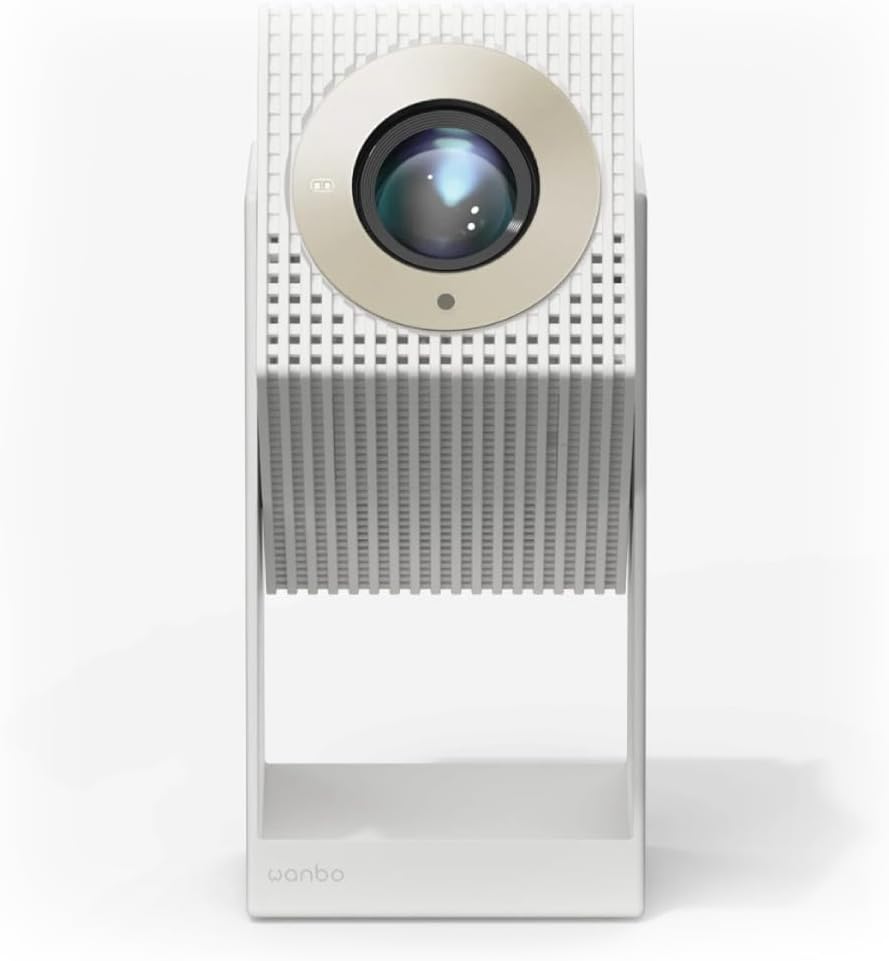
Figure 3: Projector angled for flexible projection.
3. Network and Bluetooth Connection
- Wi-Fi: Navigate to the settings menu on the Android TV interface, select Network & Internet, and connect to your Wi-Fi network.
- Bluetooth: For connecting external audio devices or using the projector as a standalone Bluetooth speaker, go to Bluetooth settings and pair your device.
Operating Instructions
1. Navigating Android TV
The projector comes with integrated Android TV. Use the provided remote control to navigate the interface. You can access pre-installed apps like Netflix and YouTube, or download more from the Google Play Store.

Figure 4: Top view of the projector with control buttons.
2. Adjusting Projection
The projector features multi-point sensors that automatically adjust image clarity and alignment as you move it. For manual adjustments, if needed, refer to the display settings within the Android TV interface.
3. Using as a Bluetooth Speaker
When not projecting, the device can function as a standalone 8-watt Bluetooth speaker. Activate Bluetooth mode through the settings or a dedicated button (if available) and connect your audio source.
4. Connecting External Devices
Use the HDMI port to connect external devices such as laptops, gaming consoles, or Blu-ray players. Select the appropriate HDMI input source from the Android TV menu.
Maintenance
1. Cleaning the Lens
Gently wipe the projector lens with a soft, lint-free cloth specifically designed for optical surfaces. Do not use abrasive cleaners or excessive force.
2. Cleaning the Exterior
Wipe the exterior of the projector with a soft, dry cloth. For stubborn marks, a slightly damp cloth can be used, followed by a dry cloth. Avoid using harsh chemicals.
3. Storage
When not in use for extended periods, store the projector in a cool, dry place, away from direct sunlight and extreme temperatures. Its compact design allows it to be stored vertically like a book.
Troubleshooting
- No Power: Ensure the AC power cable is securely connected to both the projector and the power outlet. Check if the power outlet is functional.
- No Image: Verify that the projector is powered on. If using an external device, ensure it is connected via HDMI and the correct input source is selected on the projector.
- Blurry Image: The projector features automatic focus. If the image remains blurry, try moving the projector slightly or restarting it. Ensure the lens is clean.
- No Sound: Check the volume settings on both the projector and any connected external devices. If using Bluetooth, ensure the device is properly paired.
- Remote Control Not Responding: Check the battery in the remote control (1 AAAA battery required). Ensure there are no obstructions between the remote and the projector.
- Android TV Freezing: If Android TV becomes unresponsive, try restarting the projector. Ensure a stable Wi-Fi connection.
Specifications
| Model Number | 6970885351044 |
| Brand | WANBO |
| Dimensions (L x W x H) | 11.1 x 11.6 x 21.2 cm |
| Weight | 1.4 kg |
| Display Technology | LED |
| Native Resolution | 1920 x 1080 (Full HD) |
| Brightness | 2000 lm |
| Projection Distance | 1.2 - 3.5 Meters |
| Connectivity | Bluetooth, HDMI, Wi-Fi |
| Operating System | Android TV |
| Audio Output | 8-watt Built-in Speaker |
| Power Consumption | 50 watts |
| Remote Battery Type | 1 AAAA (not included) |
Warranty and Support
For warranty information and technical support, please refer to the official WANBO website or contact your retailer. Keep your purchase receipt for warranty claims.
Manufacturer: Wanbo
ASIN: B0FT8R519V


