
1. Introduction
The Hotmoon Cocoon Pro 2 is an advanced white noise machine designed to enhance sleep, focus, and relaxation. Featuring an extensive library of 388 non-looping sounds, smart app control, a customizable night light, and programmable routines, it serves as a versatile bedside companion for adults and babies alike.
2. Key Features
- Extensive Sound Library: Offers 388 high-fidelity, non-looping sounds including white, pink, green, and brown noise, various fan sounds, nature sounds (rain, thunderstorm, ocean waves), lullabies, Alpha brainwaves, Zen sounds, meditation melodies, and frequency tones.
- One-Tap Access: Three customizable buttons on the device allow personalization with up to 9 sounds each (27 total) from the sound library for quick access without subscription.
- Relaxing Night Light: Features a gentle, anti-glare night light with adjustable colors and brightness, providing comfort and security.
- Smart App Control: Conveniently manage settings, sounds, lights, and routines via a dedicated smartphone application. The device can operate independently after initial setup.
- Gentle Gradual Alarm: Experience a natural awakening with a smart alarm that starts quietly and gradually increases in volume using soothing sounds.
- Bluetooth Speaker Mode: Connect your smartphone or tablet to play music through the device.
3. What's in the Box
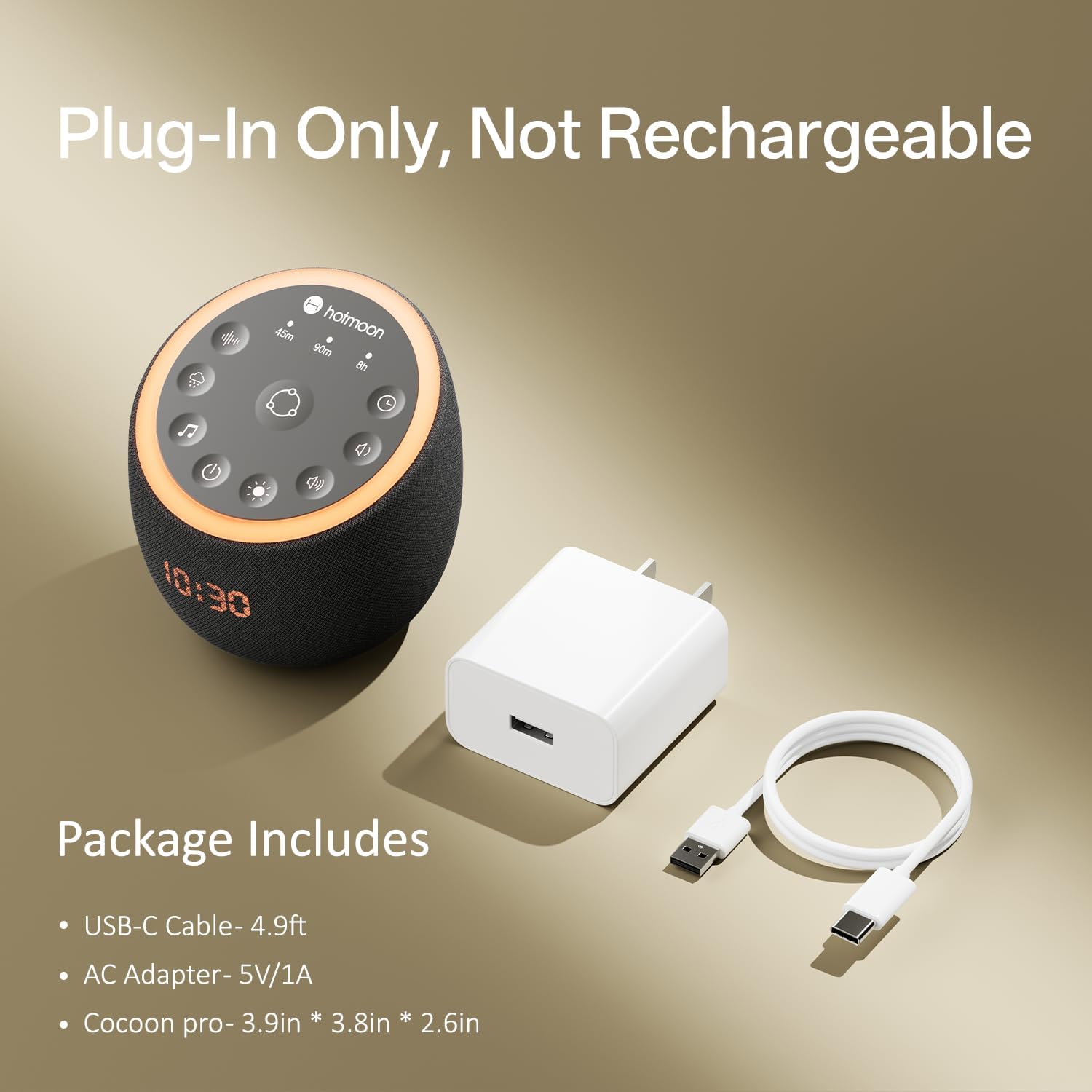
Image: Hotmoon Cocoon Pro 2 with its included accessories.
The Hotmoon Cocoon Pro 2 package includes:
- Hotmoon Cocoon Pro 2 Sound Machine
- USB-C Cable (4.9ft)
- AC Adapter (5V/1A)
4. Setup
- Power Connection: Connect the provided USB-C cable to the Cocoon Pro 2 and the AC adapter. Plug the AC adapter into a standard wall outlet. The device is designed for plug-in use only and is not rechargeable.
- Initial Power On: The device will power on automatically once connected to power. The LED clock display will activate.
- App Download: Download the "Hotmoon" app from your smartphone's app store (available for iOS and Android).
- Pairing with App: Open the Hotmoon app and follow the on-screen instructions to pair your Cocoon Pro 2 via Bluetooth. This will automatically synchronize the device's clock with your phone's time.
5. Operating Instructions
5.1 Device Controls

Image: Hotmoon Cocoon Pro 2 with its intuitive touch controls.
The Cocoon Pro 2 features touch-sensitive buttons on its top panel for direct control:
- Power Button: Press to turn the device on/off.
- Sound Buttons (3 customizable): Tap to play your pre-selected favorite sounds. Long-press to cycle through the 9 assigned sounds for each button.
- Volume Up/Down: Adjust the sound volume.
- Light Button: Cycle through different night light colors and modes. Long-press to turn the light off.
- Timer Button: Set the auto-off timer to 45 minutes, 90 minutes, or 8 hours.
- Bluetooth Button: Activate Bluetooth pairing mode to connect external devices.
5.2 Sound Selection

Image: The Hotmoon app displaying the extensive sound library.
The device offers 388 unique, non-looping sounds. You can access and manage these sounds primarily through the Hotmoon app. The app allows you to browse categories such as:
- White, Pink, Green, Brown Noise
- Fan Sounds (Box, Attic, Exhaust, Large)
- Nature Sounds (Rain, Thunderstorm, Ocean Waves, Fireplace, Mighty River, Morning Seashore, Babbling Brook, Beach Sunbathing, etc.)
- Lullabies and Instrumental Melodies
- Alpha Brainwaves and Zen Sounds
5.3 Night Light Operation

Image: The customizable night light feature of the Cocoon Pro 2.
The integrated night light provides a soft, ambient glow. Use the dedicated Light Button on the device to cycle through preset colors or turn it off. For advanced customization, including color selection, brightness adjustment, and static/breath modes, use the Hotmoon app.
5.4 Sleep Timer
Press the Timer Button to set the device to automatically turn off after 45 minutes, 90 minutes, or 8 hours. This feature helps conserve energy and ensures the sound plays for your desired duration.
6. Smart App Control
The Hotmoon app unlocks the full potential of your Cocoon Pro 2. After pairing, you can:
- Customize Sound Buttons: Assign any of the 388 sounds to the three physical buttons on the device for one-tap access.
- Create Routines: Program personalized bedtime or wake-up routines that combine specific sounds, light settings, and durations. For example, a bedtime routine could start with meditation music, transition to calm ocean sounds, and then to white noise for the entire night.
- Set Alarms: Configure gentle gradual alarms with your preferred sounds and light settings for a natural awakening.
- Adjust Clock Brightness: Customize the brightness of the LED clock display or schedule it to dim/turn off during specific hours.
- Explore Content Library: Access the full library of sounds and light options, including specialized content like breathing exercises and brainwave music.
Video: An overview of the Hotmoon Cocoon Pro 2 White Noise Machine, demonstrating its features and app control.
7. Specifications
| Brand | Hotmoon |
| Model Number | HMNL07 |
| Color | Black |
| Sound Library | 388 Non-Looping Sounds |
| Connectivity | Smart App Control, Bluetooth Speaker Mode |
| Power Source | Plug-in (AC Adapter 5V/1A) |
| Dimensions | 4.96 x 4.96 x 4.61 inches |
| Item Weight | 15.84 ounces |
8. Troubleshooting
- Device not powering on: Ensure the AC adapter is securely plugged into both the device and a working wall outlet. Verify the power cable is not damaged.
- Unable to pair with app: Make sure Bluetooth is enabled on your smartphone and the Cocoon Pro 2 is within range. Restart both the device and the app, then attempt pairing again.
- No sound: Check the volume levels on both the device and your connected smartphone (if using Bluetooth). Ensure a sound is selected and not paused.
- Clock time is incorrect: Ensure the device is successfully paired with the Hotmoon app. The clock time should automatically synchronize upon successful pairing.
- App not responding: Close and reopen the Hotmoon app. If the issue persists, try restarting your smartphone.
9. Warranty and Support
For warranty information and customer support, please refer to the contact details provided in your product packaging or visit the official Hotmoon website. Keep your purchase receipt for warranty claims.


