
Introduction
The SofaBaton X2 is an advanced universal remote control designed to simplify your home entertainment system. It features an integrated hub and charging base, allowing you to control up to 49 IR, Bluetooth, and Wi-Fi RF devices such as televisions, receivers, soundbars, and streaming players. This manual will guide you through the setup, operation, and maintenance of your SofaBaton X2 to ensure a seamless user experience.
Product Overview

Figure 1: The SofaBaton X2 remote integrating with Home Assistant, Google Assistant, and Amazon Alexa to control various devices.

Figure 2: SofaBaton X2 remote control with a list of compatible brands and devices.
Key Features:
- All-in-One Control: Manages up to 49 IR, Bluetooth, and Wi-Fi RF devices.
- 2.4-inch HD Touchscreen: A vibrant 480 x 640 pixel display for intuitive navigation and quick access.
- Integrated IR Emitter: Allows direct control of IR devices without relying solely on the hub.
- One-Touch Activities: Customize sequences of commands to control multiple devices with a single press.
- Voice Control: Compatible with Amazon Alexa and Google Assistant for hands-free operation.
- SofaBaton App: Personalize button mapping, program advanced macros, and store cloud backups.
- Seamless Bluetooth Switching: Supports simultaneous connections to multiple Bluetooth Low Energy (BLE) devices.
- WiFi Extension: Integrates with IP control and HACS custom repositories for broader smart home compatibility.
Setup Guide
1. Unboxing and Initial Charge
Carefully unbox your SofaBaton X2 remote, hub, and charging station. Place the remote in the charging station to ensure it is fully charged before first use. A full charge takes approximately 45 minutes and provides 3-4 weeks of working time.

Figure 3: The SofaBaton X2 remote, hub, and charging station.
2. Download the SofaBaton App
The SofaBaton X2 is configured and managed via the dedicated mobile application. Download the free SofaBaton app from your device's app store.

Figure 4: Download the SofaBaton application from Google Play or the App Store.
3. Connect to the Hub
- Ensure the SofaBaton Hub is powered on and within range of your Wi-Fi network.
- Open the SofaBaton app and follow the on-screen instructions to connect your remote to the hub.
- The app will guide you through the initial pairing process.
4. Add Devices
The SofaBaton X2 can control devices via Infrared (IR), Bluetooth, and Wi-Fi. You can add devices using the app's extensive database or by learning commands from your original remotes.
- Using the Database: In the app, select "Add Device" and search for your device's brand and model. The app will attempt to automatically configure the necessary commands.
- Learning Commands: If your device is not in the database, or for specific functions, you can teach the X2 commands directly from your original remote. Follow the app's instructions for the learning process. For IR learning, ensure the original remote's IR emitter is pointed directly at the X2's IR receiver.
- Bluetooth Devices: The X2 supports simultaneous connections to multiple BLE devices. For Bluetooth-only remotes, check if they also transmit IR signals (often the case for power on/off) to facilitate learning.
5. Create Activities
Activities allow you to execute a sequence of commands across multiple devices with a single action. For example, a "Movie Night" activity could turn on your TV, switch to the correct HDMI input, activate your soundbar, and dim smart lights.
- In the SofaBaton app, navigate to the "Activities" section.
- Select "Create New Activity" and choose the devices involved.
- Define the sequence of commands for each device (e.g., Power On TV, Input HDMI 1, Power On Soundbar). You can add delays between commands as needed.
- Customize the buttons on the X2 remote's touchscreen or physical buttons to control specific functions within that activity.
Operating Your SofaBaton X2
1. Using the Touchscreen
The 2.4-inch HD touchscreen provides access to devices, activities, and settings. Swipe left or right to navigate between screens. Tap icons to select devices or functions.
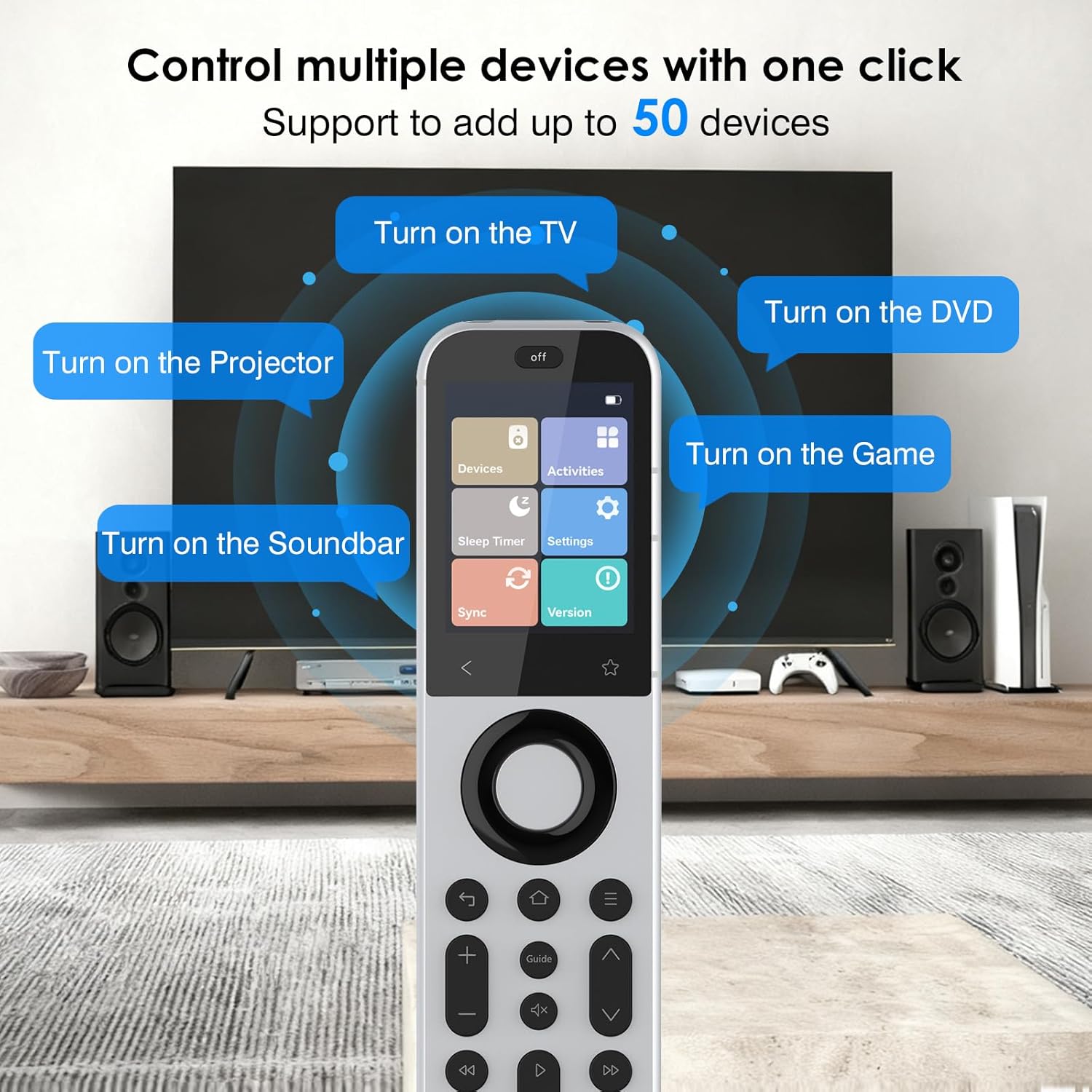
Figure 5: The SofaBaton X2 touchscreen interface for device and activity selection.
2. Launching and Deactivating Activities
To launch an activity, swipe the activity icon to the right on the touchscreen. This gesture prevents accidental activation. To deactivate an activity and power off all associated devices, press the OFF button located at the top of the remote.

Figure 6: Instructions for launching activities by swiping on the touchscreen.
3. Voice Control
Integrate your SofaBaton X2 with Amazon Alexa or Google Assistant for hands-free control. Once configured in the SofaBaton app and your smart home assistant app, you can use voice commands to launch activities or control individual devices.
- Ensure your X2 is linked to your Alexa or Google Home account via the SofaBaton app.
- Use commands like "Alexa, turn on Movie Night" or "Hey Google, activate Game Mode."
4. Customizing Buttons and Macros
The SofaBaton app allows extensive customization of both physical and touchscreen buttons. You can remap functions, create advanced macros (sequences of commands for a single button press), and save configurations to the cloud.
- Short Press vs. Long Press: Assign different functions to a short press and a long press of the same physical button.
- Virtual Buttons: Create virtual buttons on the touchscreen for specific functions, such as direct channel access (e.g., "Channel 1258").
Maintenance
Charging the Remote
To charge the SofaBaton X2, simply place it in its charging station. The remote features a 1200mAh battery, providing approximately 3-4 weeks of use on a single charge. A full charge takes about 45 minutes.
Cleaning
Wipe the remote and hub with a soft, dry cloth. Avoid using liquid cleaners or abrasive materials, as these can damage the device's finish or internal components.
Software Updates
SofaBaton regularly releases software updates to improve functionality and compatibility. Ensure your remote and app are updated to the latest versions for optimal performance. Updates are typically managed through the SofaBaton app.
Troubleshooting
Devices Not Responding Reliably
- Hub Placement: Ensure the hub is placed in a central location, unobstructed, and within line of sight of IR-controlled devices.
- IR Interference: If IR signals from the hub seem to interfere or activate unintended devices, adjust the hub's position or the IR blaster's angle.
- Command Delays: For activities, ensure sufficient delays are programmed between commands, especially for devices that take time to power on or switch inputs (e.g., projectors, amplifiers).
- Re-learn Commands: If a specific command is unreliable, try re-learning it from the original remote in the SofaBaton app. Perform this in a dimly lit environment for better accuracy.
Difficulty Adding Devices
- Database Search: Double-check the brand and model number when searching the app's database.
- Bluetooth vs. IR: Some devices with Bluetooth remotes may still use IR for initial power on/off. To determine if your original remote uses IR, cover its IR emitter with your hand and try to operate the device. If it doesn't respond, it's likely IR. If it still responds, it's primarily Bluetooth.
- Manual Learning: If a device is not found or not fully functional, use the manual learning feature in the app to teach the X2 commands from your original remote.
App or Remote Freezing/Unresponsive
- Restart: Try restarting the SofaBaton app or the X2 remote (if possible, by holding the power button or allowing the battery to drain and recharge).
- Check Connectivity: Ensure your phone, remote, and hub are all connected to the same Wi-Fi network and have a stable connection.
Specifications
| Feature | Detail |
|---|---|
| Brand | SofaBaton |
| Model Name | Sofabaton X2 |
| Model Number | X2 |
| Color | Black/Silver |
| Special Features | Digital Display, Rechargeable, Tracking |
| Max Supported Devices | 49 |
| Compatible Devices | Set-top Box, TV Decoder, DVD/Blu-ray Player, Projector, Receiver |
| Connectivity Technology | Bluetooth, Infrared, Wi-Fi |
| Number of Buttons | 20 |
| Controller Type | Universal Remote Control |
| Maximum Range | 20 Meters |
| Battery | 1 Lithium-ion Polymer (included) |
| Dimensions (L x W x H) | 19L x 4.8W x 1.3H centimeters (Remote) |
| UPC | 741421610088 |
| GTIN | 741421610088 |

Figure 7: Physical dimensions of the SofaBaton X2 remote and its hub.
Warranty and Support
Warranty Information
The SofaBaton X2 comes with a 2-year availability for spare parts. Please refer to your purchase documentation for specific warranty terms and conditions.
Customer Support
For technical assistance, troubleshooting, or any questions regarding your SofaBaton X2, please utilize the customer support features available within the SofaBaton application. All-day customer support is provided directly through the app.
You can also visit the official SofaBaton website for additional resources, FAQs, and contact information.


