
1. Introduction
The EPOMAKER Aula MINI60 HE is a high-performance 60% wireless mechanical keyboard designed for gaming and productivity. It features Hall Effect switches with adjustable actuation, tri-mode connectivity (2.4GHz, Bluetooth, USB-C wired), and advanced customization options through its web-based driver. This manual will guide you through the setup, operation, and maintenance of your keyboard.
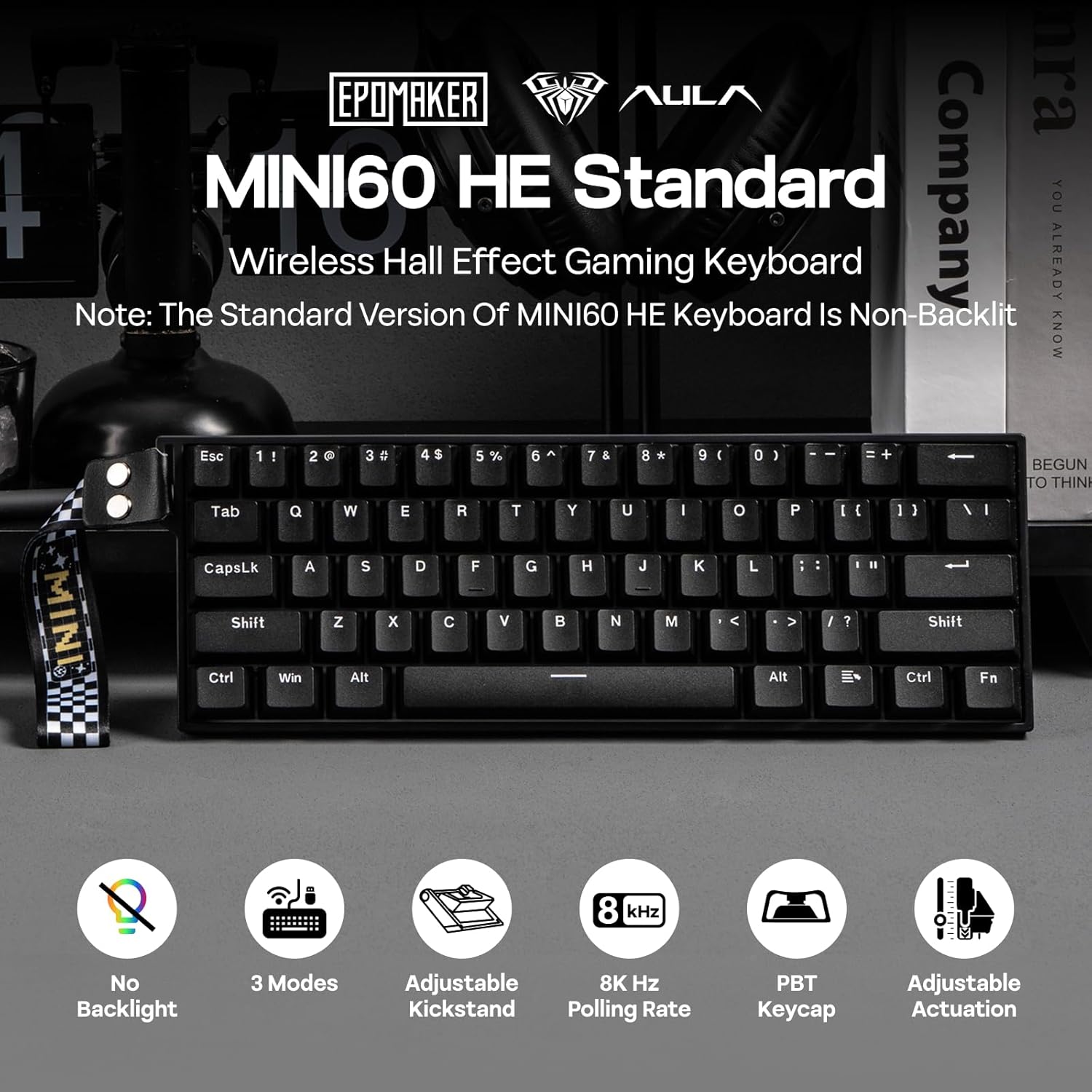
Image 1.1: Overview of the EPOMAKER Aula MINI60 HE keyboard and its key features.
2. What's in the Box
Carefully unbox your EPOMAKER Aula MINI60 HE keyboard and ensure all components are present:
- EPOMAKER Aula MINI60 HE Keyboard
- USB-C to USB-A Cable
- 2.4GHz Wireless Receiver
- Keycap Puller
- User Manual (this document)

Image 2.1: Contents of the product packaging.
3. Setup
3.1. Connectivity Modes
The MINI60 HE supports three connection modes:
- USB-C Wired: Connect the keyboard directly to your computer using the provided USB-C cable. This mode offers the highest polling rate (8000Hz for Standard version).
- 2.4GHz Wireless: Plug the 2.4GHz receiver into a USB port on your computer. Switch the keyboard to 2.4G mode using the switch on the back.
- Bluetooth (BT): Switch the keyboard to BT mode. On your device, search for and pair with "MINI60 HE".

Image 3.1: Keyboard connectivity hub.
3.2. Charging
Connect the keyboard to a USB power source using the USB-C cable to charge the internal battery. The keyboard features a 3000mAh battery.
3.3. Web Driver Software
The EPOMAKER Aula MINI60 HE utilizes a web-based driver for customization. To access the software:
- Visit the official AULA website (aulastar.com) and navigate to the 'Downloads' section.
- Locate the driver for the MINI60 HE.
- Connect your keyboard via USB-C and follow the on-screen instructions to connect it to the web driver.
This software allows for real-time visual feedback on settings such as sensitivity, polling adjustment, key remapping, and macro settings.
Video 3.1: Demonstration of connecting the keyboard to the web driver software for customization.
4. Operating Instructions
4.1. Basic Usage
Once connected, the keyboard functions as a standard 60% layout keyboard. Utilize the 'Fn' key in combination with other keys to access secondary functions printed on the keycaps.
4.2. Battery Management
The MINI60 HE is designed for efficient power consumption. To manage battery life and wake-up behavior:
- The keyboard can operate for approximately 44 hours with the backlight off (Standard version does not have backlight).
- Press Fn + ESC to switch between single-key (ESC only) or full-board (any key) wake-up mode from sleep. This prevents accidental wake-ups.
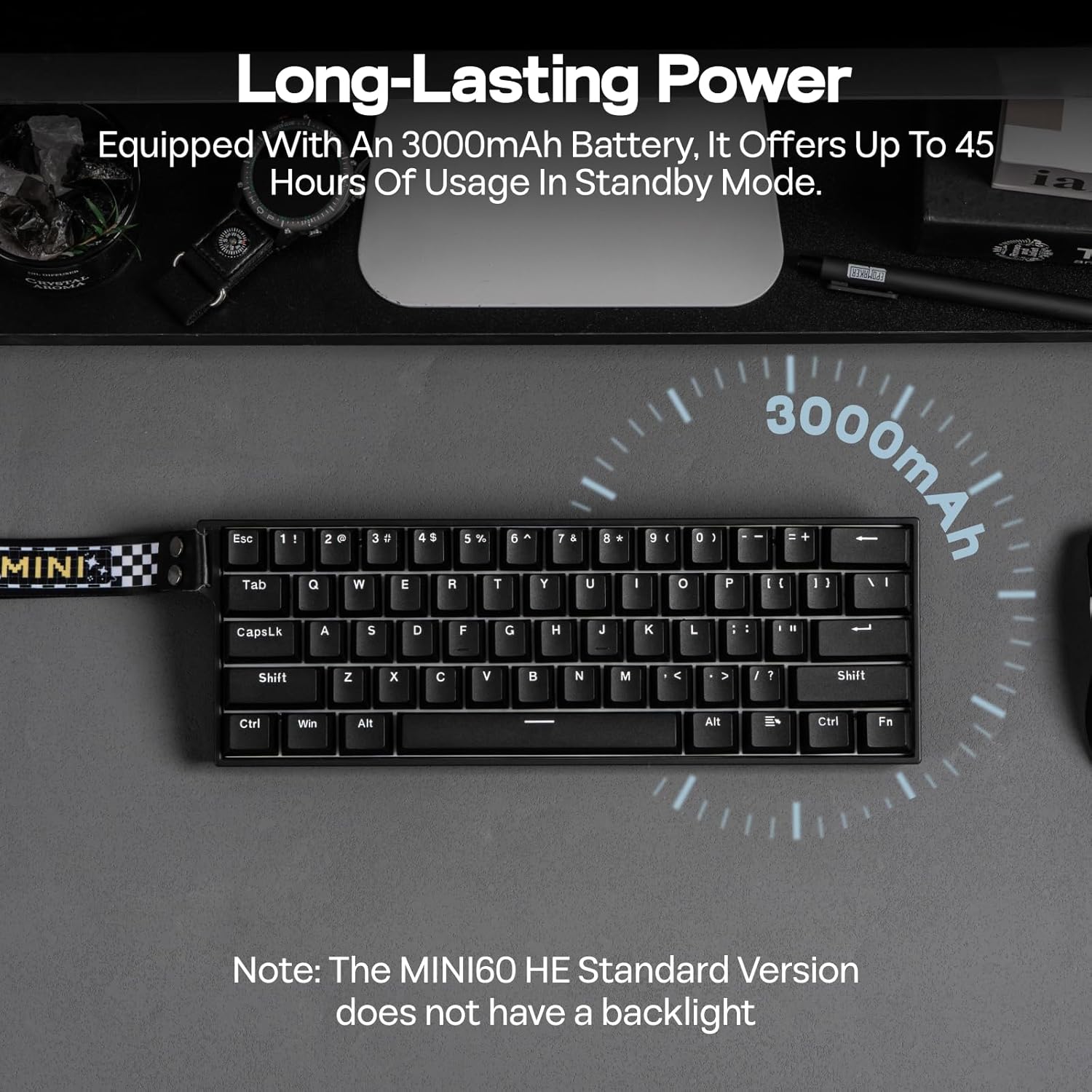
Image 4.1: Long-lasting battery feature.
5. Advanced Features
5.1. Adjustable Actuation Point
The Hall Effect switches allow you to customize the actuation point for each key from 0.1mm to 3.4mm in 0.01mm increments. This can be adjusted via the web driver software to suit your typing or gaming preferences.

Image 5.1: Adjustable actuation point.
5.2. Rapid Trigger (RT) and Polling Rate
The keyboard supports Rapid Trigger (RT) functionality, allowing keys to react instantly to both press and release, providing a competitive edge. The Standard version features an 8K Hz polling rate in wired mode for ultra-low latency.

Image 5.2: Anti-Ghosting and Low Latency.
5.3. Snap Tap (SOCD) & Dynamic Keystroke (DKS)
These advanced functions enhance gaming performance:
- Snap Tap (SOCD): Prioritizes the latest input between two conflicting directional keys, enabling faster and more precise movements in games.
- Dynamic Keystroke (DKS): Allows up to 4 actions to be bound to a single keypress based on different actuation levels, facilitating complex combos and macros.
Image 5.3: Snap Key (SOCD) explanation.
Image 5.4: Dynamic Keystroke (DKS) and Mod Tap (MT) explanation.
5.4. Hot-Swappable Switches
The MINI60 HE features hot-swappable sockets compatible with most south-facing magnetic switches. This allows for easy replacement or customization of switches without soldering.

Image 5.5: Hot-swappable switch feature.
6. Maintenance
6.1. Cleaning
To clean your keyboard:
- Disconnect the keyboard from all power sources.
- Use the provided keycap puller to carefully remove keycaps.
- Clean keycaps with a mild soap solution and soft cloth, then dry thoroughly.
- Use compressed air to remove dust and debris from between switches.
- Wipe the keyboard frame with a damp, soft cloth.
6.2. Switch Replacement
If a switch needs replacement:
- Use a switch puller to gently remove the old switch.
- Align the pins of the new magnetic switch with the holes on the PCB.
- Press the new switch firmly until it clicks into place. Ensure it is seated correctly to avoid bent pins.
7. Troubleshooting
If you encounter issues with your keyboard, try the following solutions:
| Problem | Solution |
|---|---|
| Keyboard not responding (Wired) | Ensure the USB-C cable is securely connected to both the keyboard and the computer. Try a different USB port or cable. |
| Keyboard not responding (2.4GHz/BT) | Check if the keyboard is in the correct wireless mode. Ensure the 2.4GHz receiver is plugged in or Bluetooth is paired. Recharge the keyboard battery. |
| Keys not registering or double-typing | Recalibrate the switches using the web driver software. Ensure switches are properly seated. |
| Software connection issues | Ensure the keyboard is connected via USB-C. Try a different browser or clear browser cache. Refer to the AULA website for driver updates. |
| Keyboard not waking from sleep | Press Fn + ESC to toggle wake-up modes. Ensure the battery is charged. |
8. Specifications
| Feature | Detail |
|---|---|
| Product Dimensions | 11.77"L x 4.02"W x 1.46"H (29.9cm x 10.2cm x 3.7cm) |
| Item Weight | 1.9 pounds (0.86 kg) |
| Connectivity Technology | 2.4Ghz Wireless, Bluetooth (BT), USB A-to-C Wired |
| Keyboard Description | Hall Effect Gaming Keyboard |
| Actuation Point | Adjustable from 0.1mm to 3.4mm |
| Polling Rate (Wired) | 8000Hz |
| Polling Rate (2.4GHz) | 1000Hz |
| Polling Rate (Bluetooth) | 125Hz |
| Battery | 3000mAh (included) |
| Keycaps | Double-shot PBT |
| Special Features | Ergonomic, Hot-Swappable, Portable, Programmable Keys, Rechargeable |
| Compatible Devices | Gaming Console, Laptop, PC, Projector, Tablet |
9. Warranty and Support
EPOMAKER products are covered by a limited warranty against manufacturing defects. For warranty claims, technical support, or further assistance, please contact EPOMAKER customer service through their official website or the retailer where the product was purchased. Keep your proof of purchase for warranty validation.


