
Introduction
This manual provides essential information for the proper setup, operation, and maintenance of your Cubitt AURA 2 Smartwatch. Please read this manual thoroughly before using your device to ensure optimal performance and longevity.
Key Features
- Phone-Connected GPS: Utilize your smartphone’s GPS for accurate route tracking during outdoor activities.
- 1.43” AMOLED Display: Experience vibrant visuals and high clarity with 16-bit color.
- Comprehensive Health Monitoring: Track heart rate (HR), blood oxygen saturation (SpO₂), VO₂ Max, sleep with Sleep Score, stress levels, and menstrual cycles.
- AI Coach, Readiness Score & Health Snap: Receive personalized training insights and perform quick health checks (HR, HRV, stress, SpO₂) in 90 seconds.
- Smart Features & Long Battery Life: Enjoy Bluetooth calling, smart notifications, offline music with TWS support, and a 370 mAh battery providing up to 8 days of use.
1. Getting Started
1.1 Unboxing Your Smartwatch
Carefully remove all components from the packaging. The box should contain the Cubitt AURA 2 Smartwatch, a charging cable, and this user manual.

Image: Front view of the Cubitt AURA 2 Smartwatch.

Image: Angled view of the Cubitt AURA 2 Smartwatch, showcasing its design.
1.2 Charging the Device
Before initial use, fully charge your Cubitt AURA 2 Smartwatch. Connect the magnetic charging cable to the charging points on the back of the watch and plug the USB end into a compatible power source (e.g., computer USB port, USB wall adapter). The watch display will indicate charging status.
1.3 App Installation and Pairing
- Download the App: Search for the "Cubitt Pro" app in your smartphone's app store (Apple App Store or Google Play Store).
- Install and Open: Install the app and open it on your smartphone.
- Create Account/Log In: Follow the on-screen instructions to create a new account or log in if you already have one.
- Pair Device: In the app, navigate to the device pairing section. Ensure your smartwatch is powered on and Bluetooth is enabled on your smartphone. Select your Cubitt AURA 2 from the list of available devices to complete the pairing process.
2. Operating Your Smartwatch
2.1 Navigating the Display
The Cubitt AURA 2 features a 1.43” AMOLED touch display. Swipe left, right, up, or down to access different functions, widgets, and settings. Press the physical buttons on the side for quick access to specific features or to return to the home screen.

Image: The vibrant AMOLED display of the Cubitt AURA 2 Smartwatch.
2.2 Health Monitoring
Your smartwatch continuously monitors various health metrics:
- Heart Rate (HR): Real-time heart rate tracking throughout the day.
- Blood Oxygen (SpO₂): Measure your blood oxygen levels on demand.
- VO₂ Max: Estimate your maximum oxygen consumption during exercise.
- Sleep Score: Analyze your sleep patterns (deep, light, REM) and receive a daily sleep score.
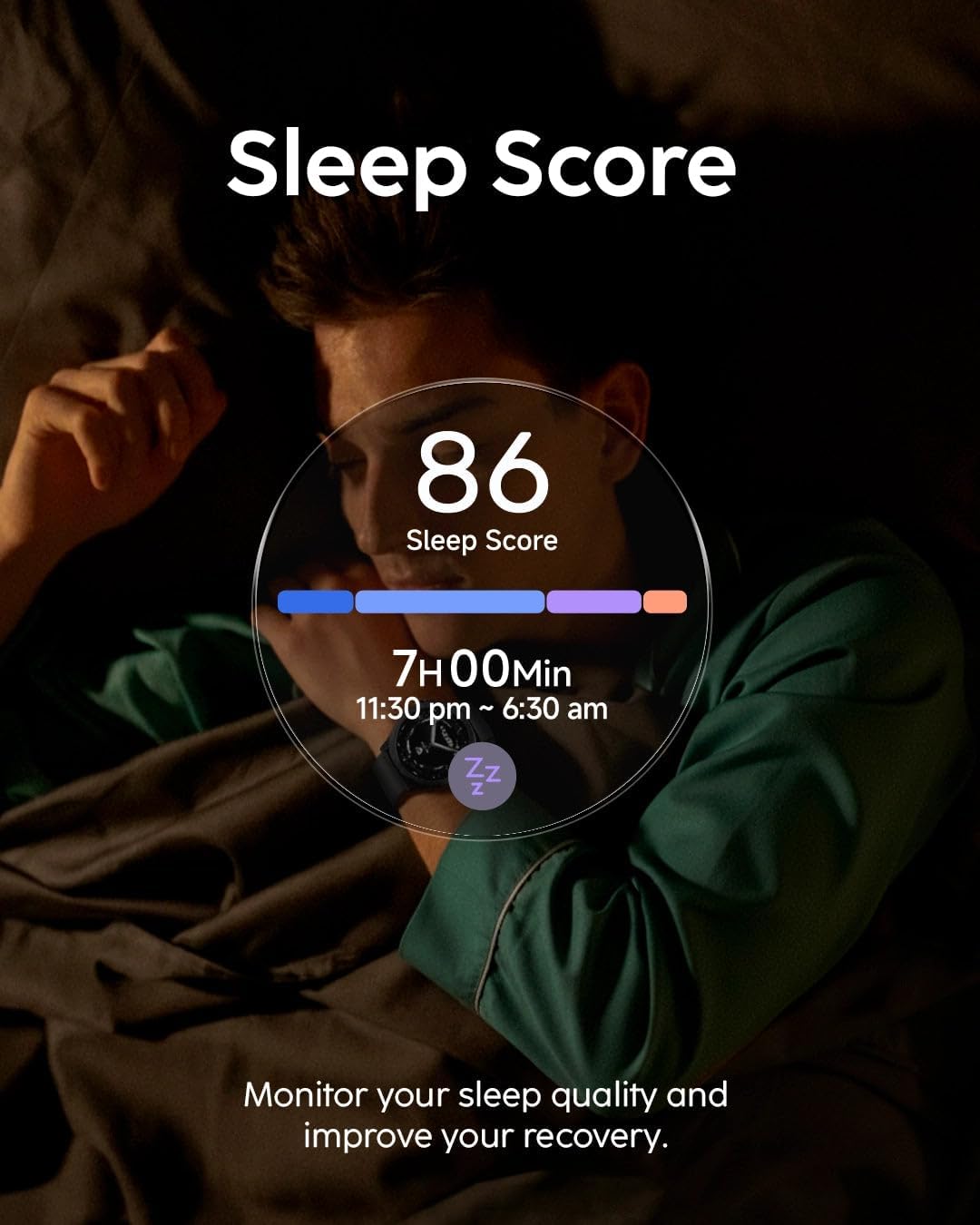
Image: The smartwatch displaying a user's sleep score and duration.
- Stress Monitoring: Track your stress levels and receive alerts for high stress.
- Menstrual Cycle Tracking: Log and predict your menstrual cycle phases.
All health data can be viewed in detail within the Cubitt Pro app.
2.3 Sports Modes and GPS
The Cubitt AURA 2 supports over 100 sports modes. Select your desired activity from the watch menu to start tracking. For outdoor activities, the watch uses your smartphone's GPS for accurate route mapping and distance tracking.

Image: The smartwatch displaying detailed workout metrics for enhanced precision.
2.4 VITA AI Assistant & AI Coach
Access the VITA AI Assistant for quick information, setting alarms, or controlling smart home devices. The integrated AI Coach provides personalized insights and guidance based on your fitness data to help you achieve your goals.

Image: The VITA AI Assistant providing real-time feedback during an outdoor cycling session.
2.5 Smart Notifications & Bluetooth Calling
Once paired with your smartphone, the Cubitt AURA 2 will display notifications for incoming calls, messages, and app alerts. You can also make and receive calls directly from your smartwatch using its Bluetooth calling feature.
2.6 Action Button
The dedicated Action Button provides instant access to your favorite sports modes or other customizable functions with a single press.

Image: Detail of the new Action Button for quick access to sports modes.
3. Care and Maintenance
3.1 Water Resistance
The Cubitt AURA 2 Smartwatch is 3ATM water resistant, meaning it can withstand splashes, rain, and brief immersion in water. It is suitable for showering and shallow-water activities like swimming. Avoid using it for diving, high-pressure water activities, or in hot water/steam environments.
3.2 Battery Management
To maximize battery life (up to 8 days), consider adjusting screen brightness, limiting continuous heart rate monitoring, and disabling unnecessary notifications. Recharge the device when the battery level is low using the provided charging cable.
3.3 Cleaning Your Smartwatch
Regularly clean your smartwatch and strap with a soft, damp cloth. Avoid using harsh chemicals or abrasive materials, which can damage the device. Ensure the charging contacts are clean and dry before charging.
4. Troubleshooting
If you encounter issues with your Cubitt AURA 2 Smartwatch, refer to the following common solutions:
- Device not turning on: Ensure the watch is fully charged. Connect it to the charger for at least 30 minutes.
- Cannot pair with smartphone: Ensure Bluetooth is enabled on your phone and the watch. Restart both devices and try pairing again through the Cubitt Pro app.
- Inaccurate health data: Ensure the watch is worn snugly on your wrist, not too tight or too loose. Clean the sensor on the back of the watch.
- Notifications not appearing: Check app permissions on your smartphone to ensure the Cubitt Pro app has access to notifications. Verify notification settings within the Cubitt Pro app.
- Short battery life: Review battery management tips in Section 3.2. Reduce screen brightness and vibration intensity.
For further assistance, please contact Cubitt customer support.
5. Product Specifications
| Item Type Name | Smartwatch |
| Display | 1.43” AMOLED |
| Water Resistance | 3ATM |
| Battery Life | Up to 8 days (370 mAh) |
| Clasp Type | Tang Buckle |
| Item Width | 3 inches |
6. Warranty and Customer Support
Your Cubitt AURA 2 Smartwatch comes with a manufacturer's warranty. To register your warranty and access product information or customer support, please scan the QR code provided in the product packaging or within the Cubitt Pro app. For direct assistance, visit the official Cubitt Tracking Technologies website or contact their customer service.
Online Resources: For the latest updates, FAQs, and support, please visit the Cubitt Tracking Technologies Store on Amazon.


