1. Introduction
Thank you for choosing the Redkey E6 Robot Vacuum Cleaner. This manual provides essential information for the safe operation, maintenance, and troubleshooting of your device. Please read it thoroughly before first use and keep it for future reference.
1.1. Product Overview
The Redkey E6 is designed to provide efficient and systematic cleaning for your home. With powerful suction, intelligent navigation, and convenient control options, it effectively removes pet hair, crumbs, dust, and fine particles from various floor types.
1.2. Safety Information
- Ensure the robot is fully charged before initial use.
- Do not operate the robot in wet environments or near liquids.
- Keep loose cables, curtains, and small objects out of the robot's path to prevent entanglement.
- Supervise children and pets when the robot is operating.
- Only use the original charging station and power adapter provided.
2. Package Contents
Carefully unpack the box and ensure all items listed below are present and in good condition:
- 1x Redkey E6 Robot Vacuum Cleaner
- 2x Side Brushes (additional pair for replacement)
- 2x Filters (one pre-installed, one spare)
- 1x Dustbin (pre-installed)
- 1x Remote Control
- 1x Cleaning Brush
- 1x Charging Station
- 1x Power Adapter
- 1x User Manual
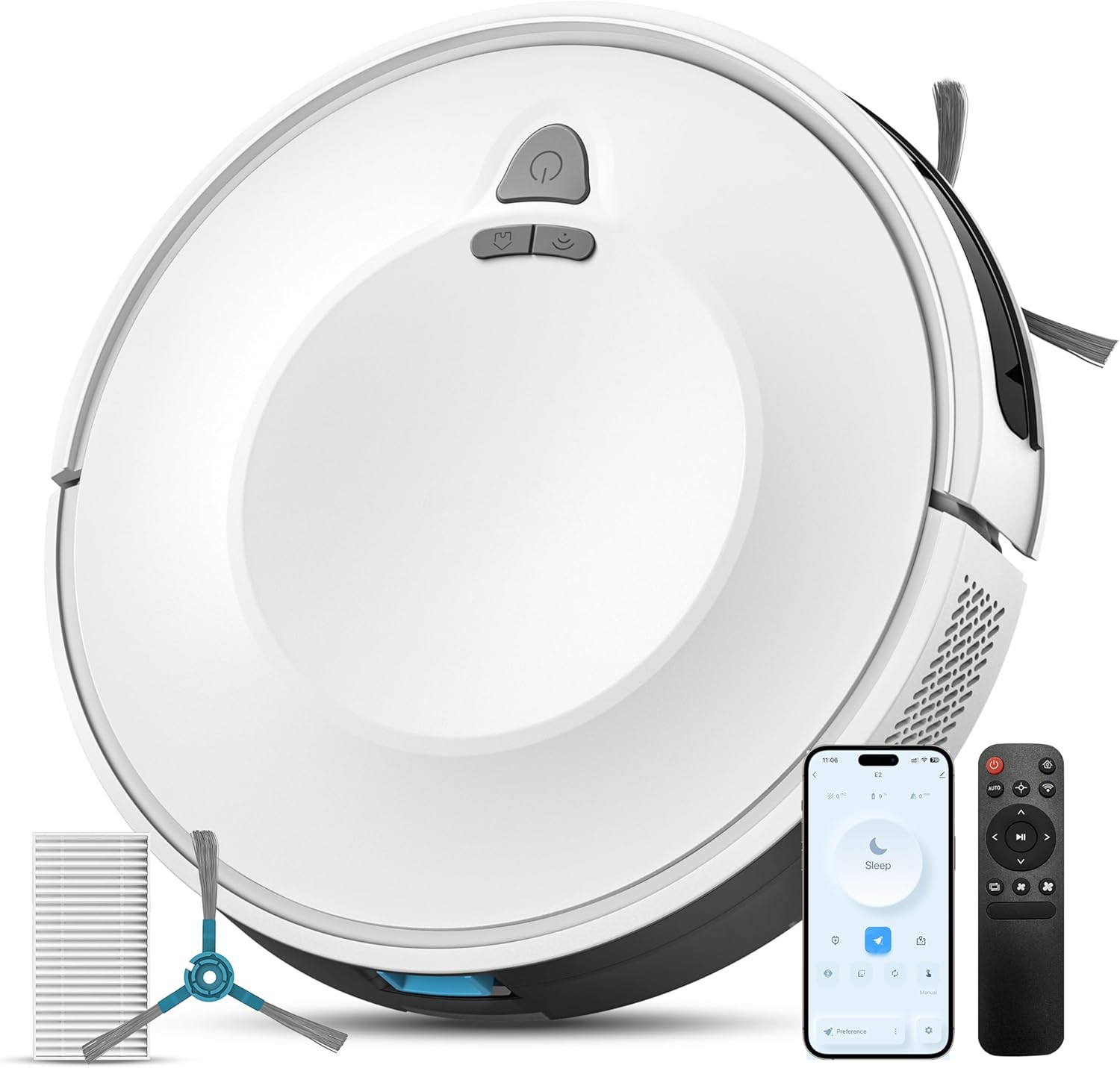
Figure 2.1: The Redkey E6 Robot Vacuum Cleaner with its included accessories, including side brushes, filters, remote control, and charging station.
3. Product Components
3.1. Robot Vacuum
The robot features a compact design with a main power button, dustbin, side brushes, main roller brush, and various sensors for navigation and obstacle avoidance.
3.2. Dustbin and Filtration System
The 600 ml dustbin is easily accessible for emptying. It integrates a triple HEPA filtration system to capture fine particles and ensure healthier indoor air.

Figure 3.1: Detailed view of the robot's underside, showing the main brush, side brushes, floating scraper, and the 600ml dustbin capacity.
4. Setup
4.1. Charging the Robot
- Place the charging station against a wall in an open area, ensuring there are no obstacles within 1 meter to the sides and 2 meters in front.
- Connect the power adapter to the charging station and plug it into a power outlet.
- Place the robot onto the charging station. Ensure the charging contacts on the robot align with those on the station. The indicator light on the robot will show charging status.
- Allow the robot to fully charge before its first use (approximately 4-5 hours).

Figure 4.1: The Redkey E6 robot vacuum automatically returning to its charging station. The robot can operate for up to 140 minutes on a full charge.
4.2. Installing Side Brushes
Gently push the side brushes onto their respective posts on the underside of the robot until they click into place.
4.3. App Connection (Optional)
- Download the 'Smart Life' app from your smartphone's app store.
- Register or log in to your account.
- Follow the in-app instructions to add your Redkey E6 robot vacuum. Ensure your phone is connected to a 2.4GHz Wi-Fi network during setup.
5. Operating Instructions
5.1. Starting/Pausing Cleaning
- On the Robot: Press the power button once to start or pause cleaning.
- Remote Control: Press the 'Start/Pause' button.
- Mobile App: Tap the 'Start' or 'Pause' icon.
5.2. Cleaning Modes
The Redkey E6 offers various cleaning modes to suit different needs:
- Zigzag Mode: The robot cleans in an efficient, systematic zigzag pattern, covering the entire area.
- Edge Mode: The robot cleans along walls and furniture edges.
- Spot Mode: The robot cleans a specific area in a spiral pattern for concentrated cleaning.
These modes can be selected via the remote control or the mobile app.

Figure 5.1: Illustration of the Redkey E6's intelligent navigation (zigzag mode) and protective sensors, including anti-collision, anti-fall, and anti-stuck technologies, along with various cleaning options like Edge Mode and Spot Mode.
5.3. Using the Remote Control
The included remote control allows for convenient operation without Wi-Fi. Functions include starting/pausing, selecting cleaning modes, adjusting suction power, and sending the robot back to its charging station.
5.4. Using the Mobile App
The 'Smart Life' app provides advanced control features:
- Scheduling: Set daily or weekly cleaning schedules.
- Mode Selection: Choose from various cleaning modes.
- Suction Power Adjustment: Control the suction level.
- Real-time Monitoring: View cleaning progress and robot status.
5.5. Voice Control
The Redkey E6 is compatible with Google Assistant and Amazon Alexa. Once connected through the 'Smart Life' app, you can use voice commands to start, stop, or send the robot back to its charging station.

Figure 5.2: The Redkey E6 supports smart control via its mobile app, voice commands through Google Assistant and Amazon Alexa, and the included remote control.
6. Maintenance
Regular maintenance ensures optimal performance and extends the lifespan of your robot vacuum.
6.1. Emptying the Dustbin
Empty the dustbin after each cleaning cycle or when the 'dustbin full' indicator appears. Press the release button to remove the dustbin, open it, and discard the contents.
6.2. Cleaning the Filters
Tap the HEPA filter to remove loose dirt. Do not wash the HEPA filter with water. The pre-filter can be rinsed with water; ensure it is completely dry before re-installing.
6.3. Cleaning the Main Brush
Remove the main brush cover and lift out the main brush. Use the included cleaning tool to cut and remove any hair or debris tangled around the brush. Reinstall the brush and cover.

Figure 6.1: The Redkey E6 features a self-cleaning roller brush, ideal for removing hair and deep cleaning carpets. It can also overcome obstacles up to 16mm.
6.4. Cleaning Side Brushes
Periodically check side brushes for wear or entanglement. Remove any hair or debris. Replace worn brushes with the spare pair provided.
6.5. Cleaning Sensors and Charging Contacts
Wipe the anti-drop sensors, anti-collision sensors, and charging contacts on both the robot and the charging station with a clean, dry cloth to ensure proper function.
7. Troubleshooting
If you encounter issues with your Redkey E6, please refer to the table below for common problems and solutions.
| Problem | Possible Cause | Solution |
|---|---|---|
| Robot does not start | Low battery; Power button not pressed; Robot stuck. | Charge the robot; Press power button firmly; Clear obstacles. |
| Poor cleaning performance | Dustbin full; Brushes tangled; Filter clogged. | Empty dustbin; Clean main/side brushes; Clean/replace filter. |
| Robot cannot charge | Charging contacts dirty; Charging station unplugged; Robot not aligned. | Clean charging contacts; Ensure station is powered; Manually place robot on station. |
| App connection failed | Incorrect Wi-Fi password; Not 2.4GHz network; Robot too far from router. | Verify password; Connect to 2.4GHz Wi-Fi; Move robot closer to router. |
| Robot falls down stairs | Anti-drop sensors dirty or blocked. | Clean anti-drop sensors thoroughly. |
8. Specifications
Technical specifications for the Redkey E6 Robot Vacuum Cleaner:
| Feature | Specification |
|---|---|
| Brand | Redkey |
| Model Number | E6 |
| Color | White |
| Product Dimensions (L x W x H) | 32 x 32 x 7.5 cm |
| Item Weight | 3.8 Kilograms |
| Dustbin Capacity | 600 Milliliters |
| Suction Power | 3800 Pa |
| Battery Type | Lithium-ion |
| Battery Life (Quiet Mode) | Up to 140 minutes |
| Obstacle Climbing Ability | Up to 16 mm |
| Control Methods | App, Remote Control, Voice (Alexa/Google Assistant) |
9. Warranty and Support
The Redkey E6 Robot Vacuum Cleaner comes with a 12-month warranty from the date of purchase. This warranty covers manufacturing defects and malfunctions under normal use.
For warranty claims, technical support, or any questions regarding your product, please contact our customer service. Details can typically be found on the product packaging or the official Redkey website.
Please retain your proof of purchase for warranty validation.


