
1. Introduction
This manual provides detailed instructions for the installation, operation, and maintenance of your ANYFAR AI 7 Wireless CarPlay Android Auto Adapter. This device is designed to convert your car's existing wired CarPlay or Android Auto system into a wireless experience, while also offering multimedia playback capabilities.
Please read this manual thoroughly before using the product to ensure proper functionality and to maximize your user experience.
2. Product Overview
2.1 What's in the Box
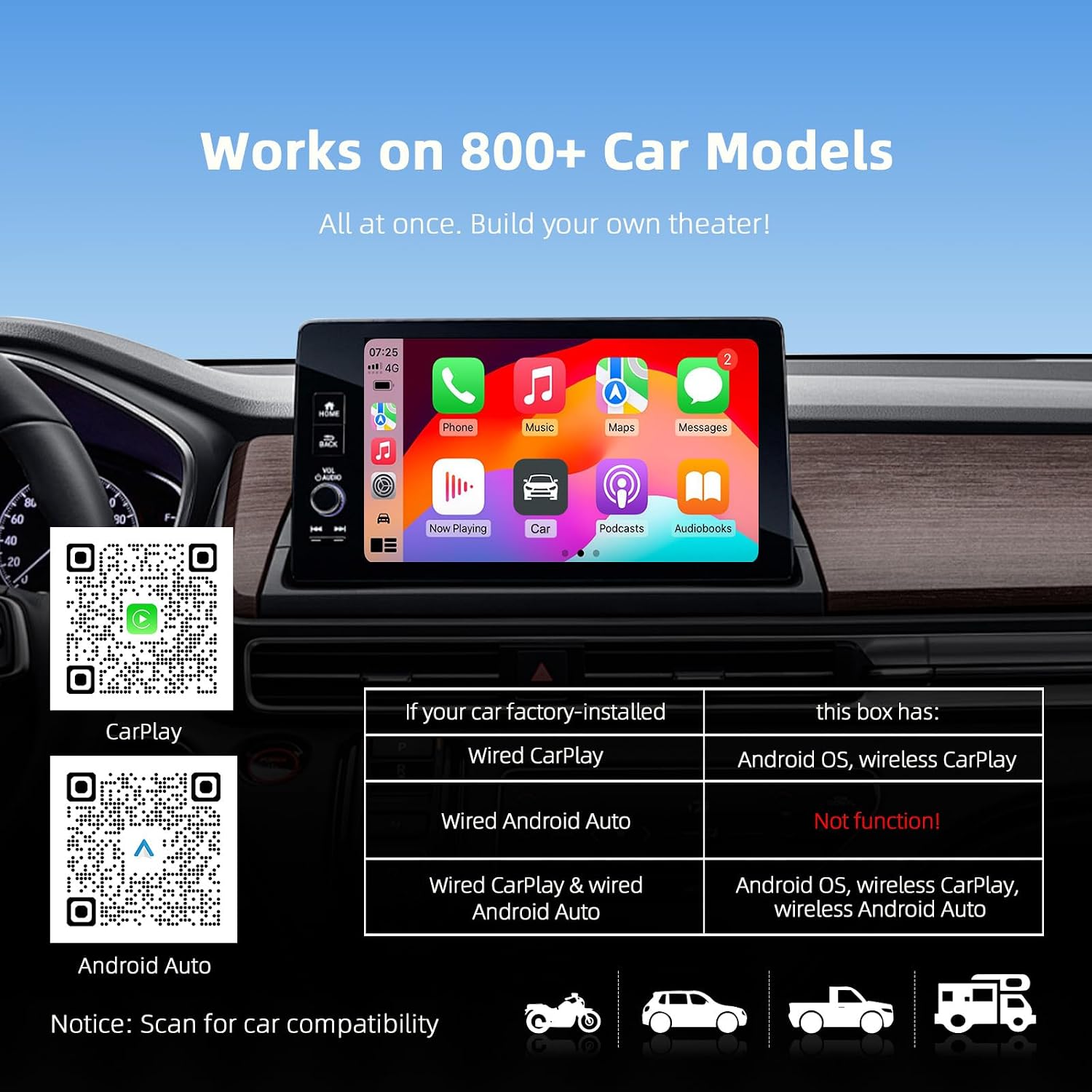
Image: Contents of the ANYFAR AI 7 Magic Box packaging, showing the adapter, cables, and user manual.
- 1x ANYFAR AI 7 Adapter
- 1x Product Box
- 1x User Manual
- 1x USB-C to USB-C Cable (3.0)
- 1x USB-C to USB-A Cable (3.0)
2.2 Key Features
- Wireless CarPlay & Android Auto: Converts existing wired CarPlay and Android Auto systems to wireless functionality.
- Multimedia Playback: Supports online video streaming via built-in apps and offline playback from TF cards (up to 128GB) or USB drives.
- Advanced Performance: Equipped with an A133 5G chip for enhanced connection stability and speed, utilizing new Wi-Fi transmission technology.
- High-Fidelity Audio: Features 5.8GHz digital transmission technology to preserve the original car audio effect without interference or delay.
- Retains Original Car Controls: Maintains compatibility with the car's original control methods, including touchscreen, voice control, buttons, and knobs.
3. Compatibility
The ANYFAR AI 7 adapter is designed for vehicles equipped with a factory-installed wired CarPlay feature, typically manufactured from 2017 onwards. It is essential to verify your vehicle's compatibility before purchase.

Image: A compatibility chart illustrating how the AI 7 adapter works with wired CarPlay and Android Auto systems, along with QR codes for checking car compatibility.
3.1 How to Check Compatibility
- Wired CarPlay Verification: Connect your iPhone to your car's USB data port. If CarPlay launches, your vehicle has wired CarPlay.
- Online Resources: Refer to the official compatibility lists for CarPlay and Android Auto:
3.2 Incompatible Vehicles
This unit is not compatible with the following vehicles:
- Tesla
- BMW & Mini
- Mitsubishi
- 2016 Mazda CX-5
- 2018 Mazda CX-9
- 2022 Mazda Azami
- 2016 Mercedes C43
- 2021 Jeep Unlimited Sahara
- 2021 Ram 150
- 2020 Nissan Rogue
- 2024 Haval H6
4. Setup Instructions
Follow these steps to set up your ANYFAR AI 7 adapter and enable wireless CarPlay or Android Auto.

Image: Visual guide for connecting the AI 7 adapter, showing the Type-C and USB ports, and the three-step pairing process with a smartphone.
- Connect the Adapter: Plug the ANYFAR AI 7 adapter into your car's USB data port (the one typically used for wired CarPlay/Android Auto) using the provided USB-C to USB-A or USB-C to USB-C cable.
- Access SpeedPlay App: On your car's infotainment screen, navigate to and click on the 'SpeedPlay' application.
- Enable Bluetooth & Wi-Fi: On your smartphone, ensure both Bluetooth and Wi-Fi are enabled.
- Pair with Bluetooth: Search for the adapter's Bluetooth signal on your phone and pair with it.
- Allow Sync: Follow any on-screen prompts on your phone or car display to allow contact and favorite synchronization. Once completed, wireless CarPlay or Android Auto will activate.
5. Operating Instructions
5.1 Wireless CarPlay and Android Auto
Once successfully paired, your car's display will show the CarPlay or Android Auto interface wirelessly. You can now access navigation, music, calls, and other compatible apps directly from your car's screen without physically connecting your phone.

Image: A car's infotainment screen showing the wireless CarPlay interface (top) and Android Auto interface (bottom), with a smartphone displaying the corresponding connection.
5.2 Video Playback
The AI 7 adapter allows for both online and offline video playback.

Image: A car's infotainment screen displaying a video, with a hand interacting with the screen. Text overlays provide steps for watching online videos.
5.2.1 Online Video Streaming
- Enable Phone Hotspot: Turn on your smartphone's personal hotspot.
- Connect to Hotspot: On the car's screen, go to 'Settings' > 'Wi-Fi' and connect to your phone's hotspot.
- Launch Video App: Open a built-in video application (e.g., Netflix, YouTube) and log in to your account.
5.2.2 Offline Video Playback
Insert a TF card (up to 128GB) or a USB drive containing video and music files into the designated port on the AI 7 adapter. The adapter will detect the media, allowing you to play content directly on your car's screen.
5.3 Control Methods
The AI 7 adapter supports various control methods, ensuring a seamless user experience with your car's existing interface.

Image: Three circular insets showing a hand interacting with a car's controls: using Siri/Google Voice, touching the screen, and operating physical knobs and controls.
- Touchscreen: Directly interact with the car's display if it is a touchscreen.
- Voice Control: Utilize Siri (for CarPlay) or Google Voice (for Android Auto) for hands-free commands.
- Physical Buttons and Knobs: Use your car's built-in buttons and control knobs for navigation and selection.
6. Maintenance
To ensure the longevity and optimal performance of your ANYFAR AI 7 adapter, follow these simple maintenance guidelines:
- Cleaning: Gently wipe the adapter with a soft, dry cloth. Avoid using liquid cleaners or abrasive materials.
- Storage: When not in use for extended periods, store the adapter in a cool, dry place away from direct sunlight and extreme temperatures.
- Handling: Handle the adapter with care to prevent physical damage. Avoid dropping or subjecting it to strong impacts.
- Firmware Updates: Periodically check the manufacturer's website or contact support for any available firmware updates to ensure the best performance and compatibility.
7. Troubleshooting
If you encounter issues with your ANYFAR AI 7 adapter, refer to the following common problems and solutions:
| Problem | Possible Cause | Solution |
|---|---|---|
| Adapter not connecting to car display. | Incorrect USB port used; car not compatible; loose connection. | Ensure the adapter is plugged into the car's data-enabled USB port. Verify car compatibility. Re-plug the adapter firmly. |
| Wireless CarPlay/Android Auto not launching. | Bluetooth/Wi-Fi not enabled on phone; incorrect pairing; car's wired CarPlay not active. | Ensure phone's Bluetooth and Wi-Fi are on. Re-pair the phone via Bluetooth. Confirm your car's wired CarPlay functions correctly without the adapter first. |
| Lag or freezing during use. | Weak Wi-Fi signal; too many background apps; adapter overheating. | Ensure a strong Wi-Fi connection. Close unnecessary apps on your phone. Allow the adapter to cool if it feels warm. The A133 5G chip is designed for stability, but extreme conditions can affect performance. |
| No audio or poor audio quality. | Volume settings; interference; incorrect audio source. | Check volume levels on both car and phone. Ensure the car's audio input is set to the correct source (e.g., USB/CarPlay). The 5.8GHz digital transmission should minimize interference. |
| Cannot control with car's physical knobs/buttons. | Car's infotainment system limitations; specific app incompatibility. | While the adapter supports original car controls, some car models or specific applications might have limitations. Ensure your car's system is updated. |
| Online videos not playing. | No internet connection; incorrect hotspot setup; app login issues. | Verify your phone's hotspot is active and the adapter is connected to it. Ensure you are logged into the video streaming app. Check your data plan. |
If the problem persists after trying these solutions, please contact ANYFAR customer support for further assistance.
8. Specifications
| Feature | Detail |
|---|---|
| Product Dimensions | 2.4 x 2.4 x 0.6 inches |
| Item Weight | 4.2 ounces |
| Connectivity Technology | USB |
| Controller Type | Button Control |
| Connector Type | Micro USB (Note: Product images show USB-C, actual cables provided are USB-C to USB-A and USB-C to USB-C) |
| Supported Internet Services | Netflix (and other built-in video apps) |
| Control Method | Touch, Voice, Physical Buttons/Knobs |
| Chipset | A133 5G Performance Chip |
| Wireless Transmission | 5.8GHz Digital Transmission |
| TF Card Support | Up to 128GB |
9. Warranty and Support
ANYFAR is committed to providing high-quality products and support. For any product-related inquiries, technical assistance, or warranty information, please refer to the contact details provided with your purchase or visit the official ANYFAR website.
Please retain your proof of purchase for warranty claims.