
1. Introduction
The H96 MAX S905L3 Android 14.0 TV Box is a high-definition streaming device designed to enhance your home entertainment experience. It operates on the Android 14 system, offering a user-friendly interface and robust functionality. Powered by an Amlogic S905L3 Quad Core ARM Cortex A53 processor, 2GB DDR3 RAM, and 16GB ROM, this device ensures smooth navigation and efficient application performance.
Key features include Dual-WiFi 6 for superior wireless connectivity, a 100M Ethernet port for stable wired networking, and advanced video engine support for 4K UHD, HDR 10+, AV1, and H.265 decoding. Bluetooth 5.0 and a voice remote control provide convenient operation and peripheral connectivity. Integrated Chromecast and support for popular applications make this Android TV box a comprehensive solution for your viewing and sharing needs.
2. Package Contents
Please verify that all items are present in the package:
- 1 x H96 MAX S905L3 Android 14.0 TV Box
- 1 x Power Adapter
- 1 x Remote Control
- 1 x HDMI Cable
- 1 x User Manual

Image: The H96 MAX S905L3 Android 14.0 TV Box, remote control, power adapter, HDMI cable, and user manual as included in the package.
3. Product Overview
The H96 MAX S905L3 TV Box offers a compact design with essential ports for connectivity and a user-friendly remote control.
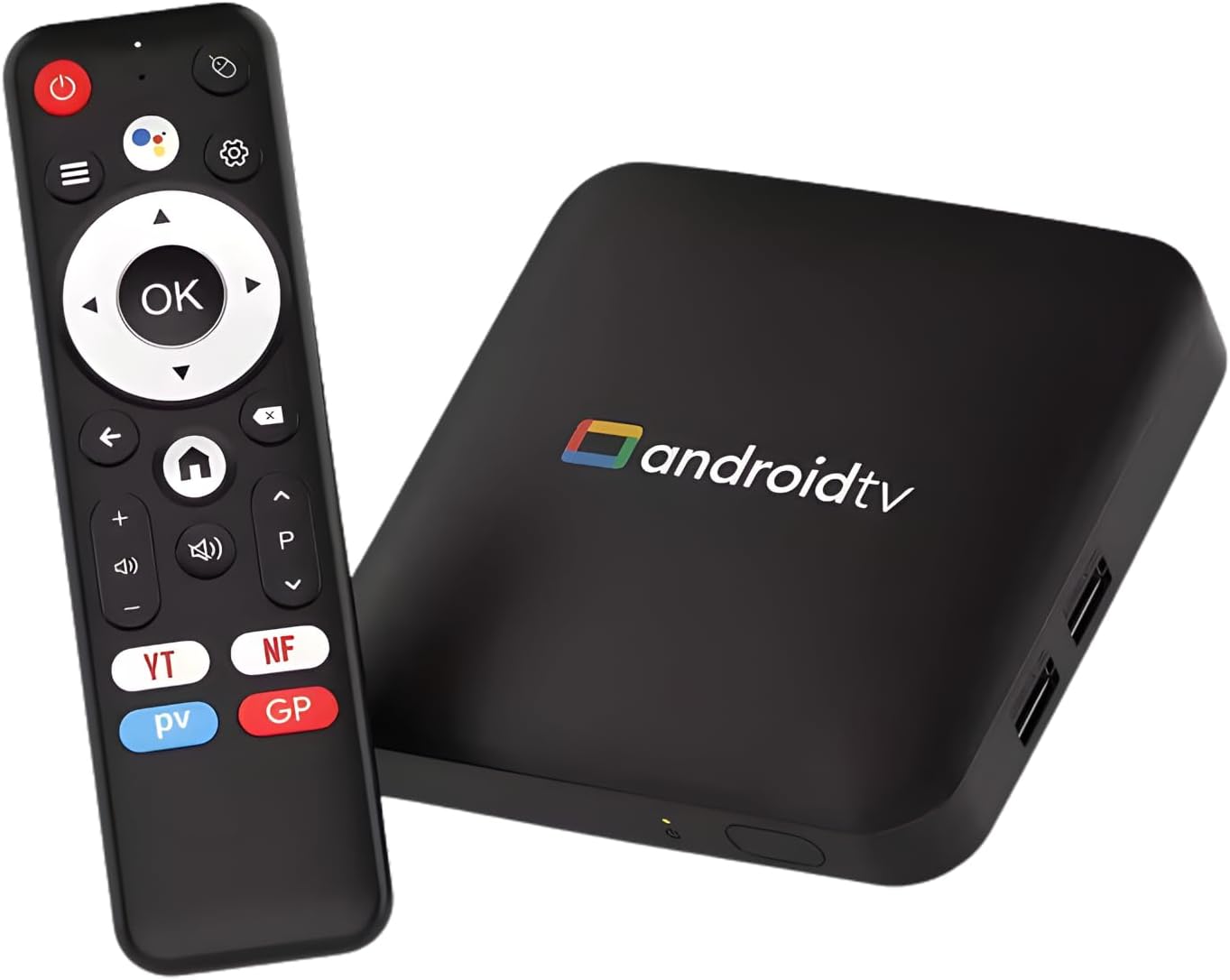
Image: The H96 MAX S905L3 Android 14.0 TV Box and its accompanying remote control, showcasing the device's compact form factor.
3.1 Key Features
- Android 14 Operating System: Provides a stable and efficient platform for media consumption.
- Amlogic S905L3 Processor: Quad Core A53 CPU with 2GB DDR3 RAM for smooth performance.
- 4K UHD Resolution: Supports HDR 10+, H.265, and AV1 video decoding for exceptional picture quality.
- Dual-Band WiFi 6: Ensures fast and stable wireless streaming (2.4G/5G).
- Bluetooth 5.0: For connecting external devices like headphones and game controllers.
- Voice Remote Control: Enables hands-free searching and navigation.
- Chromecast Built-in: Facilitates easy screen sharing from smartphones or tablets.

Image: Visual representation of the Android 14.0 operating system's superior performance, voice search capability, and content universe, with the TV box in the foreground.

Image: A television screen showcasing vibrant 4K Ultra HD content, emphasizing high-definition clarity, with the H96 MAX TV box and remote control positioned below.
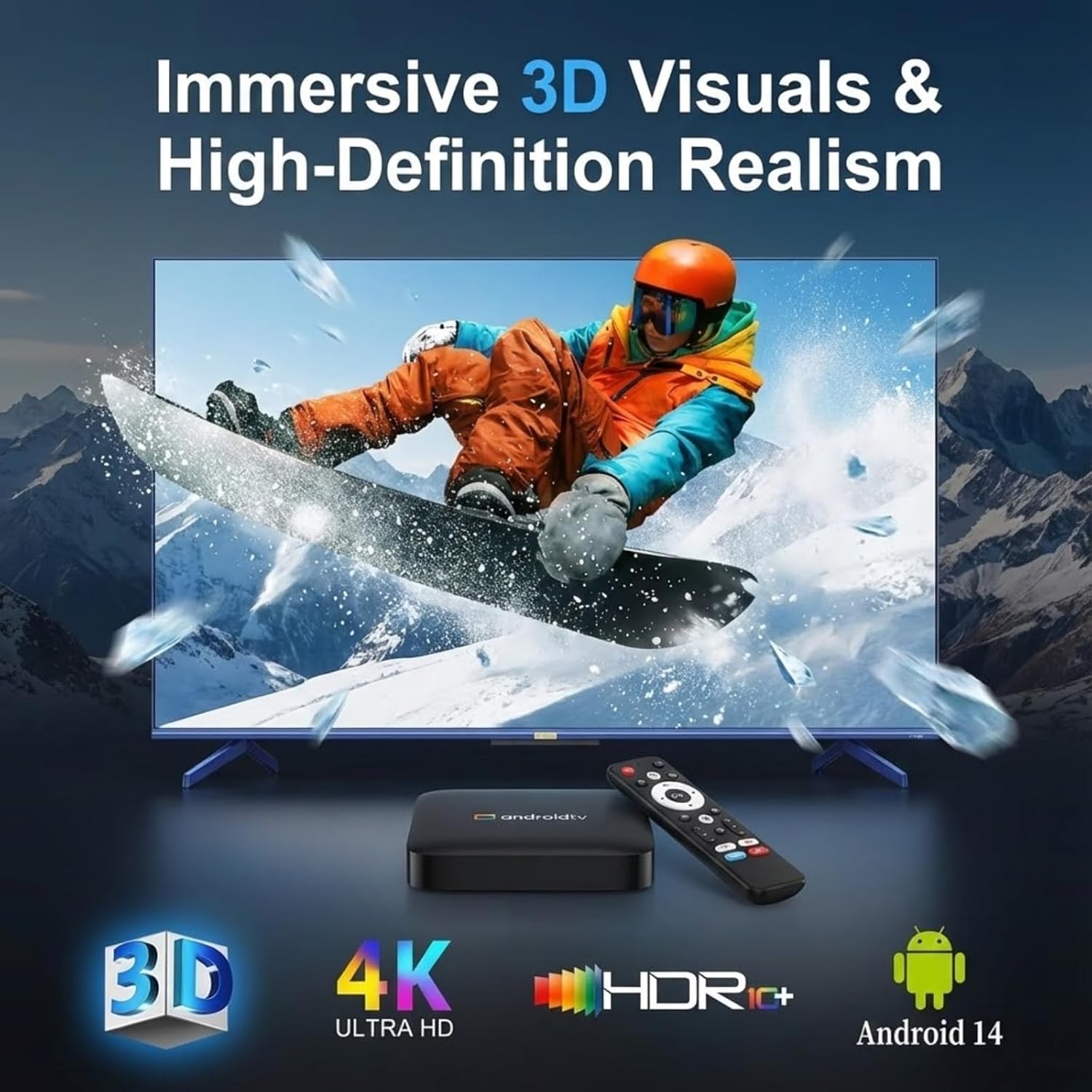
Image: A television screen displaying immersive 3D visuals, highlighting 4K Ultra HD and HDR10+ support, with the H96 MAX TV box and remote control in the foreground.

Image: A hand holding the remote control, demonstrating the smart voice control feature with a visual representation of sound waves on a television screen in the background.
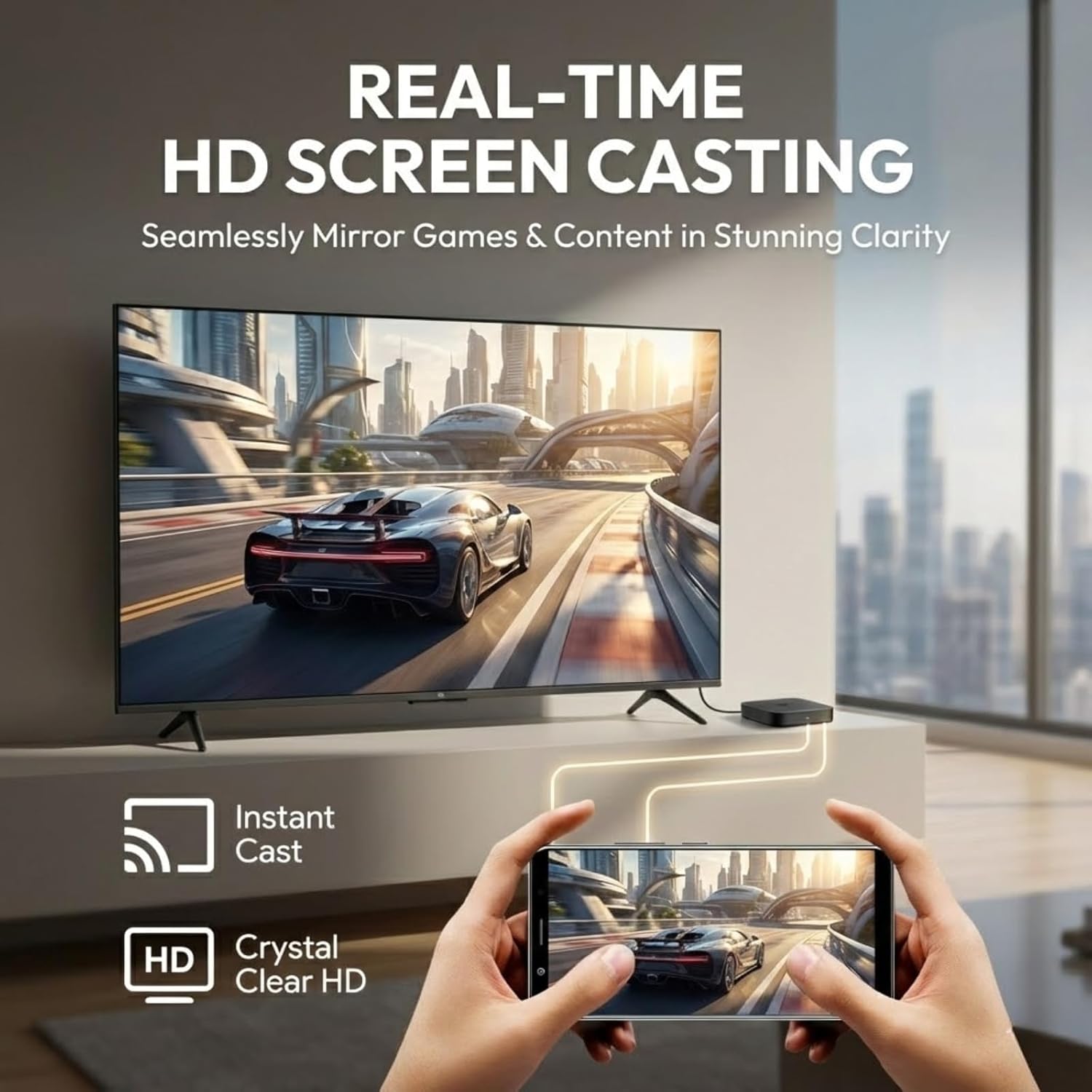
Image: A smartphone screen being cast in real-time to a television, illustrating the HD screen casting capability for mirroring games and content.
4. Setup Guide
Follow these steps for initial setup of your H96 MAX S905L3 TV Box.
4.1 Connecting the Device
- Connect HDMI Cable: Insert one end of the HDMI cable into the HDMI port on the TV Box and the other end into an available HDMI input on your television.
- Connect Power Adapter: Plug the power adapter into the DC port on the TV Box, then plug the adapter into a wall outlet.
- (Optional) Connect Ethernet Cable: If you prefer a wired network connection, connect an Ethernet cable from your router to the Ethernet port on the TV Box.
- (Optional) Connect USB Devices: You may connect USB storage devices or other peripherals to the USB 2.0 ports.

Image: A diagram illustrating the various ports on the H96 MAX S905L3 TV Box, including USB, Ethernet, HD (HDMI), AV, DC, and the ON/OFF button, along with its dimensions.
4.2 Powering On and Initial Configuration
- Power On: Press the power button on the TV Box or the remote control. The device will boot up.
- Select TV Input: On your television, select the correct HDMI input source corresponding to where you connected the TV Box.
- Language Selection: Follow the on-screen prompts to select your preferred language.
- Network Connection: Choose your Wi-Fi network from the list and enter the password, or confirm the wired Ethernet connection.
- Google Account Setup: Sign in with your Google account to access the Google Play Store and other Google services.
- Complete Setup: Follow any remaining on-screen instructions to finalize the initial setup.

Image: A television screen displaying the Android TV home screen interface, featuring categories like Home, Movies, Shows, Apps, and Settings, with various application icons.
5. Operating Instructions
This section details how to navigate and use your H96 MAX S905L3 TV Box.
5.1 Remote Control Navigation
- Directional Pad (D-Pad): Use the up, down, left, and right arrows to navigate through menus and select items.
- OK Button: Confirms selections or opens applications.
- Back Button: Returns to the previous screen or menu.
- Home Button: Returns to the main Android TV home screen.
- Volume Buttons: Adjusts the audio output level.
- Power Button: Turns the device on or off.
- Voice Control Button: Activates the voice assistant for commands and searches.
5.2 Voice Control
Press the dedicated voice control button on your remote and speak clearly into the remote's microphone. You can use voice commands to:
- Search for movies, TV shows, or videos.
- Open applications.
- Control media playback (e.g., "Play," "Pause," "Fast forward").
- Ask questions or get information.
5.3 Application Management
- Install Apps: Access the Google Play Store from the home screen to browse and install new applications.
- Uninstall Apps: Go to Settings > Apps, select the desired app, and choose "Uninstall."
- Update Apps: Apps can be updated automatically or manually through the Google Play Store.
5.4 Casting and Mirroring
The built-in Chromecast and MiraCast support allow you to cast content from compatible devices:
- Ensure your smartphone/tablet and the TV Box are connected to the same Wi-Fi network.
- Open a compatible application (e.g., YouTube, Netflix) on your mobile device.
- Tap the Cast icon (usually a rectangle with a Wi-Fi symbol) within the app.
- Select your H96 MAX TV Box from the list of available devices to begin casting.
6. Specifications
Detailed technical specifications for the H96 MAX S905L3 TV Box:
| Feature | Specification |
|---|---|
| Model | H96 MAX S905L3 |
| Operating System | Google Android 14.0 ATV |
| CPU | Amlogic S905L3 Quad Core ARM Cortex A53 |
| RAM | 2GB DDR3 |
| ROM | 16GB |
| Resolution | 4K UHD, HDR 10+, H.265, AV1, 3D |
| Wi-Fi | Dual-WiFi 6 (2.4G/5G) |
| Ethernet | 100M |
| Bluetooth | BT 5.0 |
| I/O Ports | 2*USB 2.0, 1*HD Out, 1*Micro SD Slot, 1*AV, 1*DC, 1*Ethernet |
| Special Features | Voice Control, MiraCast, Chromecast Built-in, Browser, DLNA |
| Dimensions | 4.33 x 4.24 x 1.02 inches (110 x 108 x 26 mm) |
| Item Weight | 4.3 ounces |
7. Troubleshooting
This section addresses common issues you might encounter with your TV Box.
7.1 No Power
- Ensure the power adapter is securely connected to the TV Box and a working power outlet.
- Verify the power outlet is functional by plugging in another device.
- Press the power button on the remote control or the device itself.
7.2 No Picture on TV
- Check that the HDMI cable is firmly connected to both the TV Box and the TV.
- Ensure your TV is set to the correct HDMI input source.
- Try a different HDMI cable or HDMI port on your TV.
- Restart the TV Box and your television.
7.3 Wi-Fi Connection Issues
- Confirm that your Wi-Fi router is powered on and functioning correctly.
- Go to Settings > Network & Internet > Wi-Fi on the TV Box and ensure Wi-Fi is enabled.
- Re-enter your Wi-Fi password to ensure it is correct.
- Move the TV Box closer to your Wi-Fi router to improve signal strength.
- Restart your Wi-Fi router and the TV Box.
7.4 Remote Control Not Responding
- Check and replace the batteries in the remote control.
- Ensure there are no obstructions between the remote and the TV Box.
- For Bluetooth remotes, ensure it is properly paired with the TV Box. If not, try re-pairing it via Settings > Remotes & Accessories.
8. Maintenance
Proper care and maintenance will ensure the longevity of your H96 MAX S905L3 TV Box.
- Cleaning: Use a soft, dry cloth to clean the exterior of the device. Do not use liquid cleaners or abrasive materials.
- Ventilation: Ensure the TV Box is placed in a well-ventilated area to prevent overheating. Do not cover ventilation openings.
- Environment: Avoid exposing the device to extreme temperatures, humidity, dust, or direct sunlight.
- Power Off: If the device will not be used for an extended period, it is recommended to power it off and unplug the power adapter.
9. Warranty and Support
For warranty information and technical support, please refer to the documentation provided with your purchase or contact the retailer. Keep your proof of purchase for warranty claims.
For further assistance, you may also visit the official H96 MAX support website (if available) or consult online resources for Android TV devices.


