
1. Introduction
Thank you for choosing the AITEK AIO-2755C All-in-One Curved 27-inch Computer. This device combines high performance with an elegant design, featuring a 27-inch Full HD (1920x1080) curved display. It is equipped with an Intel Core i5 processor, 16GB of DDR3 RAM, and a 512GB hard drive, ensuring speed and efficiency for multitasking and data storage. The VA panel, with a 5ms response time and 75Hz refresh rate, provides sharp and fluid images.
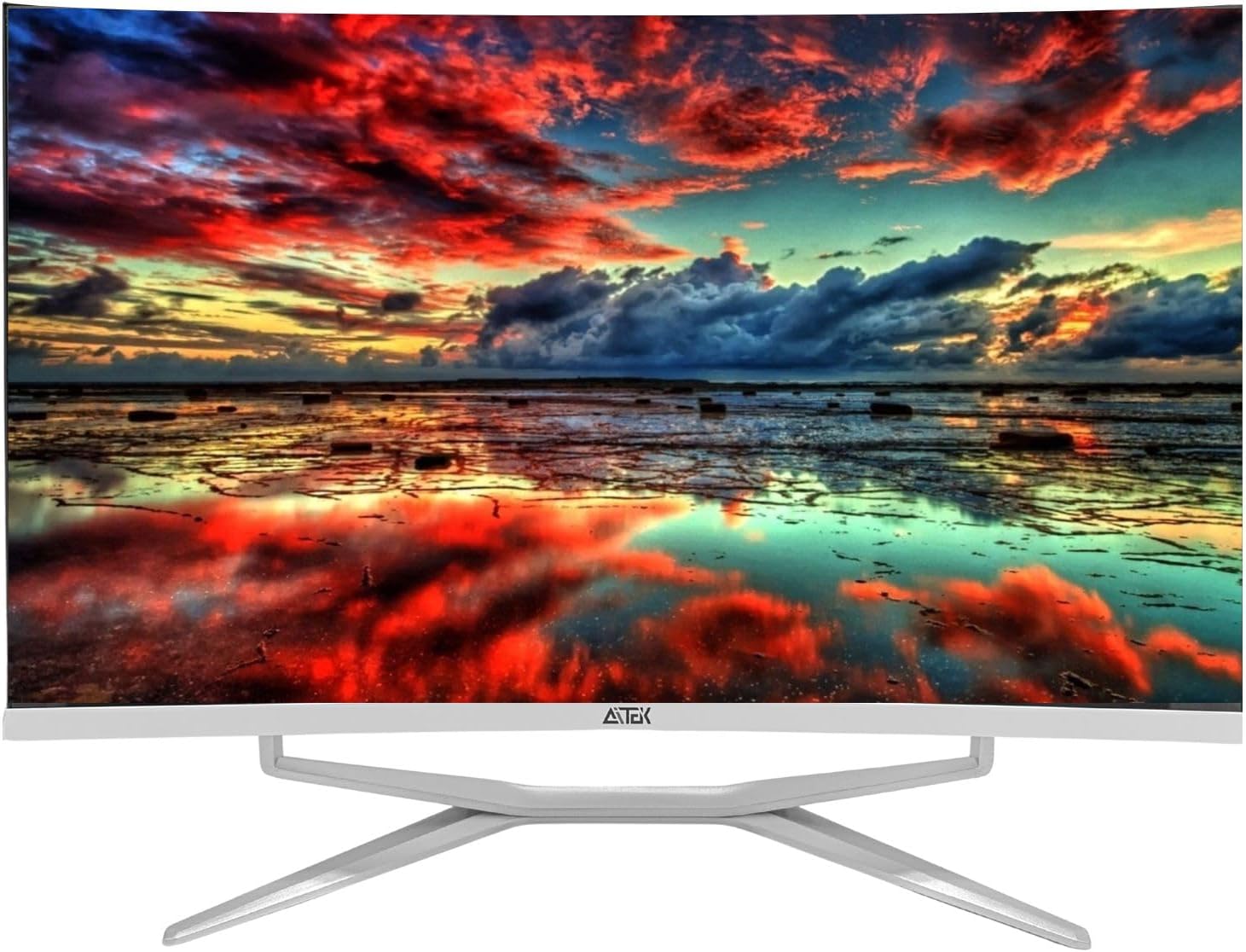
Image 1.1: Front view of the AITEK AIO-2755C All-in-One Curved 27-inch Computer, showcasing its curved screen and sleek design.
2. Package Contents
Please check the package contents carefully. If any items are missing or damaged, contact your retailer.
- 1x AITEK AIO-2755C All-in-One Computer
- 1x Power Adapter
- 1x User Manual (this document)
3. Setup Instructions
3.1 Unpacking and Placement
- Carefully remove the computer and all accessories from the packaging.
- Place the All-in-One computer on a stable, flat surface. Ensure adequate ventilation around the device.
- Avoid placing the computer in direct sunlight or near heat sources.
3.2 Connecting the Power Adapter
- Connect the power adapter cable to the DC-in port on the back of the All-in-One computer.
- Plug the power adapter into a grounded electrical outlet.

Image 3.1: The included power adapter for the AIO-2755C computer.
3.3 Connecting Peripherals
Connect your keyboard, mouse, and any other desired peripherals to the available USB ports on the side or back of the computer. The computer features multiple USB 3.0 ports, an HDMI port, and audio jacks.

Image 3.2: Side view of the AIO-2755C, illustrating the conveniently located USB ports and power button.

Image 3.3: Rear ports of the AIO-2755C, including HDMI, USB 3.0, Ethernet, and audio jacks.
4. Operating Instructions
4.1 Powering On/Off
- To Power On: Press the power button located on the side of the computer. The system will boot up automatically.
- To Power Off: Click the Start button in Windows, then select Power > Shut down. Do not unplug the power adapter directly without proper shutdown to prevent data loss.
- Sleep Mode: To put the computer into sleep mode, select Start > Power > Sleep.
4.2 Initial Windows Setup
Upon first boot, you will be guided through the Windows operating system setup process. Follow the on-screen instructions to configure language, region, network settings, and user accounts.

Image 4.1: The AIO-2755C displaying the Windows desktop environment, ready for use.
4.3 Connecting to Wi-Fi
- Click the Network icon in the system tray (usually bottom-right corner).
- Select your desired Wi-Fi network from the list.
- Enter the network password if prompted and click Connect. The computer supports 2.4GHz and 5GHz Wi-Fi bands.
4.4 Using Integrated Speakers
The AIO-2755C features integrated speakers for audio output. You can adjust the volume using the Windows volume controls in the system tray or through external keyboard controls if available.
5. Maintenance
5.1 Cleaning the Display and Body
- Always power off and unplug the computer before cleaning.
- Use a soft, lint-free cloth slightly dampened with water or a non-abrasive screen cleaner to wipe the display. Do not spray liquid directly onto the screen.
- For the body, use a soft, dry cloth. Avoid harsh chemicals or abrasive materials.
5.2 Software Updates
Regularly check for and install Windows updates to ensure optimal performance, security, and compatibility. Go to Settings > Update & Security > Windows Update.
5.3 Environmental Considerations
Operate the computer within recommended temperature and humidity ranges. Ensure proper airflow to prevent overheating.
6. Troubleshooting
| Problem | Possible Cause | Solution |
|---|---|---|
| Computer does not power on. | Power cable loose, power adapter faulty, power outlet issue. | Ensure power cable is securely connected. Test the power adapter with another device if possible. Try a different power outlet. |
| No display on screen. | Computer is off, display settings issue. | Ensure the computer is powered on. If an external monitor is connected, check its input source. |
| Wi-Fi connection issues. | Incorrect password, router issue, Wi-Fi adapter disabled. | Verify Wi-Fi password. Restart your router. Check Windows network settings to ensure Wi-Fi is enabled. |
| No sound from speakers. | Volume muted, incorrect audio output device, driver issue. | Check Windows volume controls and ensure sound is not muted. Verify that the integrated speakers are selected as the default audio output device. |
For further assistance, please refer to the support section.
7. Specifications
| Model | AIO-2755C |
| Brand | AITEK |
| Display Size | 27 inches Curved |
| Resolution | 1920x1080 Full HD |
| Panel Type | VA |
| Refresh Rate | 75Hz |
| Response Time | 5ms |
| Processor | Intel Core i5 (CPU Model: i5, CPU Speed: 2.4 GHz) |
| RAM | 16GB DDR3 (Technology: DDR3 SDRAM, Speed: 800 MT/s) |
| Storage | 512GB HDD |
| Operating System | Windows |
| Graphics | Integrated |
| Connectivity | Wi-Fi (2.4 & 5GHz), HDMI, USB 3.0 |
| Ports | 1x HDMI, Multiple USB 3.0, Audio Jacks |
| Integrated Features | Speakers |
| Power Input | AC 100-240V, 6.5A DC 19V |
| Item Weight | 10.7 Kilograms |
8. Warranty Information
The AITEK AIO-2755C All-in-One Computer comes with a 90-day warranty from the date of purchase. This warranty covers manufacturing defects and malfunctions under normal use. It does not cover damage caused by misuse, accidents, unauthorized modifications, or external factors. Please retain your proof of purchase for warranty claims.
9. Support
If you encounter any issues not covered in the troubleshooting section or require further assistance, please contact AITEK customer support.
- Online Support: Visit the official AITEK website for FAQs, driver downloads, and support resources.
- Contact Email: Refer to your purchase documentation for specific contact email addresses.
- Phone Support: Refer to your purchase documentation for specific phone numbers.
When contacting support, please have your product model (AIO-2755C) and proof of purchase readily available.