
1. Introduction
The Razer Viper V3 Pro SE is a high-performance wireless gaming mouse designed for precision and speed. This manual provides essential information for its proper setup, operation, and maintenance.
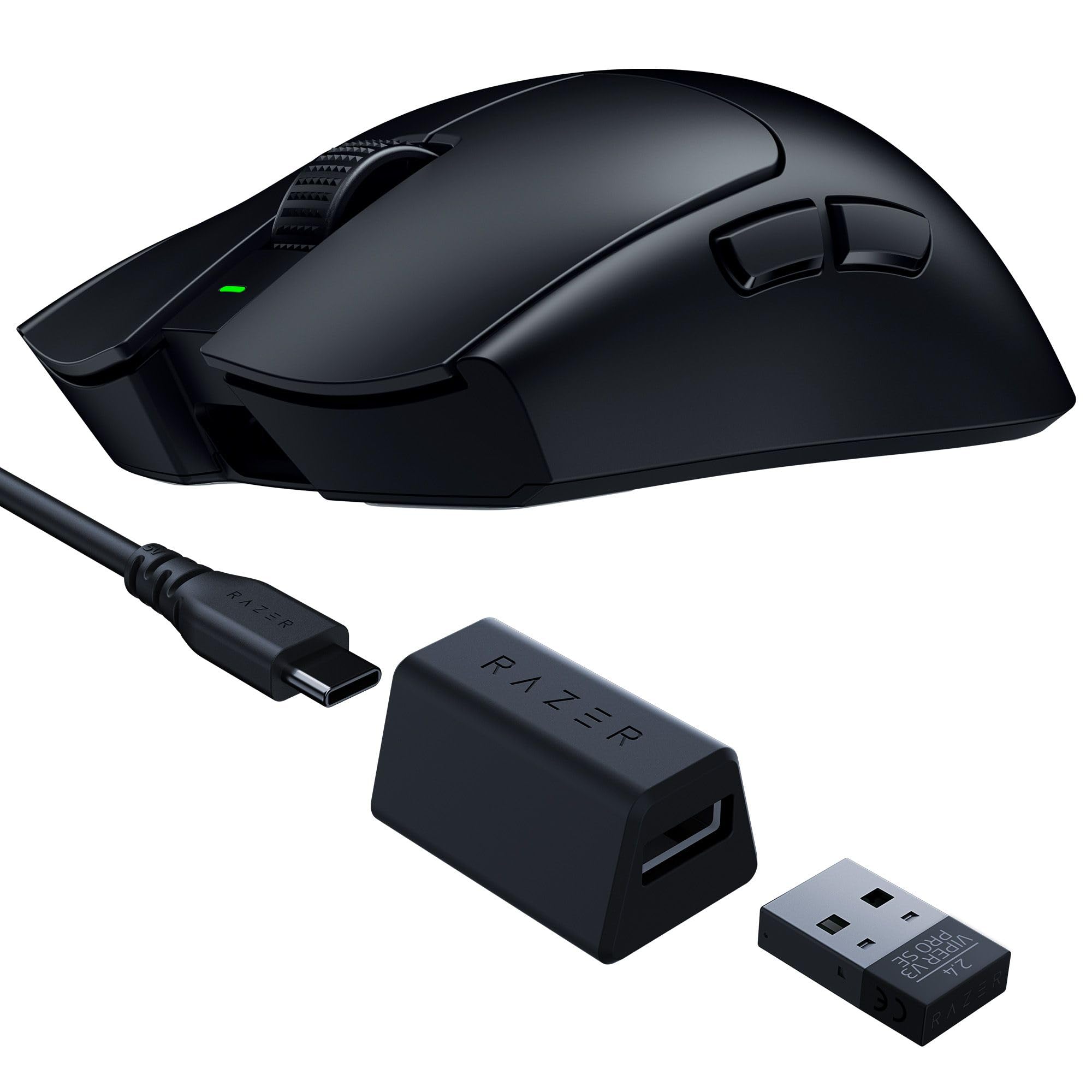
Image: The Razer Viper V3 Pro SE Wireless Gaming Mouse in black, showcasing its symmetrical design.
Key Features:
- 54g Ultra Lightweight Design: Engineered for swift and precise movements.
- Focus Pro 35K Optical Sensor Gen-2: Offers up to 35,000 DPI with 99.8% resolution accuracy.
- HyperSpeed Wireless: Provides ultra-responsive, low-latency performance with a 1000 Hz polling rate dongle.
- Optical Mouse Switches Gen-3: Features a 90-million click lifespan and 0.2 ms actuation speed.
- Up to 95 Hours of Battery Life: Extended usage for long gaming sessions.
- Smooth-Touch Finish: Designed for enhanced grip and comfort.
2. Setup
2.1 What's in the Box:
- Razer Viper V3 Pro SE Wireless Gaming Mouse
- HyperSpeed Wireless Dongle + USB Dongle Adapter
- USB Type A to USB Type C Cable
- Important Product Information Guide
2.2 Initial Connection:
- Connect the HyperSpeed Wireless Dongle to an available USB-A port on your computer.
- Turn on the mouse using the power switch located on the underside.
- The mouse should automatically pair with the dongle.

Image: The HyperSpeed Wireless Dongle and USB Type A to USB Type C Cable included with the mouse.
2.3 Charging the Mouse:
Connect the USB Type A to USB Type C cable to the front of the mouse and to a USB-A port on your computer or a USB charger. The mouse features an internal battery with up to 95 hours of life.
2.4 Software Installation (Razer Synapse):
For full customization and optimization, download and install the Razer Synapse software from the official Razer website. This software allows you to:
- Adjust DPI settings.
- Remap buttons.
- Configure polling rates.
- Create custom profiles.
Video: An unboxing video demonstrating the contents and initial setup of the Razer Viper V3 Pro SE.
3. Operating the Mouse
3.1 Basic Functions:
- Left Click: Primary action.
- Right Click: Secondary action.
- Scroll Wheel: Scroll up/down, middle click.
- Side Buttons: Default to forward/back, customizable via Razer Synapse.
- Power/DPI Button (Underside): Toggles power and cycles through preset DPI stages.

Image: The underside of the Razer Viper V3 Pro SE, highlighting the power switch and DPI cycle button.
3.2 DPI Adjustment:
The mouse features a Focus Pro 35K Optical Sensor Gen-2, allowing for precise tracking. You can adjust the DPI (Dots Per Inch) sensitivity:
- On-the-fly: Press the Power/DPI button on the underside to cycle through preset DPI stages.
- Customization: Use Razer Synapse to set specific DPI levels and assign them to buttons or profiles.
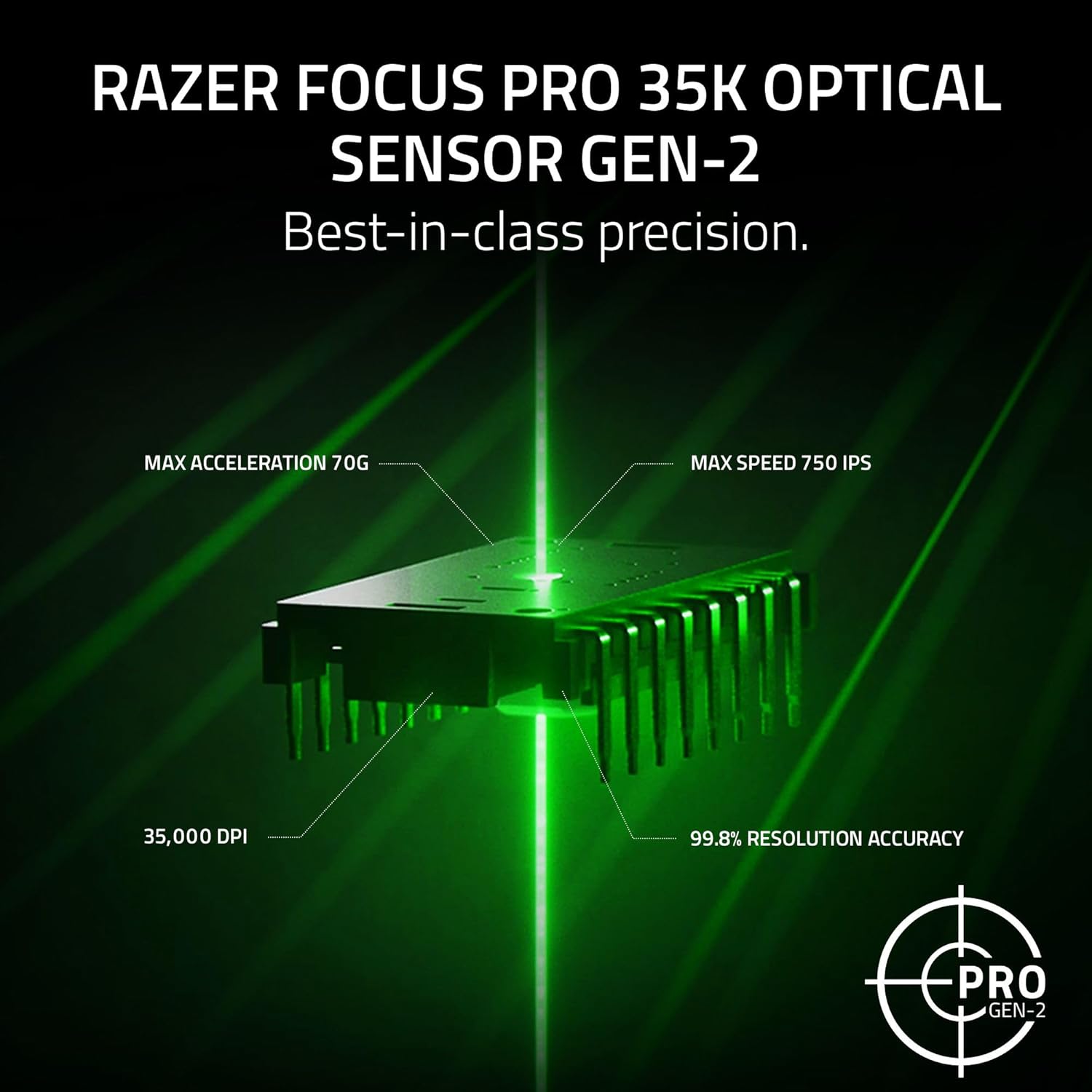
Image: A visual representation of the Razer Focus Pro 35K Optical Sensor Gen-2, detailing its 35,000 DPI, 99.8% resolution accuracy, 70G max acceleration, and 750 IPS max speed.
3.3 HyperSpeed Wireless:
The Razer HyperSpeed Wireless technology ensures a stable and responsive connection. The included dongle supports a 1000 Hz polling rate. For higher polling rates (up to 8000 Hz), a separate Razer HyperPolling Wireless Dongle is required.
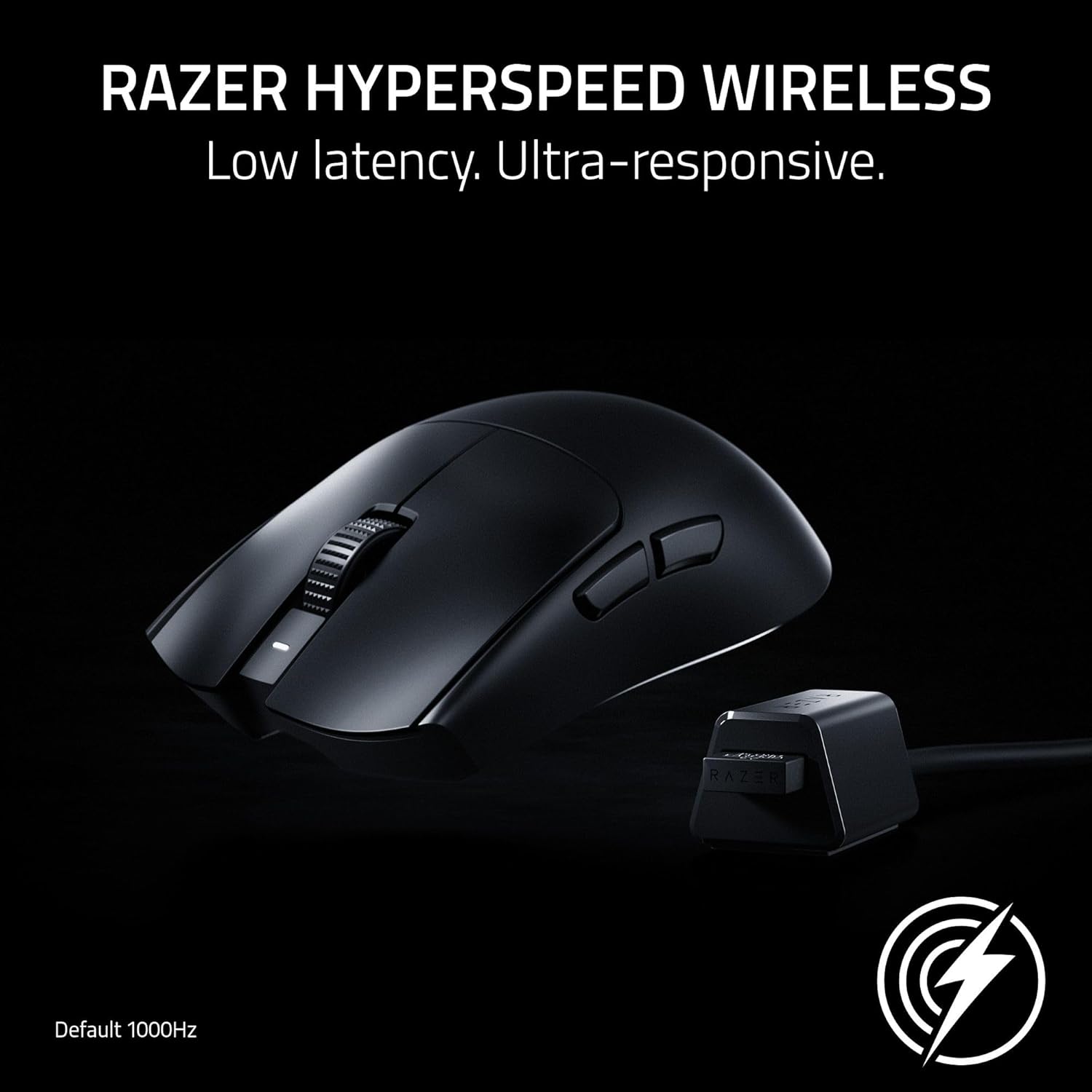
Image: The Razer Viper V3 Pro SE mouse positioned next to its HyperSpeed Wireless dongle, illustrating the wireless connection.
Video: A showcase video highlighting the features and performance of the Razer Viper V3 Pro SE.
4. Maintenance
4.1 Cleaning:
To maintain optimal performance, regularly clean your mouse. Use a soft, lint-free cloth slightly dampened with water or a mild cleaning solution. Avoid harsh chemicals or abrasive materials.
4.2 Battery Care:
The mouse has a built-in rechargeable battery. To prolong battery life:
- Avoid fully discharging the battery frequently.
- Charge the mouse when the battery indicator is low.
- Store the mouse in a cool, dry place when not in use for extended periods.
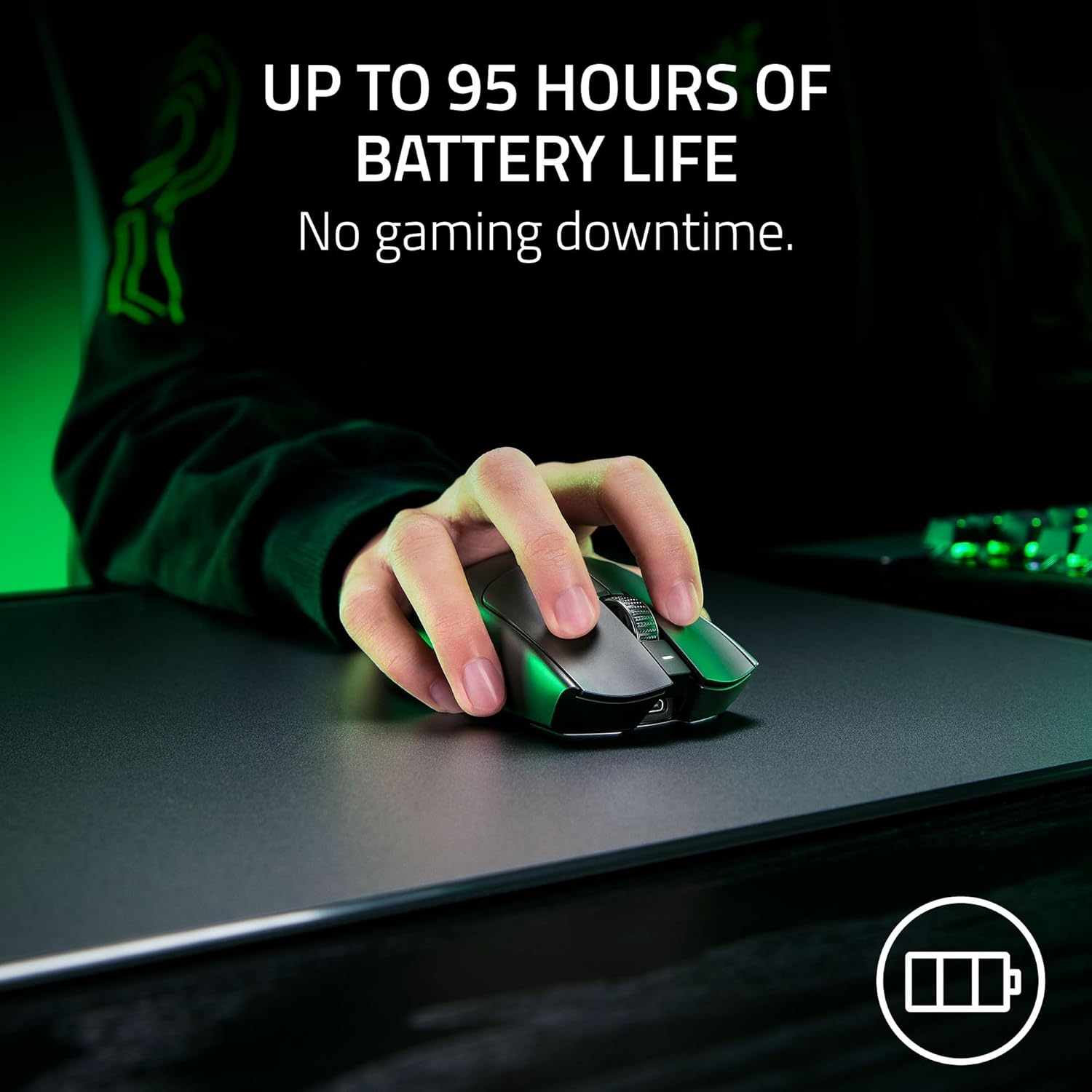
Image: A hand operating the Razer Viper V3 Pro SE mouse on a gaming mat, emphasizing its long battery life.
5. Troubleshooting
5.1 Connectivity Issues:
- Ensure the HyperSpeed Wireless Dongle is securely plugged into a USB-A port.
- Verify the mouse is powered on.
- Try plugging the dongle into a different USB port or a different computer to isolate the issue.
- If issues persist, try re-pairing the mouse with the dongle using Razer Synapse.
5.2 Tracking Problems:
- Clean the optical sensor on the underside of the mouse.
- Ensure you are using the mouse on a suitable surface (a mouse pad is recommended).
- In Windows mouse settings, disable "Enhance pointer precision" for optimal accuracy.
- Calibrate the mouse surface in Razer Synapse for improved tracking performance.
5.3 Battery Not Charging:
- Check the USB Type C cable for damage and ensure it's properly connected.
- Try a different USB port or charging adapter.
- Ensure the mouse is not in an extremely cold or hot environment, which can affect charging.
6. Specifications
| Feature | Detail |
|---|---|
| Brand | Razer |
| Model Name | Viper V3 Pro SE |
| Model Number | RZ01-04550100-R3U1 |
| Color | Black |
| Connectivity Technology | 2.4Ghz Wireless, USB |
| Movement Detection Technology | Optical |
| Mouse Maximum Sensitivity | 35000 Dots per Inch (DPI) |
| Polling Rate | 1000Hz (up to 8000Hz with separate HyperPolling Dongle) |
| Button Quantity | 6 |
| Hand Orientation | Right |
| Battery Average Life | 95 Hours |
| Item Weight | 0.28 Kilograms (54g) |
| Item Dimensions (L x W) | 5"L x 2.51"W |
| Compatible Devices | Personal Computer |
| Operating System | Windows 10, Linux, Mac |
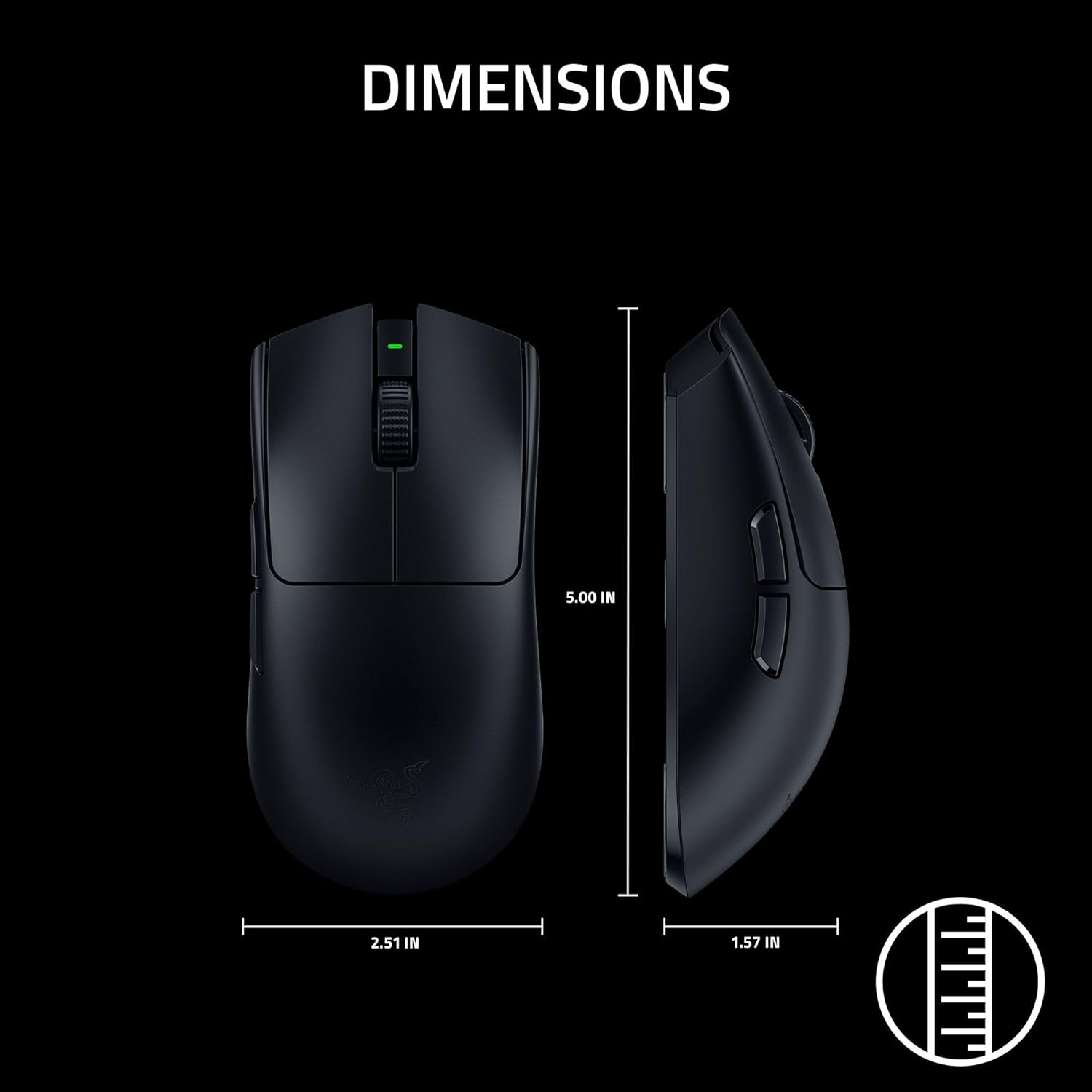
Image: A diagram illustrating the dimensions of the Razer Viper V3 Pro SE mouse.
7. Warranty
The Razer Viper V3 Pro SE Wireless Gaming Mouse comes with a 2-Year Manufacturer Warranty. Please retain your proof of purchase for warranty claims. For detailed warranty terms and conditions, refer to the Important Product Information Guide included in your package or visit the official Razer website.
8. Support
For further assistance, technical support, or to download the latest version of Razer Synapse software, please visit the official Razer Support website: www.razer.com/support.
You can also find additional resources and FAQs on the Razer community forums.


