1. Introduction
This manual provides essential information for setting up, operating, and maintaining your Lenovo ThinkPad X1 Carbon Gen 13 laptop. Designed for high performance and portability, this device integrates advanced features for a seamless user experience.
The 13th generation ThinkPad X1 Carbon is engineered with Intel's 15th-gen Core Ultra processors, offering enhanced graphics, multi-core performance, AI capabilities, and improved power efficiency. Its ultrathin and ultralight form factor makes it an ideal companion for professionals on the go.
2. Product Overview
The Lenovo ThinkPad X1 Carbon Gen 13 combines robust performance with a lightweight, durable design. Manufactured with recycled carbon fiber and integrating bio-based materials in its packaging, this laptop reflects a commitment to sustainability.
Key features include a vibrant 14-inch WUXGA touchscreen display, a responsive keyboard with tactile bumps, and a larger 120mm glass touchpad. It also boasts a full HD webcam with IR and RGB capabilities, dual-microphone array, and stereo speakers for superior communication.
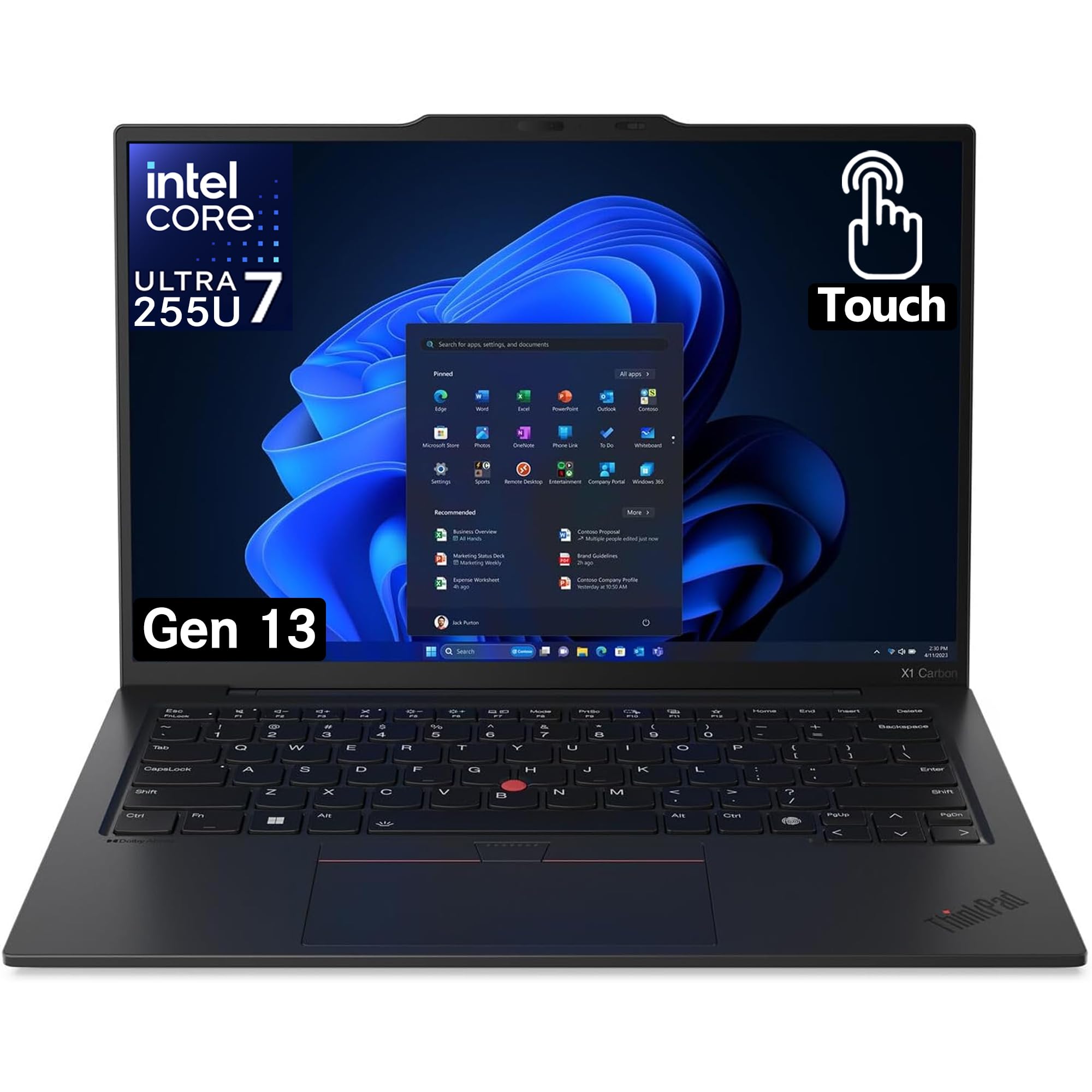
Figure 2.1: Lenovo ThinkPad X1 Carbon Gen 13, closed view.
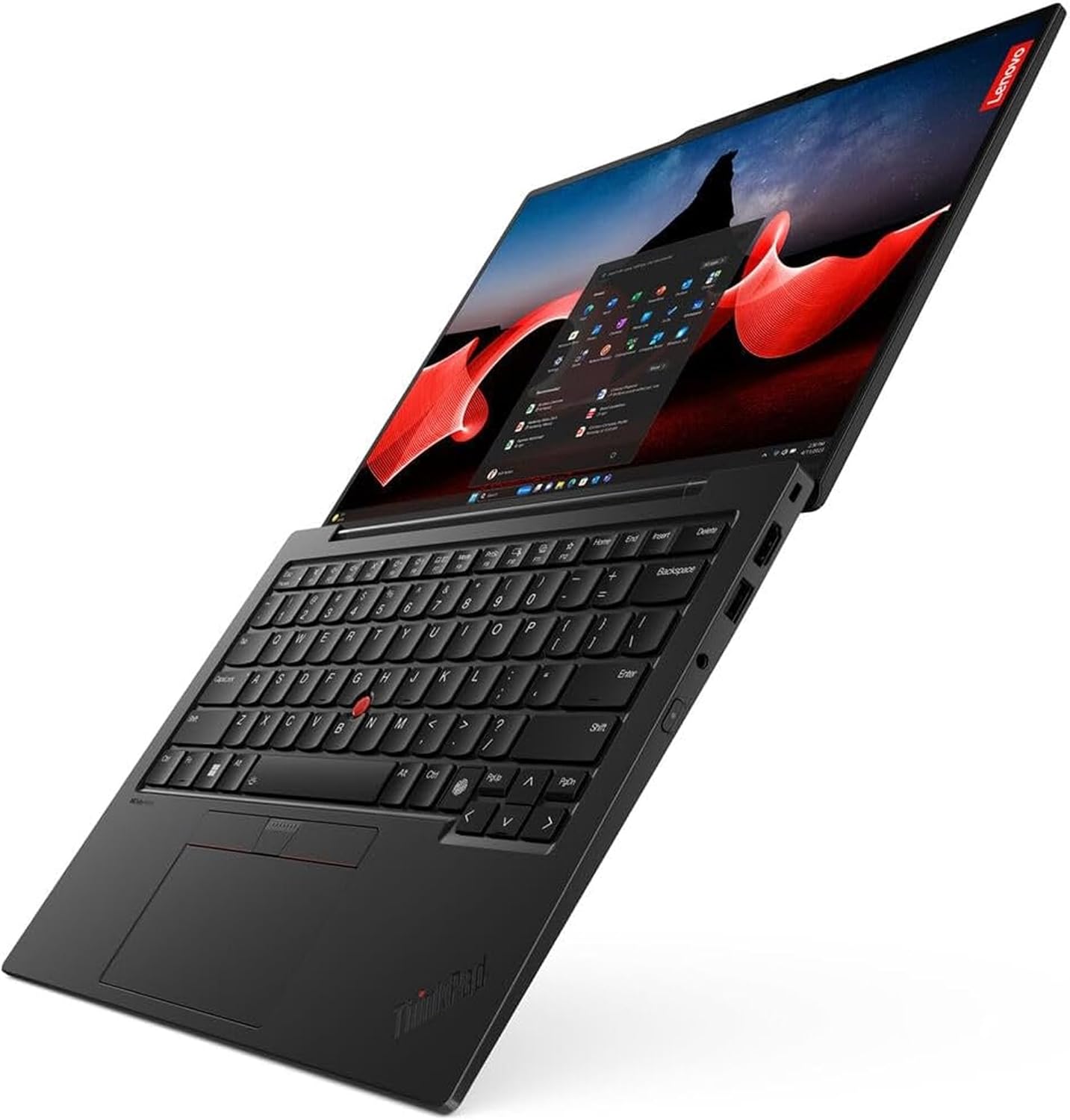
Figure 2.2: Top-down view of the Lenovo ThinkPad X1 Carbon Gen 13, showcasing the keyboard and screen.
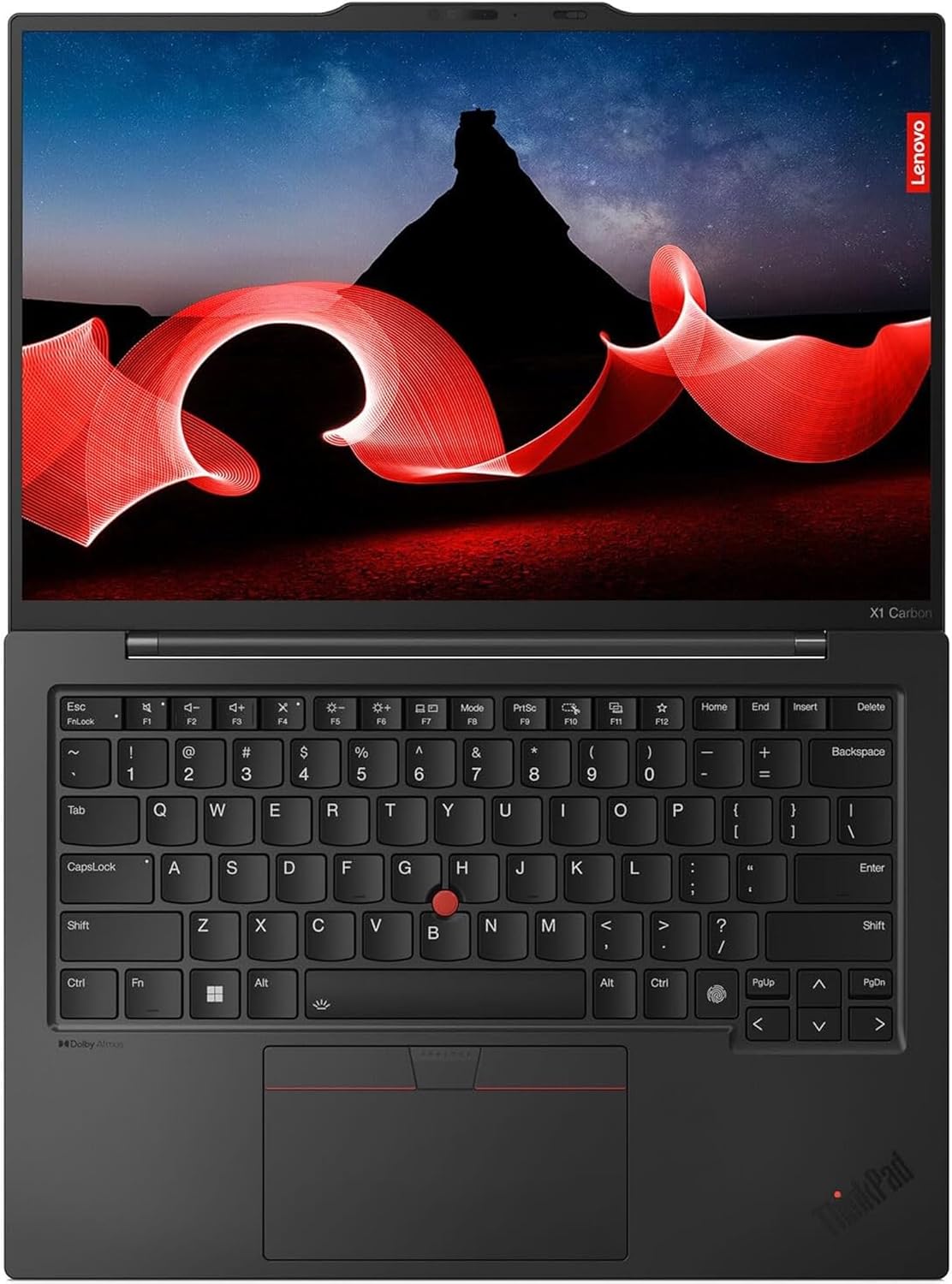
Figure 2.3: Angled view of the Lenovo ThinkPad X1 Carbon Gen 13, highlighting the screen and keyboard layout.
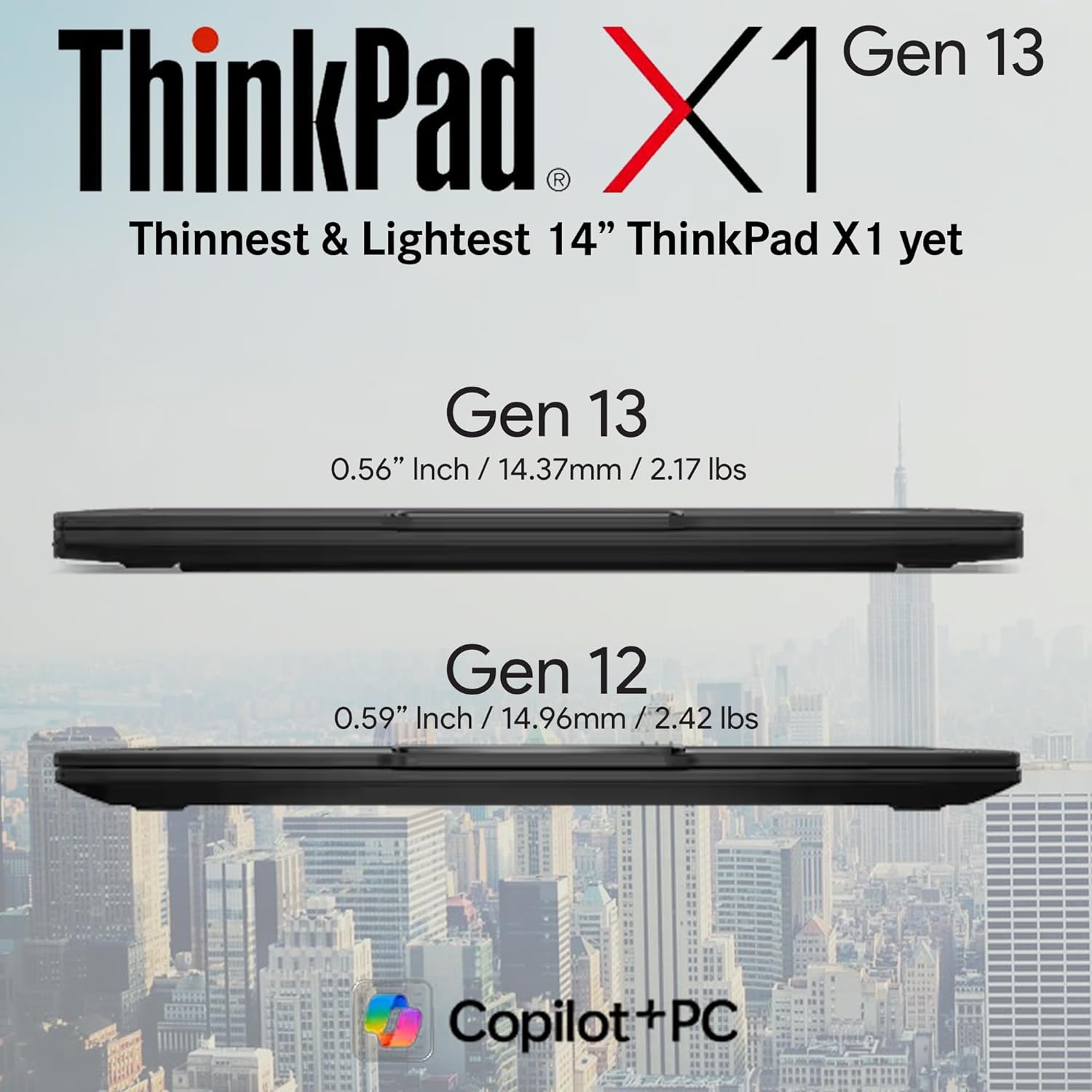
Figure 2.4: Side view of the Lenovo ThinkPad X1 Carbon Gen 13, illustrating the various ports.

Figure 2.5: Thickness comparison between the Lenovo ThinkPad X1 Carbon Gen 13 and Gen 12 models.
3. Setup
3.1 Unboxing and Initial Inspection
Carefully remove your laptop and accessories from the packaging. Verify that all components listed in the 'What's in the Box' section are present and undamaged.
3.2 Connecting the Power Adapter
Connect the USB-C power adapter to a power outlet and then to one of the USB-C/Thunderbolt 4 ports on your laptop. The laptop will begin charging. It is recommended to fully charge the battery before first use.
3.3 First-Time Power On and Windows Setup
Press the power button to turn on your laptop. Follow the on-screen instructions to complete the initial setup of Windows 11 Pro. This includes setting up your user account, network connection, and privacy settings.
3.4 What's in the Box
- ThinkPad X1 Carbon Gen 13 Laptop PC
- Internal Battery
- USB-C Power Adapter
4. Operating Your Laptop
4.1 Display and Interaction
The 14-inch WUXGA (1920x1200) touchscreen display offers 100% sRGB color accuracy, providing crisp visuals for both work and entertainment. Utilize the touchscreen for intuitive navigation and interaction with Windows 11 Pro.
4.2 Keyboard and Touchpad
The keyboard features tactile bumps on certain keys for improved typing comfort and accuracy. It is also backlit for use in low-light conditions. The 120mm glass touchpad provides precise cursor control, complemented by the traditional ThinkPad trackpoint buttons.
4.3 Camera and Audio
The FHD+ IR+ RGB camera ensures high-quality video conferencing. It includes a physical privacy shutter for enhanced security. The dual-microphone array and stereo speakers deliver clear audio for calls and multimedia.
Video 4.1: Overview of the Lenovo ThinkPad X1 Carbon Gen 13, highlighting its compact size and business features. (Source: Seller)
Video 4.2: Detailed look at the Lenovo ThinkPad X1 Carbon Gen 13, covering its design and key functionalities. (Source: Seller)
Video 4.3: Demonstration of the battery life performance of the Lenovo ThinkPad X1 Carbon Gen 13 during typical daily usage. (Source: Seller)
5. Specifications
| Feature | Detail |
|---|---|
| Processor | Intel Core Ultra 7 265U (1.7 GHz) |
| RAM | 32 GB LPDDR5X-6400MHz |
| Storage | 1 TB NVMe Performance SSD |
| Display | 14-inch WUXGA (1920x1200) Touchscreen, 100% sRGB |
| Operating System | Windows 11 Pro |
| Graphics | Integrated Intel Graphics |
| Camera | FHD+ IR+ RGB Camera |
| Ports | 2x USB-C/Thunderbolt 4, 2x USB-A 3.2, 1x HDMI |
| Wireless | 802.11ax, Bluetooth |
| Weight | 2.14 pounds |
| Dimensions (LxWxH) | 12.31 x 0.59 x 8.45 inches |
| Battery | 1 Lithium Polymer battery required |
6. Maintenance
6.1 Cleaning Your Laptop
Regularly clean the screen with a soft, lint-free cloth specifically designed for electronics. For the keyboard and chassis, use a slightly damp cloth with a mild, non-abrasive cleaner. Avoid spraying liquids directly onto the laptop.
6.2 Battery Care
To prolong battery life, avoid extreme temperatures and do not leave the laptop fully charged or fully discharged for extended periods. For optimal performance, allow the battery to discharge partially before recharging.
6.3 Software Updates
Ensure your operating system and drivers are regularly updated to maintain security, performance, and compatibility. Windows Update can manage most system updates automatically.
7. Troubleshooting
7.1 Common Issues
- No Power: Ensure the power adapter is securely connected and the outlet is functional. Try a different outlet or adapter if available.
- Display Problems: If the screen is blank or flickering, try restarting the laptop. Check external display connections if applicable.
- Slow Performance: Close unnecessary applications, check for malware, and ensure sufficient free storage space.
7.2 Contacting Support
If you encounter persistent issues that cannot be resolved with basic troubleshooting, please refer to the warranty and support information provided by Lenovo.
8. Warranty and Support
Your Lenovo ThinkPad X1 Carbon Gen 13 comes with a One Year Lenovo Warranty. For additional support and extended coverage, you may be eligible to add up to 5 years of Lenovo Premier Support upon registering your computer with Lenovo.
For detailed warranty terms, service options, and technical assistance, please visit the official Lenovo support website or contact their customer service.


