1. Introduction
This manual provides detailed instructions for the installation, operation, and maintenance of your Eonon UX7-PLUS Android 14 Double Din Car Stereo. Please read this manual thoroughly before using the product to ensure proper function and safety. The Eonon UX7-PLUS is an advanced car multimedia system designed to enhance your driving experience with smart features and robust performance.

Image 1.1: Eonon UX7-PLUS Car Stereo with included backup camera and a view of the screen connection.
2. Safety Information
- Always operate the device responsibly and in accordance with local traffic laws. Distracted driving can lead to accidents.
- Do not attempt to disassemble or modify the unit. This may cause damage, electric shock, or fire, and will void the warranty.
- Ensure all wiring is correctly connected to prevent short circuits or damage to the vehicle's electrical system.
- Consult a professional for installation if you are unsure about any steps.
- Keep the unit away from water and excessive moisture.
3. Package Contents
Verify that all items listed below are present in your package:
- Eonon UX7-PLUS Car Stereo Unit
- Backup Camera (A0125)
- Audio Video Adapter Cable *1
- Audio Adapter Cable *1
- CarPlay & Android Auto USB Adapter Cable *1
- USB Adapter Cable *1
- Backup Camera Video Input Cable *1
- Power Cable *1
- GPS Antenna *1
- External Microphone *1
- Screws *10
- Spare Fuse *1
- User Manual *1

Image 3.1: Visual representation of the Eonon UX7-PLUS package contents.
4. Installation
4.1. Compatibility Check
The Eonon UX7-PLUS is a double din car stereo designed to fit a car dashboard size of 178mm * 100mm. It is not compatible with vehicles that have a single din factory stereo. If your car's dashboard size is not 178mm * 100mm, an additional installation kit (not included) will be required.

Image 4.1: Dashboard compatibility guidelines for the Eonon UX7-PLUS.

Image 4.2: Example of an installation kit required for non-standard dashboard sizes.
4.2. Wiring Diagram
Refer to the wiring diagram for correct connections. Ensure all wires are securely connected to their corresponding ports. If your factory car radio does not have an ISO standard interface, you may need to purchase a compatible ISO wiring harness (not included).

Image 4.3: Eonon UX7-PLUS wiring diagram with labeled ports.
- ISO Port
- Illumination Wire
- SWC Wire 1
- Reverse Trigger Wire
- SWC Wire 2
- GND Wire
- AMP
- Audio Output FR
- Audio Output FL
- AUX Audio In R
- AUX Audio In L
- External Microphone
- Video Input
- Front Camera Input
- Subwoofer Output
- Center Audio Out
- Audio Output RL
- Audio Output RR
- RX/TX Input
- USB Port for CarPlay
- USB Port
- GND Wire
- Backup Camera Input
- Brake Shift Control
- GPS Antenna
- ANT
- WiFi Antenna
- Bluetooth Antenna
4.3. Screen Connection
The UX7-PLUS features a redesigned screen connection mechanism for easier and more reliable assembly. Ensure the screen is securely attached to the main unit.

Image 4.4: Details of the redesigned screen connection and unit construction.
5. Operating Instructions
5.1. User Interface and Controls
The UX7-PLUS features a 10.1-inch IPS display with 1280*720 resolution and a 2.5D capacitive touchscreen. It includes physical buttons and a volume knob for quick and precise control. You can also customize the boot logo, button color, and wallpaper to match your vehicle's interior.

Image 5.1: 10.1-inch IPS Display features.

Image 5.2: User-friendly physical controls.

Image 5.3: Customization options for the user interface.
5.2. CarPlay and Android Auto
The unit supports both wired and wireless Apple CarPlay and Android Auto. This allows seamless integration of your smartphone for navigation, calls, and music.
5.2.1. Wireless Apple CarPlay Connection
- Click the Zlink5 app on the car stereo.
- Turn on Wi-Fi and Bluetooth on your iPhone.
- Find 'EONON' in your phone's Bluetooth device list and pair it. Once connected, tap 'Use CarPlay'.
- Wait a few seconds to complete the connection.

Image 5.4: Wireless Apple CarPlay connection steps.
5.2.2. Wireless Android Auto Connection
- Click the Zlink5 app on the car stereo.
- Turn on Wi-Fi and Bluetooth on your Android phone.
- Find 'EONON' in your phone's Bluetooth device list and pair it.
- Wait a few seconds to complete the connection.

Image 5.5: Wireless Android Auto connection steps.
5.3. Screen Mirroring
Display your phone's screen directly on the car's display.
5.3.1. Screen Mirroring for iOS
- Click the Zlink5 app on the car stereo. Set the car stereo to iPhone wireless screen mirroring mode.
- Turn on the iPhone hotspot and connect to the car stereo.
- Turn on the iPhone screen mirroring function and select "zj-airplay".

Image 5.6: iOS Screen Mirroring instructions.
5.3.2. Screen Mirroring for Android
- Click the Zlink5 app on the car stereo. Set the car stereo to Android wireless screen mirroring mode.
- Find 'EONON' in your phone's Bluetooth device list and pair it.
- Turn on your phone's hotspot and connect to the car stereo.
- Install the Zplus app on your phone. Turn on the app and select "wireless connection".

Image 5.7: Android Screen Mirroring instructions.
5.4. Bluetooth 5.4
The independent Bluetooth module and extra Bluetooth antenna ensure quick, stable connections, noise reduction, crystal-clear call quality, and high-quality Bluetooth music streaming.

Image 5.8: Bluetooth 5.4 features.
5.5. Steering Wheel Controls (SWC)
The Eonon UX7-PLUS supports analog SWC signals, allowing you to control the unit while keeping your hands on the steering wheel. If your car uses a digital signal, a separate SWC adapter cable (not included) is required to convert the digital signal to analog.

Image 5.9: Steering Wheel Control functionality.
5.6. Split Screen Multitasking
The unit supports split-screen functionality, allowing you to view and use two applications simultaneously on the 10.1-inch display.

Image 5.10: Split Screen Multitasking in action.
5.7. Adjustable Viewing Angle
The screen offers an adjustable viewing angle for optimal visibility from various seating positions.

Image 5.11: Adjustable viewing angles for the display.
6. Features
6.1. Performance
The UX7-PLUS runs on Android 14 OS, powered by an RK3562 Quad-core ARM Cortex-A53 @ 2.0GHz CPU, 3GB RAM, and 32GB ROM. This configuration ensures smooth and responsive performance for various applications.

Image 6.1: Internal architecture and key components of the Eonon X7 Series.
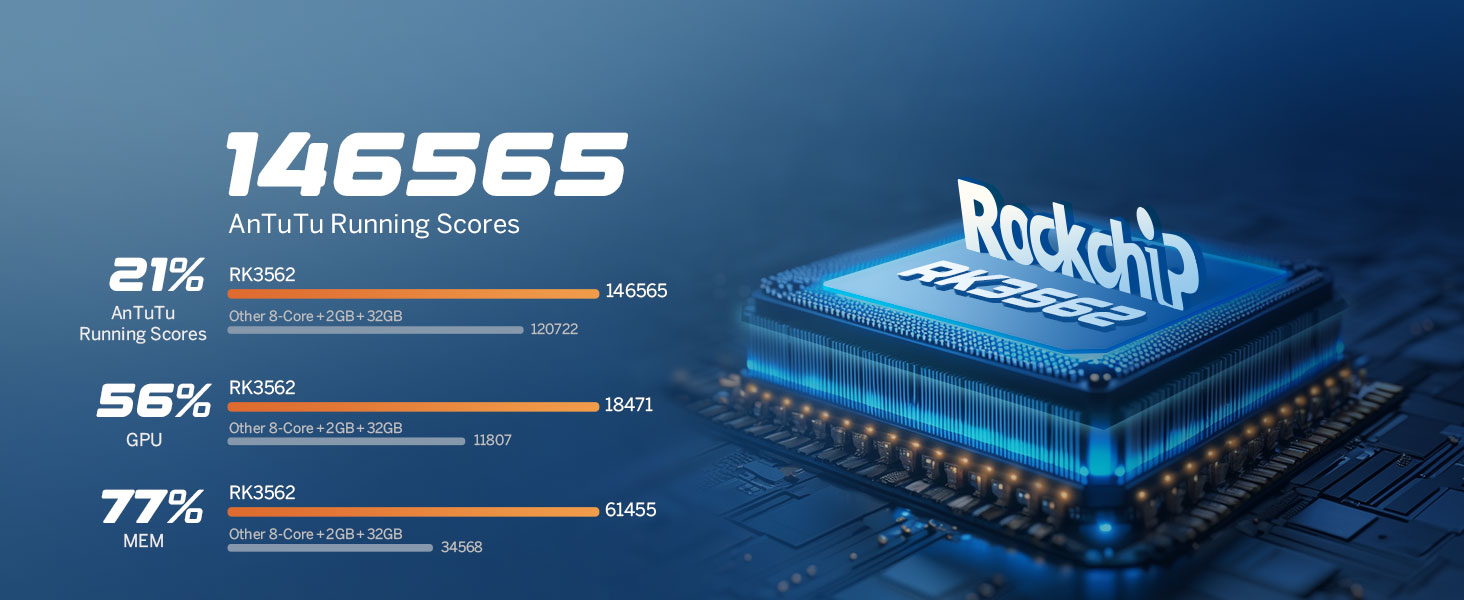
Image 6.2: Performance benchmarks for the RK3562 processor.
6.2. Audio Experience
Equipped with a built-in DSP Audio Processor and a 48-band equalizer, the UX7-PLUS allows for precise sound customization. The ST TDA7388 Amplifier delivers 4x45W surround sound output. RCA Audio Outputs include 4-Channel FR/FL/RR/RL outputs + 1 Subwoofer output. EQ Modes include Custom, Standard, Popular, Rock, Classical, and Jazz.

Image 6.3: Digital Sound Processor (DSP) capabilities.
6.3. Firmware Updates
The unit supports Over-the-Air (OTA) firmware updates to fix software issues and enhance security. Note that Android system upgrades are not supported via OTA.
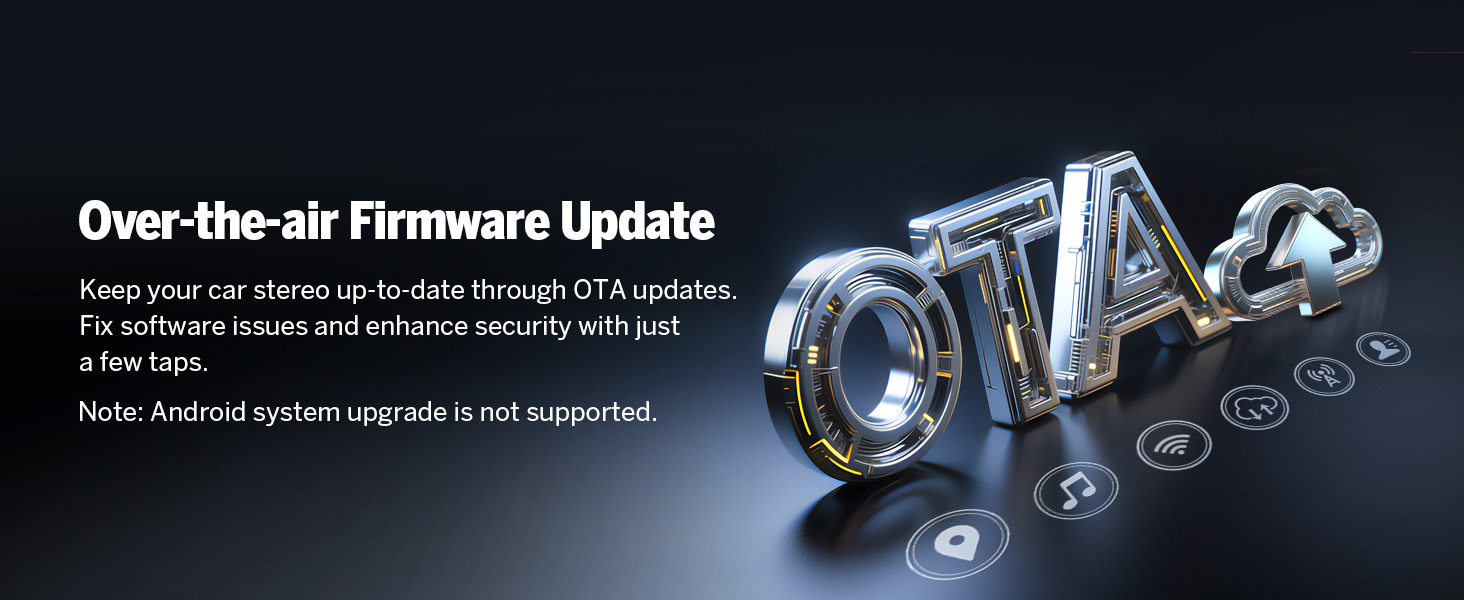
Image 6.4: Over-the-Air Firmware Update feature.
6.4. Accessory Compatibility
The Eonon UX7-PLUS is compatible with various Eonon accessories, including dash cams (e.g., A100 Dash Cam, not included) and OBD2 diagnostic tools (e.g., V0056 OBD2, not included).

Image 6.5: Backup camera features (included).

Image 6.6: Dash Cam compatibility (A100 Dash Cam, not included).
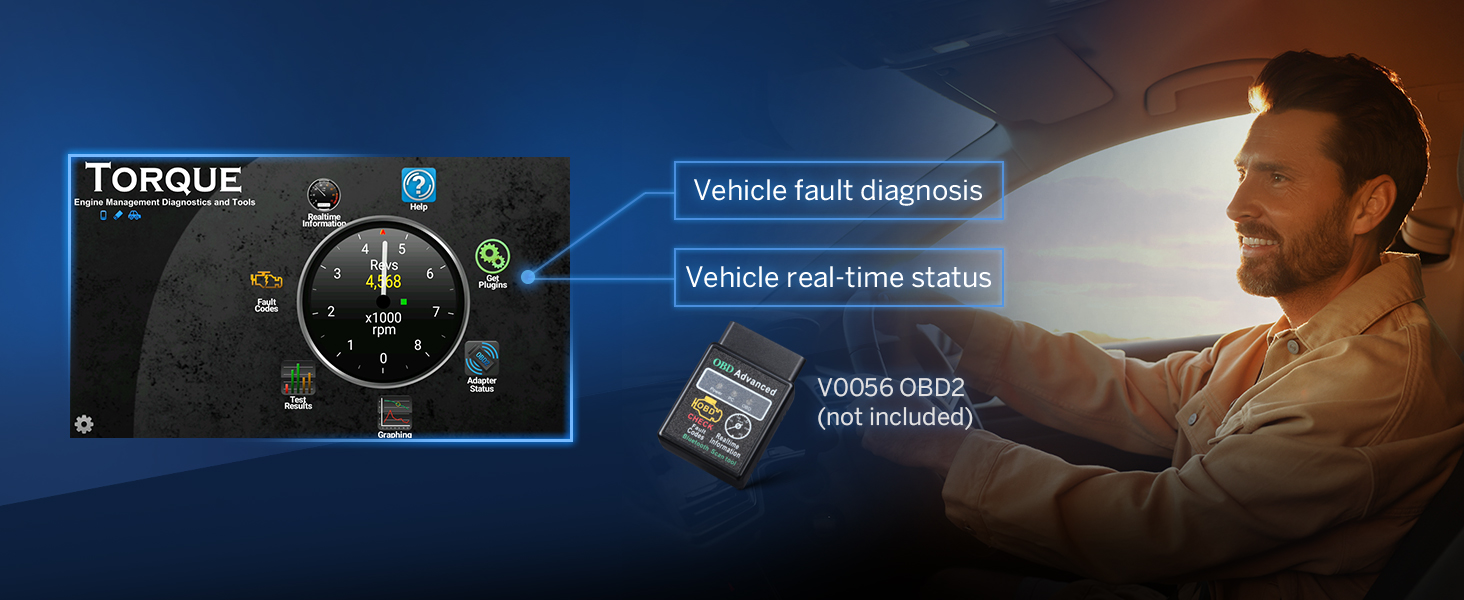
Image 6.7: OBD2 diagnostic tool compatibility (V0056 OBD2, not included).

Image 6.8: External DSP Amplifier compatibility (A303 DSP Amplifier, not included).
7. Maintenance
- Cleaning the Screen: Use a soft, lint-free cloth to gently wipe the screen. Do not use abrasive cleaners or solvents.
- General Care: Keep the unit free from dust and debris. Avoid exposing it to extreme temperatures or direct sunlight for prolonged periods.
- Software Updates: Regularly check for firmware updates to ensure optimal performance and security.
8. Troubleshooting
- No Power: Check all power connections and fuses. Ensure the vehicle's ignition is on.
- No Sound: Verify speaker connections. Check volume levels and audio settings (EQ, balance, fader). Ensure the amplifier (if external) is powered on.
- Bluetooth Connection Issues: Ensure Bluetooth is enabled on both the stereo and your phone. Delete previous pairings and try reconnecting.
- CarPlay/Android Auto Not Connecting: Ensure the Zlink5 app is running. Check USB cable connection for wired connections. For wireless, verify Wi-Fi and Bluetooth are active and paired correctly.
- Screen Unresponsive: Try restarting the unit. If the issue persists, a factory reset may be necessary (note: this will erase all user data).
9. Specifications
| Feature | Specification |
|---|---|
| Operating System | Android 14 |
| CPU | RK3562 Quad-core ARM Cortex-A53 @ 2.0GHz |
| RAM | 3GB |
| ROM | 32GB |
| Display Size | 10.1 Inches IPS |
| Resolution | 1280*720 |
| Touchscreen | 2.5D Capacitive |
| Bluetooth Version | 5.4 |
| Amplifier | ST TDA7388 (4x45W) |
| DSP | Built-in, 48-band equalizer |
| CarPlay/Android Auto | Wired & Wireless |
| Steering Wheel Control | Analog SWC Signal Support |
| Item Weight | 5.28 pounds |
| Package Dimensions | 11.81 x 8.66 x 7.87 inches |
| Model Number | UX7-PLUS-U |
10. Warranty and Support
The Eonon UX7-PLUS comes with a 2-Year Manufacturer Warranty. For technical support, warranty claims, or further assistance, please contact Eonon customer service through their official website or the retailer where the product was purchased. Please have your model number (UX7-PLUS) and purchase details ready when contacting support.


