
1. Introduction
This manual provides comprehensive instructions for the operation and maintenance of your Phinistec F18 Retro MP3 Player. The F18 combines a classic cassette tape aesthetic with modern digital audio capabilities, offering a unique user experience.

Image: The Phinistec F18 MP3 Player displaying its retro tape-style user interface.
2. Package Contents
Verify that all items listed below are included in your package:
- Phinistec F18 MP3 Player (1 unit)
- USB Data Cable (1 unit)
- Wired Earphones (1 pair)
- Instruction Manual (1 unit)

Image: The Phinistec F18 MP3 Player shown alongside its included accessories, such as the USB cable and wired earphones.
3. Product Overview
The Phinistec F18 features a 2.4-inch touchscreen, classic button controls, and an Alps scroll wheel for precise volume adjustment. Its design mimics a retro cassette tape, with a dynamic UI that rotates like a tape reel during music playback.
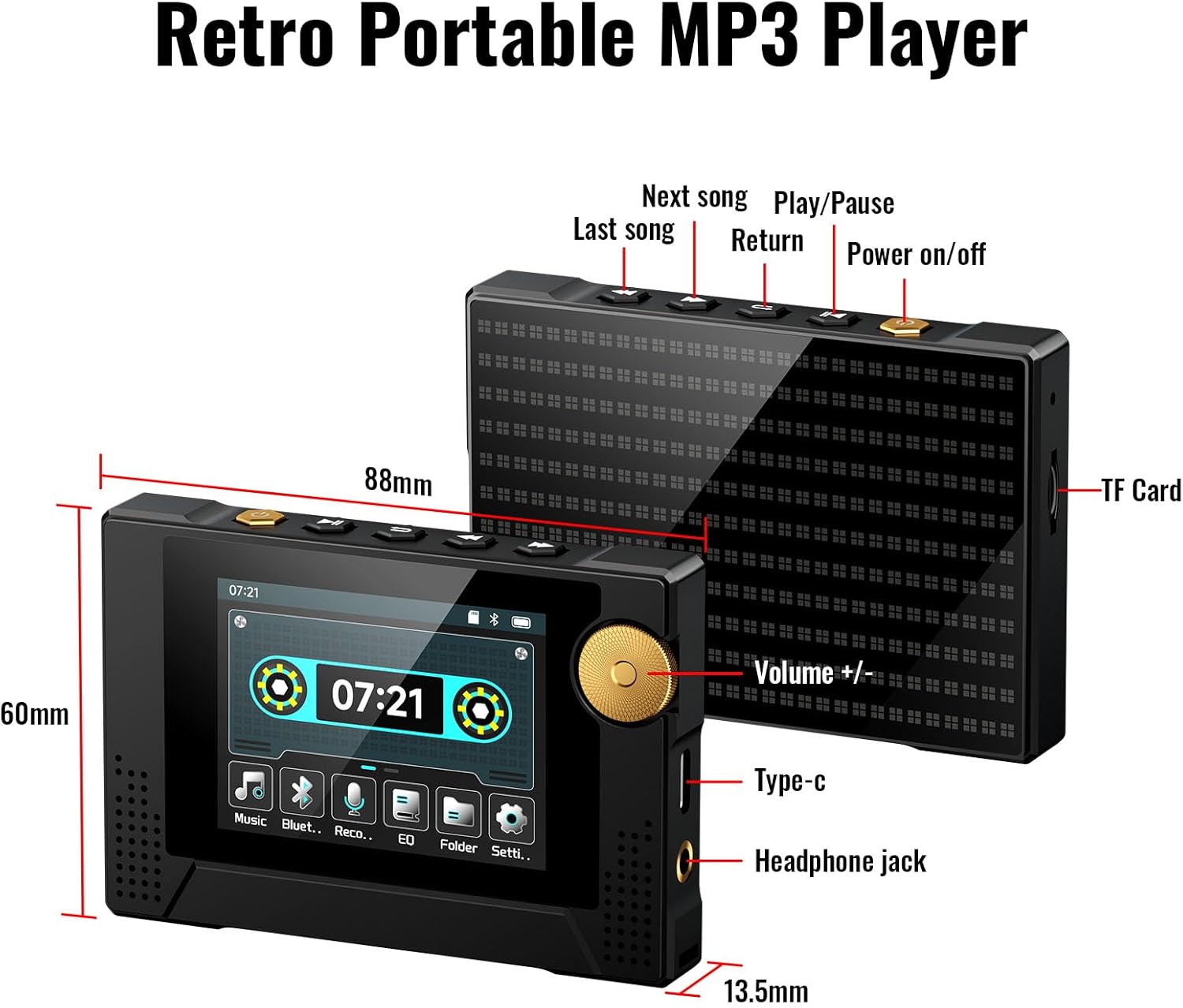
Image: Detailed diagram of the Phinistec F18 MP3 Player, highlighting the power button, volume scroll wheel, navigation buttons, Type-C port, headphone jack, and TF (SD) card slot, along with its dimensions.
Key Features:
- Display: 2.4-inch Touchscreen
- Controls: Touchscreen, physical buttons, and Alps scroll wheel for volume.
- Connectivity: Bluetooth 5.3, AUX 3.5mm
- Storage: 64GB internal, expandable up to 256GB via TF (SD) card.
- Audio: Built-in HD speaker, supports APE, FLAC, MP3, OGG, AAC, ACELP, WMA, WAV.
- Battery: 800mAh, up to 40 hours continuous music playback.
- Additional Functions: FM Radio (with recording), Voice Recorder.
4. Setup
4.1 Charging the Device
Before first use, fully charge your Phinistec F18 MP3 Player. Connect the provided USB Type-C cable to the player's charging port and the other end to a compatible USB power adapter (not included) or a computer's USB port. The battery indicator on the screen will show charging status.
4.2 Inserting a MicroSD Card (Optional)
The device has 64GB of internal storage. To expand storage, insert a MicroSD card (up to 256GB, FAT32 format recommended) into the TF card slot located on the side of the player. Gently push the card until it clicks into place.
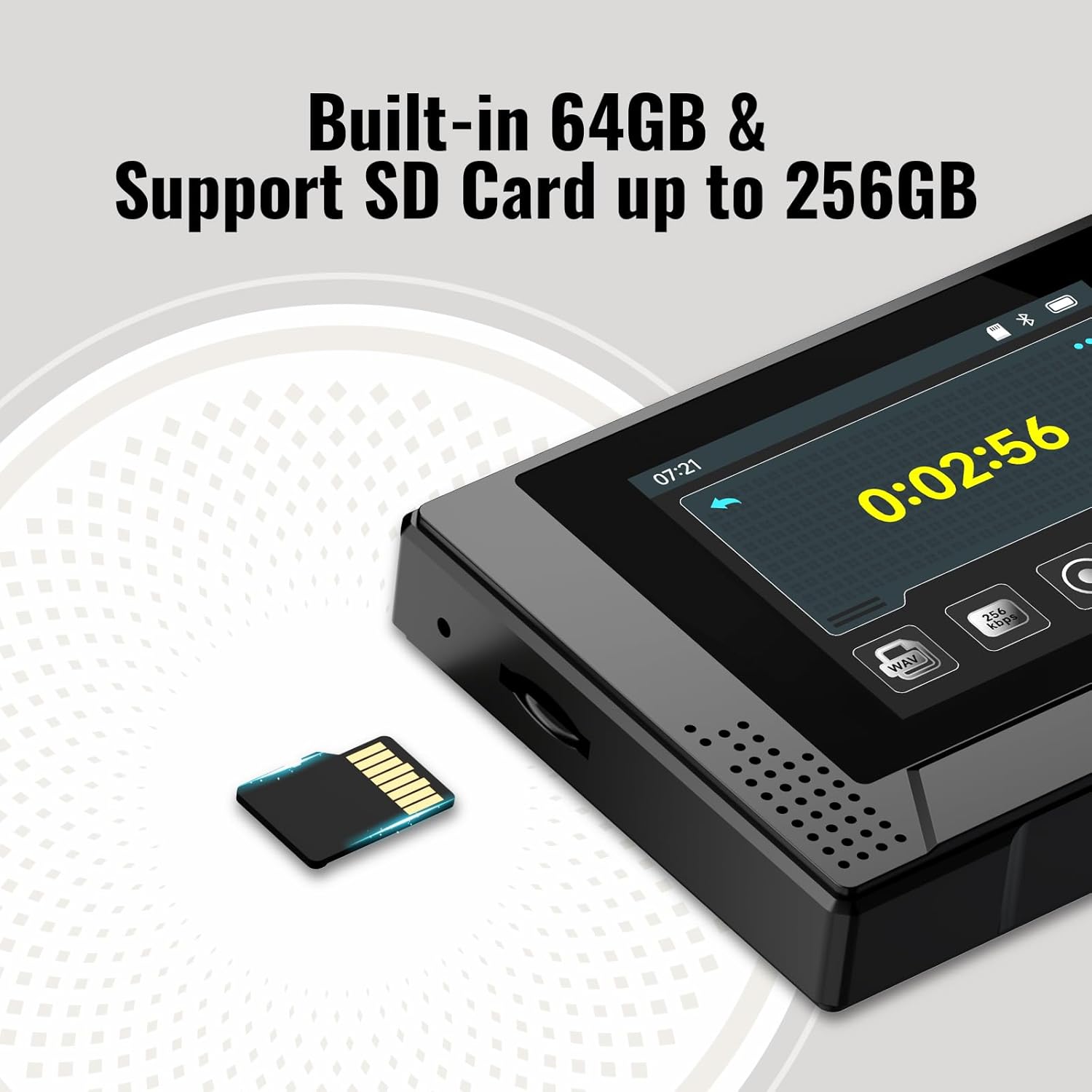
Image: The Phinistec F18 MP3 Player highlighting its 64GB internal storage and the slot for an expandable MicroSD card.
4.3 Transferring Music Files
Connect the MP3 player to your computer using the USB Type-C cable. The player will appear as a removable disk drive. Drag and drop your audio files (APE, FLAC, MP3, OGG, AAC, ACELP, WMA, WAV) into the appropriate folders on the device or MicroSD card.
5. Operating Instructions
5.1 Power On/Off
- Power On: Press and hold the Power button (located on the top edge) for approximately 3 seconds until the screen illuminates.
- Power Off: Press and hold the Power button for approximately 3 seconds. A power-off confirmation prompt will appear; select 'Yes' to shut down.
5.2 Navigation
The F18 supports both touchscreen and physical button navigation:
- Touchscreen: Swipe and tap on the 2.4-inch display to navigate menus and select options.
- Physical Buttons: Use the buttons on the top edge for functions such as Play/Pause, Next Song, Previous Song, and Return. The scroll wheel on the right side adjusts volume.
5.3 Music Playback
- From the main menu, tap the "Music" icon.
- Browse your music by "All Songs", "Artist", "Album", or "Style".
- Tap on a song to begin playback.
- During playback, the screen displays a retro tape UI. Use the physical buttons or touchscreen controls for Play/Pause, Next/Previous track, and volume adjustment via the scroll wheel.
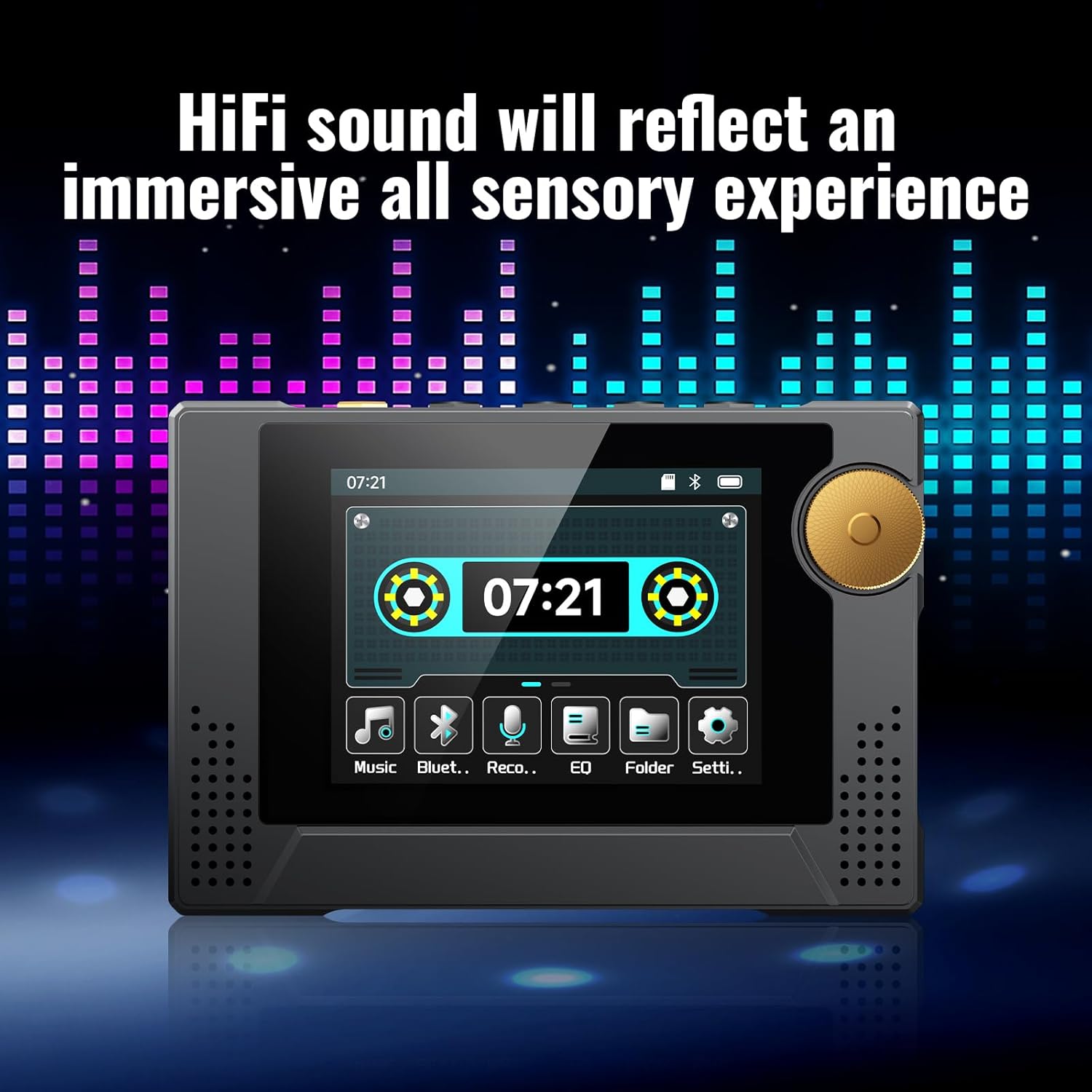
Image: The Phinistec F18 MP3 Player showing its music playback interface with a dynamic retro tape graphic and visual equalizer bars.
5.4 Bluetooth Connection
The F18 features Bluetooth 5.3 for wireless audio output to Bluetooth headphones or speakers. Note: The device cannot connect to phones or tablets via Bluetooth.
- From the main menu, tap the "Bluetooth" icon.
- Ensure Bluetooth is enabled on your headphones or speaker and they are in pairing mode.
- On the F18, select "Search Device" to find available Bluetooth devices.
- Select your desired device from the list to pair.

Image: The Phinistec F18 MP3 Player illustrating its Bluetooth 5.3 and AUX 3.5mm connectivity options for headphones, external speakers, and car audio systems.
5.5 FM Radio
The F18 includes a built-in FM radio function.
- Access the "FM Radio" option from the main menu.
- Use the "Auto Search" feature to find available stations.
- You can save your favorite radio stations for quick access.
- The device also supports radio recording.
5.6 Voice Recorder
The F18 can record audio using its built-in microphone.
- Tap the "Record" icon from the main menu.
- Press the record button on the screen to start recording.
- Press the stop button to end the recording. You will be prompted to save the file.
- Recorded files can be accessed and played back from the "Record" section.
5.7 Equalizer (EQ)
Adjust the sound profile to your preference using the Equalizer settings.
- Tap the "EQ" icon from the main menu.
- Choose from preset equalizer modes (e.g., Rock, Funk, Hip Hop, Jazz, Classical, Electronic) or customize your own.
Video: An official product video demonstrating the Phinistec F18 MP3 Player's dynamic retro UI and various functions, including music playback, Bluetooth, recording, and equalizer settings.
Video: An official product video showcasing the Phinistec F18 Retro MP3 Player's features and user interface navigation.
6. Maintenance
6.1 Cleaning
Wipe the device with a soft, dry cloth. Avoid using liquid cleaners or abrasive materials that could damage the screen or casing.
6.2 Battery Care
To prolong battery life, avoid fully discharging the device frequently. Charge the player regularly, even if not in use for extended periods. Store in a cool, dry place.
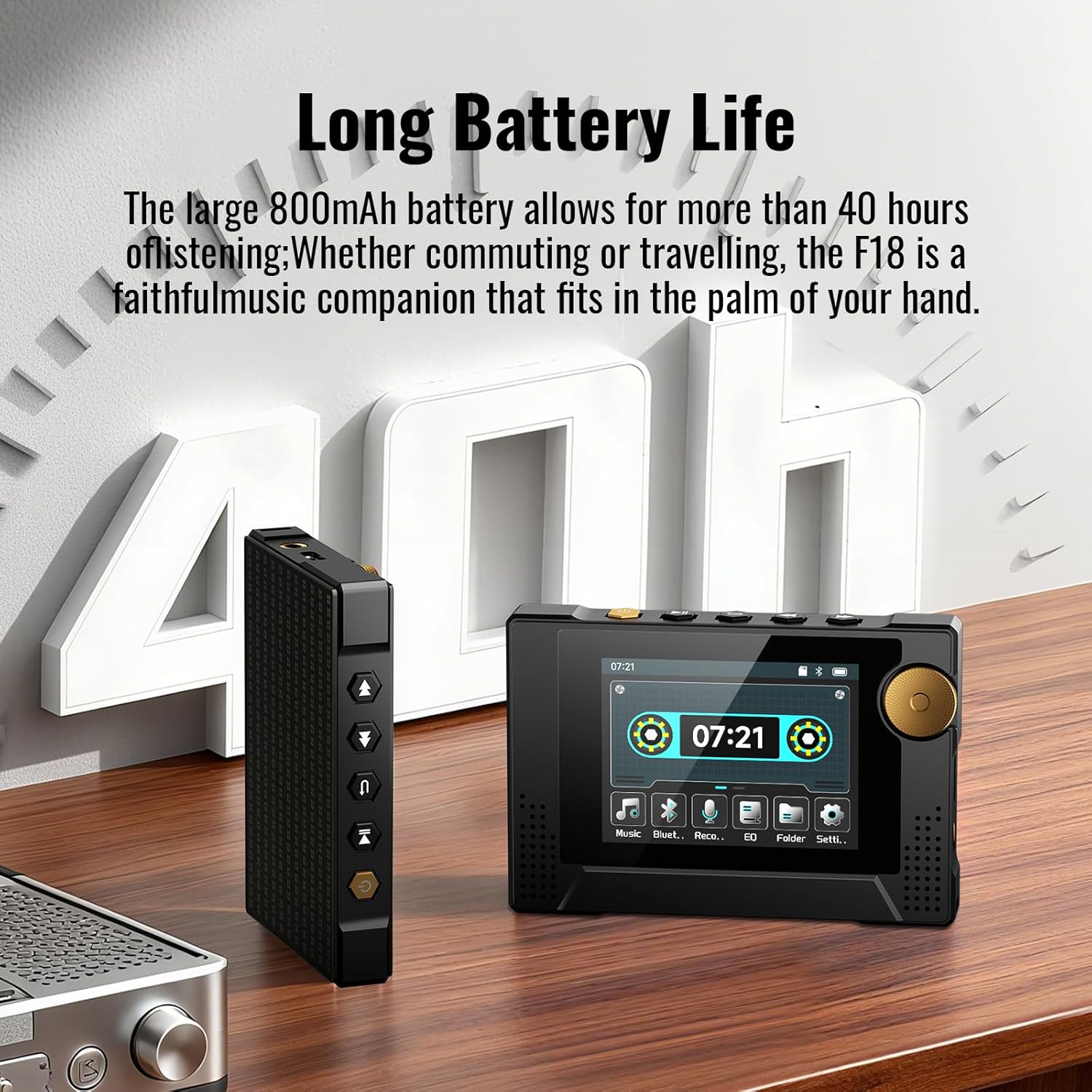
Image: The Phinistec F18 MP3 Player highlighting its long battery life, capable of up to 40 hours of continuous playback.
6.3 Storage
When not in use, store the MP3 player in a protective case or a safe environment to prevent scratches or damage.
7. Troubleshooting
- Device not turning on: Ensure the battery is charged. Connect to a power source and try again.
- No sound: Check the volume level. Ensure headphones are properly connected or Bluetooth is paired correctly.
- Cannot connect via Bluetooth to phone/tablet: The Phinistec F18 is designed to connect to Bluetooth headphones or speakers only, not mobile devices.
- Music files not recognized: Ensure files are in supported formats (APE, FLAC, MP3, OGG, AAC, ACELP, WMA, WAV) and correctly transferred to the device or MicroSD card.
- MicroSD card not detected: Ensure the card is properly inserted and formatted to FAT32.
8. Specifications
| Model Name | F18 |
| Brand | Phinistec |
| Internal Storage | 64 GB |
| Expandable Storage | Up to 256GB (MicroSD/TF card, FAT32) |
| Screen Size | 2.4 Inches |
| Connectivity | Bluetooth 5.3, AUX (3.5mm) |
| Supported Audio Formats | APE, FLAC, MP3, OGG, AAC, ACELP, WMA, WAV |
| Battery Life | Up to 40 hours (continuous music playback) |
| Dimensions | 4.57 x 3.07 x 1.46 inches |
| Item Weight | 7.4 ounces |
| Special Feature | Built-In Speaker, FM Radio, Voice Recorder |
9. Warranty and Support
For warranty information and technical support, please refer to the official Phinistec website or contact their customer service directly. Keep your purchase receipt as proof of purchase for warranty claims.
For further assistance, visit the Phinistec Store on Amazon.


