
1. Introduction
This manual provides essential information for the safe and effective operation of your Magcubic HY350Max Android 14 Mini Projector. Please read it thoroughly before use and retain it for future reference.

Image 1.1: Magcubic HY350Max Mini Projector and included remote control.
Video 1.1: An overview of the Magcubic Mini Projector's features and design.
2. Setup
2.1 Unpacking and Initial Placement
Carefully remove all components from the packaging. Place the projector on a stable, flat surface. Ensure adequate ventilation around the device.
2.2 Power Connection
Connect the provided power adapter to the projector's power input and then to a suitable electrical outlet.
2.3 Automatic Adjustments (Auto Focus & Keystone Correction)
The HY350Max features intelligent auto-focus, 6D keystone correction, auto obstacle avoidance, and auto screen alignment. Upon power-on or movement, the projector will automatically adjust the image for optimal clarity and shape. For distances exceeding 2.5 meters, manual focus adjustment via the remote control may be necessary.

Image 2.1: The projector's automatic focus, keystone correction, obstacle avoidance, and screen alignment features.
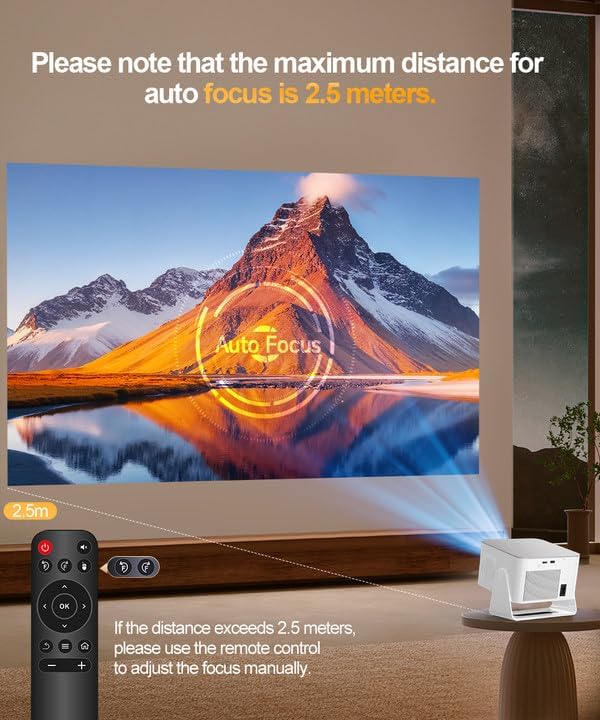
Image 2.2: Note on the maximum distance for auto-focus (2.5 meters) and manual adjustment beyond this range.
Video 2.1: A demonstration of the projector's easy setup process, including automatic adjustments.
3. Operating Instructions
3.1 Power On/Off
Press the power button on the projector or the remote control to turn the device on or off.
3.2 Navigation with Air Mouse Remote
The included remote control features an Air Mouse function for intuitive navigation. Point the remote at the screen to move the cursor and select options. Traditional button navigation is also available.

Image 3.1: The Android 14 interface with various apps and the Air Mouse remote in use.
3.3 Connectivity Options
The projector offers multiple ways to connect to your devices:
- Wi-Fi 6: For ultra-fast and stable wireless streaming.
- Bluetooth 5.4: Connect external audio devices like speakers or headphones.
- HDMI Port: Connect laptops, PCs, gaming consoles (Switch, PS5), TV sticks, and other HDMI-enabled devices.
- USB Port: Connect USB drives, smartphones, tablets, or a mouse for additional input.

Image 3.2: Overview of wired (HDMI) and wireless (Wi-Fi, Bluetooth) connectivity options.
3.4 Smart Features (Android 14 OS)
The projector runs on Android 14 OS, providing access to a wide range of applications and streaming services directly from the device. Navigate through the 'My Apps' or 'Store' sections to find and install desired applications.
3.5 Projection Modes and Placement
The projector's 180-degree rotatable design allows for versatile placement and projection onto various surfaces, including walls and ceilings.
- Tabletop Use: Place the projector on a flat surface in front of the projection area.
- Tripod Mount: Utilize the tripod screw hole for stable positioning.
- Ceiling Mount: Mount the projector to the ceiling for overhead projection.
- Side Projection: The 180-degree adjustment allows for projection from various angles, including side walls.

Image 3.3: The projector's portable design and 180-degree rotation for flexible projection.

Image 3.4: Recommended throw ratio and screen sizes for tabletop, ceiling, and tripod mounts.
Video 3.1: A short preview demonstrating the projector's ability to project onto a ceiling.
3.6 Audio Output
The projector includes built-in 15W Hi-Fi stereo speakers. For enhanced audio, connect external Bluetooth speakers or use the 3.5mm audio output jack.
4. Maintenance
Regular maintenance ensures optimal performance and longevity of your projector.
- Lens Cleaning: Use a soft, lint-free cloth specifically designed for optical lenses to gently clean the projector lens. Avoid abrasive materials or harsh chemicals.
- Ventilation: Ensure the projector's ventilation ports are clear of obstructions to prevent overheating. Do not block air inlets or outlets.
- Storage: When not in use, store the projector in a cool, dry place, away from direct sunlight and extreme temperatures.
5. Troubleshooting
If you encounter issues with your projector, refer to the following common solutions:
- No Image/Poor Image Quality:
- Check power connection and ensure the projector is turned on.
- Verify input source selection (HDMI, USB, Wi-Fi).
- Adjust focus manually if the auto-focus is not sufficient (especially beyond 2.5m).
- Ensure the projection surface is flat and clear of obstructions.
- Check for sufficient ambient light conditions; performance is best in darker environments.
- No Sound/Low Sound:
- Adjust volume on the projector and connected devices.
- Check Bluetooth connection if using external speakers.
- Ensure internal speakers are not muted.
- Connectivity Issues (Wi-Fi/Bluetooth):
- Ensure Wi-Fi and Bluetooth are enabled in settings.
- Restart the projector and your connected device.
- Check Wi-Fi signal strength.
6. Specifications

Image 6.1: Key features of the Magcubic HY350Max projector.
| Feature | Detail |
|---|---|
| Brand | Magcubic |
| Model Number | HY350MAX |
| Display Resolution | Native 1920 x 1080 (1080P) |
| Video Support | 4K & 8K Supported |
| Brightness | 600 ANSI Lumens |
| Operating System | Android 14 |
| RAM/ROM | 2GB RAM / 16GB ROM |
| Connectivity | Wi-Fi 6, Bluetooth 5.4, HDMI, USB |
| Audio | Built-in 15W Hi-Fi Stereo Speakers |
| Special Features | Auto Focus, 6D Keystone Correction, Auto Obstacle Avoidance, Auto Screen Alignment, 180° Rotatable Design, Air Mouse Remote |
| Item Weight | 3.08 lbs (Net Weight) / 3.85 lbs (Item Weight) |
| Dimensions | 7.2" x 8.7" x 4.3" (with base) |
7. Warranty and Support
Magcubic is committed to providing excellent customer service.
- Customer Support: 24-hour live customer support is available for assistance.
- Return Guarantee: A 30-day return guarantee is provided.
- Technical Support: Lifetime technical support is included with your purchase.
For further assistance, please refer to the contact information provided with your product packaging or visit the official Magcubic website.