
Introduction
The Jabra Evolve3 75 is an on-ear wireless Bluetooth headset designed for modern work environments. It features advanced active noise cancellation, AI-powered voice call technology, and a lightweight, comfortable design. This manual provides detailed instructions for setting up, operating, maintaining, and troubleshooting your headset.
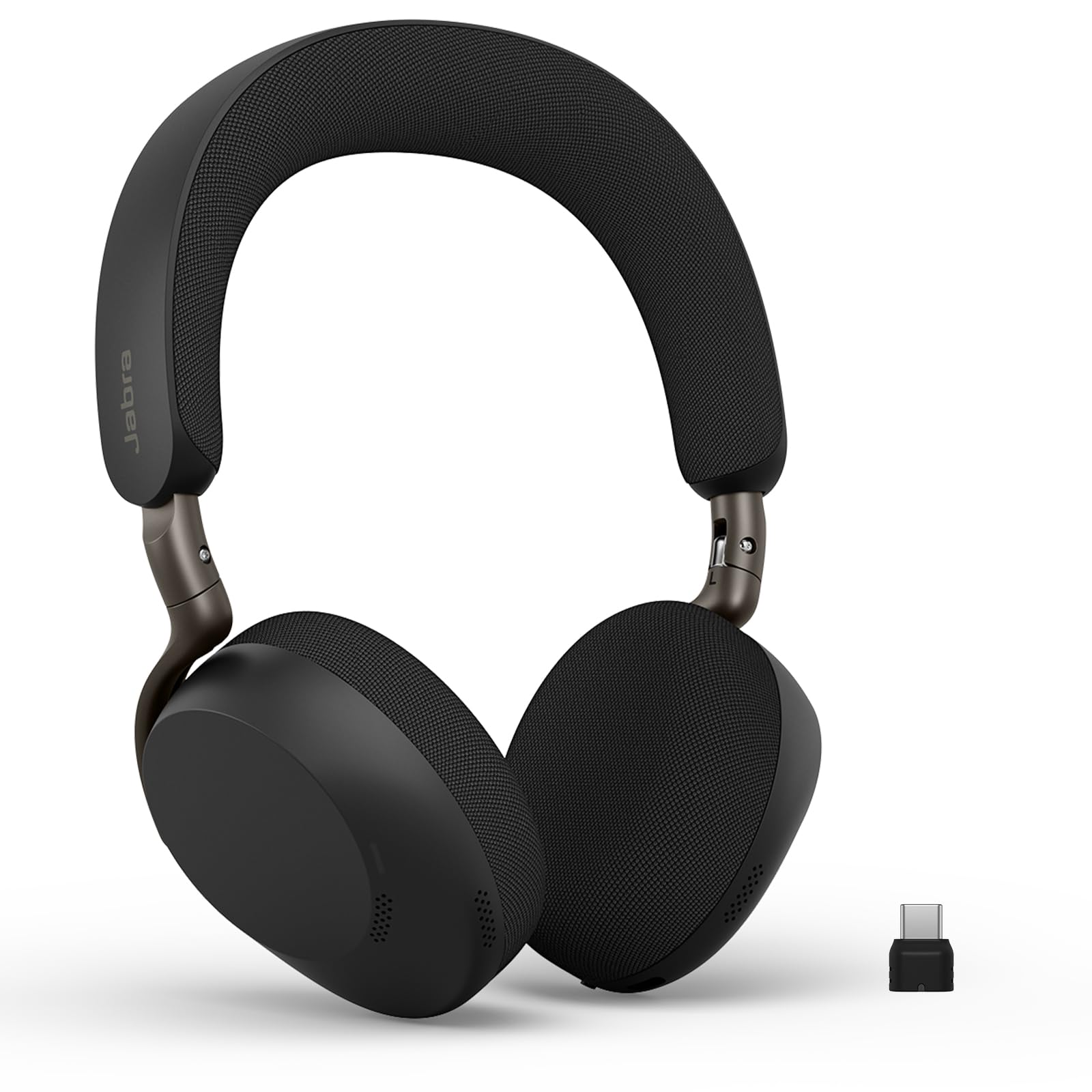
Image: Jabra Evolve3 75 Wireless Headset, showcasing its sleek design.
What's in the Box
Your Jabra Evolve3 75 package includes the following items:
- Jabra Evolve3 75 Headset
- Protective Case
- USB-C to USB-C Charging Cable
- USB-C Dongle (Link390c)
- Safety Information & Declarations

Image: All components included in the Jabra Evolve3 75 package, neatly arranged.
Setup
1. Charging the Headset
Before first use, fully charge your headset. The Jabra Evolve3 75 offers two charging methods:
- USB-C Cable: Connect the provided USB-C to USB-C cable to the headset's USB-C port and to a power source.
- Wireless Charging (if applicable): Place the right ear cup onto a compatible wireless charging pad. Note that not all SKUs include a wireless charger.
A 5-minute rapid charge provides up to 5 hours of power. A full charge offers up to 22 hours of talk time or 110 hours of music playback.

Image: Jabra Evolve3 75 headset on a charging stand, illustrating its battery life and rapid charge capability.
2. Connecting to Devices
Your headset can connect to your devices via Bluetooth or the included USB-C dongle.
- Bluetooth Pairing: Slide the Power/Bluetooth pairing switch to the Bluetooth position and hold until the LED indicator flashes blue. Select 'Jabra Evolve3 75' from your device's Bluetooth menu.
- USB-C Dongle: Plug the USB-C dongle (Jabra Link390c) into your computer's USB-C port. The headset will automatically connect to the dongle. This provides enhanced connectivity and mute status synchronization with online meeting applications.
The headset supports Fast Pair for quick connection and dual connectivity, allowing simultaneous connection to your laptop and phone.
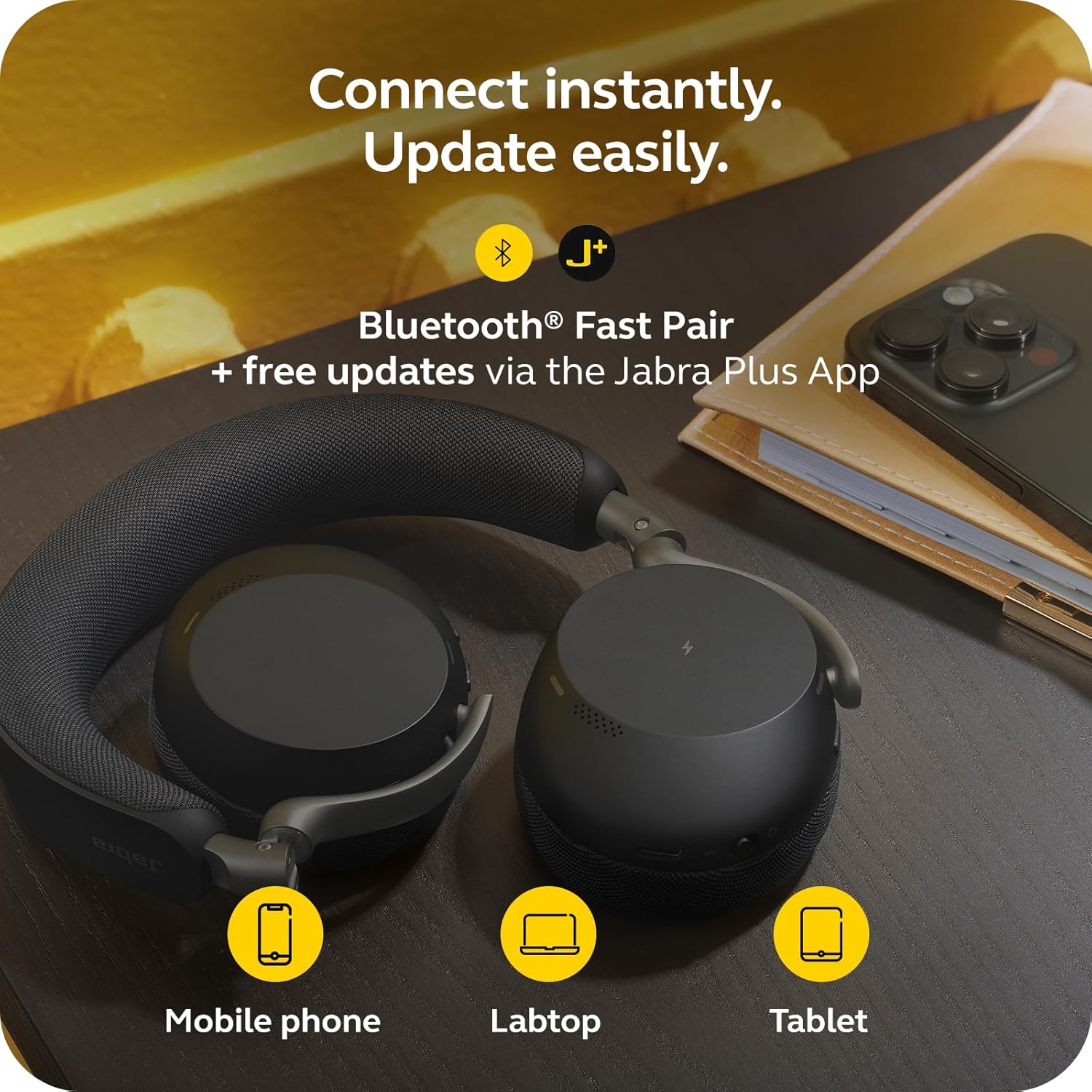
Image: Jabra Evolve3 75 headset alongside a mobile phone, laptop, and tablet, demonstrating its versatile connectivity options and the Jabra Plus App.
3. Jabra Plus App
Download the Jabra Plus App for mobile or Jabra Direct for desktop to manage settings, personalize your sound, and receive firmware updates to keep your headset current and optimized.
Operating the Headset
Controls Overview
The Jabra Evolve3 75 features intuitive physical buttons for easy control. Refer to the diagram below for button locations and functions.

Image: A collage highlighting key features of the Jabra Evolve3 75, including ClearVoice, ANC, fast charge, and 360° busylight.
- Power On/Off & Bluetooth Pairing: Slide switch on the right ear cup.
- Volume Up/Down: Buttons on the right ear cup.
- Play/Pause Music: Single press the multi-function button.
- Answer/End Call: Single press the multi-function button.
- Reject Call: Double press the multi-function button.
- Mute/Unmute Microphone: Dedicated button on the left ear cup.
- Voice Assistant: Press the dedicated button to activate your device's voice assistant.
- ANC/HearThrough Toggle: Button on the left ear cup to cycle between Active Noise Cancellation, HearThrough, and Off modes.
Key Features
- Jabra ClearVoice™: AI-powered technology isolates your speech and reduces background noise for clear communication.
- Jabra Advanced ANC™: Dynamically adjusts to your surroundings to block distractions and maintain focus.
- Enhanced Spatial Sound: Provides a more immersive audio experience for calls and music.
- 360° Busylight: Integrated light indicates when you are on a call or busy, minimizing interruptions.
Video: Official product overview of the Jabra Evolve3 75, highlighting its key features and benefits for modern work environments.
Maintenance
Proper maintenance ensures the longevity and optimal performance of your Jabra Evolve3 75 headset.
- Cleaning: Gently wipe the ear cushions and headband with a soft, dry cloth. For deeper cleaning, use a slightly damp cloth with mild soap, ensuring no moisture enters the speaker grilles or ports.
- Battery Care: The headset features a replaceable battery. To maximize battery life, avoid extreme temperatures and store the headset with a partial charge if not used for extended periods.
- Storage: Store the headset in its protective case when not in use to prevent damage.
Troubleshooting
If you encounter issues with your Jabra Evolve3 75, try the following solutions:
- No Power: Ensure the headset is fully charged using the USB-C cable or wireless charging pad.
- Cannot Pair: Make sure the headset is in Bluetooth pairing mode (flashing blue LED). Turn off and on your device's Bluetooth, then try pairing again. For PC, ensure the USB-C dongle is properly connected.
- Poor Audio Quality: Check the connection. If using Bluetooth, try moving closer to your device. If using the dongle, ensure it's securely plugged in. Update firmware via the Jabra Plus App.
- Microphone Issues: Ensure the microphone is not muted. Check your device's audio settings to confirm the Jabra Evolve3 75 is selected as the input device.
- Active Noise Cancellation Not Working: Ensure ANC is enabled via the dedicated button or Jabra Plus App. Adjust the headset fit for optimal seal.
For further assistance, consult the Jabra Plus App or visit the official Jabra support website.
Specifications
| Feature | Specification |
|---|---|
| Brand | Jabra |
| Model Name | Evolve3 75 |
| Model Number | 37599-989-899 |
| Ear Placement | On Ear |
| Connectivity Technology | Wireless (Bluetooth 5.3) |
| Bluetooth Range | 100 Feet |
| Noise Control | Active Noise Cancellation |
| Battery Life (Talk Time) | Up to 22 Hours |
| Battery Life (Music) | Up to 110 Hours |
| Battery Charge Time | 180 minutes |
| Item Weight | 180 Grams |
| Audio Driver Size | 32 Millimeters |
| Warranty | 2 Year Manufacturer |
Warranty and Support
Warranty Information
The Jabra Evolve3 75 headset comes with a 2-year manufacturer's warranty. Please retain your proof of purchase for warranty claims.
Customer Support
For technical support, product registration, or to access FAQs and additional resources, please:
- Visit the official Jabra support website: www.jabra.com/support
- Use the Jabra Plus App for personalized assistance and device management.


