
1. Introduction
This manual provides comprehensive instructions for the Heltec WiFi LoRa 32 V4 Development Board. It covers the board's features, setup procedures, operational guidelines, maintenance tips, troubleshooting, and detailed technical specifications. This board is designed for various IoT applications, Meshtastic projects, and wireless communication, leveraging the ESP32-S3 and SX1262 chips.
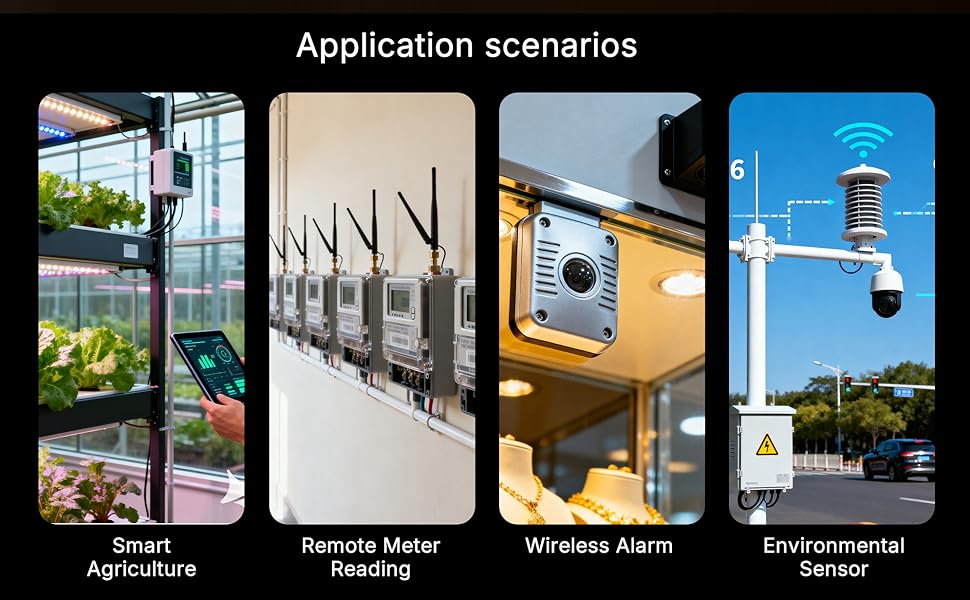
Figure 1: Examples of application scenarios including smart agriculture, remote meter reading, wireless alarms, and environmental sensors.
2. Product Overview
2.1 Key Features
- V4 Upgraded ESP32-S3 & LoRa SX1262: Features the ESP32-S3R2 chip with 2MB PSRAM and 16MB Flash for complex IoT and Meshtastic applications.
- High Power 27dBm LoRa Radio: Offers extended wireless range with 27dBm transmission power and -137dBm sensitivity, suitable for Meshtastic nodes and smart home IoT.
- Integrated OLED Display: Includes a 0.96-inch OLED display for real-time data visualization.
- Advanced Power Management: Optimized for outdoor use with low sleep current (20µA), solar panel interface, and GNSS port for GPS applications.
- Compatibility: Pin-compatible with Heltec LoRa 32 V3, supporting Arduino and PlatformIO development, LoRaWAN, Wi-Fi, and Bluetooth protocols.
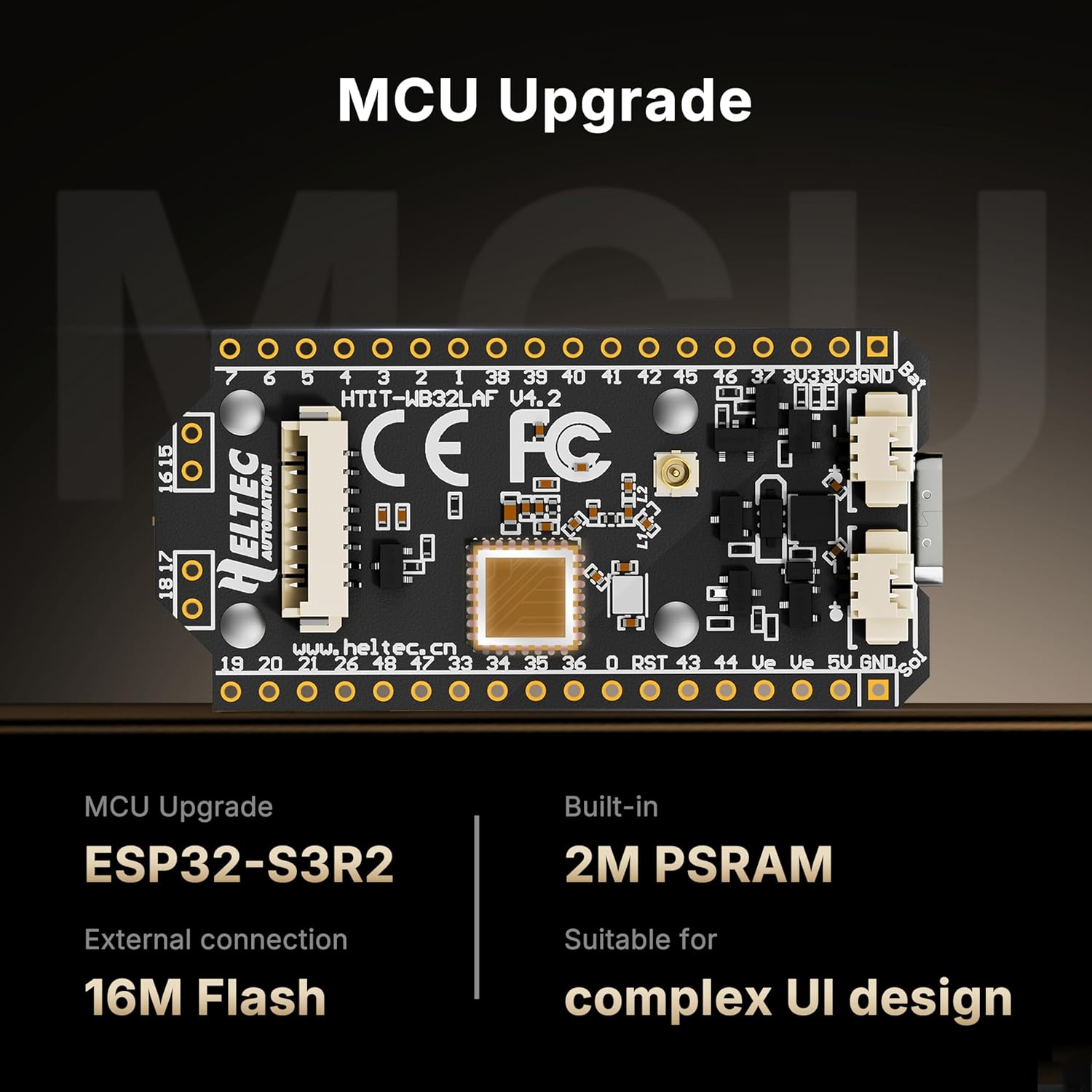
Figure 2: Details of the MCU upgrade to ESP32-S3R2 with 2M PSRAM and 16M Flash, suitable for complex UI design.
2.2 Components
The Heltec WiFi LoRa 32 V4 Development Board package typically includes the following:
- Heltec WiFi LoRa 32 V4 Development Board
- Antenna (for LoRa communication)
- Pin headers
- Battery connector cable
- USB Type-C cable (may be included or required separately)

Figure 3: Heltec WiFi LoRa 32 V4 Development Board with included accessories, such as pin headers and antenna cables.

Figure 4: Close-up view of the Heltec WiFi LoRa 32 V4 Development Board, highlighting the integrated OLED display and USB-C port.

Figure 5: The development board is available in versions with or without the integrated OLED screen, protected by a PC casing.
3. Setup
3.1 Initial Hardware Connection
- Attach Antennas: Connect the LoRa antenna to the IPEX connector labeled for LoRa. If using Wi-Fi/Bluetooth, ensure the FPC antenna is properly integrated or an external 2.4G antenna is connected.
- Connect Power: Use a USB Type-C cable to connect the board to a computer or a 5V power adapter. The board can also be powered via a lithium battery connected to the SH1.25-2P battery interface, or a solar panel via the dedicated SH1.25-2P solar panel interface.
- Install Pin Headers: Solder the included pin headers to the board if you intend to use it on a breadboard or with custom wiring.
3.2 Software Setup
The Heltec WiFi LoRa 32 V4 is compatible with Arduino IDE and PlatformIO development environments.
- Install Arduino IDE or PlatformIO: Download and install your preferred development environment.
- Add ESP32 Board Support: Follow the instructions for your chosen IDE to add ESP32 board support. For Arduino IDE, this typically involves adding the ESP32 board manager URL in preferences and installing the ESP32 boards package.
- Install Heltec Libraries: Install necessary libraries for LoRa, OLED, and other peripherals from the library manager within your IDE. Refer to the official Heltec documentation for specific library names and installation guides.
- Connect to Meshtastic App (Optional): For Meshtastic applications, you can flash and configure your device using the Meshtastic web flasher at https://flasher.meshtastic.org/.

Figure 6: Guide for connecting the development board to the Meshtastic application for flashing and configuration.
4. Operating Instructions
4.1 Programming and Uploading Code
- Select Board: In your IDE, select "Heltec WiFi LoRa 32 V4" or the appropriate ESP32-S3 board from the Tools > Board menu.
- Select Port: Choose the serial port corresponding to your connected board (e.g., COMx on Windows, /dev/ttyUSBx on Linux/macOS).
- Write/Load Sketch: Develop your code or load an example sketch.
- Upload: Click the "Upload" button in your IDE. The board will automatically enter bootloader mode for programming.
4.2 Using the OLED Display
The integrated 0.96-inch OLED display (SSD1315, 128x64 resolution) can be used to show real-time data, status messages, or simple user interfaces. Libraries for OLED control are available and can be integrated into your code to manage display content.
4.3 LoRa Communication
The SX1262 LoRa chip enables long-range, low-power wireless communication. Utilize LoRa libraries to send and receive data packets. Ensure correct frequency settings (433-510 MHz, 863-928 MHz depending on region and model) and spreading factor for optimal performance.

Figure 7: Illustration of enhanced LoRa transmission power and its benefits for signal penetration and communication distance.

Figure 8: Diagram showing optimized power management and LoRa communication between two devices, with interfaces for GNSS, battery, and solar power.
5. Maintenance
- Keep Dry: Protect the board from moisture and humidity to prevent damage to electronic components.
- Clean Gently: If necessary, clean the board with a soft, dry brush or compressed air. Avoid using liquids or abrasive materials.
- Handle with Care: Avoid static discharge by handling the board on an anti-static mat or by grounding yourself.
- Firmware Updates: Regularly check the Heltec Automation official website or community forums for firmware updates to ensure optimal performance and access to new features.
6. Troubleshooting
- Board Not Detected:
- Ensure the USB Type-C cable is securely connected and functional.
- Install the correct USB-to-Serial drivers for your operating system (e.g., CP210x or CH340 drivers, though ESP32-S3 often uses built-in USB CDC).
- Try a different USB port or cable.
- Upload Errors:
- Verify that the correct board and serial port are selected in your IDE.
- Ensure you have the latest ESP32 board support package installed.
- Sometimes pressing the "BOOT" button while connecting USB or during upload can help.
- OLED Display Not Working:
- Check your code for proper OLED initialization and display commands.
- Ensure the correct OLED library is installed and configured for the SSD1315 driver.
- LoRa Communication Issues:
- Verify that the LoRa antenna is securely connected.
- Check frequency settings and LoRa parameters (spreading factor, bandwidth) in your code.
- Ensure both transmitting and receiving devices are within range and configured correctly.
7. Specifications

Figure 9: Detailed technical specifications for the Heltec WiFi LoRa 32 V4 Development Board.
| Parameter | Description |
|---|---|
| Master Chip | ESP32-S3R2 |
| LoRa Chip | SX1262 |
| Frequency | 433~510 MHz, 863~928 MHz |
| Max. TX Power | 27 ± 1 dBm |
| Max. Receiving Sensitivity | -137 dBm |
| Wi-Fi | 802.11 b/g/n, up to 150Mbps |
| Bluetooth | Bluetooth LE, Bluetooth 5, Bluetooth mesh |
| OLED | SSD1315 (0.96 Inch, 128x64 resolution) |
| Power Supply | 5V@USB, 3.3-4.2V@Battery |
| Hardware Resources | 7*ADC1 + 2*ADC2, 7*Touch, 3*UART, 2*I2C, 2*I2S 4*SPI, etc. |
| Memory | 384KB ROM; 512KB SRAM; 16KB RTC SRAM; 16MB Flash, 2MB PSRAM |
| Interface | USB Type-C; SH1.25-2P lithium battery interface; SH1.25-2P solar panel interface; 2*IPEX1.0 ANT(LoRa&2.4G); 2*18*2.54 Header Pins, 2*2*2.54 Header Pins |
| Operating Temperature | -40~85°C (OLED operating temperature: -40~70°C) |
| Dimensions | 51.7 x 25.4 x 10.7 mm |
8. Warranty and Support
For warranty information and technical support, please refer to the official Heltec Automation website or contact their customer service directly. Specific warranty terms may vary by region and retailer.
Official Heltec Automation Website: https://www.heltec.cn/


