
VIAIM NoteKit
VIAIM NoteKit Computer AI Meeting Assistant User Manual
Model: NoteKit
1. Introduction
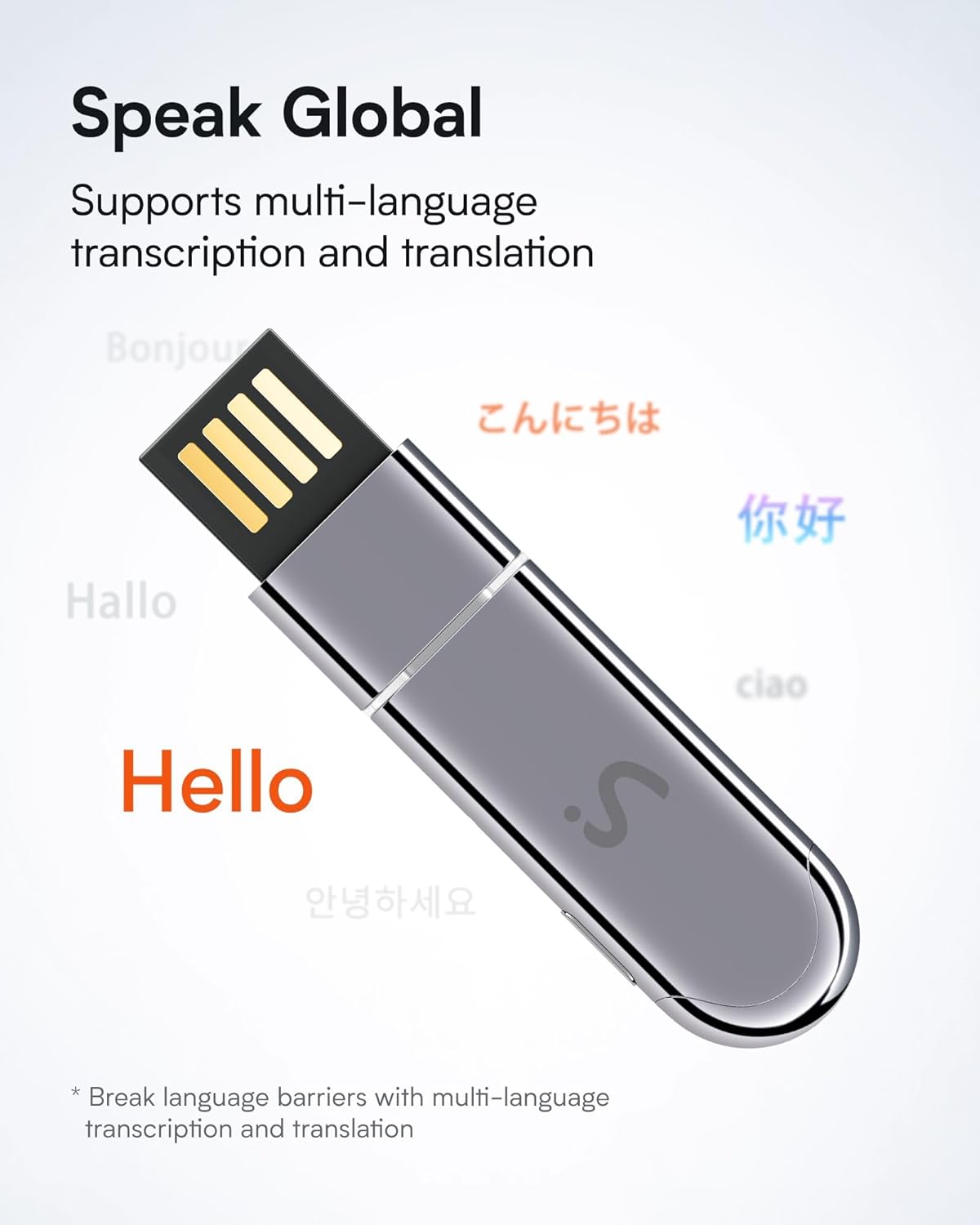
The VIAIM NoteKit is an advanced AI-powered meeting assistant designed to streamline your note-taking process. This device converts spoken language into accurate text, supports multiple languages for transcription and translation, and automatically generates summaries and to-do lists from your meetings. It is compatible with both Windows and Mac operating systems, making it an ideal tool for business professionals, remote workers, and educators seeking to enhance productivity.

2. What's in the Box
Upon opening your VIAIM NoteKit package, you will find the following items:
- VIAIM NoteKit Device (with USB-A and USB-C compatibility)
- Storage Cover
- User Manual

3. Product Features
- AI Voice Recorder with Real-Time Transcription & Translation: Converts speech to text with support for 78 languages (145 with dialects). Automatically generates summaries, to-do lists, and mind maps post-meeting. Integrates with the VIAIM App and Vitana Bot for smart Q&A and content search.
- Multiple Recording Modes: Offers three recording modes for various scenarios: computer recording (e.g., Zoom calls), in-person meetings, and general audio/video recordings.
- Enhanced Privacy and Security: All recordings are secured with end-to-end encryption (AES-256/TLS). Features secure cloud backup and cross-device access. AI processing for transcription and summarization requires user authorization. Users retain full control to manage, share, or delete files.
- Automated Summarization & To-Do Lists: Transforms lengthy discussions into concise summaries and actionable to-do lists, aiding in efficient project management and task tracking.
- One-Press Operation: Simplifies recording initiation and pausing with a single button press, eliminating the need for app navigation.
- Dual Microphones for Wide Pickup: Equipped with dual microphones capable of capturing clear audio from up to 16.4 feet (5 meters), suitable for various meeting environments.
- Compact and Portable Design: Weighing only 0.3 oz and measuring 2.4 x 0.27 x 0.6 inches, the NoteKit is designed for portability and discreet use.
- Wide Compatibility: Optimized for Bluetooth 5.3 and compatible with VIAIM RecDot wireless earbuds. Supports Windows 10+ and macOS systems.



4. Setup Instructions
Follow these steps to set up your VIAIM NoteKit and begin using its features:
- Unboxing: Carefully remove the sleeve from the packaging box. Open the box to find the user manual and the VIAIM NoteKit device.
- Download the VIAIM App: To utilize the full functionality of your NoteKit, download the official VIAIM App. Visit the official website: www.viaim.ai. Select the appropriate version for your operating system (Windows or Mac) and install the application.
- Connect the NoteKit: Plug the VIAIM NoteKit device into an available USB-A or USB-C port on your computer.
- Verify Connection: A steady white indicator light on the NoteKit signifies a successful connection to your computer.
- Launch the App: Open the downloaded VIAIM App on your computer. The app interface will display connection status and recording options.

Video: VIAIM NoteKit User Guide
This video provides a visual guide on how to unbox, set up, and perform basic operations with your VIAIM NoteKit, including connecting it to your computer and navigating the app interface.
5. Operating Instructions
Once your NoteKit is connected and the VIAIM App is running, you can begin recording and managing your meetings.
5.1. Selecting a Recording Mode
On the app's home page, you can choose from three recording modes:
- Call Record: For recording online calls or virtual meetings.
- Audio/Video: For recording audio and video from your computer.
- Live Record: For recording in-person conversations or ambient audio.
5.2. Starting and Managing Recordings
- Start Recording: Select your desired recording mode. The NoteKit's one-press operation allows you to start or pause recordings instantly without interacting with the app interface.
- Live Transcription: During live recording, the app will display real-time transcription. You can adjust the page width, switch between different languages for transcription, and even share the ongoing recorded content with others via a live stream feature.
- Viewing Recordings: After a recording is completed, tap the "Record" section in the app to view all your saved recording files.
- Replaying and Exporting: Select a recording entry to replay it. You can drag the progress bar to navigate through the audio. You also have options to download or export your audio file in various formats.
5.3. Post-Recording Features
Within a recorded file, the VIAIM App offers several advanced features:
- Speaker Differentiation: Distinguish between different speakers in the recording.
- Translation: Translate the transcribed text into other languages.
- Grouping: Organize segments of the recording.
- Deletion: Remove unwanted parts or entire recordings.
- Summarization & To-Do Lists: Automatically generate a summary and a list of actionable tasks from the meeting content.

6. VIAIM App Features
The VIAIM App is the central hub for managing your NoteKit recordings and leveraging its AI capabilities. It provides a seamless experience across devices.
- Cross-Device Sync: Access your notes and recordings on any Windows or Mac device you own, ensuring your information is always available.
- Advanced AI Models: Depending on your subscription plan, the app offers access to powerful AI models like GPT-5, GPT-4.1, Claude-3.7, Claude-sonnet-4, OpenAI o3, and Gemini 2.5 Pro for deep analysis and enhanced features.
- Vitana Bot: An integrated AI assistant for smart Q&A and content search within your recordings.
- Customizable Settings: Adjust recording settings, page zoom, and update software versions directly within the app.


7. Subscription Plans
The VIAIM App offers various subscription tiers to meet different transcription needs:
- Basic Plan (Free): Includes 600 free transcription minutes per month. Features AI summary, AI to-do list, real-time translation, text live sharing, speaker identification, and export functionality. Utilizes GPT-5, GPT-4.1, and Claude-3.7 AI models.
- Pro Plan ($9.99/month or $79/year): Offers 1,800 transcription minutes per month. Includes all Basic features, plus mobile access, smarter AI models (Claude-sonnet-4, OpenAI o3, Gemini 2.5 Pro), and multi-record Q&A with Vitana Chatbot.
- Ultra Plan ($19.99/month or $159/year): Provides unlimited transcription minutes. Includes all Pro features, with unlimited access to the smartest AI models and multi-record Q&A with Vitana Chatbot.
You can easily upgrade your plan within the VIAIM App to access additional capacity and advanced AI features.

8. Specifications
| Brand | VIAIM |
| Model | NoteKit |
| Item Weight (Device) | 0.3 ounces |
| Device Dimensions | 2.4 x 0.27 x 0.6 inches |
| Package Dimensions | 6.69 x 6.18 x 0.87 inches |
| Batteries | 1 Nonstandard Battery (included) |
| Hardware Interface | Bluetooth 5 |
| Microphone Form Factor | Built-In |
| Audio Format | WAV |
| Digital Recording Time | 8 hours |
| Microphone Operation Mode | Speech Recognition |
9. Troubleshooting
If you encounter any issues with your VIAIM NoteKit, please refer to the following common solutions:
- Device Not Connecting:
- Ensure the NoteKit is fully inserted into a functional USB port.
- Check if the white indicator light is steady. If not, try a different USB port or restart your computer.
- Verify that the VIAIM App is open and running.
- Transcription Inaccuracies:
- Ensure the recording environment is quiet and free from excessive background noise.
- Speak clearly and at a moderate pace.
- Check the selected language in the app to ensure it matches the spoken language.
- App Not Responding:
- Close and restart the VIAIM App.
- Check for any available software updates within the app's settings.
- Ensure your computer meets the minimum system requirements (Windows 10+ or macOS).
- Limited Transcription Minutes:
- Review your current subscription plan in the app's settings.
- Consider upgrading to a Pro or Ultra plan for more transcription minutes or unlimited usage.
For further assistance, please visit the official VIAIM support page or contact customer service.
10. Warranty and Support
For information regarding warranty coverage, technical support, and customer service, please refer to the warranty card included in your product packaging or visit the official VIAIM website at www.viaim.ai. Our support team is available to assist you with any questions or concerns you may have about your VIAIM NoteKit.
Related documentsNoteKit

Ask a question about this manual
Ask about setup, troubleshooting, compatibility, parts, safety, or missing instructions. Manuals+ will review the question and use this page’s manual context to help answer it.