
1. Introduction
The YUNZII X98 is a 98% layout QMK/VIA compatible wireless mechanical keyboard designed for versatility and performance. It features tri-mode connectivity (wired, 2.4GHz wireless, and Bluetooth 5.0), hot-swappable switches, a gasket-mounted structure for enhanced typing feel, and vibrant RGB backlighting. This manual provides detailed instructions for setting up, operating, and maintaining your YUNZII X98 keyboard.
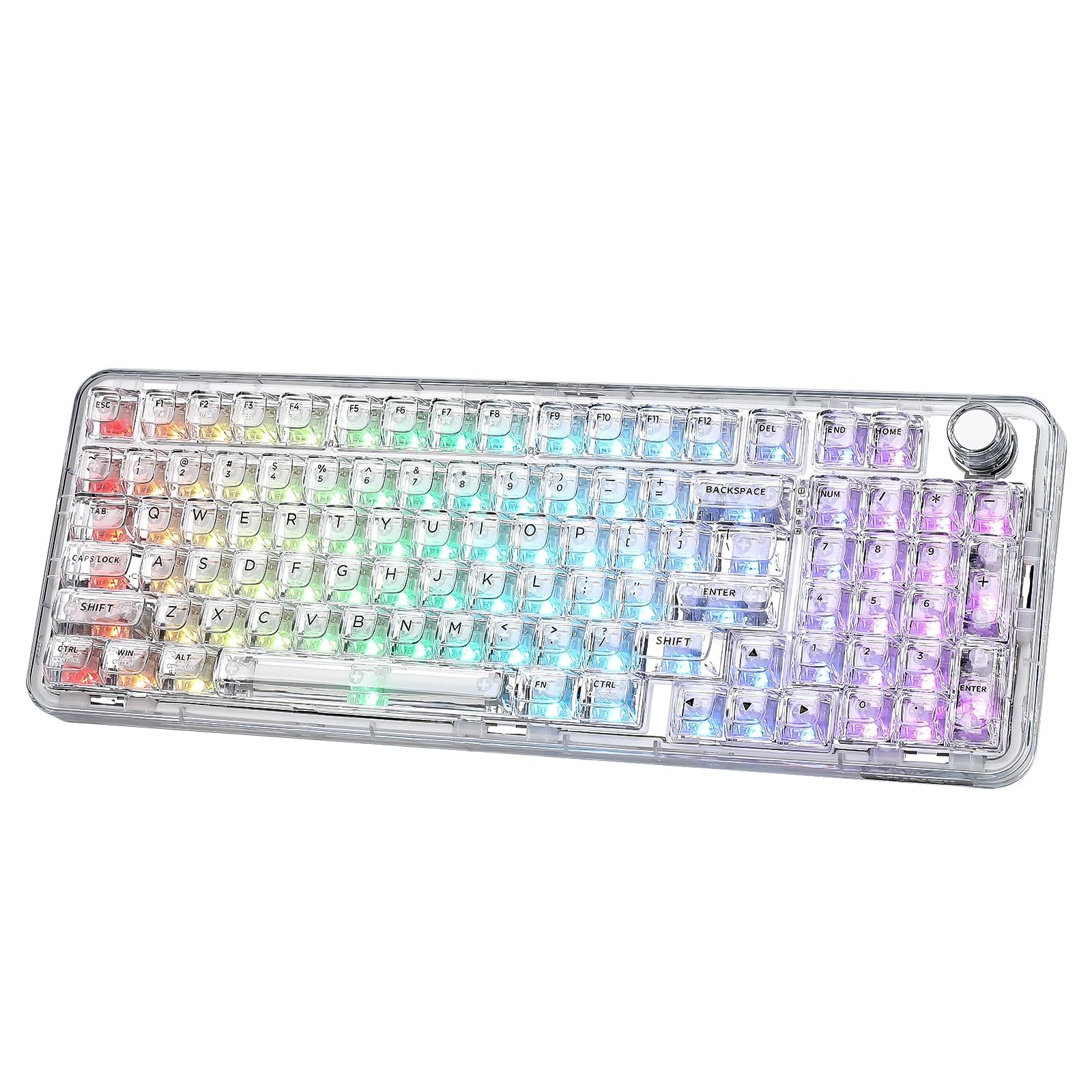
Figure 1: YUNZII X98 QMK/VIA Wireless Mechanical Gaming Keyboard.

Figure 2: Overview of YUNZII X98 key features including 96% layout, tri-mode connectivity, 8000mAh battery, hot-swappable switches, QMK/VIA programmability, multi-function knob, full RGB, and gasket structure.
2. Package Contents
Please check the box for the following items:
- YUNZII X98 Mechanical Keyboard
- USB Type-C Cable
- 2.4G Wireless Dongle (often stored in the keyboard's back compartment)
- Switch and Keycap Puller
- Extra Keycaps and Switches
- Function Card & Manual
- Dust Cover
3. Setup
3.1 Initial Charging
Before first use, it is recommended to fully charge the keyboard. Connect the provided USB Type-C cable to the keyboard's Type-C port and the other end to a USB power source (e.g., computer USB port, wall adapter). The keyboard features an 8000mAh battery.

Figure 3: The YUNZII X98 features an 8000mAh battery, offering up to 45 hours with RGB on and 320 hours with RGB off. Charging takes approximately 13 hours.
3.2 Connectivity Modes
The YUNZII X98 supports three connection modes: Wired, 2.4GHz Wireless, and Bluetooth 5.0. Use the mode switch located on the side of the keyboard to select your desired connection type.
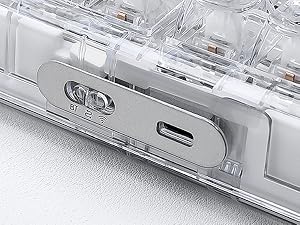
Figure 4: Close-up of the mode switch for Bluetooth (BT), 2.4G Wireless, and Wired connections.
3.2.1 Wired Connection
- Set the mode switch to the 'Wired' position.
- Connect the USB Type-C cable from the keyboard to your computer.
- The keyboard will be recognized automatically by your operating system.
3.2.2 2.4GHz Wireless Connection
- Set the mode switch to the '2.4G' position.
- Retrieve the 2.4G USB dongle from its storage slot on the back of the keyboard.
- Plug the 2.4G dongle into an available USB port on your computer.
- Press and hold FN + 4 to enter pairing mode. The indicator light will flash.
- Once connected, the indicator light will become solid.

Figure 5: Steps for connecting the YUNZII X98 via 2.4GHz wireless mode, including locating the dongle and pairing.
3.2.3 Bluetooth Connection
The keyboard supports up to 3 Bluetooth devices.
- Set the mode switch to the 'BT' position.
- Short press FN + 1, FN + 2, or FN + 3 to select a Bluetooth channel.
- Long press the selected FN + (1/2/3) key combination for 3-5 seconds to enter Bluetooth pairing mode. The corresponding key's backlight will flash rapidly.
- On your device (PC, laptop, smartphone, tablet), search for Bluetooth devices and select 'YUNZII X98 BT1/BT2/BT3'.
- Once paired, the key's backlight will stop flashing and remain solid for a few seconds before returning to the normal lighting effect.

Figure 6: Instructions for connecting the YUNZII X98 via Bluetooth, including channel selection and pairing process.
3.3 Adjustable Feet
The keyboard features adjustable feet on the underside to customize the typing angle for ergonomic comfort.
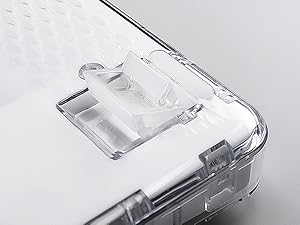
Figure 7: Close-up of the adjustable feet on the YUNZII X98 keyboard, allowing users to modify the typing angle.
4. Operating Instructions
4.1 QMK/VIA Customization
The YUNZII X98 supports QMK/VIA open-source firmware, allowing for extensive customization of key mappings, macros, and RGB lighting effects. To use VIA, download the appropriate JSON file for your X98 model from the YUNZII official website and load it into the VIA software.
- Key Remapping: Change the function of any key to suit your workflow or gaming style.
- Macros: Create complex sequences of key presses and assign them to a single key.
- Multiple Layers: Configure different key layouts for various applications or operating systems.

Figure 8: The QMK/VIA interface allows for comprehensive customization of key settings, RGB lighting, and macros.
4.2 RGB Lighting Control
The YUNZII X98 features 16.8 million colors RGB backlighting with south-facing LEDs. You can control the lighting effects directly from the keyboard using FN key combinations or through the VIA software for advanced customization.
4.2.1 Onboard RGB Control
- FN + Backspace: Toggle Backlight Effect ON/OFF
- FN + Tab: Toggle White Light ON/OFF
- FN + \|: Change Backlight Effect
- FN + Enter: Change Backlight Color
- FN + ↑: Increase Brightness
- FN + ↓: Decrease Brightness
- FN + ←: Increase Blinking Speed
- FN + →: Decrease Blinking Speed

Figure 9: Visual guide to FN key shortcuts for controlling RGB lighting effects on the YUNZII X98.
4.3 Multi-Function Knob
The rotary knob on the YUNZII X98 provides convenient control over various functions. By default, it controls volume.
- Rotate: Adjust volume (default).
- Short Press: Mute/Unmute (default).
- FN + Short Press: Change the RGB effect of the knob.
- VIA Customization: The knob's function can be customized using VIA software to control other parameters like brightness, scroll, etc.

Figure 10: The multi-function knob allows for volume control, muting, and changing its RGB effect with FN key combinations.
4.4 Hot-Swapping Switches
The YUNZII X98 is hot-swappable, allowing you to change mechanical switches without soldering. It is compatible with both 3-pin and 5-pin switches.
- Removing Switches: Use the provided switch puller to carefully grip the switch and pull it straight up.
- Installing Switches: Align the pins of the new switch with the holes on the PCB. Gently press the switch down until it clicks into place. Ensure the pins are not bent.

Figure 11: The YUNZII X98 supports full key hot-swapping, compatible with 3-pin and 5-pin mechanical switches.
4.5 FN Shortcuts
The keyboard includes various FN key shortcuts for quick access to system functions, compatible with both Windows and macOS.

Figure 12: A detailed chart of FN key shortcuts for both Windows (FN+A) and macOS (FN+S) users, covering screen brightness, media control, and volume.
5. Maintenance
5.1 Cleaning
- Use the provided dust cover when the keyboard is not in use to prevent dust accumulation.
- For general cleaning, use a soft, lint-free cloth.
- To clean between keycaps, use compressed air or a small brush.
- For stubborn dirt, remove keycaps using the keycap puller and clean them with mild soap and water. Ensure they are completely dry before reattaching.
5.2 Switch and Keycap Replacement
Refer to section 4.4 for detailed instructions on hot-swapping switches. Use the provided keycap puller to carefully remove keycaps without damaging the switches.
6. Troubleshooting
- Keyboard not responding: Ensure the keyboard is charged. Check the mode switch position (Wired, 2.4G, BT) and verify the connection. For wired mode, try a different USB port or cable. For wireless modes, re-pair the device.
- Bluetooth connection issues: Ensure the keyboard is in Bluetooth pairing mode (FN + 1/2/3 long press). Remove previous pairings from your device and try connecting again. Ensure your device's Bluetooth is enabled.
- 2.4GHz wireless issues: Ensure the dongle is securely plugged in. Try a different USB port. Re-pair the keyboard by holding FN + 4.
- RGB lighting not working: Check if RGB is toggled off (FN + Backspace). Adjust brightness (FN + ↑/↓). If using VIA, ensure the lighting settings are correctly configured.
- Keys not registering: If only specific keys are affected, the switch might be faulty. Try hot-swapping the switch with one of the extra switches provided. Ensure the switch is fully seated.
- VIA software not detecting keyboard: Ensure the keyboard is connected via USB-C. Download the correct JSON file for the X98 model from the YUNZII website and load it into VIA.
7. Specifications
| Feature | Description |
|---|---|
| Brand | YUNZII |
| Model | X98 |
| Layout | 98% Layout (96 keys) |
| Connectivity | Tri-Mode: USB-C Wired, 2.4GHz Wireless, Bluetooth 5.0 |
| Switches | Pre-lubed Crystal Switches (Linear) |
| Hot-Swappable | Yes, compatible with 3-pin and 5-pin mechanical switches |
| Mounting Style | Gasket Mount (5 layers of dampening materials) |
| Keycaps | Transparent PC material, shine-through |
| Backlighting | RGB, 16.8 million colors, South-facing LEDs |
| Programmability | QMK/VIA compatible |
| Battery Capacity | 8000mAh |
| Compatible OS | Windows, macOS |
| Material | Plastic (transparent PC) |

Figure 13: Exploded view of the YUNZII X98 gasket mount keyboard, highlighting its 5 layers of dampening materials for a satisfying sound and feel.

Figure 14: Detailed specifications for the pre-lubed Crystal Switch, including type (Linear), pin (5-pin), operating force, end force, total travel, and pre-travel.
8. Warranty and Support
The YUNZII X98 keyboard comes with a 1-year warranty. For technical support, warranty claims, or any inquiries, please contact YUNZII customer service through the platform where you purchased the product or visit the official YUNZII website for support resources.

Figure 15: Guide on how to contact YUNZII customer support via Amazon, both before and after placing an order.
9. Product Videos
9.1 YUNZII X98 Unboxing and Typing Sound (Preview)
Video 1: A short preview showcasing the unboxing experience and the satisfying typing sound of the YUNZII X98 keyboard.
9.2 YUNZII X98 RGB Lighting Demonstration (Preview)
Video 2: A brief demonstration of the YUNZII X98's vibrant RGB lighting effects and color changes.
9.3 YUNZII X98 Features Overview (Preview)
Video 3: A quick overview of the YUNZII X98's design, connectivity options, and key features.


