
Introduction
The TITAN ARMY P326MV MAX is a 32-inch high-end gaming monitor featuring Mini LED and Quantum Dot technology. It supports 2304 local dimming zones, offering a 4K (3840x2160) resolution at 160Hz. The monitor provides a wide color gamut with 99% DCI-P3 and 99% Adobe RGB coverage. With a peak brightness of 1000 nits, it delivers HDR1000 equivalent performance, suppressing light leakage and reproducing deep blacks more effectively than traditional backlights. In addition to 4K@160Hz, a dual mode allows for ultra-high refresh rates of FHD@320Hz, enabling fast-paced gameplay. It includes two HDMI 2.1 ports, supporting 4K 120Hz output and Variable Refresh Rate (VRR) for modern gaming consoles. The monitor also features a proprietary DyDs (Dynamic Display) mode to reduce ghosting and blur at high refresh rates, ensuring clearer motion.

Setup
Package Contents
- TITAN ARMY P326MV MAX Monitor
- Monitor Stand (Base and Arm)
- Power Adapter and Cable
- HDMI Cable
- DisplayPort Cable
- USB-C Cable
- User Manual
Stand Assembly
- Carefully remove the monitor and stand components from the packaging.
- Attach the stand arm to the monitor panel using the provided screws. Ensure it is securely fastened.
- Connect the stand base to the stand arm, tightening any screws as necessary.
- Place the assembled monitor on a stable, flat surface.

Connecting the Monitor
Connect the monitor to your computer or gaming console using the appropriate cables. Ensure all connections are firm.
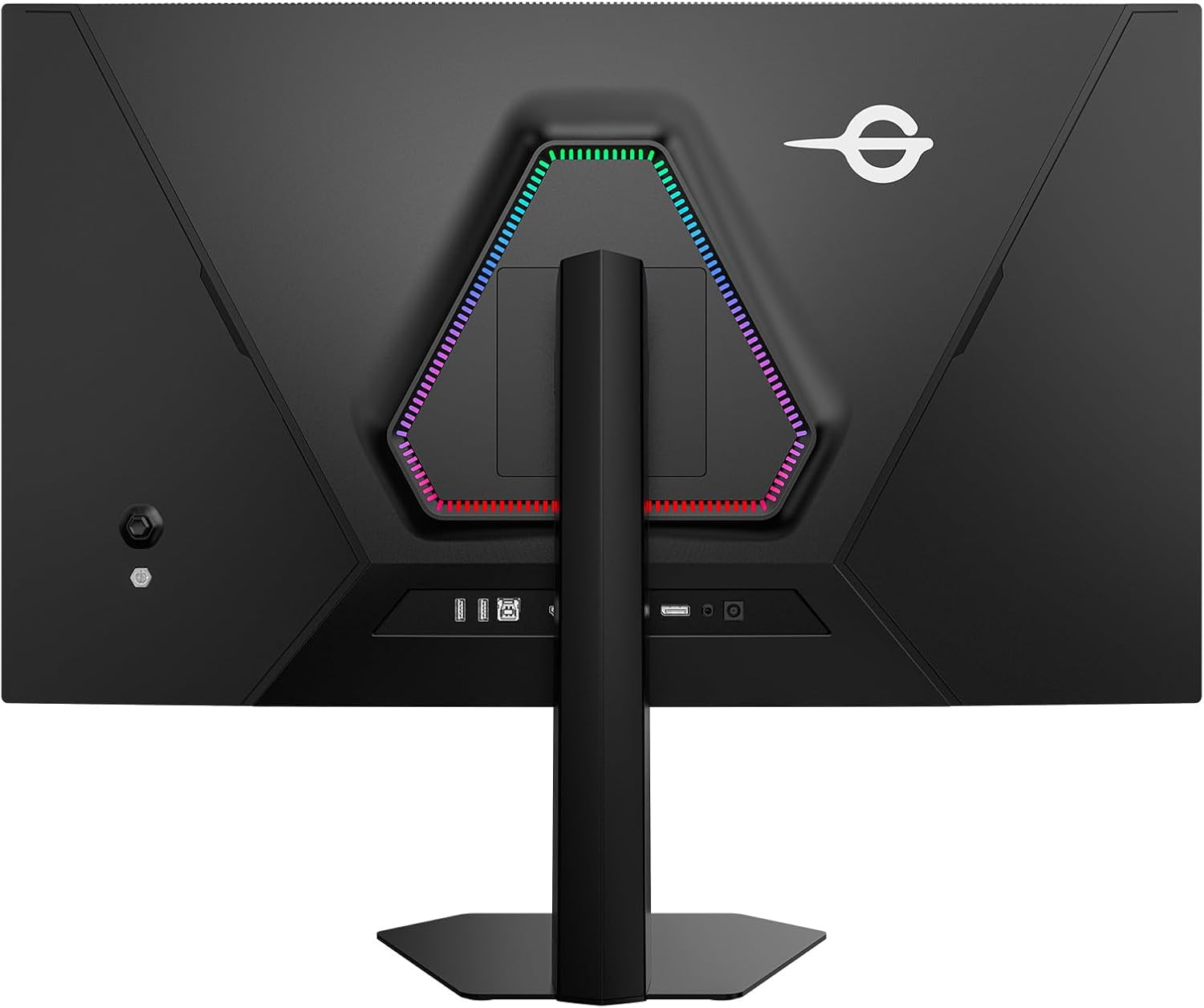
- Power: Connect the power adapter to the monitor's power input and then to a power outlet.
- Video Input: Use either an HDMI 2.1 cable (for 4K@120Hz on consoles or PC), a DisplayPort 1.4 cable (for 4K@160Hz on PC), or a USB-C cable (for video, data, and power delivery, if supported by your device).
- USB Hub: Connect the USB-B upstream cable from the monitor to your computer to enable the monitor's USB-A ports.
Operating Instructions
Power On/Off
Press the power button located on the monitor to turn it on or off. The power indicator light will illuminate when the monitor is active.
On-Screen Display (OSD) Menu
The OSD menu allows you to adjust various monitor settings. Use the joystick or buttons on the monitor to navigate the menu and select options.
- Input Source: Select between HDMI 1, HDMI 2, DisplayPort, or USB-C.
- Picture Settings: Adjust brightness, contrast, sharpness, color temperature, and gamma.
- Color Mode: Choose from various preset color modes (e.g., Standard, Game, Movie, sRGB, DCI-P3).
- Audio: Adjust volume or mute the monitor's internal speakers or headphone output.
- OSD Settings: Configure OSD language, transparency, and timeout.
Key Features and Modes
- 4K Dual Mode: Supports 4K (3840x2160) resolution at 160Hz and FHD (1920x1080) resolution at 320Hz. This allows users to switch between high-resolution detail and ultra-high refresh rate for different gaming scenarios.
- MiniLED & Quantum Dot: Provides superior contrast, brightness, and color accuracy with 2304 local dimming zones and Quantum Dot technology.
- HDR1000: Delivers a wide dynamic range with peak brightness up to 1000 nits, enhancing details in both bright and dark scenes.
- FAST IPS Panel: Offers rapid response times and wide viewing angles, reducing motion blur and ghosting for clear, fluid visuals.
- Adaptive Sync (VRR): Synchronizes the monitor's refresh rate with the GPU's frame rate to eliminate screen tearing and stuttering, providing a smoother gaming experience.
- DyDs (Dynamic Display) Mode: A proprietary mode designed to further reduce motion blur and ghosting during high refresh rate operation, resulting in clearer moving images.
- PIP/PBP Display: Picture-in-Picture (PIP) and Picture-by-Picture (PBP) modes allow simultaneous display of content from two different input sources.
- Ergonomic Stand: The stand offers height adjustment, pivot (90-degree rotation), tilt, and swivel functionality for optimal viewing comfort. It also supports VESA mounting.

Game+ Features
The monitor includes a suite of Game+ features designed to enhance your gaming experience:
- HDR: Dynamic range enhancement for vivid details.
- Color Enhancement: Adjusts screen colors in 10 levels for richer, more detailed visuals.
- Contrast Enhancement: Fine-tunes screen contrast to preserve details in dark areas.
- Local Dimming: Controls backlight in small zones for high contrast and deep blacks.
- Adaptive Sync: Eliminates screen tearing and stuttering.
- Night Vision Mode: Enhances visibility in dark areas of the screen.
- Shadow Balance: Adjusts brightness in dark areas to reveal details.
- Super Resolution Mode: Improves image clarity and detail.
- Halo Control: Reduces halo effects around bright objects.
- Extreme Game Mode: Minimizes input lag for faster response times.
- Dynamic OD (Overdrive): Adjustable overdrive settings to reduce ghosting.
- Game Crosshair: Displays an on-screen crosshair for improved aiming.
- Refresh Rate Display: Shows the current refresh rate on screen.
- Timer & Stopwatch: On-screen timers for various gaming needs.
- Hawkeye Zoom & Hawkeye Vision: Magnifies specific areas of the screen for better visibility.
- All Gaming Mode: Provides various display modes optimized for different game genres.

Maintenance
Cleaning the Monitor
To maintain optimal performance and appearance, clean your monitor regularly.
- Screen: Gently wipe the screen with a soft, lint-free cloth. For stubborn marks, lightly dampen the cloth with water or a screen-cleaning solution. Do not spray liquid directly onto the screen.
- Casing: Use a soft, dry cloth to wipe the monitor casing. Avoid abrasive cleaners or solvents.
General Care
- Avoid placing heavy objects on the monitor or its cables.
- Do not expose the monitor to direct sunlight, high temperatures, or excessive humidity.
- Ensure adequate ventilation around the monitor to prevent overheating.
Troubleshooting
If you encounter issues with your monitor, refer to the following common troubleshooting steps:
- No Power: Ensure the power cable is securely connected to both the monitor and the power outlet. Check if the power adapter is functioning correctly.
- No Signal: Verify that the video cable (HDMI, DisplayPort, or USB-C) is properly connected to both the monitor and your source device. Select the correct input source via the OSD menu.
- Flickering or Distorted Image: Check the video cable for damage. Ensure your graphics card drivers are up to date. Try a different refresh rate or resolution setting.
- Incorrect Colors: Reset the monitor's color settings to default via the OSD menu. Adjust color temperature or select a different color mode.
- OSD Not Appearing: Ensure the monitor is powered on. Press the OSD button or joystick to activate the menu.
If the problem persists after trying these steps, please contact customer support.
Specifications
| Feature | Specification |
|---|---|
| Brand | TITAN ARMY |
| Manufacturer | TITAN ARMY |
| Model Number | P326MV MAX |
| Product Dimensions | 24.2 x 71.4 x 55.9 cm |
| Item Weight | 8.6 Kilograms |
| Color | Black |
| Screen Size | 32 Inches |
| Resolution | 3840 x 2160 Pixels (4K UHD 2160p) |
| Aspect Ratio | 16:9 |
| Screen Surface | Non-glare |
| Refresh Rate | 160Hz (4K), 320Hz (FHD Dual Mode) |
| Video Inputs | 2x HDMI 2.1, 1x DisplayPort 1.4, 1x USB-C |
| USB Ports | 2x USB-A, 1x USB-B (upstream) |
Warranty and Support
Warranty Information
This product is covered by a manufacturer's warranty. Please refer to the warranty card included in your package or visit the official TITAN ARMY website for detailed warranty terms and conditions.
Customer Support
For technical assistance, troubleshooting, or warranty claims, please contact TITAN ARMY customer support through their official website or the contact information provided in your product documentation.


