
1. Introduction
This manual provides essential information for setting up, operating, maintaining, and troubleshooting your HP EliteDesk 800 G9 Mini Desktop. Please read these instructions carefully before using your device to ensure optimal performance and longevity.
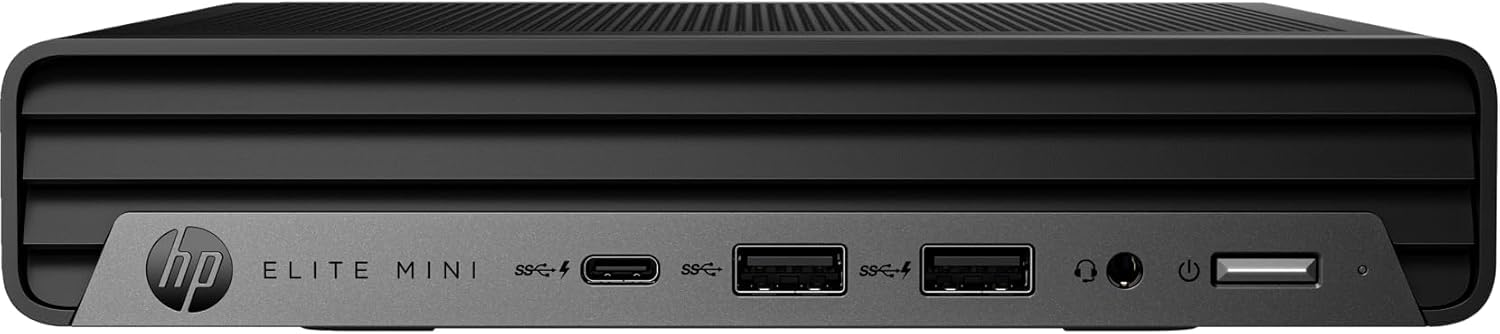
Figure 1: HP EliteDesk 800 G9 Mini Desktop
The HP EliteDesk 800 G9 Mini Desktop is a compact and powerful computing solution designed for efficiency. It features an Intel 12th Generation Core i5-12500T (6-Core) processor, 16GB of RAM, and a 256GB PCIe SSD, running on Windows 11 Pro. Integrated Intel WiFi 6 AX211 and Bluetooth provide robust wireless connectivity.
2. What's in the Box
Upon unboxing your HP EliteDesk 800 G9 Mini Desktop, verify that all the following components are included:
- HP EliteDesk 800 G9 Mini Desktop PC
- HP OEM 90W Power Adapter
- Wired Keyboard
- Wired Mouse
- Documentation (Quick Start Guide, Safety Information)
3. Product Overview
3.1 Front Panel

Figure 2: Front Panel Ports and Features
- 1 Headset connector
- 1 SuperSpeed USB Type-A 10Gbps signaling rate
- 1 SuperSpeed USB Type-A 10Gbps signaling rate (charging)
- 1 SuperSpeed USB Type-C 20Gbps signaling rate
3.2 Rear Panel
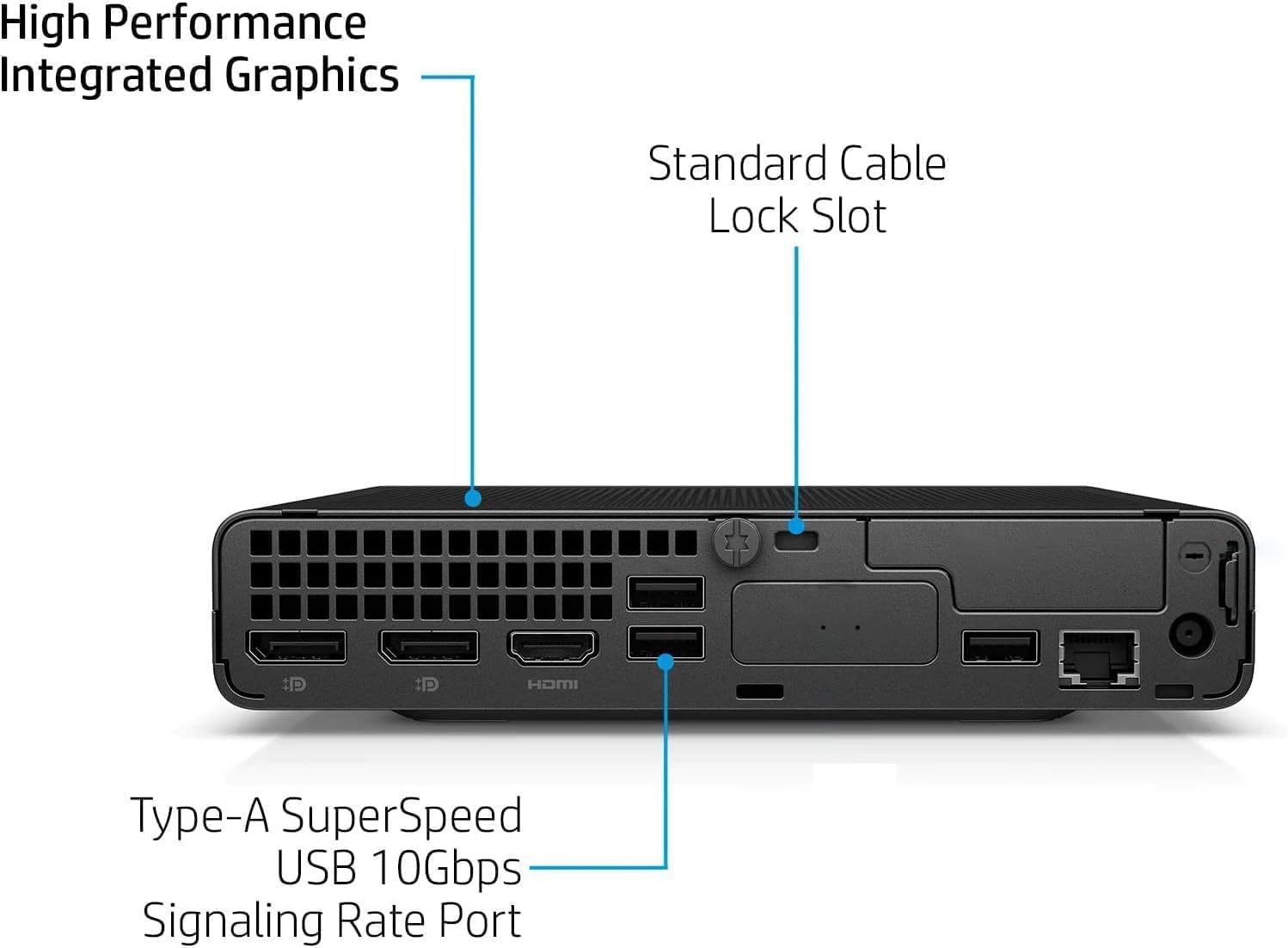
Figure 3: Rear Panel Ports and Features
- 1 External antenna connector
- 1 Power connector
- 1 RJ-45 (Ethernet)
- 3 SuperSpeed USB Type-A 10Gbps signaling rate
- 2 DisplayPort 1.4
- 1 HDMI 2.1
4. Setup Instructions
Follow these steps to set up your HP EliteDesk 800 G9 Mini Desktop:
- Connect Peripherals: Connect your monitor(s) to the DisplayPort 1.4 or HDMI 2.1 ports. Connect the wired keyboard and mouse to the available USB Type-A ports.
- Power Connection: Connect the HP OEM 90W Power Adapter to the power connector on the rear panel, then plug the power adapter into a wall outlet.
- Network Connection (Optional): For a wired internet connection, connect an Ethernet cable to the RJ-45 port. For wireless, ensure the external antenna is connected (if applicable) and configure Wi-Fi during the initial Windows setup.
- Power On: Press the power button on the front panel to turn on the Mini Desktop.
- Initial Windows Setup: Follow the on-screen instructions to complete the Windows 11 Pro setup, including language, region, network, and user account creation.
5. Operating System
Your HP EliteDesk 800 G9 Mini Desktop comes pre-installed with Windows 11 Pro. This operating system offers a modern interface, enhanced security features, and improved productivity tools. For detailed information on Windows 11 Pro features and usage, refer to the official Microsoft documentation or support website.
6. Specifications
Below are the key technical specifications for your HP EliteDesk 800 G9 Mini Desktop:
| Feature | Specification |
|---|---|
| Processor | Intel 12th Generation Core i5-12500T (6-Core, 18M Cache, Upto 4.0Ghz) |
| RAM | 16GB DDR5 SDRAM |
| Storage | 256GB PCIe SSD |
| Graphics Coprocessor | Intel UHD Graphics |
| Operating System | Windows 11 Pro |
| Wireless Connectivity | Integrated Intel WiFi 6 AX211 + Bluetooth |
| Power Adapter | 90 W external power adapter, up to 89% efficiency, active PFC |
| Weight | 3.13 lb (approx. 1.42 kg) |
| Max Screen Resolution | 3840x2160 |
| USB Ports (Front) | 1 Headset connector; 1 SuperSpeed USB Type-A 10Gbps (charging); 1 SuperSpeed USB Type-A 10Gbps; 1 SuperSpeed USB Type-C 20Gbps |
| USB Ports (Rear) | 3 SuperSpeed USB Type-A 10Gbps |
| Video Ports (Rear) | 2 DisplayPort 1.4; 1 HDMI 2.1 |
| Network | 1 RJ-45 |
7. Maintenance
To ensure the longevity and optimal performance of your HP EliteDesk 800 G9 Mini Desktop, regular maintenance is recommended:
- Keep it Clean: Regularly clean the exterior of the device with a soft, dry cloth. Ensure ventilation openings are free from dust and debris to prevent overheating.
- Software Updates: Keep your Windows 11 Pro operating system and drivers updated to the latest versions. This ensures security patches and performance improvements.
- Data Backup: Regularly back up your important data to an external drive or cloud storage to prevent data loss.
- Avoid Extreme Conditions: Do not expose the device to extreme temperatures, humidity, or direct sunlight.
8. Troubleshooting
If you encounter issues with your Mini Desktop, try the following basic troubleshooting steps:
- No Power: Ensure the power adapter is securely connected to both the device and a working power outlet. Check if the power outlet is functional.
- No Display: Verify that your monitor is properly connected to the Mini Desktop and powered on. Try connecting to a different video port or monitor if available.
- Peripheral Issues: If the keyboard or mouse is not responding, ensure they are correctly plugged into the USB ports. Try different USB ports or restart the system.
- Slow Performance: Close unnecessary applications, check for malware, and ensure your system has sufficient free storage space. Consider running a disk cleanup.
- Network Connectivity: For Wi-Fi issues, restart your router and the Mini Desktop. For wired connections, check the Ethernet cable and router status.
For more advanced troubleshooting or persistent issues, refer to the HP support website or contact customer service.
9. Warranty and Support
This HP EliteDesk 800 G9 Mini Desktop is an Amazon Renewed - Certified Refurbished product. It is backed by the Amazon Renewed Guarantee, which provides a replacement or refund within 90 days of receipt if the product does not work as expected. For specific warranty details and support, please refer to the Amazon Renewed program terms and conditions or contact Amazon customer service.


