
KTC H24F7
KTC 24 Inch 240Hz Gaming Monitor (Model H24F7) Instruction Manual
Official User Guide
1. Introduction
This manual provides essential information for the setup, operation, and maintenance of your KTC 24 Inch 240Hz Gaming Monitor, model H24F7. This monitor is designed to deliver a high-performance visual experience with its Fast IPS panel, 240Hz refresh rate, and 1ms response time, suitable for both gaming and professional use.
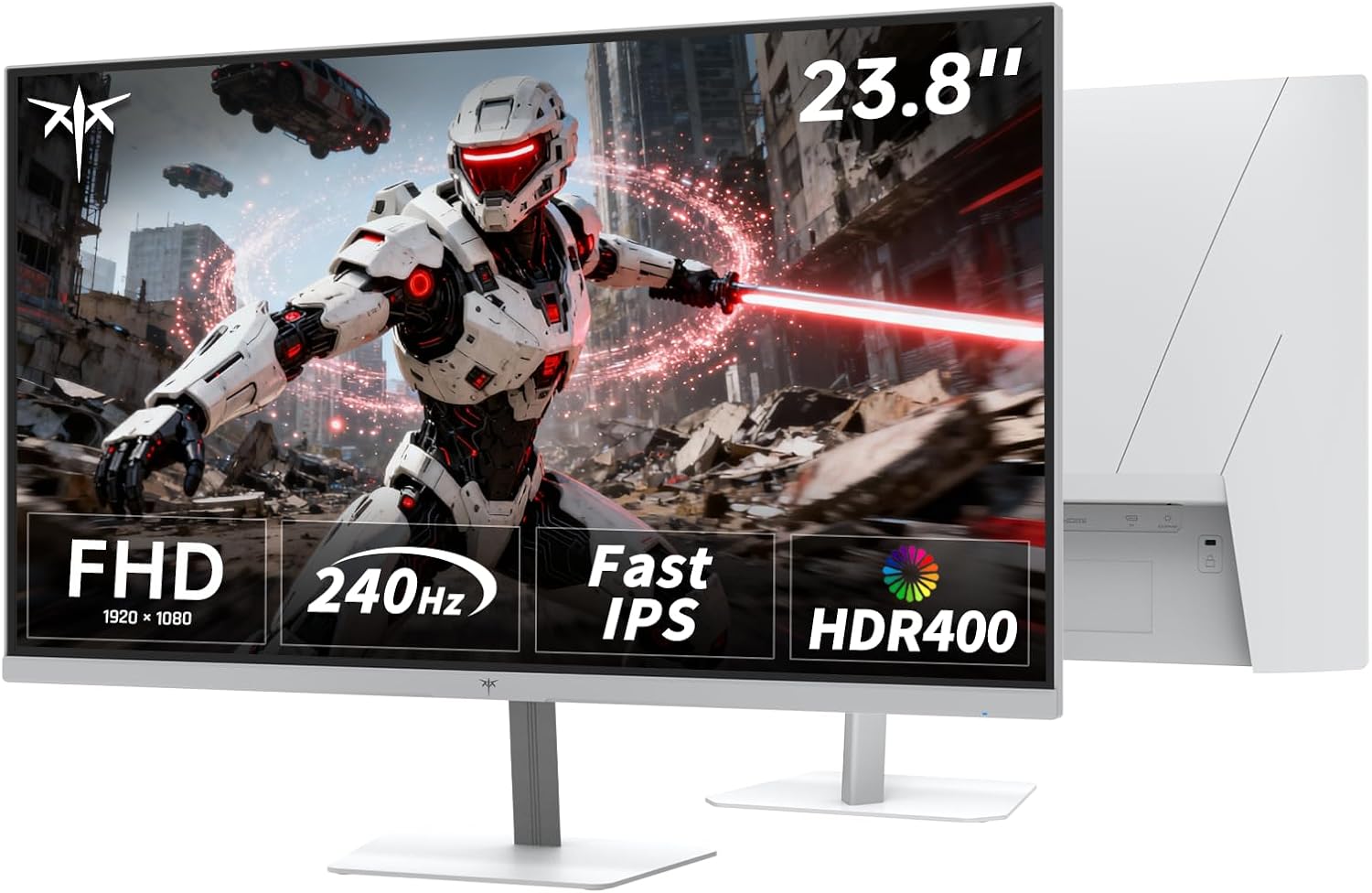
Image: Front view of the KTC 24 Inch 240Hz Gaming Monitor (H24F7) displaying dynamic gaming content.
2. Safety Information
- Read all instructions carefully before using the monitor.
- Keep the monitor away from water and moisture.
- Do not place the monitor on an unstable surface.
- Use only the power adapter provided by the manufacturer.
- Ensure proper ventilation to prevent overheating.
- Avoid exposing the monitor to direct sunlight or extreme temperatures.
- Do not attempt to repair the monitor yourself. Contact qualified service personnel for assistance.
3. Package Contents
Verify that all items are present in the package:
- 1x KTC 23.8" FHD 240Hz Monitor
- 1x Power Adapter
- 1x HDMI Cable
- 1x DisplayPort Cable
- 1x Monitor Stand (Base and Arm)
- 1x User Manual
- Screws for stand assembly
Video: Unboxing and initial setup of a KTC monitor, showing package contents and stand assembly. This video is provided by PBKreviews and is relevant for understanding the physical components.
4. Setup
4.1 Assembling the Stand
- Carefully remove the monitor and stand components from the packaging.
- Attach the stand arm to the monitor panel by aligning the slots and pushing until it clicks into place.
- Secure the stand base to the arm using the provided screw.
- Place the assembled monitor on a stable, flat surface.
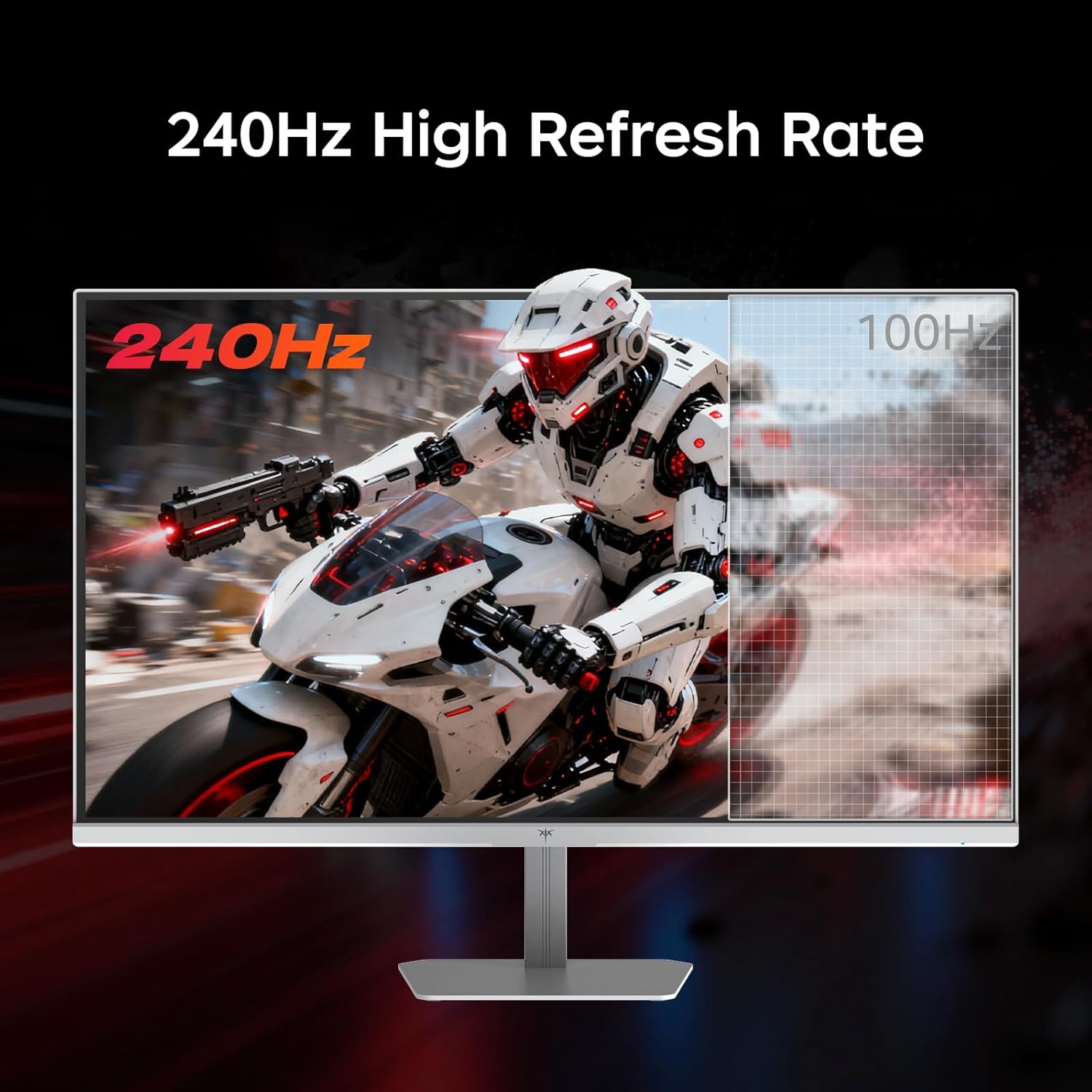
Image: Rear view of the KTC H24F7 monitor, illustrating the stand attachment point and VESA mounting holes.
4.2 VESA Wall Mounting
The monitor supports 100x100mm VESA wall mounts. To use a VESA mount:
- Remove the pre-assembled stand from the monitor.
- Attach your VESA-compatible mount to the four screw holes on the back of the monitor.
- Ensure the mount is securely fastened before hanging the monitor.

Image: Diagram showing the dimensions of the KTC H24F7 monitor and its tilt adjustment range, along with VESA mounting compatibility.
4.3 Connecting to Devices
The KTC H24F7 monitor offers multiple connectivity options:
- HDMI: Connect your PC, gaming console (PS5, Xbox, Switch), or other HDMI-enabled devices using the provided HDMI 2.0 ports (x2). All HDMI ports support 240Hz refresh rate.
- DisplayPort (DP): Connect your PC or other DisplayPort-enabled devices using the DisplayPort 1.4 port (x1). This port also supports 240Hz refresh rate.
- USB 2.0: Use the USB 2.0 port (x1) for service or connecting peripherals.
- Earphone Jack: Connect headphones or external speakers via the 3.5mm audio jack.

Image: Close-up of the rear panel of the KTC H24F7 monitor, highlighting the DC power input, USB, HDMI 1, HDMI 2, DisplayPort, and Earphone ports.
4.4 Powering On
Connect the power adapter to the DC input on the monitor and then to a power outlet. Press the power button (usually a joystick on the back) to turn on the monitor.
5. Operating the Monitor
5.1 OSD Menu Navigation
The monitor features a single joystick control located on the back for navigating the On-Screen Display (OSD) menu. Press the joystick to open the menu, and move it up/down/left/right to select and adjust settings.
Video: A user demonstrating the joystick control and OSD menu navigation on a KTC monitor, showing various display and gaming settings.
5.2 Display Settings
- Brightness & Contrast: Adjust these to optimize visual clarity for your environment. The monitor offers 400cd/m² brightness.
- Color Settings: Fine-tune color temperature, hue, and saturation. The monitor supports 116% sRGB color gamut area for vivid colors.
- Refresh Rate: Set your desired refresh rate up to 240Hz for smooth motion.
- HDR400: Enable HDR400 for enhanced contrast and color depth, making dark areas clearer and bright areas more vivid.
- Adaptive Sync: Activate Adaptive Sync technology to prevent screen tearing and stuttering during gameplay. This monitor is compatible with both FreeSync and G-Sync.

Image: Visual comparison demonstrating the 1ms MPRT response time of the KTC H24F7 monitor, highlighting reduced motion blur in fast-paced scenes.
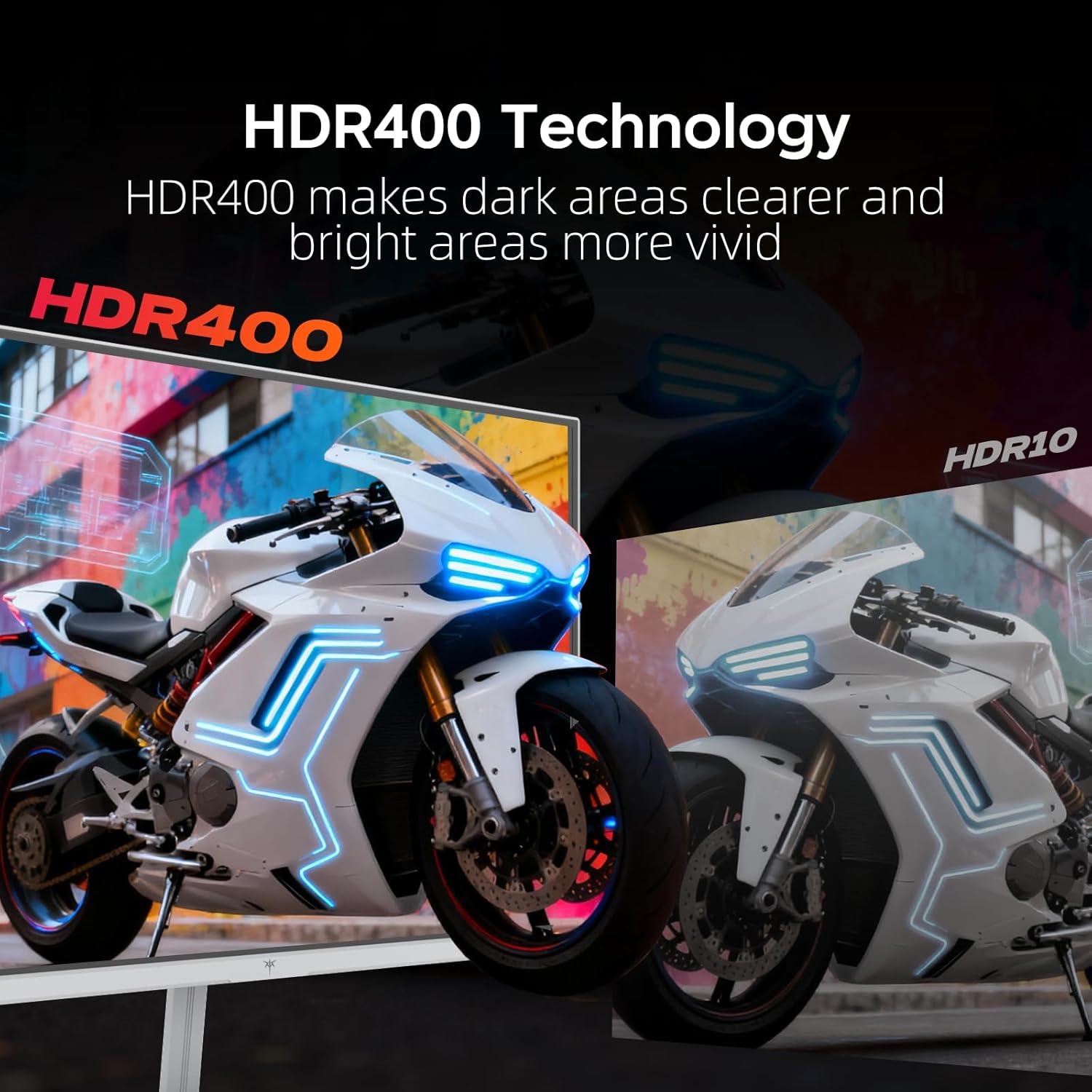
Image: Illustration of HDR400 technology on the KTC H24F7 monitor, showing improved detail in both dark and bright areas compared to standard HDR10.

Image: Comparison demonstrating the effect of Adaptive Sync technology on the KTC H24F7 monitor, showing reduced image lag and tearing when enabled.
5.3 Gaming Features
- Game Plus: Access various in-game enhancements like crosshairs, black equalizer, and timers to improve your gaming experience.
- Black Equalizer: Adjust the black levels to reveal details in dark areas without overexposing bright regions.
- Timer: Display an on-screen timer for tracking in-game events.

Image: Illustration of Game Plus features on the KTC H24F7 monitor, including FPS counter, crosshairs, RTS mode, and timer, designed to enhance gaming performance.
6. Maintenance
- Cleaning the Screen: Gently wipe the screen with a soft, lint-free cloth. For stubborn marks, use a screen-cleaning solution applied to the cloth, not directly to the screen.
- Cleaning the Casing: Use a soft, dry cloth to clean the monitor's casing. Avoid abrasive cleaners.
- Ventilation: Ensure the ventilation holes on the back of the monitor are not blocked to prevent overheating.
- Power Off: Always power off the monitor and unplug it from the power outlet before cleaning or when not in use for extended periods.
7. Troubleshooting
| Problem | Possible Solution |
|---|---|
| No image on screen |
|
| Image flickering or tearing |
|
| Colors appear incorrect |
|
| Monitor not reaching 240Hz |
|
8. Specifications
| Feature | Detail |
|---|---|
| Model Number | H24F7 |
| Screen Size | 23.8 Inches |
| Resolution | 1920 x 1080 (FHD 1080p) |
| Refresh Rate | 240Hz |
| Response Time | 1ms MPRT |
| Panel Type | Fast IPS |
| Brightness | 400 Candela (cd/m²) |
| Color Gamut | 116% sRGB |
| HDR Support | HDR400 |
| Adaptive Sync | Yes (FreeSync/G-Sync compatible) |
| Viewing Angle | 178° |
| Connectivity | 2x HDMI 2.0, 1x DisplayPort 1.4, 1x USB 2.0, 1x Earphone Jack |
| Tilt Adjustment | -5° to 15° |
| VESA Mount | 100x100mm |
| Eye Care Features | Low Blue Light Mode, DC Dimming (Flicker-Free) |
| Product Dimensions | 5.39 x 21.6 x 15.7 inches |
| Item Weight | 9.53 pounds |
9. Warranty and Support
KTC monitors typically come with a three-year warranty. For warranty claims, technical support, or any inquiries regarding your KTC H24F7 monitor, please contact KTC-Official directly through their official support channels. Refer to the product packaging or KTC's official website for the most up-to-date contact information.
Related documentsH24F7


Ask a question about this manual
Ask about setup, troubleshooting, compatibility, parts, safety, or missing instructions. Manuals+ will review the question and use this page’s manual context to help answer it.