
1. Introduction
This manual provides detailed instructions for the Redragon BS8773 Wireless Keyboard and Mouse Combo. This combo features a 78-key 2.4GHz wireless low-profile mechanical keyboard with brown switches and a single blue backlight, paired with a comfort grip mouse offering up to 2400 DPI. Designed for efficient and comfortable use, this product is compatible with Windows and macOS operating systems, as well as desktop, laptop, and tablet devices.
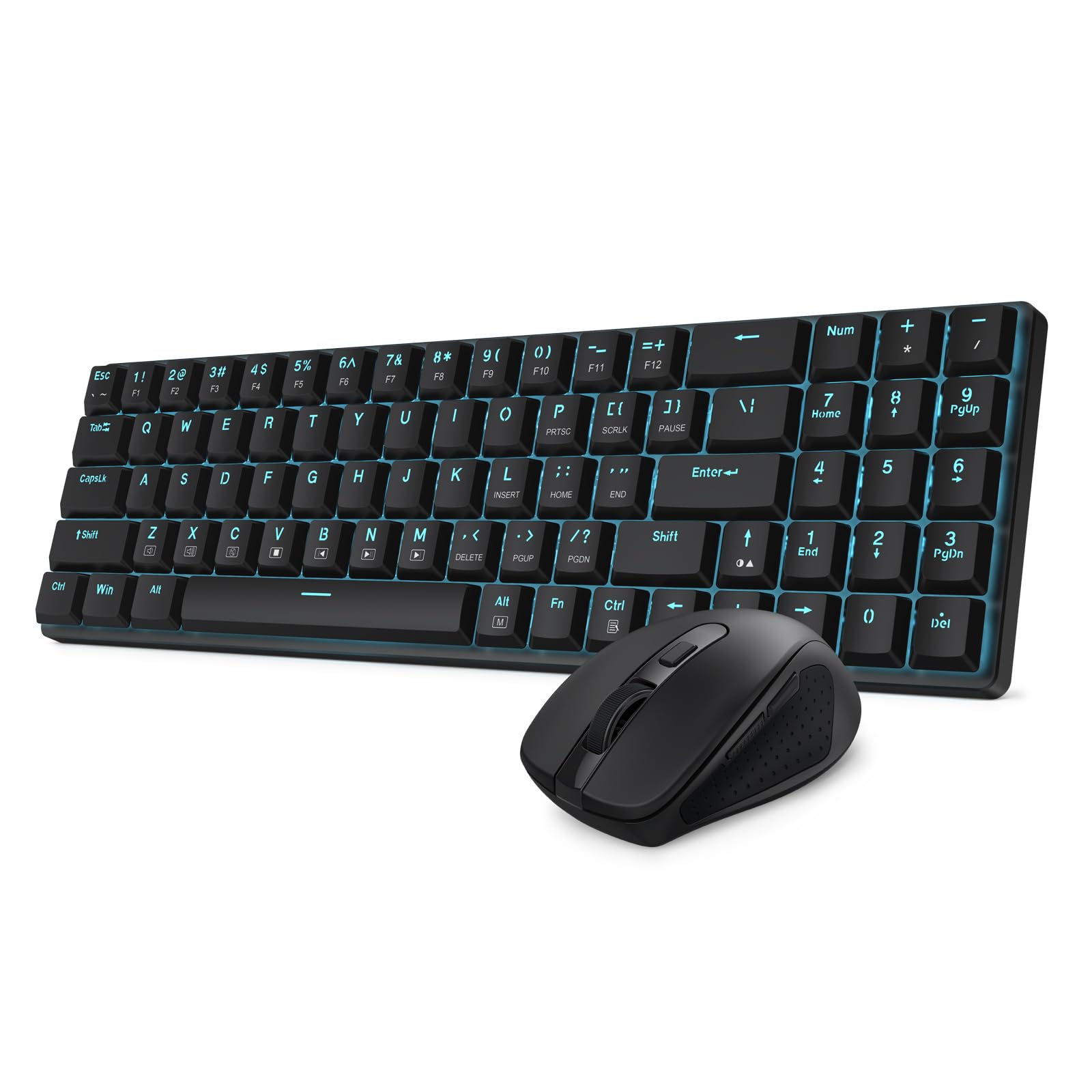
Figure 1: Redragon BS8773 Wireless Keyboard and Mouse Combo.
2. Package Contents
Ensure all items are present in the package:
- Redragon BS8773 Wireless Keyboard
- Redragon Wireless Mouse
- 2.4GHz USB Receiver (often stored within the mouse)
- USB-C Charging Cable (for keyboard)
- User Manual (this document)
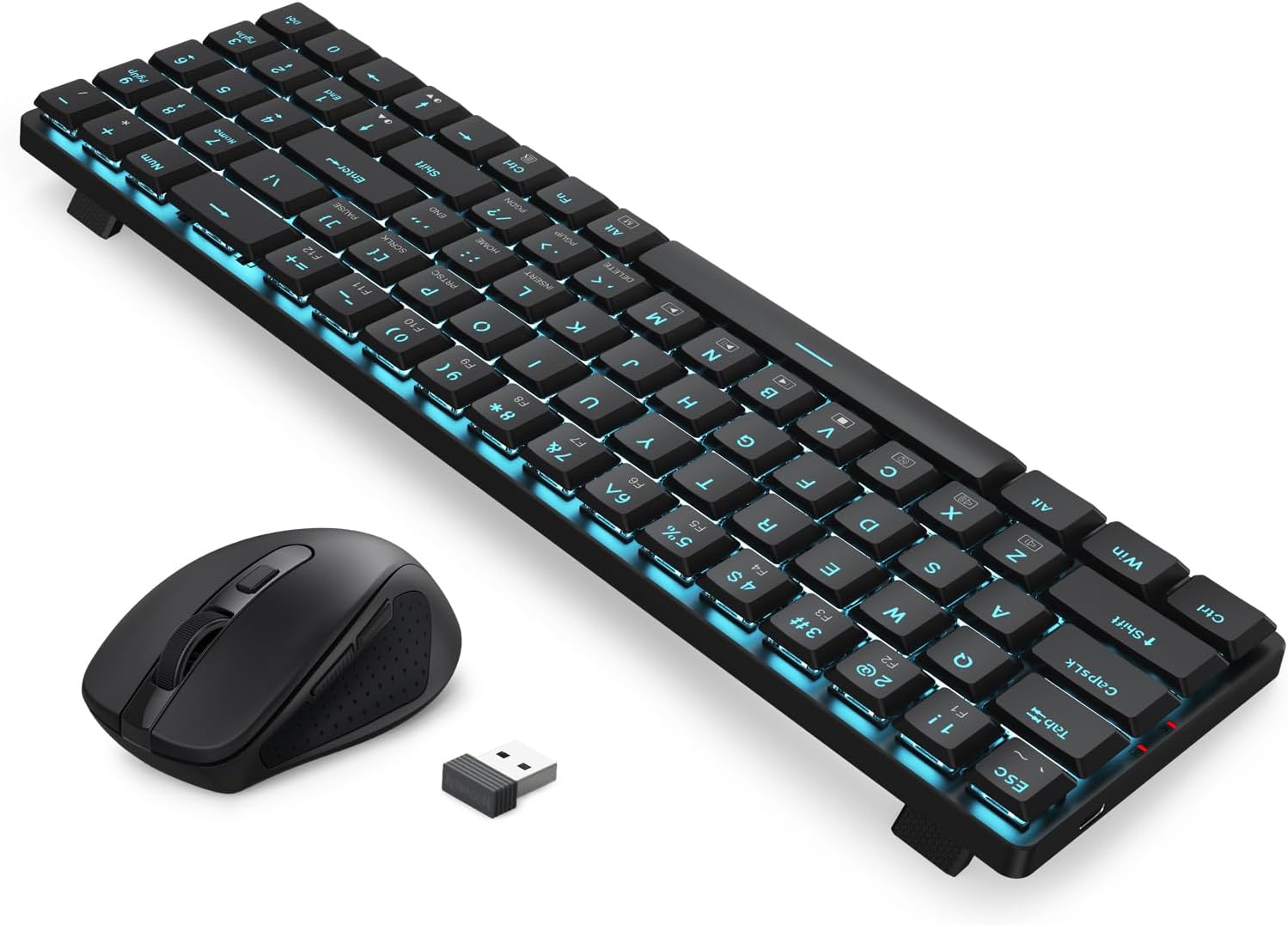
Figure 2: Keyboard, mouse, and 2.4GHz USB receiver.
3. Setup
3.1 Keyboard Charging
The keyboard features a built-in rechargeable Lithium Polymer battery. Before first use, or when the battery is low, connect the provided USB-C cable to the keyboard's charging port and the other end to a USB power source (e.g., computer USB port, USB wall adapter).

Figure 3: Connecting the USB-C charging cable to the keyboard.
3.2 Mouse Battery Installation
The mouse requires one AA battery (not included). To install:
- Locate the battery compartment on the underside of the mouse.
- Open the battery compartment cover.
- Insert one AA battery, ensuring correct polarity (+/-).
- Close the battery compartment cover securely.
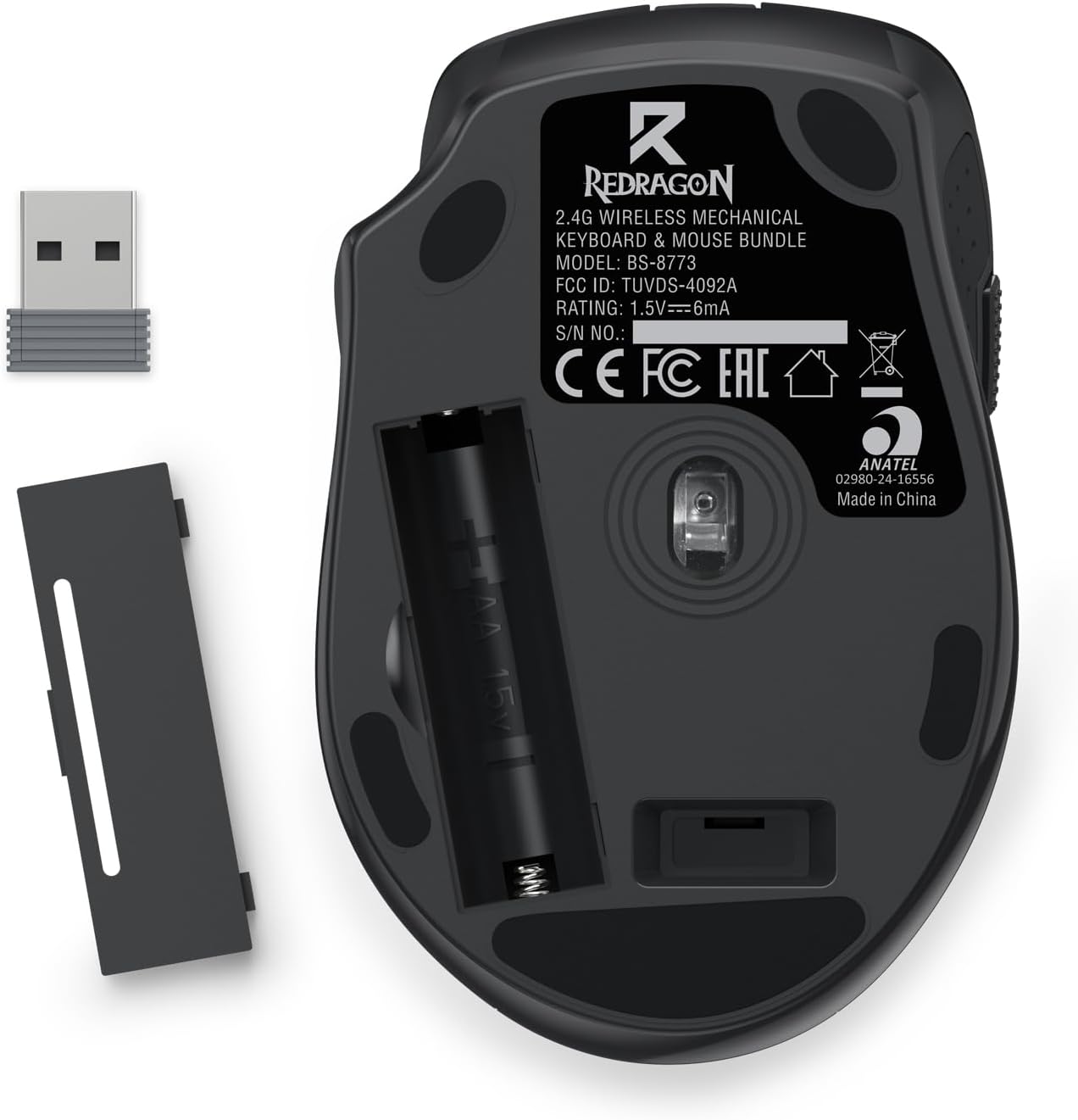
Figure 4: Mouse battery compartment and USB receiver location.
3.3 Wireless Connection
The keyboard and mouse connect wirelessly via a single 2.4GHz USB receiver.
- Remove the 2.4GHz USB receiver from its storage slot on the underside of the mouse.
- Plug the USB receiver into an available USB port on your computer or device.
- Turn on the keyboard using its power switch (usually located on the side or back).
- Turn on the mouse using its power switch (usually located on the underside).
- Your computer should automatically detect and install the necessary drivers. The devices are now ready for use.
Video 1: Demonstrates the 2.4GHz wireless connection for a similar Redragon keyboard and mouse combo, highlighting the single dongle for two devices.
4. Operating Instructions
4.1 Keyboard Functions
The Redragon BS8773 keyboard features a compact 78-key layout with low-profile mechanical brown switches, providing a tactile yet quiet typing experience. The keyboard includes a single blue backlight for enhanced visibility.

Figure 5: Close-up view of the low-profile brown mechanical switches.
4.1.1 Backlight Control
The keyboard features a single blue backlight. The intensity of this backlight is adjustable. Refer to the keyboard's specific function keys (often combined with the 'Fn' key) for adjusting brightness or cycling through any available lighting modes (e.g., on, off, breathing effect).
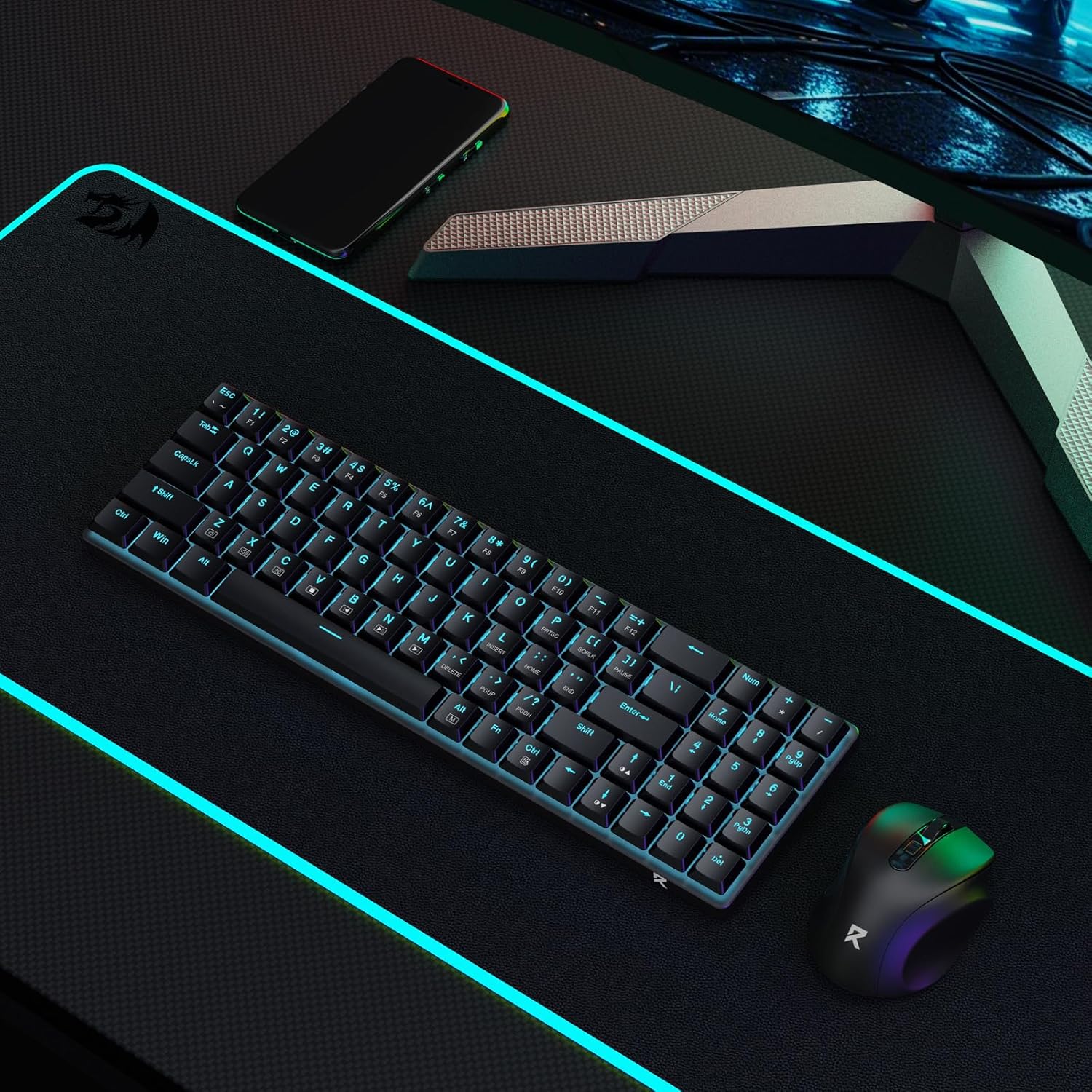
Figure 6: Keyboard and mouse illuminated with blue backlighting.
4.2 Mouse Functions
The Redragon mouse is designed for comfort and precision, offering adjustable DPI settings.
4.2.1 DPI Adjustment
The mouse supports 5 adjustable DPI settings: 800, 1200, 1600, 2000, and 2400 DPI. To cycle through these settings, press the dedicated DPI switch button, usually located near the scroll wheel. Each press will change the sensitivity, allowing you to find your preferred cursor speed.
4.3 Power Saving Mode
Both the keyboard and mouse are designed to enter a sleep mode after a period of inactivity to conserve battery life. To reactivate, simply press any key on the keyboard or click a mouse button.
5. Maintenance
5.1 Cleaning
- Use a soft, dry cloth to wipe down the surfaces of the keyboard and mouse.
- For stubborn dirt, slightly dampen the cloth with water or a mild cleaning solution. Avoid excessive moisture.
- Do not use harsh chemicals or abrasive materials, as these can damage the finish.
5.2 Battery Care
- Keyboard: Recharge the keyboard's built-in battery regularly to maintain optimal performance. Avoid completely draining the battery frequently.
- Mouse: Replace the AA battery in the mouse when performance degrades or the mouse stops responding.
6. Troubleshooting
6.1 Connection Issues
- Ensure the 2.4GHz USB receiver is securely plugged into a working USB port on your computer.
- Verify that both the keyboard and mouse power switches are in the 'ON' position.
- Check the keyboard's battery level and recharge if necessary. Replace the AA battery in the mouse if it's low.
- Try plugging the USB receiver into a different USB port.
- Move the keyboard and mouse closer to the USB receiver to rule out interference.
6.2 Keyboard Keys Not Responding
- Check for any physical obstructions under the keys.
- Ensure the keyboard is not in sleep mode. Press any key to wake it up.
- Re-establish the wireless connection as described in Section 3.3.
6.3 Mouse Cursor Erratic or Not Moving
- Check the mouse battery and replace if needed.
- Ensure the mouse power switch is 'ON'.
- Clean the optical sensor on the underside of the mouse.
- Try using the mouse on a different surface.
- Re-establish the wireless connection as described in Section 3.3.
7. Specifications
- Brand: Redragon
- Model: BS-8773
- Connectivity: 2.4GHz Radio Frequency Wireless
- Keyboard Layout: 78 Keys, QWERTY
- Keyboard Type: Low-Profile Mechanical Brown Switch
- Keyboard Backlight: Single Blue Backlight
- Mouse DPI: Up to 2400 DPI (5 adjustable settings)
- Keyboard Battery: 1 Lithium Polymer (rechargeable, included)
- Mouse Battery: 1 AA Battery (required, not included)
- Compatible OS: Windows, macOS
- Compatible Devices: Desktop, Laptop, Tablet
- Item Weight: 378 Grams
- Parcel Dimensions: 43.9 x 13.9 x 4.8 cm
8. Warranty and Support
For warranty information, technical support, or further assistance, please refer to the official Redragon website or contact their customer service directly. Keep your purchase receipt for warranty claims.


