
1. Introduction
Thank you for choosing the UPERFECT 14-inch 2K MiniLED Portable Monitor. This manual provides essential information for the safe and efficient use of your new device. Please read this manual thoroughly before use and retain it for future reference.
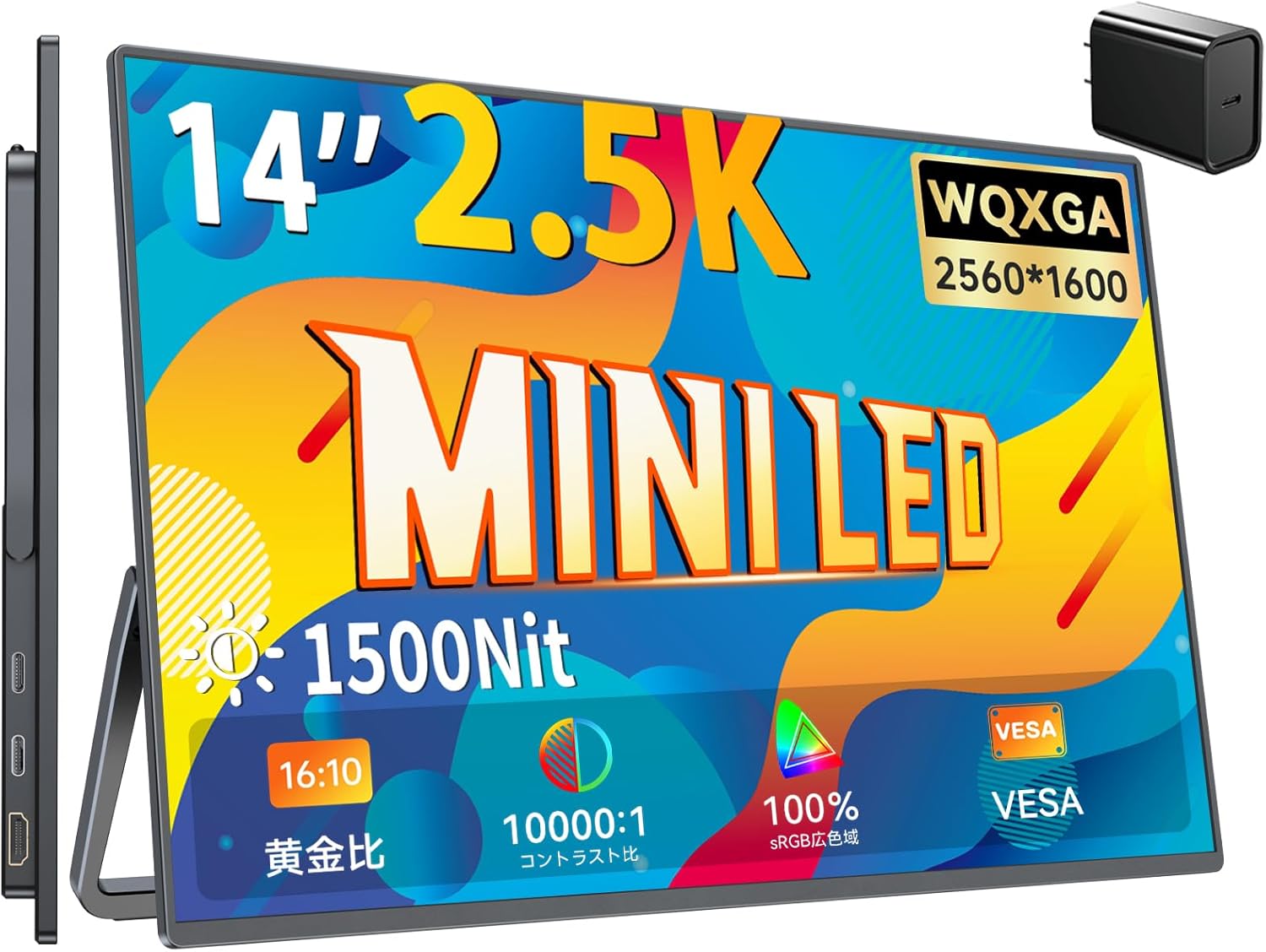
UPERFECT 14-inch 2K MiniLED Portable Monitor with key features highlighted.
2. Product Features
- 2.5K WQXGA Resolution: Experience stunning visuals with a 2560x1600 pixel display, offering 4 times the pixel count of Full HD for exceptional detail.
- MiniLED Backlight Technology: Advanced MiniLED panel provides superior brightness, contrast, and color accuracy.
- High Brightness & Non-Glare: Features 1500 Nits peak brightness and a non-glare LCD panel, ensuring clear visibility even in bright outdoor or indoor environments.
- Wide Color Gamut & High Contrast: Achieves 76.8% DCI-P3 color gamut coverage and a 10000:1 contrast ratio for vibrant and accurate color reproduction.
- Fast Response Time: Enjoy smooth visuals with a 3ms response time, ideal for gaming and fast-paced content.
- Integrated Speakers: Equipped with two 8Ω 1W speakers for clear audio without external devices.
- Versatile Connectivity: Supports Type-C (for video and power with compatible devices) and Mini HDMI for broad compatibility with laptops, smartphones, gaming consoles (Switch, PS4/PS5, Xbox), and more.
- Built-in Adjustable Stand: Features an integrated stand that allows for angle adjustments from 0° to 180° for optimal viewing.
- VESA Mount Compatible: Includes standard 75mm x 75mm VESA holes for flexible mounting options.
- Portable Design: Lightweight at approximately 529g and a compact body (310 x 200 x 120 x 5mm), making it easy to carry.
- Eye Care Technology: Incorporates blue light reduction technology to minimize eye strain during prolonged use.
3. Package Contents
Please check the package contents upon unboxing to ensure all items are present:
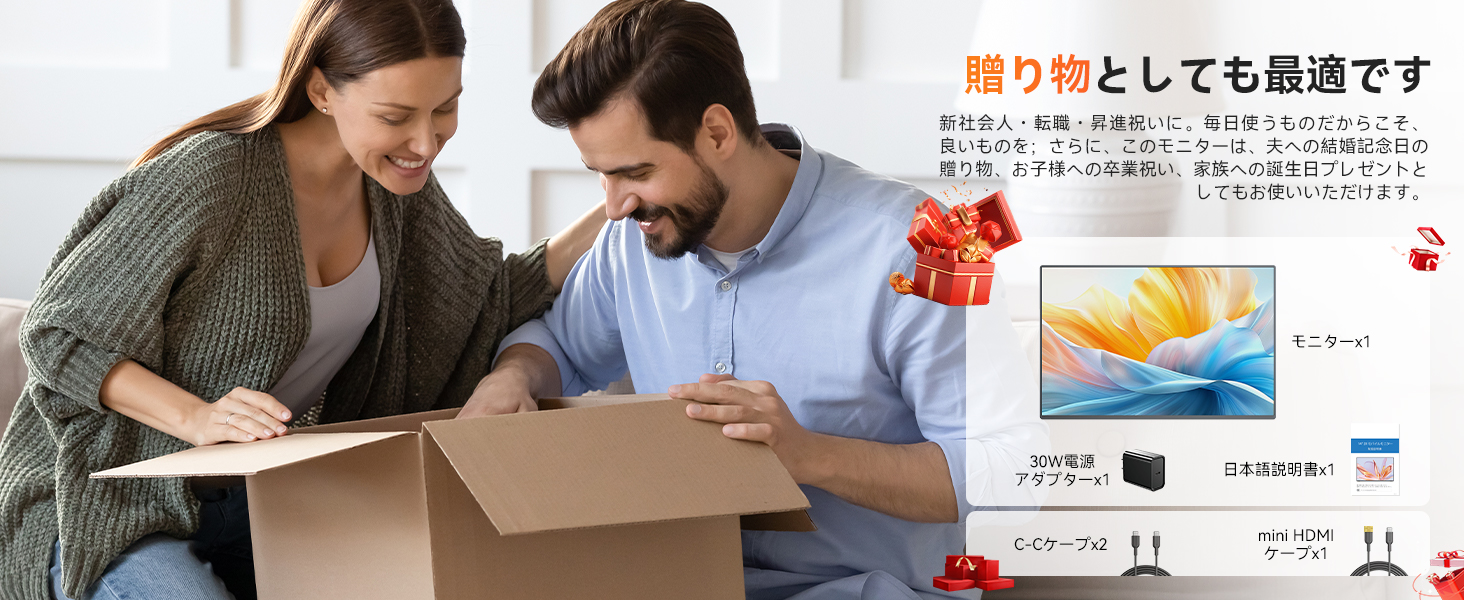
- UPERFECT 14-inch 2K MiniLED Portable Monitor x 1
- 30W Power Adapter x 1
- USB-C to USB-C Cable x 2
- Mini HDMI to HDMI Cable x 1
- User Manual x 1
- M4 Screws (for VESA mount) x 4

A couple unboxing the UPERFECT portable monitor, showing the included accessories: monitor, 30W power adapter, two C-C cables, and one Mini HDMI cable.
4. Product Overview
4.1 Monitor Layout
Familiarize yourself with the monitor's ports and controls:
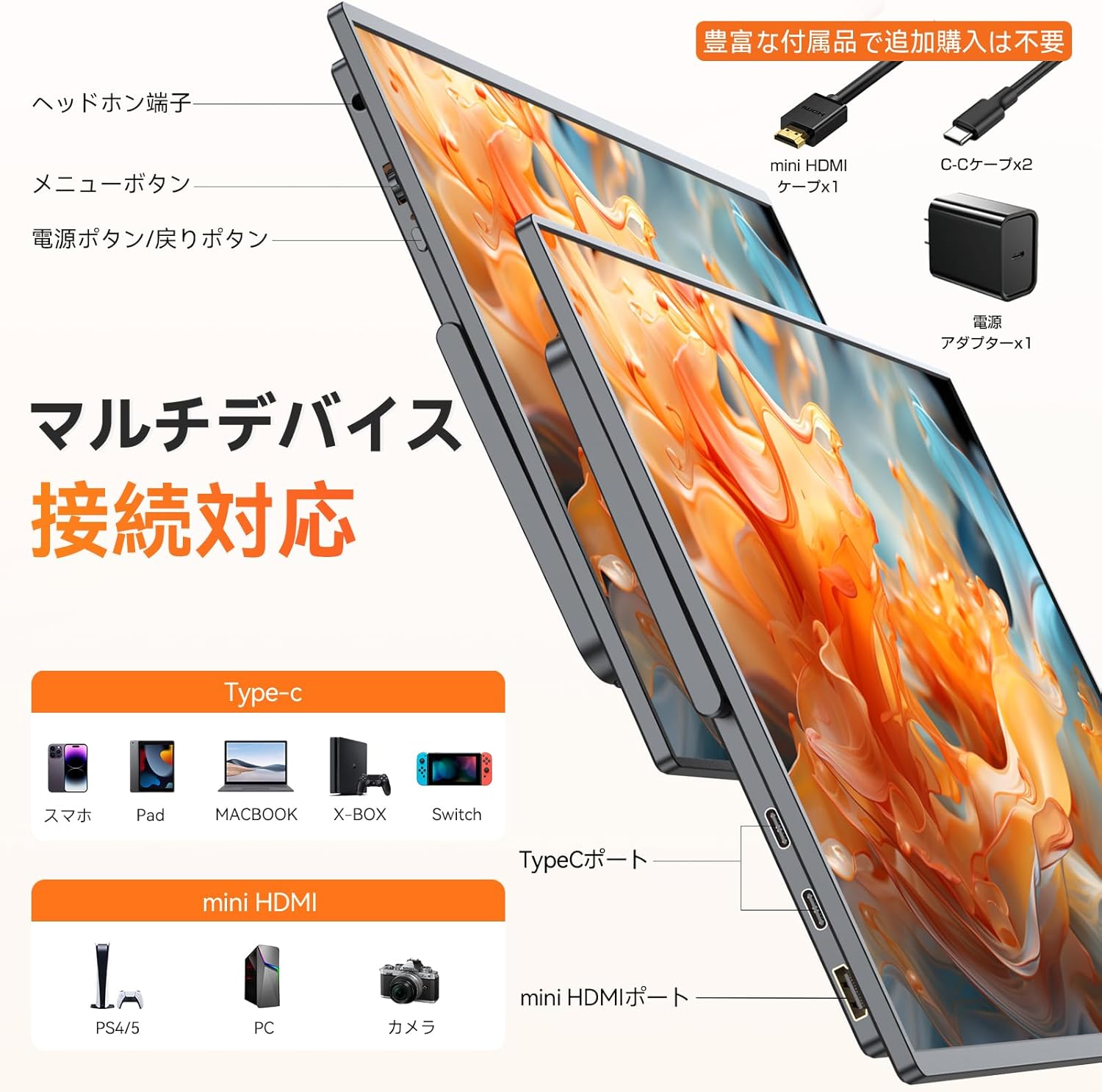
Side view of the UPERFECT portable monitor, highlighting its various ports including Type-C and Mini HDMI, along with included accessories.
- Headphone Jack: 3.5mm audio output.
- Menu Button: Accesses the On-Screen Display (OSD) menu.
- Power Button/Return Button: Powers the monitor on/off, or acts as a 'back' button in the OSD menu.
- Type-C Ports (x2): For video signal, power delivery, and data transfer with compatible devices.
- Mini HDMI Port: For video signal input.
4.2 Built-in Stand and VESA Mount
The monitor features an integrated stand for easy setup and angle adjustment. For more permanent installations, it supports VESA mounting.
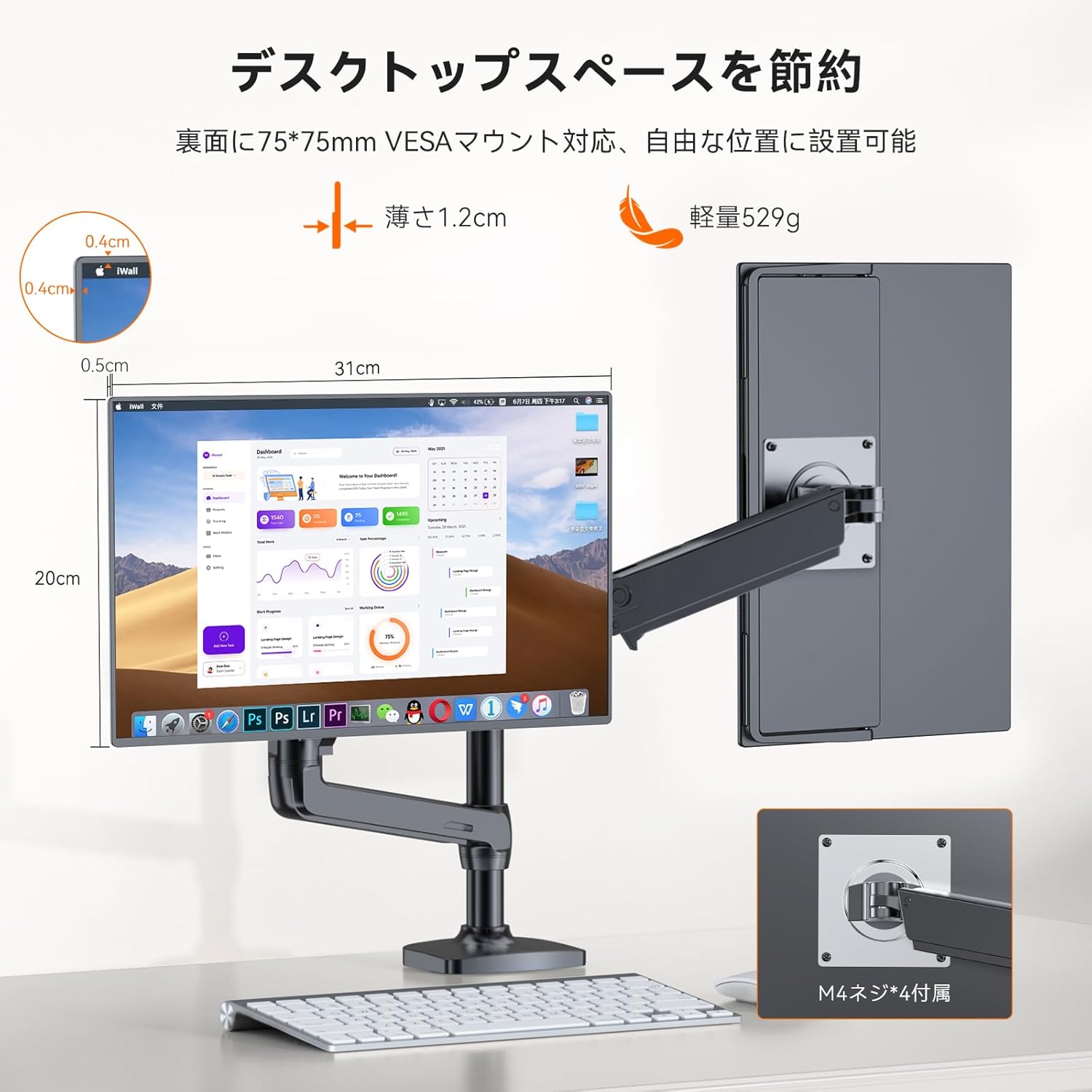
The UPERFECT portable monitor mounted on a VESA arm, demonstrating its thin profile and lightweight design for flexible setup.
- Integrated Stand: Adjusts from 0° to 180°.
- VESA Compatibility: 75mm x 75mm pattern for monitor arms or wall mounts. Use the provided M4 screws.
5. Setup
Follow these steps to connect your UPERFECT portable monitor to various devices.
5.1 Powering the Monitor
The monitor can be powered via the included 30W power adapter or a compatible Type-C connection from your source device.
- Using Power Adapter: Connect the 30W power adapter to one of the monitor's Type-C ports and plug it into a power outlet.
- Using Type-C (Single Cable Solution): If your device (e.g., laptop, smartphone) supports Thunderbolt 3/4 or DisplayPort Alternate Mode over USB-C with sufficient power output (at least 15W), you can connect a single USB-C to USB-C cable for both video and power. If your device's Type-C port does not provide enough power, you will need to connect the external power adapter.
5.2 Connecting to Devices
The monitor supports both Type-C and Mini HDMI connections.
- For Laptops/PCs (Type-C): Connect one end of the USB-C to USB-C cable to your laptop's compatible Type-C port and the other end to the monitor's Type-C port. Ensure your laptop's Type-C port supports video output.
- For Laptops/PCs (HDMI): Connect one end of the Mini HDMI to HDMI cable to the monitor's Mini HDMI port and the other end to your laptop's HDMI port. You will also need to connect the power adapter to the monitor.
- For Smartphones (Type-C): Connect one end of the USB-C to USB-C cable to your smartphone's compatible Type-C port and the other end to the monitor's Type-C port. Ensure your smartphone supports DisplayPort Alternate Mode.
- For Gaming Consoles (Switch, PS4/PS5, Xbox): Connect the Mini HDMI to HDMI cable from your console to the monitor's Mini HDMI port. Connect the power adapter to the monitor.

Multi-device connection support for the UPERFECT portable monitor, showing Type-C and Mini HDMI ports and compatible devices like smartphones, pads, MacBooks, Xbox, Switch, PS4/5, and PCs.
6. Operating Instructions
6.1 Power On/Off
Press and hold the Power Button for a few seconds to turn the monitor on or off.
6.2 Display Modes
The monitor supports various display modes when connected to a computer:
- Extend Mode: Expands your desktop across both screens, providing more workspace.
- Duplicate Mode: Mirrors your primary display, showing the same content on both screens.
- Vertical Display: Allows the monitor to be used in portrait orientation for specific tasks like coding or document viewing.
These settings are typically configured on your computer's display settings.
The UPERFECT portable monitor demonstrating duplicate and vertical display modes, offering versatile screen configurations for different tasks.
6.3 OSD Menu Navigation
Use the Menu button and other control buttons (if present) to navigate the On-Screen Display (OSD) menu for adjusting monitor settings.
- Brightness/Contrast: Adjust display brightness and contrast levels.
- Color Settings: Modify color temperature, hue, and saturation.
- Input Source: Manually select the input source (Type-C or Mini HDMI).
- HDR Mode: Enable or disable High Dynamic Range.
- FreeSync: Enable or disable FreeSync for smoother gaming (if supported by your device).
7. Maintenance
Proper care ensures the longevity and optimal performance of your monitor.
- Cleaning the Screen: Gently wipe the screen with a soft, lint-free cloth. For stubborn marks, lightly dampen the cloth with water or a screen-cleaning solution. Avoid harsh chemicals or abrasive materials.
- Cleaning the Body: Use a soft, dry cloth to clean the monitor's exterior.
- Storage: When not in use, store the monitor in a cool, dry place, preferably in its original packaging or a protective case to prevent dust and scratches.
- Avoid Liquids: Keep the monitor away from liquids and excessive moisture.
- Handle with Care: Avoid dropping or subjecting the monitor to strong impacts.
8. Troubleshooting
If you encounter issues with your monitor, refer to the following common problems and solutions:
| Problem | Possible Cause | Solution |
|---|---|---|
| No display/Black screen | No power; Incorrect input source; Faulty cable; Device not outputting signal. | Ensure power adapter is connected and functional. Check Type-C or HDMI cable connection. Select correct input source via OSD menu. Verify source device is powered on and configured for external display. |
| "No Signal" message | Incorrect input source selected; Cable not properly connected; Source device not outputting signal. | Manually select the correct input source in the OSD menu. Reconnect the video cable securely. Check your source device's display settings. |
| Flickering screen | Cable issue; Power instability; Graphics driver issue. | Try a different cable. Ensure stable power supply. Update graphics drivers on your source device. |
| Colors appear incorrect | Color settings; HDR mode. | Adjust color settings in the OSD menu. Ensure HDR settings are correctly configured on both the monitor and your source device. |
| No sound from speakers | Volume too low; Muted; Audio output settings. | Increase monitor volume via OSD. Check if the monitor is muted. Verify audio output settings on your source device are set to the monitor. |
| Monitor not recognized by device | Incompatible port; Driver issue; Device settings. | Ensure your device's Type-C port supports video output. Update device drivers. Restart both the monitor and the source device. |
9. Specifications
| Feature | Detail |
|---|---|
| Brand | UPERFECT |
| Model Number | Mobile Monitor |
| Screen Size | 14 inches |
| Resolution | 2560 x 1600 (WQXGA) |
| Display Technology | MiniLED LCD |
| Brightness | 1500 Nits (peak) |
| Contrast Ratio | 10000:1 |
| Aspect Ratio | 16:10 |
| Response Time | 3ms |
| Viewing Angle | 178° |
| Color Gamut | 76.8% DCI-P3, 100% sRGB |
| Surface Treatment | Non-Glare |
| Connectivity | 2x Type-C, 1x Mini HDMI, 1x 3.5mm Audio Jack |
| Speakers | 2x 8Ω 1W Built-in Speakers |
| VESA Mount | 75mm x 75mm |
| Product Dimensions (L x W x H) | 310 x 200 x 12 mm (approx.) |
| Weight | 529 g (approx.) |
| Power Input | 5 Volts, 13 Watts |
10. Warranty and Support
UPERFECT is committed to providing high-quality products and excellent customer service.
10.1 Quality Assurance
All UPERFECT products undergo 100% inspection before shipment to ensure quality and reliability.
10.2 1-Year Warranty
Your UPERFECT portable monitor is covered by a 1-year warranty from the date of purchase. In case of product defects or malfunctions within this period, UPERFECT will provide a replacement or refund.
10.3 Customer Support
For any questions or concerns regarding your product, please contact our customer support team. To ensure a smooth process, please have your product model and order number ready when contacting support.
Contact information for customer support can typically be found on the UPERFECT official website or through your purchase platform.


