
Introduction
The HelloBaby HB6560 Baby Monitor offers advanced features for monitoring your child. This system includes a 6-inch IPS screen for clear viewing, a camera with remote pan and tilt, two-way audio, and infrared night vision. Designed for security, it operates without WiFi, ensuring a private connection. The included floor stand provides flexible placement options, and the monitor boasts a long battery life for extended use.
Setup
Floor Stand Assembly
The HelloBaby HB6560 comes with a convenient floor stand for optimal camera placement. Follow these steps to assemble the stand:
- Attach the first pole segment securely to the base of the stand.
- Connect the remaining pole segments by twisting them together until they are firmly joined.
- Attach the flexible gooseneck arm to the top pole segment.
- Locate the camera mounting screw on the camera's base and align it with the flexible arm's connector.
- Screw the camera onto the flexible arm until it is securely attached.
This video demonstrates the step-by-step assembly of the HelloBaby baby monitor floor stand.
Camera and Monitor Placement
Place the camera on a flat, stable surface using the floor stand. Ensure the camera has a clear, unobstructed view of your baby. Position the monitor unit in a convenient location where you can easily view the screen and hear audio.
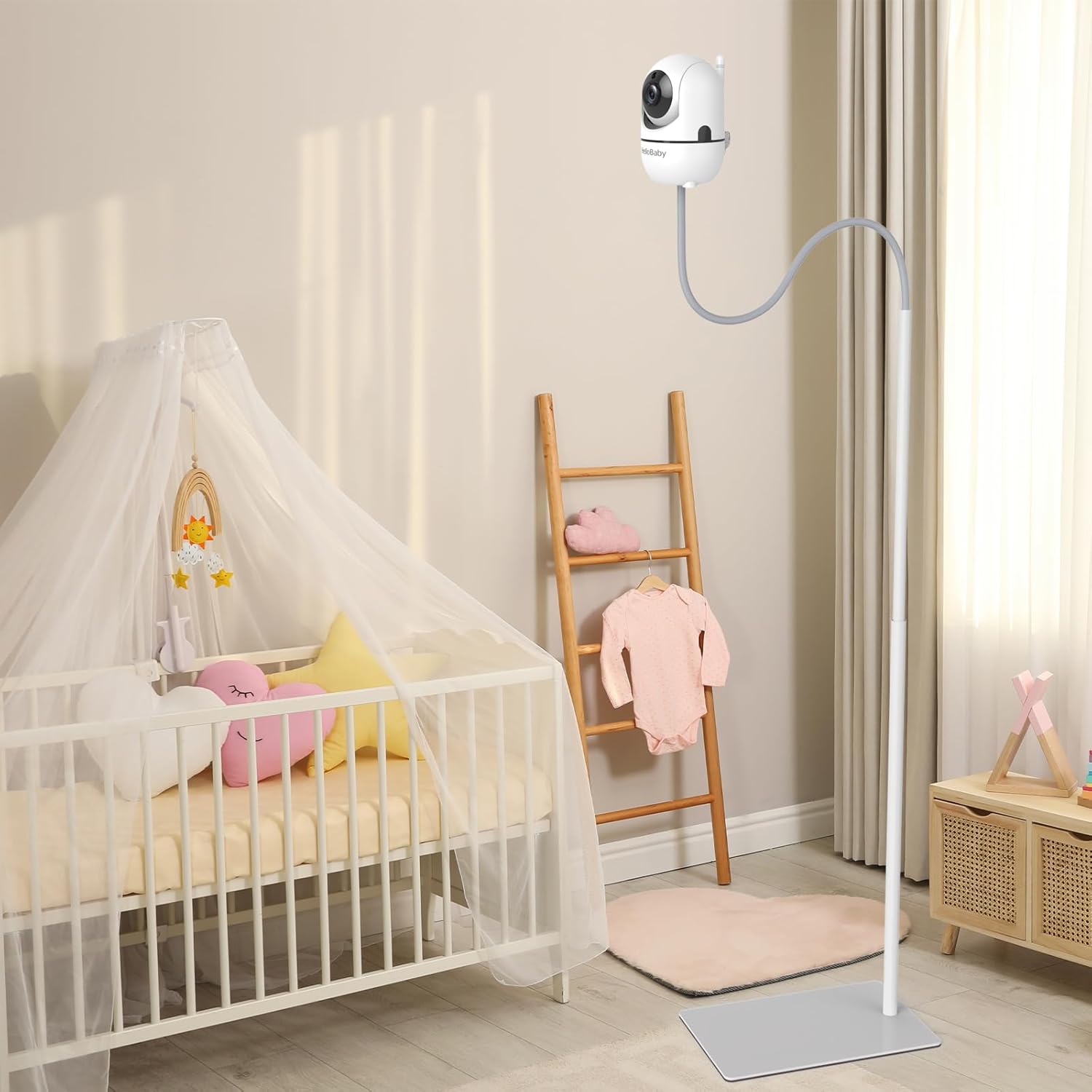
The HelloBaby baby monitor camera mounted on its adjustable floor stand next to a baby crib.
Power Connection
Connect the power adapters to both the camera unit and the monitor unit. Plug the adapters into a standard electrical outlet. The monitor unit has a built-in rechargeable battery for portable use.
Operating Instructions
Power On/Off
Press and hold the power button on both the camera and monitor units to turn them on or off.
Screen Features
The 6-inch IPS screen provides a wide 178° viewing angle and clear visuals. The monitor automatically connects to the camera upon powering on.
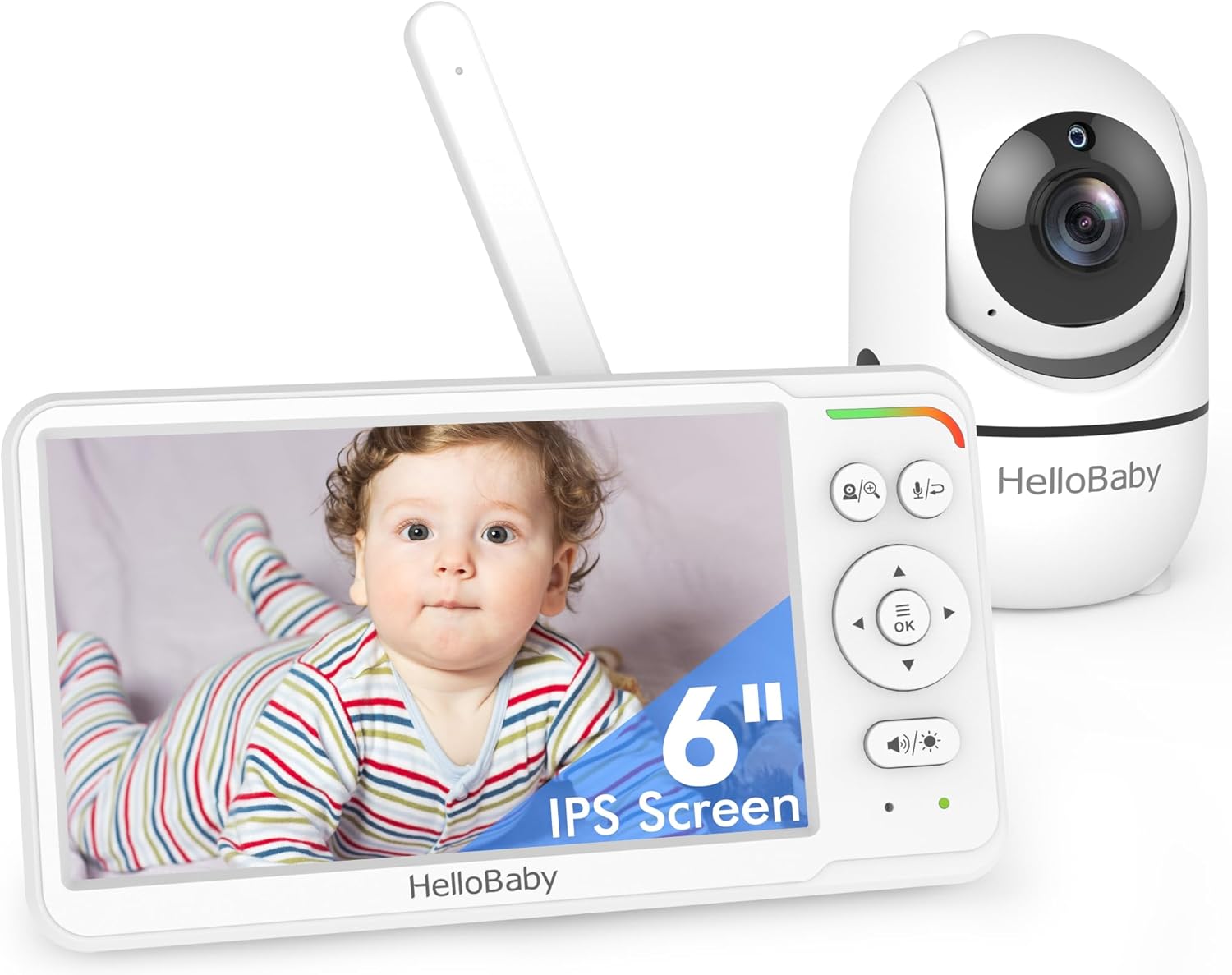
The HelloBaby monitor screen displaying a sleeping baby, highlighting the 6-inch IPS display.
Remote Pan/Tilt
Use the directional buttons on the monitor to remotely pan the camera 355° horizontally and tilt it 120° vertically, ensuring no blind spots.
Two-Way Talk
Press and hold the microphone button on the monitor to speak to your baby through the camera's speaker. Release the button to listen.

An image illustrating the two-way audio feature of the HelloBaby monitor, showing a parent speaking to their baby through the monitor.
Night Vision
The camera features automatic infrared night vision, providing clear black and white video in low-light conditions.
Lullabies
Select from a variety of pre-programmed lullabies to soothe your baby. Access this feature through the monitor's menu.
ECO Mode
Activate ECO mode to conserve battery life. In this mode, the screen turns off when no sound is detected, and turns back on when your baby makes a noise.
Split Screen
If using multiple cameras (sold separately), the monitor supports split-screen viewing to monitor two areas simultaneously.

The HelloBaby monitor displaying a split screen view from two different cameras simultaneously.
Language Support
The monitor supports up to 150 national languages, which can be selected from the settings menu.
Feeding Timer
Set a feeding timer reminder through the monitor's menu to help manage your baby's feeding schedule.
Temperature Sensor
The camera includes a room temperature sensor, displaying the current temperature on the monitor screen.
This video highlights key features of the HelloBaby HB6560 monitor, including remote pan/tilt, night vision, lullabies, two-way audio, battery life, language support, and split screen functionality.
Maintenance
Cleaning
Wipe the camera and monitor units with a soft, dry cloth. Do not use abrasive cleaners or solvents. Ensure the devices are powered off before cleaning.
Storage
Store the monitor and camera in a cool, dry place when not in use. Keep away from direct sunlight and extreme temperatures.
Troubleshooting
No Picture/Sound
- Ensure both the camera and monitor are powered on and fully charged or connected to power.
- Check that the camera and monitor are within range. Obstacles like walls can reduce signal strength.
- Try re-pairing the camera and monitor if the connection is lost (refer to pairing instructions in the full manual).
Poor Picture Quality
- Adjust the camera's position to ensure adequate lighting.
- Clean the camera lens if it appears blurry.
Short Battery Life
- Ensure the monitor is fully charged before use. Battery life varies based on usage (e.g., continuous video vs. ECO mode).
- Reduce screen brightness or activate ECO mode to extend battery life.
Specifications
| Feature | Description |
|---|---|
| Brand | HelloBaby |
| Model | HB6560 |
| Screen Size | 6-inch IPS |
| Viewing Angle | 178° |
| Camera Pan | 355° |
| Camera Tilt | 120° |
| Battery Life | 16-30 hours (video screen / ECO mode) |
| Connectivity | 2.4GHz Digital Wireless (No WiFi) |
| Additional Features | Two-way talk, Night Vision, Lullabies, Split Screen, Temperature Sensor, Feeding Timer, Multi-language support |
Warranty
The HelloBaby HB6560 Baby Monitor includes a 1-year manufacturer's guarantee from the date of purchase. Please retain your proof of purchase for warranty claims. This warranty covers defects in materials and workmanship under normal use.
Support
For technical assistance, troubleshooting, or warranty inquiries, please contact HelloBaby customer support. Refer to the contact information provided in your product packaging or visit the official HelloBaby website.


