1. Introduction
This manual provides detailed instructions for the installation, operation, and maintenance of your SONOFF SNZB-01P Zigbee Wireless Push Button. Please read this manual thoroughly before using the device to ensure proper function and safety.
2. Product Overview
2.1 Package Contents
- SONOFF SNZB-01P Zigbee Wireless Push Button (Quantity as purchased)
- User Manual
- Mounting Accessories (e.g., adhesive tape, screws)
- CR2477 Battery (pre-installed or included)
2.2 Device Features
- Custom Button Actions: Supports single press, double press, and long press for various smart scene triggers.
- Zigbee 3.0 Compatibility: Works with standard Zigbee 3.0 hubs like SONOFF NSPanel Pro, ZB Bridge Pro, and ZBDongle-E.
- Alexa Routine Trigger: Can activate Alexa routines when connected to a SONOFF Zigbee hub.
- Emergency Functionality: Can be configured as an emergency button to send alerts.
- Extended Battery Life: Powered by a CR2477 battery, offering approximately 5 years of battery life under typical usage.
- Flexible Placement: Can be installed flat or stuck to any surface.

Figure 1: SONOFF SNZB-01P Zigbee Wireless Push Button (Example 2-Pack)
3. Setup and Installation
3.1 Requirements
- A compatible Zigbee 3.0 hub (e.g., SONOFF NSPanel Pro, ZB Bridge Pro, ZBDongle-E, SmartThings Hub).
- eWelink App (or your preferred Zigbee hub's application) installed on your smartphone.
3.2 Pairing the Device
- Power On: Ensure the CR2477 battery is correctly inserted into the SNZB-01P switch.
- Activate Pairing Mode on Hub: Open your Zigbee hub's application (e.g., eWelink App) and initiate the device pairing process. Refer to your hub's specific instructions for this step.
- Activate Pairing Mode on Switch: Locate the external pairing button on the side of the SNZB-01P switch. Press and hold this button for approximately 5 seconds until the LED indicator on the switch blinks, indicating it is in pairing mode.
- Confirm Pairing: Once the switch is successfully paired, the LED indicator will stop blinking, and the device should appear in your hub's application.

Figure 2: External Pairing Button and Battery Access
3.3 Installation
The SNZB-01P switch can be placed on any flat surface or mounted using the provided adhesive tape or screws. Its compact design allows for flexible placement in various locations.

Figure 3: Flexible Placement Options
4. Operating Instructions
The SONOFF SNZB-01P supports three distinct button actions, which can be customized within your Zigbee hub's application to trigger various smart scenes or control devices.
4.1 Customizing Button Actions
- Single Press: A quick press and release of the button. Typically used for simple actions like turning lights on/off.
- Double Press: Two quick presses in succession. Can be used for more specific controls, such as turning on a fan.
- Long Press: Press and hold the button for approximately 3-5 seconds. Suitable for actions like activating a coffee maker or an emergency alert.
To configure these actions, navigate to the device settings within your Zigbee hub's application and assign desired smart scenes or device controls to each press type.
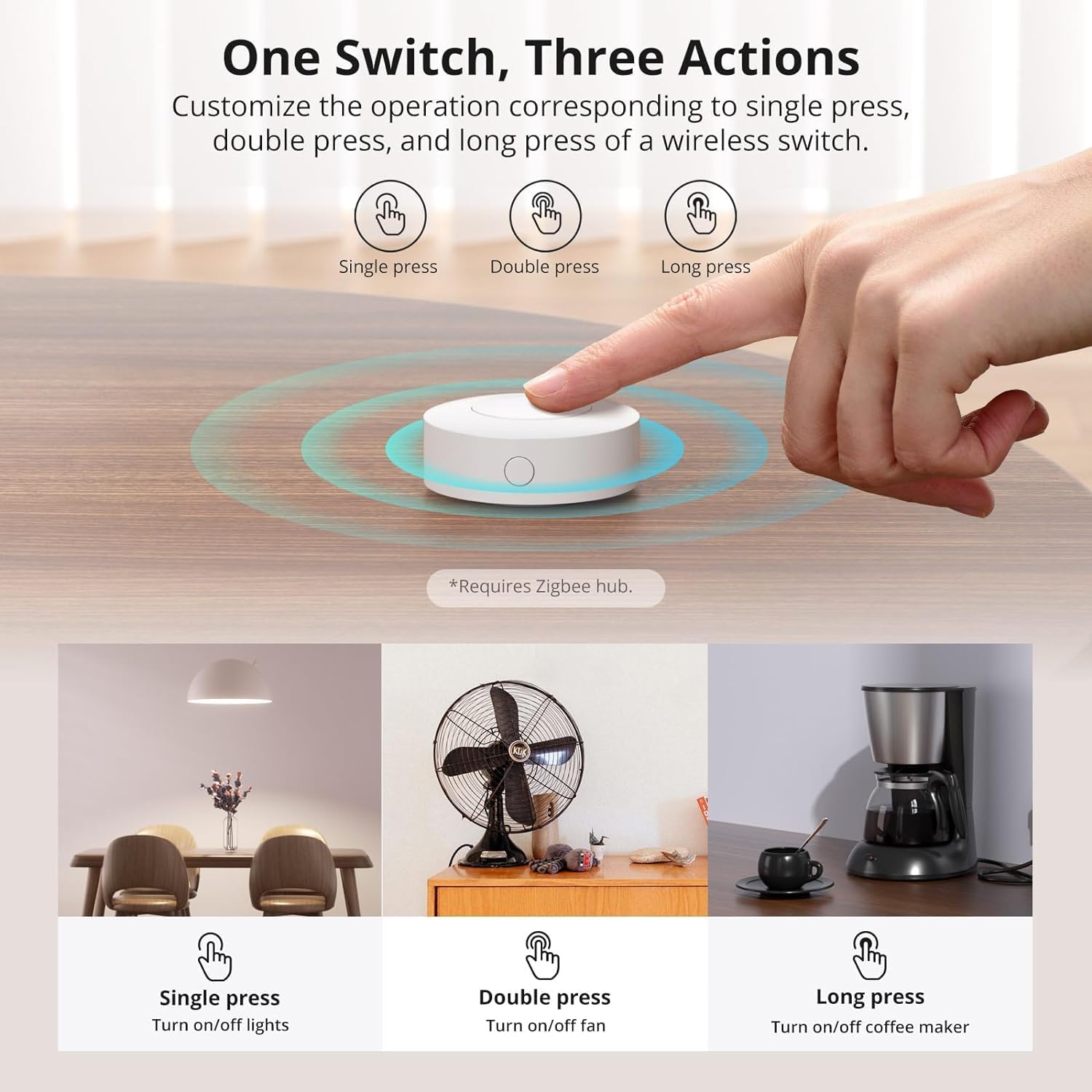
Figure 4: One Switch, Three Actions
4.2 Emergency Button Functionality
The SNZB-01P can be configured as an emergency button. In your smart home application, set up a scene where a long press (or any chosen action) triggers an alert notification to your phone or other designated contacts. This feature provides an added layer of safety for family members.
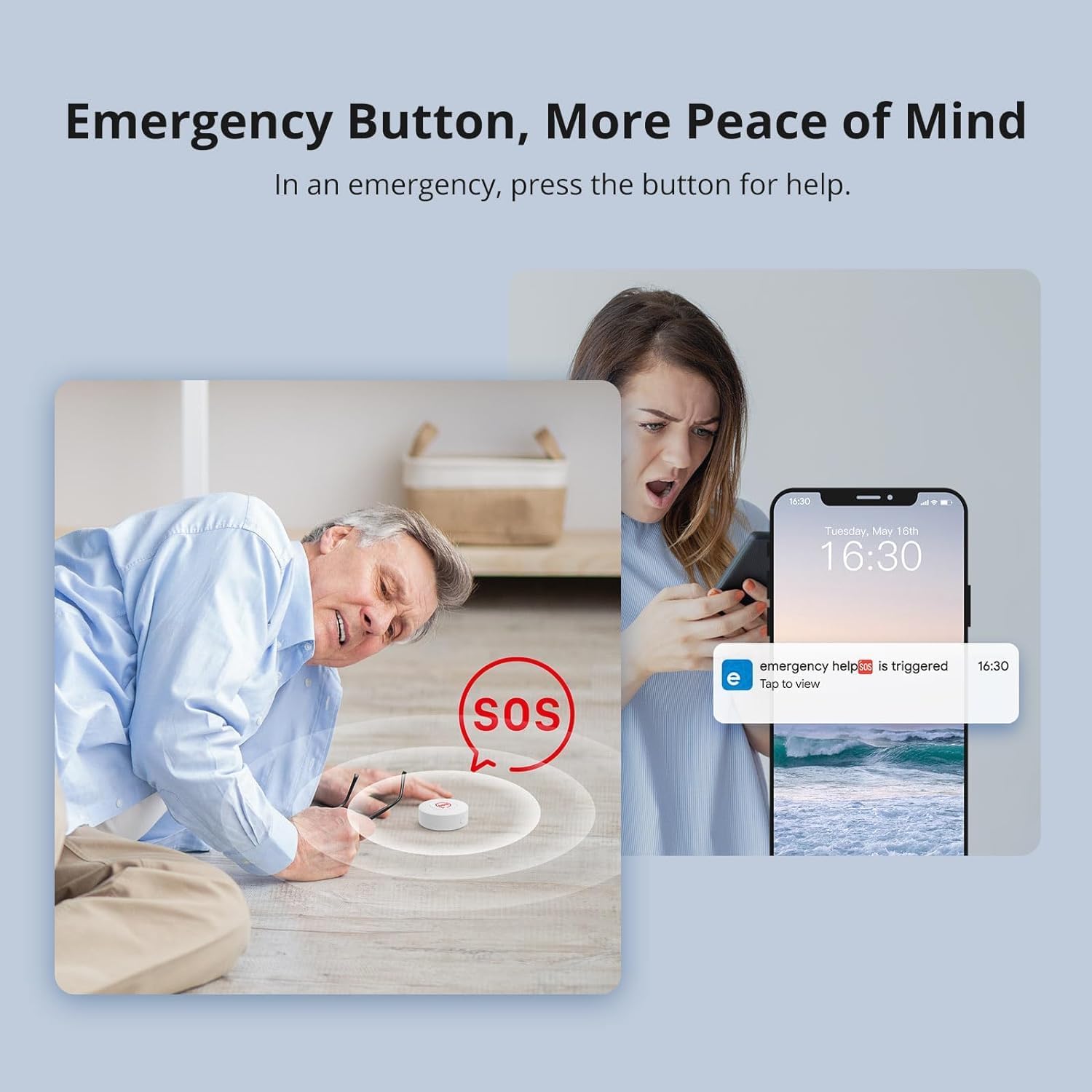
Figure 5: Emergency Button Use Case
4.3 Alexa Routine Integration
When connected to a SONOFF Zigbee hub, the SNZB-01P can trigger Amazon Alexa routines. This allows for voice-free control of your smart home devices or activation of complex routines with a simple button press.

Figure 6: Triggering Alexa Routines
5. Maintenance
5.1 Battery Replacement
The SNZB-01P is powered by a CR2477 lithium metal battery, designed for approximately 5 years of use. When the battery level is low, you will receive a notification through your connected smart home application.
- Access Battery Compartment: Gently twist the back cover of the device counter-clockwise to open the battery compartment.
- Remove Old Battery: Carefully remove the old CR2477 battery.
- Insert New Battery: Insert a new CR2477 battery, ensuring the positive (+) side faces upwards.
- Close Compartment: Align the back cover and twist clockwise until securely closed.
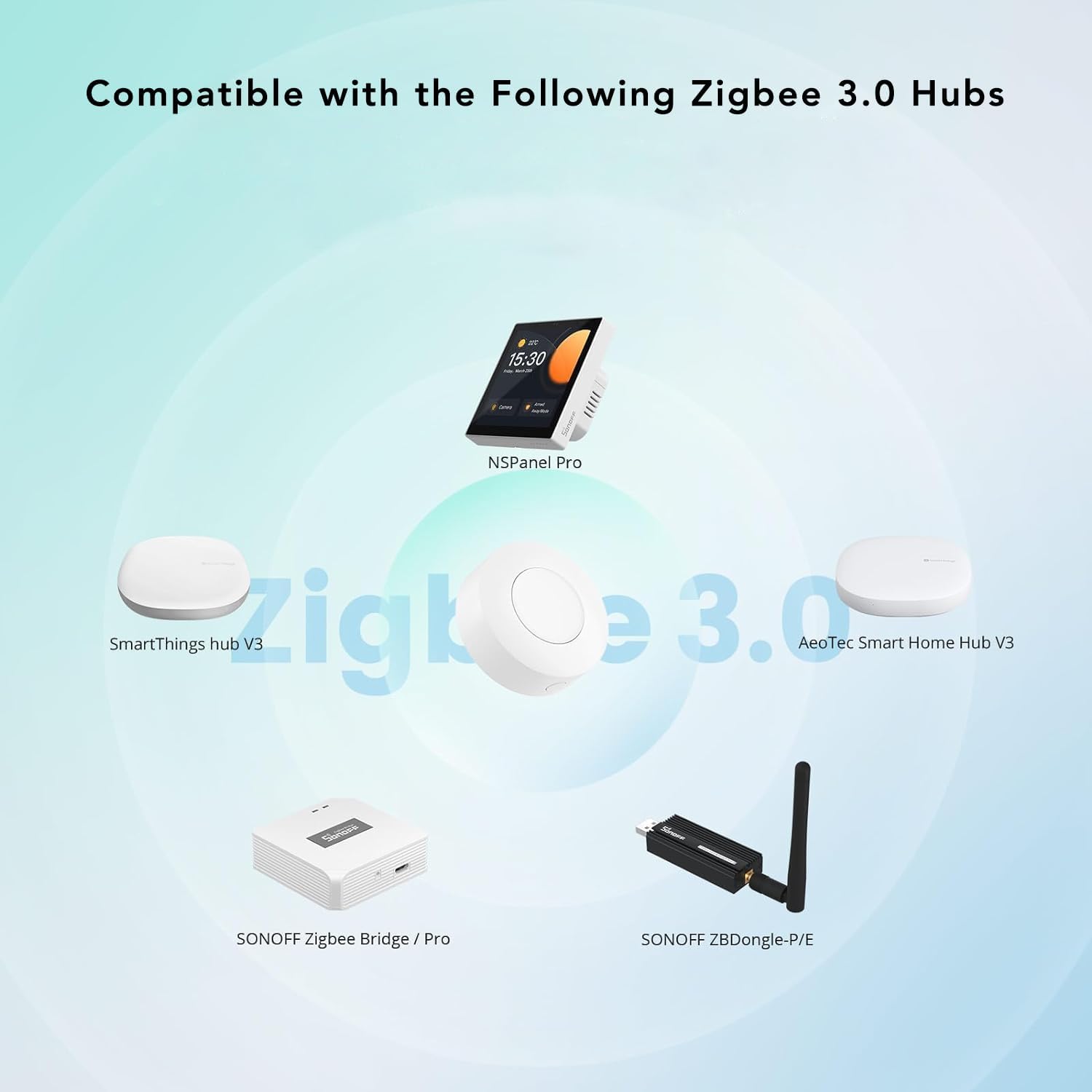
Figure 7: Battery Access and Replacement
5.2 Cleaning
Wipe the device with a soft, dry cloth. Avoid using liquid cleaners or abrasive materials, as these can damage the device.
6. Troubleshooting
| Issue | Possible Cause | Solution |
|---|---|---|
| Device not pairing | Not in pairing mode; Hub not in pairing mode; Out of range; Low battery. | Ensure both device and hub are in pairing mode. Move device closer to hub. Check and replace battery if necessary. |
| Actions not triggering | Incorrect scene configuration; Device disconnected from hub; Low battery. | Verify scene configurations in the app. Re-pair the device if disconnected. Replace battery. |
| Short battery life | Frequent usage; Extreme temperatures. | Battery life is an estimate; actual usage may vary. Ensure device is not exposed to extreme conditions. |
7. Specifications
| Feature | Detail |
|---|---|
| Model | SNZB-01P |
| Connectivity Protocol | ZigBee 3.0 |
| Power Source | DC (Battery) |
| Battery Type | CR2477 Lithium Metal (3V) |
| Operating Voltage | 3 Volts |
| Operation Mode | ON-OFF |
| Actuator Type | Push Button |
| Dimensions (L x W x H) | 1.8 x 1.8 x 0.7 inches (45.7 x 45.7 x 17.8 mm) |
| Item Weight | 3.52 ounces (100g) |
| Color | White |
| Material | Plastic |
| Upper Temperature Rating | 40 Degrees Celsius |
| Current Rating | 1 Amps |
| Contact Type | Normally Open |
| Terminal | Screw |
| Circuit Type | 1-way |
8. Warranty and Support
8.1 Warranty Information
Please refer to the warranty policy provided with your purchase or visit the official SONOFF website for detailed warranty terms and conditions. Keep your proof of purchase for warranty claims.
8.2 Customer Support
For technical assistance, troubleshooting, or further inquiries, please visit the official SONOFF support page or contact their customer service. You can often find FAQs and additional resources on the SONOFF Store on Amazon or their official website.


