
1. Introduction
This instruction manual provides comprehensive guidance for the installation, setup, operation, and maintenance of your PGST Zigbee Hub, Model A11ZW1. This hub is specifically designed to facilitate communication between PGST B01 Door Contact Sensors and PGST P02 Infrared Motion Sensors, enabling remote control functions via a dedicated mobile application. Please read this manual thoroughly before using the device to ensure proper functionality and safety.
2. Safety Information
- Do not expose the device to water or moisture.
- Avoid extreme temperatures or direct sunlight.
- Do not attempt to disassemble or repair the device yourself. Contact qualified personnel for service.
- Use only the specified power adapter (if applicable) for the device.
- Keep out of reach of children.
3. Package Contents
Please check the package for the following items:
- PGST Zigbee Hub (Model A11ZW1)
- Power Adapter (not specified in product data, may be sold separately or integrated)
- User Manual (this document)
4. Product Overview
The PGST Zigbee Hub acts as the central controller for your PGST B01 Door Sensors and P02 Motion Sensors. It connects these devices to your home network, allowing you to monitor and control them remotely via the PGST mobile application.
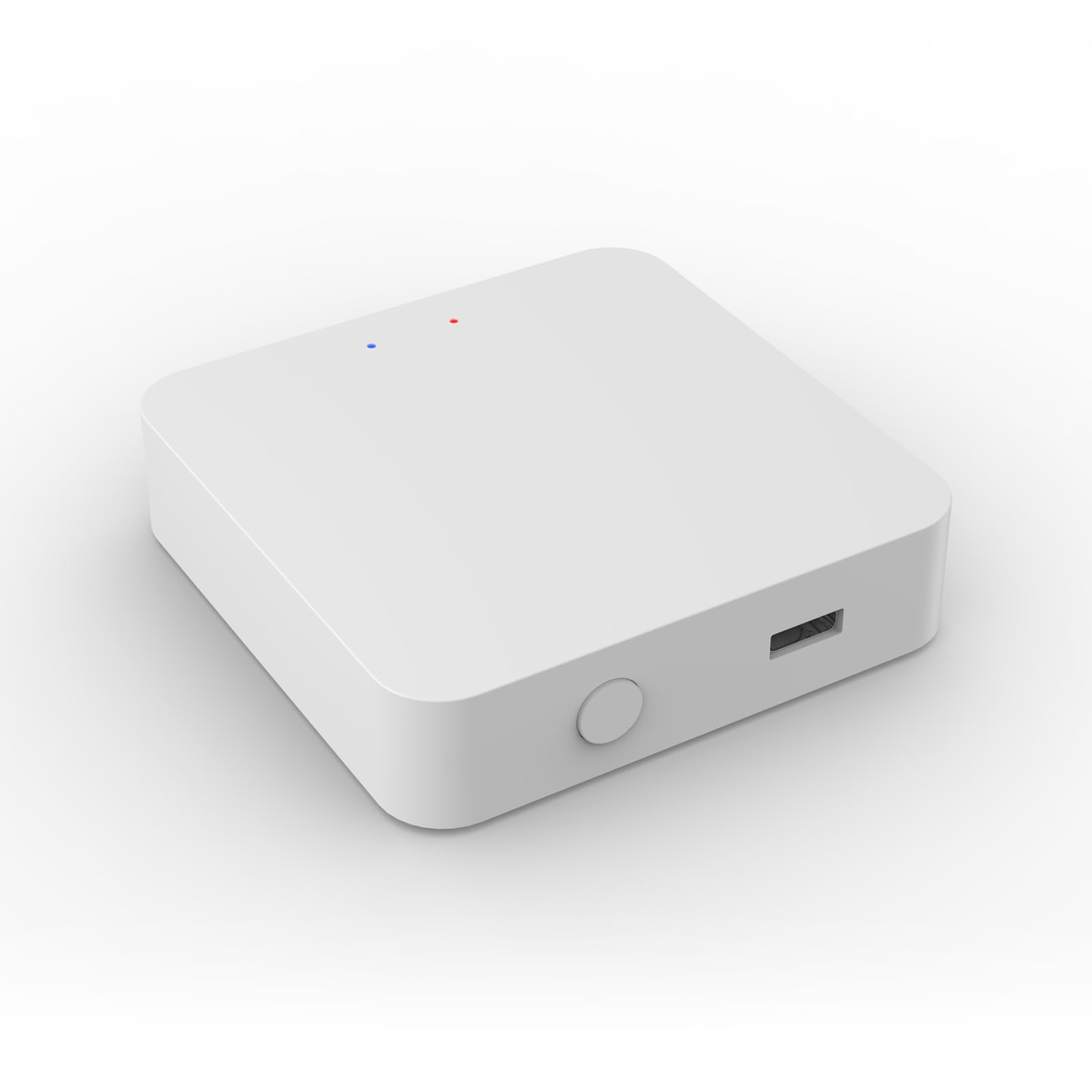
Image 1: PGST Zigbee Hub (Model A11ZW1). This image shows the compact design of the hub, typically featuring a power input and an LED indicator.
5. Setup
5.1. Powering On the Hub
- Connect the power adapter to the PGST Zigbee Hub.
- Plug the power adapter into a standard electrical outlet.
- Wait for the indicator light on the hub to show a stable status (refer to the hub's specific LED behavior for "ready" state, usually solid blue or green).
5.2. Installing the PGST App
Download the official PGST mobile application from your smartphone's app store (iOS App Store or Google Play Store). Search for "PGST Smart" or similar.
5.3. Adding the Hub to the App
- Open the PGST app and create an account or log in.
- Tap the "+" icon or "Add Device" option.
- Select "Zigbee Hub" or "Gateway" from the device list.
- Follow the on-screen instructions to connect the hub to your Wi-Fi network. Ensure your phone is connected to a 2.4GHz Wi-Fi network during this process.
5.4. Pairing B01 Door Sensors
- In the PGST app, navigate to your added Zigbee Hub.
- Select "Add Sub-device" or "Add Sensor".
- Activate the B01 Door Sensor according to its specific instructions (e.g., pressing a reset button, removing a battery tab).
- The app will search for and detect the sensor. Once found, confirm pairing.
- Assign a name and location to the B01 Door Sensor within the app.
5.5. Pairing P02 Motion Sensors
- From the Zigbee Hub interface in the PGST app, select "Add Sub-device" or "Add Sensor".
- Activate the P02 Motion Sensor (e.g., by pressing its pairing button or triggering motion).
- The app will detect the sensor. Confirm the pairing process.
- Assign a name and location to the P02 Motion Sensor within the app.
6. Operating the System
6.1. Remote Control Functions
Once your B01 Door Sensors and P02 Motion Sensors are successfully paired with the PGST Zigbee Hub, you can access various remote control functions through the PGST app:
- Real-time Status: View the open/closed status of door sensors and detect motion from motion sensors.
- Notifications: Receive instant alerts on your smartphone when a sensor is triggered.
- Automation: Create smart scenes and routines (e.g., turn on lights when motion is detected, or send an alert if a door opens at an unusual time).
- History Logs: Review past sensor activity.
6.2. Important Compatibility Note
The PGST Zigbee Hub (Model A11ZW1) is specifically designed for use with PGST B01 Door Contact Sensors and PGST P02 Infrared Motion Sensors. Attempting to pair this hub with other Zigbee devices from different manufacturers or models may lead to incompatibility issues and prevent proper control through the PGST application. Ensure all connected sensors are PGST B01 or P02 models.
7. Maintenance
- Cleaning: Wipe the hub and sensors with a soft, dry cloth. Do not use liquid cleaners or aerosols.
- Firmware Updates: Periodically check the PGST app for available firmware updates for the hub to ensure optimal performance and security.
- Battery Replacement: For sensors (B01 and P02), replace batteries as indicated by the app or when performance degrades. Refer to the individual sensor manuals for battery type and replacement instructions.
8. Troubleshooting
| Problem | Possible Cause | Solution |
|---|---|---|
| Hub not powering on. | No power, faulty adapter, or outlet issue. | Check power connection, try a different outlet, ensure adapter is working. |
| Sensors not pairing. | Sensor not in pairing mode, too far from hub, or incompatible model. | Ensure sensor is in pairing mode, move closer to hub, verify sensor model (must be B01 or P02). |
| App cannot find hub. | Hub not powered, phone on wrong Wi-Fi band (5GHz), or network issues. | Confirm hub is powered, ensure phone is on 2.4GHz Wi-Fi, restart router and hub. |
| Remote control not working. | Internet connectivity issue, app glitch, or hub offline. | Check internet connection, restart app, restart hub. |
9. Specifications
| Feature | Detail |
|---|---|
| Model Number | A11ZW1 |
| Brand | PGST |
| Dimensions | 1 x 1 x 1 inches |
| Item Weight | 1.94 ounces |
| Connectivity | Zigbee |
| Color | White |
| Manufacturer | PGST |
| Included Components | Zigbee Wireless Mini Switch (as per product data, refers to the hub) |
10. Warranty and Support
PGST products typically come with a limited warranty. For specific warranty details, please refer to the warranty card included with your product or visit the official PGST website. For technical support, troubleshooting assistance, or any inquiries, please contact PGST customer service through the contact information provided on their official website or within the PGST mobile application.
Note: The provided product data indicates a generic warranty description. Please refer to official PGST channels for accurate and detailed warranty information.