
Introduction
The OTTOCAST E2 OttoAibox is a smart AI box designed to transform your car's infotainment system into a versatile entertainment and connectivity hub. Powered by Android 13, it enables streaming of popular media services, offers wireless CarPlay and Android Auto, and supports multitasking with a split-screen display. This manual provides essential information for setting up, operating, and maintaining your device.
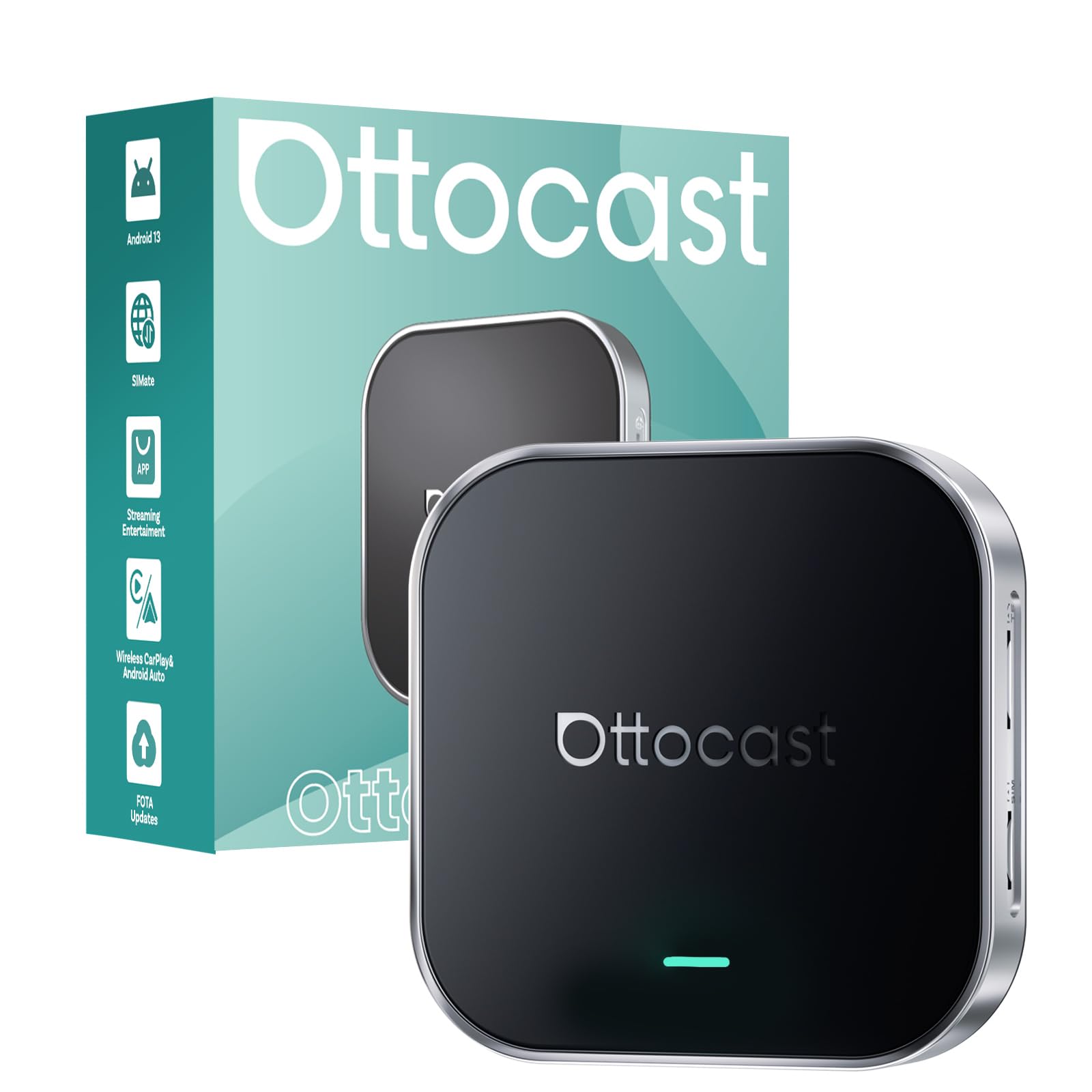
Image: The OTTOCAST E2 OttoAibox device positioned in a car's center console, with the car's display showing a variety of streaming and navigation applications, highlighting its entertainment capabilities.
What's in the Box
- 1 x Ottocast E2 OttoAibox
- 1 x USB-A to Type-C Cable
- 1 x Type-C to Type-C Cable
- 1 x Y-Cable
- 1 x User Manual
Setup Instructions
Follow these steps to set up your OTTOCAST E2 OttoAibox:
- Connect the Device: Plug the OTTOCAST E2 into your car's USB port using the appropriate cable (USB-A to Type-C or Type-C to Type-C). If your car requires a Y-cable for power and data, use the provided Y-cable.
- Initial Boot-up: The device will automatically power on and display the initial setup screen on your car's display.
- Language and Region Selection: Select your preferred language (English) and country/region from the on-screen options.
- Time and Unit Settings: Configure the time format (12-hour or 24-hour) and units (mph/km/h, Fahrenheit/Celsius) as desired.
- Network Connection: Connect the OttoAibox to the internet via one of the following methods:
- CloudSIM: Utilize the built-in CloudSIM for instant access to a 4G network without a physical SIM or personal hotspot.
- Physical SIM Card: Insert a nano SIM card into the designated slot for dedicated cellular data.
- Wi-Fi Hotspot: Connect to your mobile phone's personal hotspot or your car's built-in Wi-Fi.
- Access Home Screen: Once the setup is complete and connected to the internet, you can proceed to the home screen to access applications.

Image: The OTTOCAST E2 OttoAibox highlighting its CloudSIM feature, providing built-in 4G network connectivity with zero sign-up and always-on access, eliminating the need for a physical SIM or external hotspot.
Video: An official demonstration by Ottocast Official showing how to connect the OttoAibox E2 for Android Auto functionality, detailing the steps for a successful setup.
Video: An official demonstration by Ottocast Official illustrating the connection process for the OttoAibox E2 to enable Apple CarPlay, guiding users through the necessary steps.
Operating Instructions
The OTTOCAST E2 OttoAibox provides a user-friendly interface similar to a smartphone or tablet. Navigate using your car's touchscreen or steering wheel controls.
- Accessing Applications: From the home screen, tap on the icons to launch pre-installed applications like Netflix, YouTube, Spotify, Hulu, and TikTok. You can also download additional apps from the Google Play Store.
- Wireless CarPlay & Android Auto: The device supports both wireless Apple CarPlay and Android Auto. Switch between these modes using the dedicated CP/AA switch on the device or through the on-screen interface.
- Split-Screen Functionality: Utilize the split-screen feature to run two applications simultaneously, such as navigation on one side and a streaming app for passengers on the other.
- Remote Control: For cars without touchscreens, a dedicated remote control (sold separately) can be used to navigate the interface. Download the 'AiControl' app for phone-based remote control: Download AiControl App.

Image: The car's infotainment screen displaying the Android 13 system interface of the Ottocast E2 OttoAibox, featuring icons for Netflix, YouTube, TikTok, Google Play, and other applications, indicating a full smart TV experience.

Image: A car's display demonstrating the split-screen function of the Ottocast E2 OttoAibox, with a navigation map on one side and Netflix playing on the other, illustrating simultaneous use for driver and passenger.

Image: A user operating the Ottocast E2 OttoAibox with a dedicated remote control (sold separately), showing how to switch apps and control media, especially useful for cars without touchscreens. A QR code for the 'AiControl' app is also visible.
Important Safety Note: Watching videos while driving is prohibited by law. Video playback is only available when parked or for passengers.
Features
- Blazing-Fast Performance: Powered by the Android 13 system, the Ottocast E2 ensures instant response and stable performance, eliminating lag, black screens, or random restarts.
- Immersive In-Car Entertainment: Transform your car into an entertainment hub. Watch Netflix, YouTube, Hulu, or TikTok, with audio seamlessly integrated into your car's OEM sound system.
- Split-Screen Multitasking: Supports true split-screen functionality, allowing the driver to use navigation while passengers enjoy media on the same display.
- Wireless CarPlay & Android Auto Adapter: Offers dual support for both Apple CarPlay and Android Auto, compatible with OEM steering wheel and touch controls for safer driving.
- Global Connectivity: Stay connected anywhere with CloudSIM, a physical SIM card slot, and Wi-Fi capabilities, providing reliable internet access for streaming and navigation.

Image: A composite image showcasing the internal Gaotong 64-bit ARM 8-core CPU, 4GB RAM + 64GB ROM for ample storage, and the device's stable operation across a wide temperature range from -4°F to 158°F.

Image: The Ottocast E2 OttoAibox featuring an SD card slot that supports up to 256GB of storage, allowing users to expand memory for apps and media.
Specifications
| Feature | Detail |
|---|---|
| Brand Name | OTTOCAST |
| Item Weight | 2.9 ounces |
| Product Dimensions | 3.03 x 0.59 x 3.03 inches |
| Item Model Number | PCS55 |
| Color | Black |
| Specification Met | FCC |
| Special Features | 4GB RAM+64GB ROM, Low Latency, Plug & Play, Support Up to 256GB extend TF Card |
| Connectivity Technology | Bluetooth, Wi-Fi |
| Connector Type | USB Type-C |
| Resolution | 1080p |
| Supported Internet Services | Netflix, Hulu, YouTube, TikTok |
| Controller Type | Android |
| Model Name | E2 OttoAibox |
Maintenance
To ensure optimal performance and longevity of your OTTOCAST E2 OttoAibox, follow these maintenance guidelines:
- Keep Clean: Regularly wipe the device with a soft, dry cloth to remove dust and smudges. Avoid using harsh chemicals or abrasive materials.
- Firmware Updates: Check for and install available firmware updates to ensure you have the latest features, performance improvements, and security patches. Updates can typically be found in the device's settings or App Hub.
- Temperature Control: Operate the device within its specified temperature range (-4°F to 158°F) to prevent damage. Avoid leaving it in direct sunlight or extreme cold for extended periods.
Troubleshooting
If you encounter issues with your OTTOCAST E2 OttoAibox, consider the following general troubleshooting steps:
- No Power/No Display: Ensure the device is securely connected to a powered USB port in your car. Try a different USB cable or port if available.
- No Internet Connection: Verify your Wi-Fi hotspot or SIM card is active and providing a stable internet connection. Check network settings on the OttoAibox.
- CarPlay/Android Auto Not Connecting: Ensure Bluetooth is enabled on your phone and the OttoAibox. Confirm the correct mode (CP or AA) is selected on the device. Restart both your phone and the OttoAibox.
- App Freezing/Crashing: Check for app updates in the Google Play Store or App Hub. Clear the app's cache or reinstall the app if the issue persists. Ensure sufficient storage space is available.
- Audio Issues: Verify your car's audio input is set to the correct source (e.g., USB, Bluetooth). Adjust volume settings on both the OttoAibox and your car's system.
For more detailed troubleshooting or specific issues, please refer to the official OTTOCAST support resources or contact customer service.
Warranty and Support
The OTTOCAST E2 OttoAibox comes with hassle-free support and a reliable after-sales warranty. For any assistance with your car streaming box or wireless CarPlay Android Auto adapter, please contact OTTOCAST customer service. Details regarding warranty periods and claims can be found in the included user manual or on the official OTTOCAST website.


