
1. Product Overview
The Retevis MateTalk L2 is a versatile global walkie talkie designed for reliable communication across various environments. It features a dual-mode system combining 4G LTE Public Network (PoC) with UHF/VHF dual-band analog capabilities, ensuring connectivity even in areas without cellular signal. The device supports Zello, GPS tracking, Wi-Fi connectivity, and dual SIM cards.
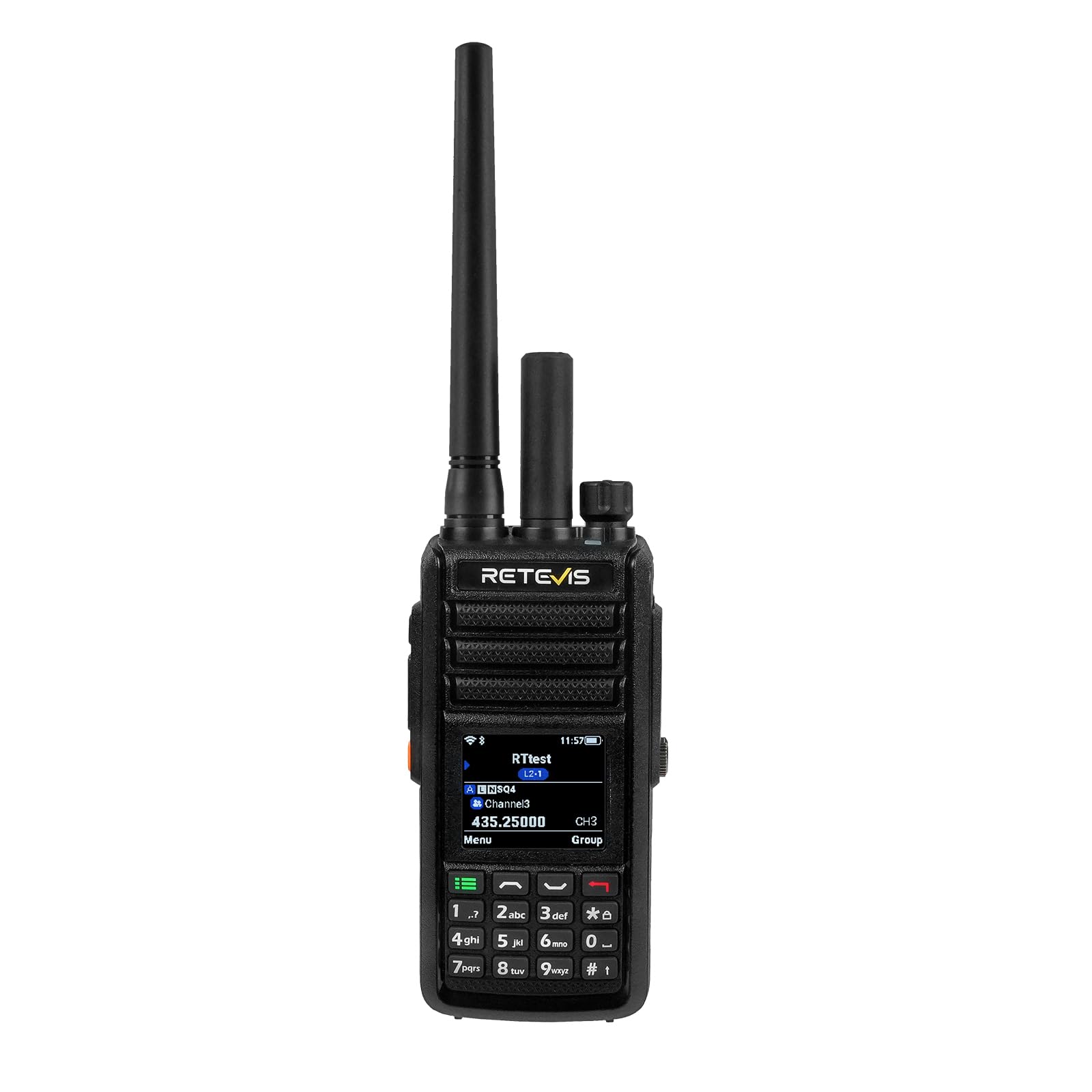
Image: Retevis MateTalk L2 Global Walkie Talkie displaying its hybrid connection capabilities.
Video: An introduction to the functions of the Retevis MateTalk L2 Walkie-Talkie.
2. Setup Guide
2.1 Package Contents
Verify that all items are included in your package:
- Matetalk L2 walkie talkie (x1)
- 3000mAh Li-ion battery (x1)
- User manual (x1)
- Belt Clip & Hand strap (x1)
- SIM card (x1)
- Type-C Charging Cable (x1)
- Programming cable (x1)

Image: All components included in the Retevis MateTalk L2 product package.
2.2 Battery Installation and Charging
- Ensure the device is powered off.
- Align the 3000mAh Li-ion battery with the battery compartment on the back of the radio.
- Gently press the battery into place until it clicks securely.
- Connect the Type-C charging cable to the radio's charging port and a suitable power source. The charging indicator will illuminate.
- Charge the battery fully before first use.
2.3 SIM Card Installation
The MateTalk L2 supports dual SIM cards for 4G network connectivity.
- Locate the SIM card slot, typically under the battery or on the side of the device.
- Insert the provided SIM card (or your own compatible 4G SIM card) into the designated slot, ensuring correct orientation.
- If using a second SIM, insert it into the secondary slot.
2.4 Initial Power-Up
To power on the device, rotate the power/volume knob clockwise until the screen illuminates. If the device does not power on, ensure the battery is correctly installed and charged.
2.5 Zello and Platform Setup
The device comes with Zello pre-installed and optimized. To use Zello and other PoC features, you may need to:
- Connect to a Wi-Fi network or ensure 4G data is active.
- Create or log in to your Zello account.
- For advanced PoC features, contact Retevis Direct for platform management account details if required.
3. Operating Instructions
3.1 Basic Controls and Interface
The MateTalk L2 features a 1.77-inch color LCD screen for intuitive navigation and a keypad for input. Key controls include:
- Power/Volume Knob: Rotate clockwise to power on/increase volume, counter-clockwise to decrease volume/power off.
- Dual PTT Buttons: One for PoC/4G communication, another for analog communication.
- Emergency Alarm (SOS) Button: Activates an emergency alert.
- Customizable Feature Button: Can be programmed for various functions.

Image: Detailed view of the Retevis MateTalk L2's buttons and external antennas.
Video: A detailed display of the buttons and their functions on the L2 walkie-talkie.
3.2 Communication Modes
The MateTalk L2 offers four communication modes:
- PoC Mode (4G/Wi-Fi): Utilizes 4G LTE or Wi-Fi networks for unlimited range communication. Ideal for global communication via Zello.
- Analog Mode (UHF/VHF Dual-Band): Provides offline reliability for local communication without network dependency. Supports 200 channels.
- Hybrid Mode: Allows real-time dual standby, monitoring both 4G PoC and analog channels simultaneously on one screen.
- Relay Mode: Bridges traditional analog signals to the 4G PoC network, extending local analog coverage to a nationwide range.

Image: The MateTalk L2 operating in PoC Mode, demonstrating unlimited range via 4G/Wi-Fi.

Image: The MateTalk L2 in Analog Mode, supporting dual-band communication without cellular signal.
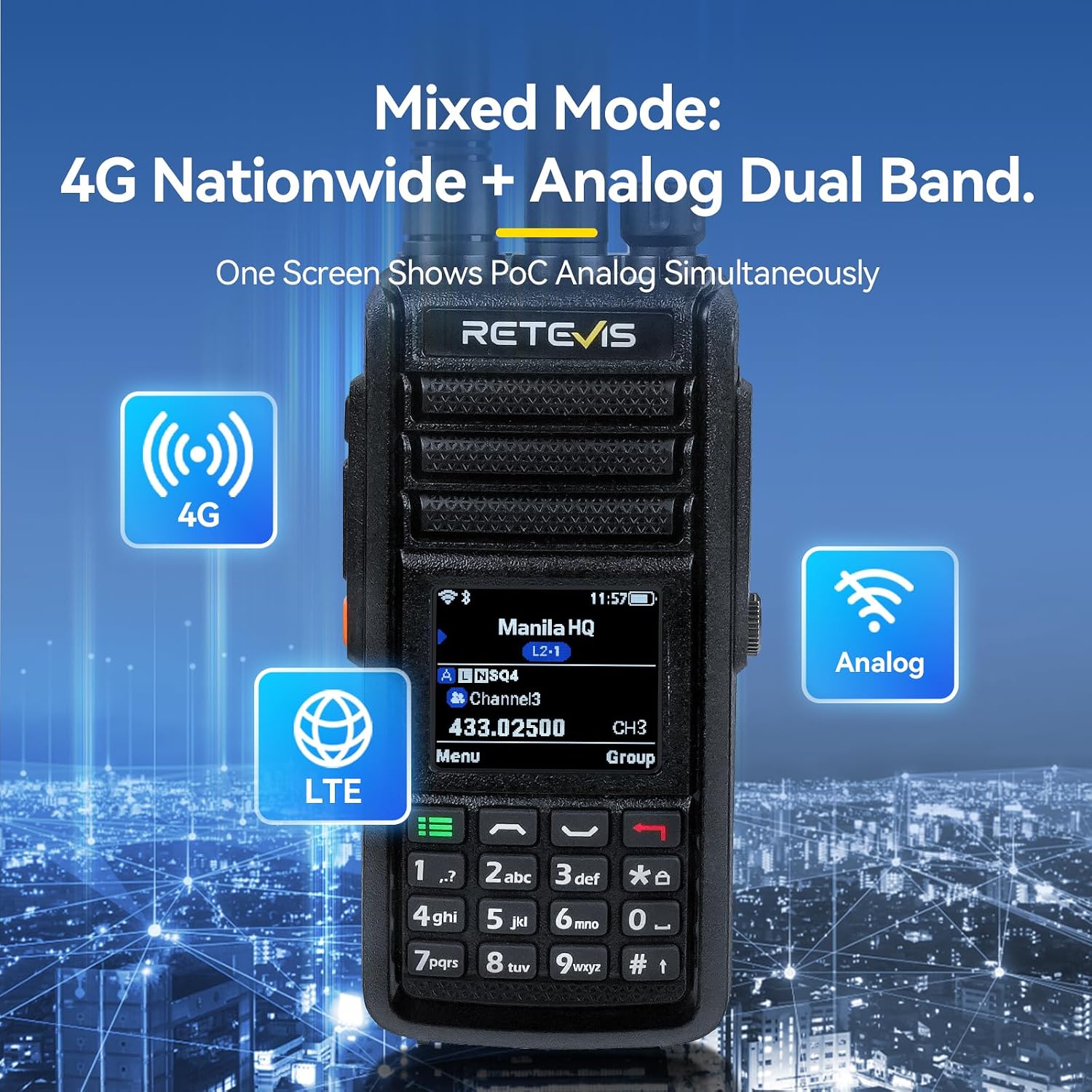
Image: The MateTalk L2 in Mixed Mode, displaying simultaneous 4G Nationwide and Analog Dual Band operation.
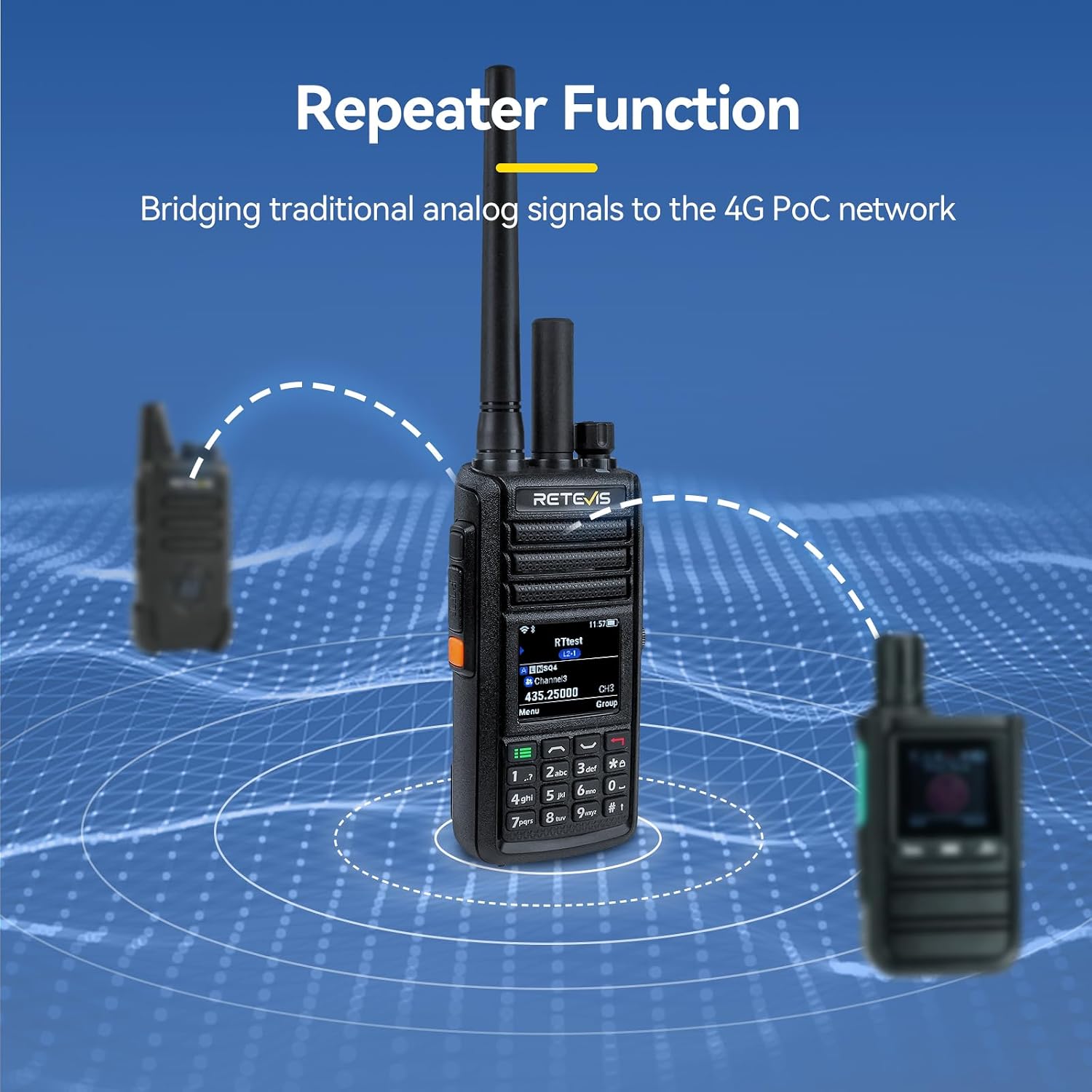
Image: The MateTalk L2 utilizing its Repeater Function to bridge analog signals to the 4G PoC network.
3.3 Triple Watch Technology
The device can monitor Zello, 4G LTE PoC, and analog channels simultaneously, ensuring you do not miss critical communications from any source.

Image: The MateTalk L2 screen demonstrating Triple Watch Technology, monitoring multiple communication channels.
3.4 Advanced Features
- GPS: Integrated GPS for real-time team tracking and location services.
- Wi-Fi: Supports Wi-Fi connectivity for data and PoC communication in indoor environments.
- AI Noise Reduction: An AI-powered noise-reduction chip ensures clear audio quality, especially in noisy environments.
- VOX Function: Voice-activated transmission for hands-free operation. This can be configured in the radio's settings.
Video: Instructions on how to operate the L2 unlimited range walkie talkie.
Video: Demonstrates common functions and operations of the Retevis L2 walkie-talkie, including VOX settings.
Video: Overview of common function operations for the Retevis L2 walkie talkie.
4. Maintenance
4.1 Waterproofing (IP67)
The MateTalk L2 is IP67 rated, meaning it is protected from dust and can withstand immersion in water up to 1 meter for 30 minutes. While robust, avoid unnecessary exposure to water and ensure all port covers are securely closed to maintain its waterproof integrity.

Image: The MateTalk L2 demonstrating its IP67 waterproof capabilities.
4.2 Battery Care
- Use only the original 3000mAh Li-ion battery and Type-C charging cable.
- Avoid overcharging or completely draining the battery to prolong its lifespan.
- Store the radio and battery in a cool, dry place when not in use.
4.3 Cleaning
Wipe the radio with a soft, damp cloth. Do not use harsh chemicals or abrasive cleaners. Ensure the device is dry before charging or operating.
5. Troubleshooting
If you encounter issues with your Retevis MateTalk L2, refer to the following common problems and solutions:
- Radio does not power on:
- Ensure the 3000mAh Li-ion battery is fully charged and correctly installed.
- Verify the power/volume knob is rotated sufficiently clockwise. If the knob rotates endlessly without powering on, the unit may be defective. Contact customer support.
- Sluggish operating system or slow response:
- Restart the device.
- Ensure the device has sufficient free memory. Close unnecessary applications if applicable.
- Check for available firmware updates from Retevis.
- Zello not working or incompatible:
- Ensure you have a stable internet connection (4G or Wi-Fi).
- Verify your Zello account credentials.
- Note that the device may be optimized for specific Zello versions. Check for updates to the Zello application or consult Retevis support for compatibility information.
- Programming software issues:
- Ensure you are using the correct programming cable and software version for the MateTalk L2.
- Try running the software on a different computer or operating system if compatibility issues arise (e.g., Windows 10/11).
- Contact Retevis customer support for assistance with programming software.
- No signal in PoC mode:
- Check SIM card installation and ensure it has an active data plan.
- Verify Wi-Fi connection if using Wi-Fi for PoC.
- Ensure you are within 4G network coverage.
- No communication in Analog mode:
- Check the selected channel and frequency.
- Ensure the radio is within range of other analog radios.
- Verify antenna connection.
6. Specifications
| Feature | Specification |
|---|---|
| Brand | Retevis |
| Model Number | Matetalk L2 |
| Color | Black |
| Number of Channels | 200 |
| Special Features | Dust Proof, Emergency, Long Range, Unlimited Range |
| Water Resistance Level | Waterproof (IP67) |
| Battery | 3000mAh Li-ion battery (included) |
| Item Weight | 30 Grams |
| Connectivity Protocol | Wi-Fi, 4G LTE |
| Compatible Devices | Zello users, other devices on the same network |
7. Warranty and Support
7.1 Warranty Information
Retevis provides a 2-year warranty for the radio body and a 1-year warranty for accessories. Additionally, there is a 30-day no-reason return policy. Beyond the warranty period, maintenance services are offered, with buyers responsible for associated costs.
7.2 Customer Support
For any questions, technical assistance, or warranty claims, please contact Retevis Direct through Amazon. They aim to reply within 12 hours.
You can visit the Retevis Store on Amazon for more information and support resources.


