Introduction
This manual provides essential information for the safe and effective use of your Apple Watch Ultra 3. Please read it thoroughly before using the device.

Image: The Apple Watch Ultra 3, featuring a natural titanium case and an anchor blue ocean band, displaying a watch face with time, depth, and satellite communication indicators.
What's in the Box
Upon unboxing, verify that all components are present:
- Apple Watch Ultra 3 GPS + Cellular 49mm Natural Titanium Case
- Anchor Blue Ocean Band
- Apple Watch Magnetic Fast Charger to USB‑C Cable (1m)
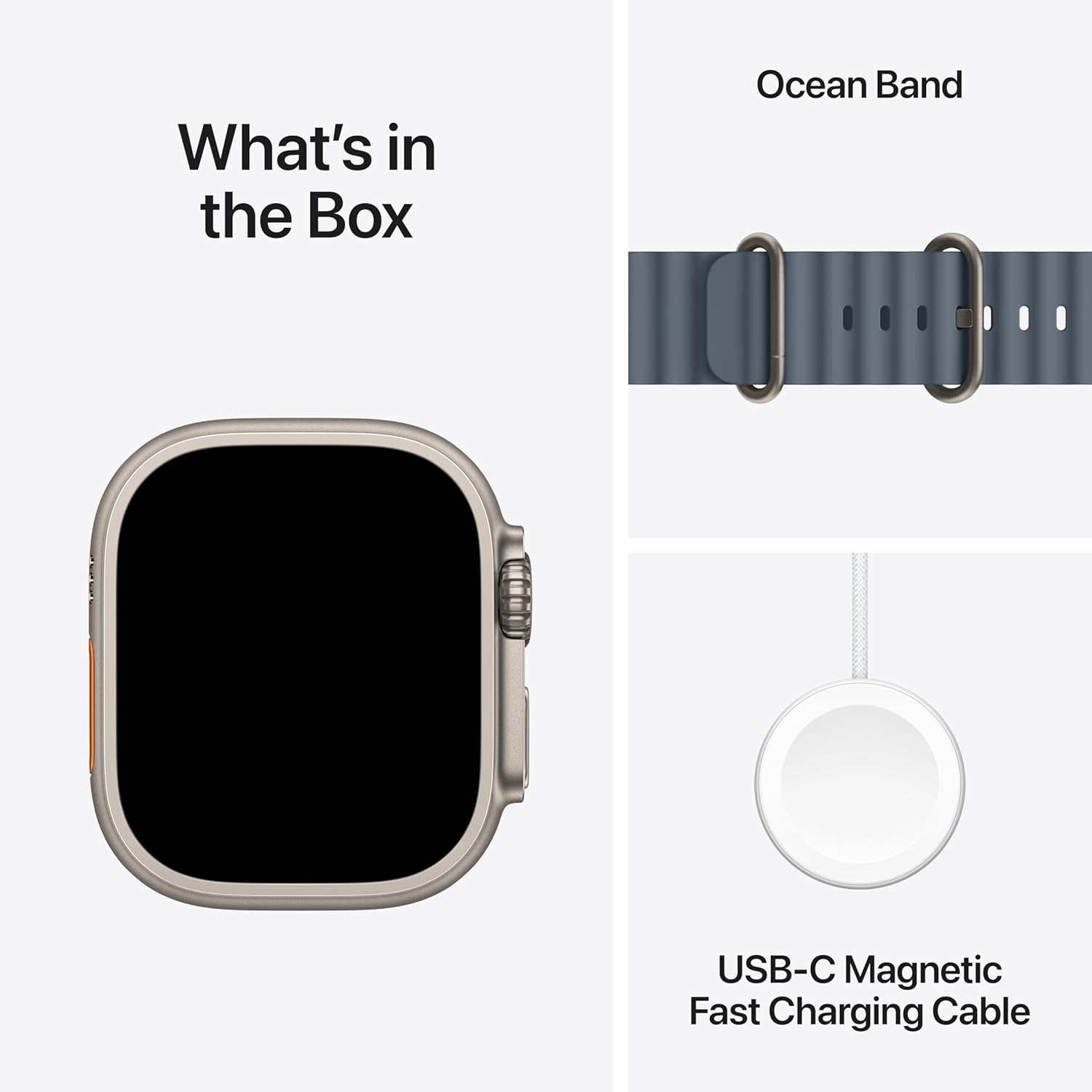
Image: A visual representation of the Apple Watch Ultra 3 box contents, including the watch, the Ocean Band, and the USB-C Magnetic Fast Charging Cable.
Setup
1. Attaching the Band
Align the band with the slots on the watch case and slide it in until you hear a click. Ensure both ends of the band are securely fastened. If you encounter resistance, do not force it; re-align and try again. A secure fit is crucial for accurate sensor readings.
2. Initial Charging
Before first use, fully charge your Apple Watch Ultra 3. Connect the magnetic fast charger to a USB-C power adapter (sold separately) and place the back of the watch on the magnetic charger. The watch will display a charging indicator.
3. Pairing with iPhone
The Apple Watch Ultra 3 requires an iPhone Xs or later, running iOS 18 or later, for initial setup and full functionality.
- Turn on your Apple Watch by pressing and holding the Side button until the Apple logo appears.
- Bring your iPhone near your Apple Watch. A pairing screen will appear on your iPhone.
- Tap "Continue" and follow the on-screen instructions to pair your watch. You may be prompted to scan an animation on the watch face with your iPhone camera.
- Set up cellular service during this process if desired.
Operation
Controls and Navigation
- Digital Crown: Rotate to scroll, zoom, or adjust values. Press once to go to the watch face or app list. Double-press to switch between recently used apps. Press and hold for Siri.
- Side Button: Press once to open the Dock (recently used apps). Press and hold to access Emergency SOS, Medical ID, and Power Off options.
- Action Button: (Customizable) By default, this button can be configured to start a workout, mark a Compass Waypoint, start a Backtrack, begin a dive, or turn on the flashlight. Customize its function in the Watch app on your iPhone.

Image: Key features of the Apple Watch Ultra 3, highlighting multiday battery life, Emergency SOS via satellite, durable sapphire crystal display, and the customizable Action button.
Display Features
The Always-On Retina display provides continuous visibility of your watch face and information. It features wide-angle OLEDs and LTPO3 technology for up to 3000 nits peak brightness. Night Mode is available for specific Apple Watch Ultra faces (Modular Ultra, Wayfinder, Orienteering) to reduce glare in low-light conditions.
Connectivity
- GPS + Cellular: The integrated GPS and cellular capabilities allow for independent use without your iPhone for calls, messages, streaming, and location tracking.
- Satellite Communications: In areas without cellular or Wi-Fi, the built-in satellite communication feature enables texting emergency services.

Image: A user wearing the Apple Watch Ultra 3, demonstrating its satellite communication feature to stay connected in remote areas.
Health and Fitness Tracking
The Apple Watch Ultra 3 offers advanced health and fitness monitoring:
- Heart Rate: Monitor your heart rate with the third-generation optical heart sensor. Receive notifications for high, low, or irregular heart rhythms.
- ECG App: Take an electrocardiogram directly from your wrist to record your heart's electrical activity.
- Blood Oxygen App: Measure your blood oxygen saturation levels.
- Temperature Sensor: Provides temperature sensing capabilities for advanced health insights, including retrospective ovulation estimates.
- Sleep Tracking: Monitor sleep stages and receive a sleep score.
- Workout Companion: Utilize precision dual-frequency GPS, Pacer, Heart Rate Zones, Custom Workouts, and running power metrics for various activities including running, cycling, swimming, hiking, and more.
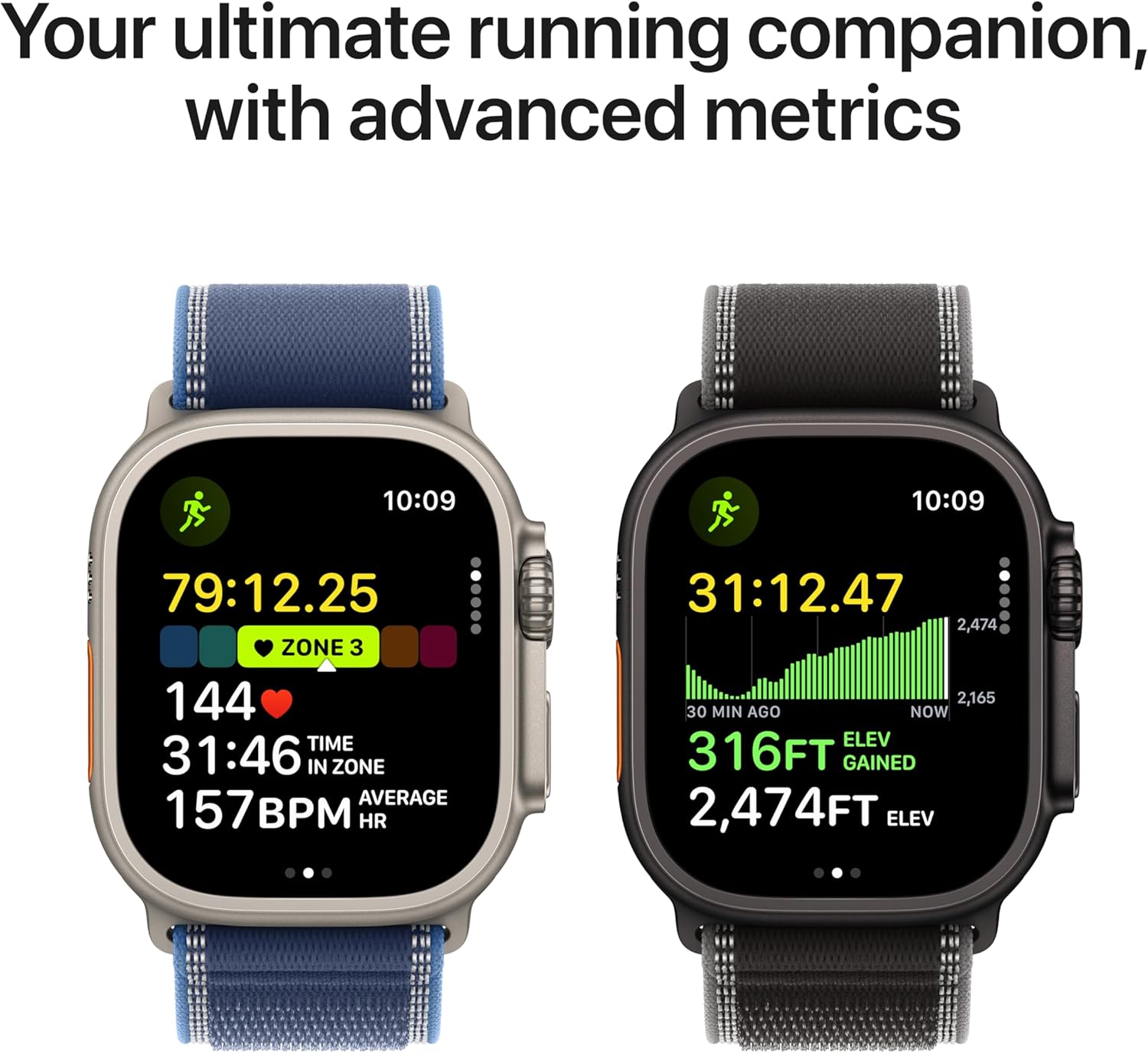
Image: The Apple Watch Ultra 3 displaying advanced running metrics, including heart rate, zone, elevation gained, and distance, serving as an ultimate running companion.

Image: A person running outdoors, wearing the Apple Watch Ultra 3, illustrating its use for personalized fitness motivation and tracking.
Safety Features
- Emergency SOS: Press and hold the Side button to quickly call emergency services.
- Crash Detection: The watch can detect a severe car crash and automatically connect you to emergency services.
- Fall Detection: If a hard fall is detected, the watch can initiate an emergency call if you are unresponsive.
- Siren: Activate a loud siren to attract attention in an emergency.
Maintenance
Cleaning
Regularly clean your Apple Watch Ultra 3 to maintain its appearance and functionality. Use a soft, lint-free cloth. If necessary, slightly dampen the cloth with fresh water. Avoid using abrasive materials, harsh chemicals, or compressed air.
Water Resistance
The Apple Watch Ultra 3 is water resistant to 100 meters under ISO standard 22810:2010. It is suitable for recreational scuba diving to 40 meters and high-speed water sports. After exposure to chlorinated water, salt water, or muddy environments, rinse the watch with fresh water and dry it thoroughly.
Battery Care
To optimize battery longevity, avoid extreme temperatures. While the watch supports fast charging, prolonged exposure to high temperatures during charging can degrade battery health over time. For extended storage, charge the watch to approximately 50% and store it in a cool, dry place.
Troubleshooting
Watch Not Turning On or Responding
- Ensure the watch is charged. Place it on the magnetic charger for at least 30 minutes.
- Perform a force restart: Press and hold both the Side button and the Digital Crown for at least 10 seconds, until you see the Apple logo.
Band Installation Difficulty
If the band does not slide in smoothly, ensure it is correctly oriented and aligned with the watch case slots. Do not force the band. If issues persist, inspect the band and watch case for any obstructions or damage.
Inaccurate Sensor Readings
- Ensure the watch is worn snugly on your wrist, but not uncomfortably tight.
- Clean the back of the watch and your wrist to remove any debris or sweat that might interfere with sensor contact.
- Ensure your personal information (height, weight, age, gender) is accurate in the Health app on your iPhone.
Cellular Connectivity Issues
- Verify that your cellular plan for Apple Watch is active with your carrier.
- Check cellular signal strength on your watch.
- Ensure your iPhone is nearby or connected to Wi-Fi if you are not using cellular independently.
- Restart both your Apple Watch and iPhone.
Specifications
| Feature | Detail |
|---|---|
| Model Number | MEWH4LW/A |
| Case Material | Grade 5 titanium |
| Dimensions (H x W x D) | 49mm x 44mm x 14.4mm |
| Case Weight | 61.4g |
| Display | Always-On Retina, Flat sapphire crystal, Up to 3000 nits peak brightness |
| Chip | S10 with 64-bit dual-core processor, 4-core Apple Neural Engine |
| Storage | 64 GB |
| Water Resistance | 100m (ISO 22810:2010), EN13319 recreational scuba diving to 40m |
| Dust Resistance | IP6X (IEC 60529) |
| Connectivity | GPS, GNSS, Galileo, BeiDou, LTE, UMTS, Wi-Fi 4 (802.11n), Bluetooth 5.3, Second-generation Ultra Wideband chip |
| Sensors | Electrical heart sensor, Optical heart sensor (3rd gen), Blood oxygen sensor, Temperature sensor, Depth gauge, Water temperature sensor, Compass, Altimeter, Accelerometer, Gyroscope, Ambient light sensor |
| Battery Life | Up to 42 hours (normal use), Up to 72 hours (Low Power Mode) |
| Compatibility | iPhone Xs or later with iOS 18 or later |
Warranty and Support
For detailed warranty information, please refer to the official Apple warranty documentation included with your product or visit the official Apple support website. Apple provides technical support and service for its products.
For further assistance, visit the Apple Watch Support page or contact Apple Support directly.


