
1. Introduction
This manual provides essential information for setting up, operating, and maintaining your Apple Watch Series 11 GPS 42mm. Please read it thoroughly to ensure proper use and to maximize your device's capabilities.
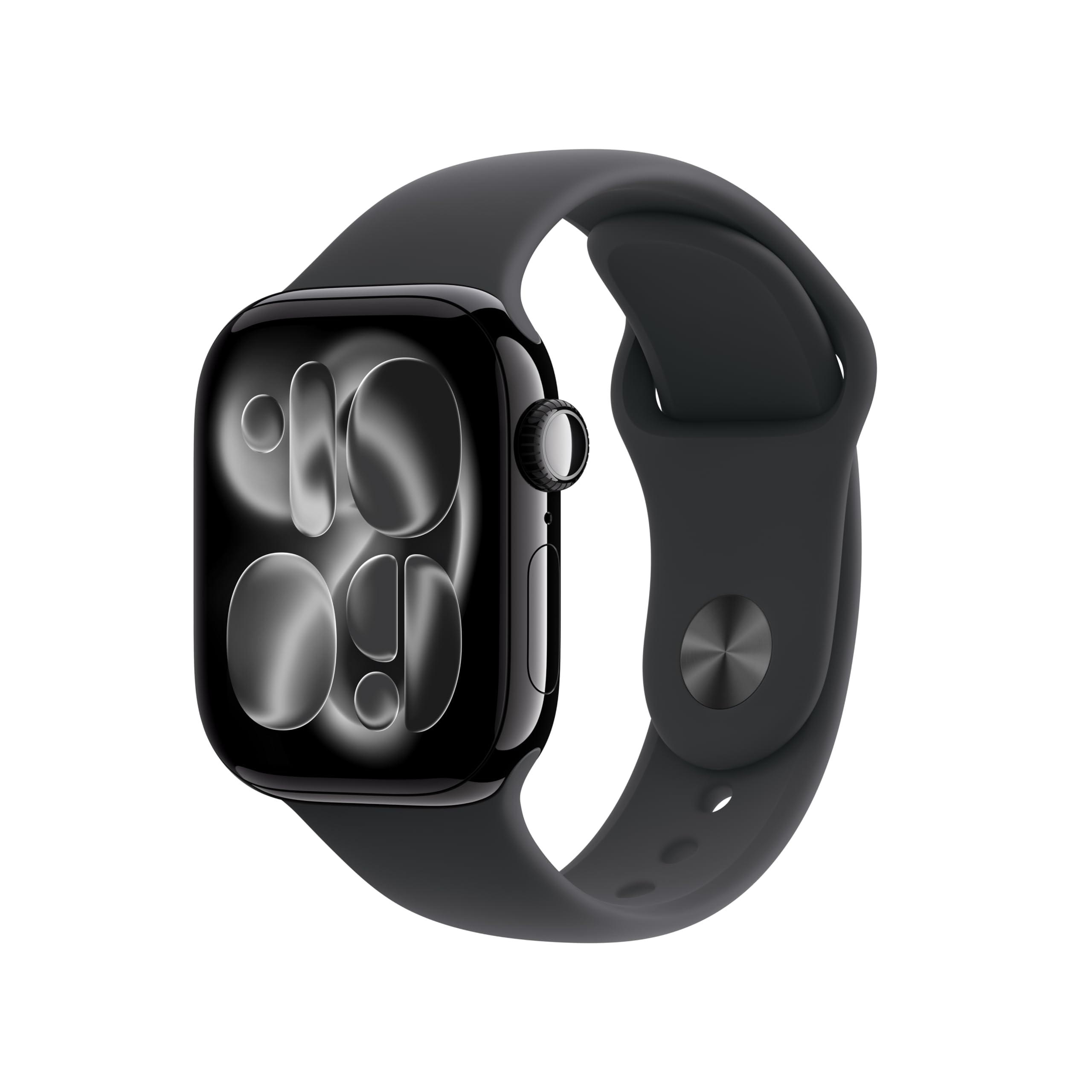
Image: The Apple Watch Series 11 GPS 42mm, featuring a jet black aluminum case and a black sport band.
2. What's in the Box
Upon unboxing your Apple Watch Series 11, verify that all components are present:
- Apple Watch Series 11 Case
- Sport Band (M/L size, fits 160–210mm wrists)
- 1m USB-C Magnetic Fast Charging Cable
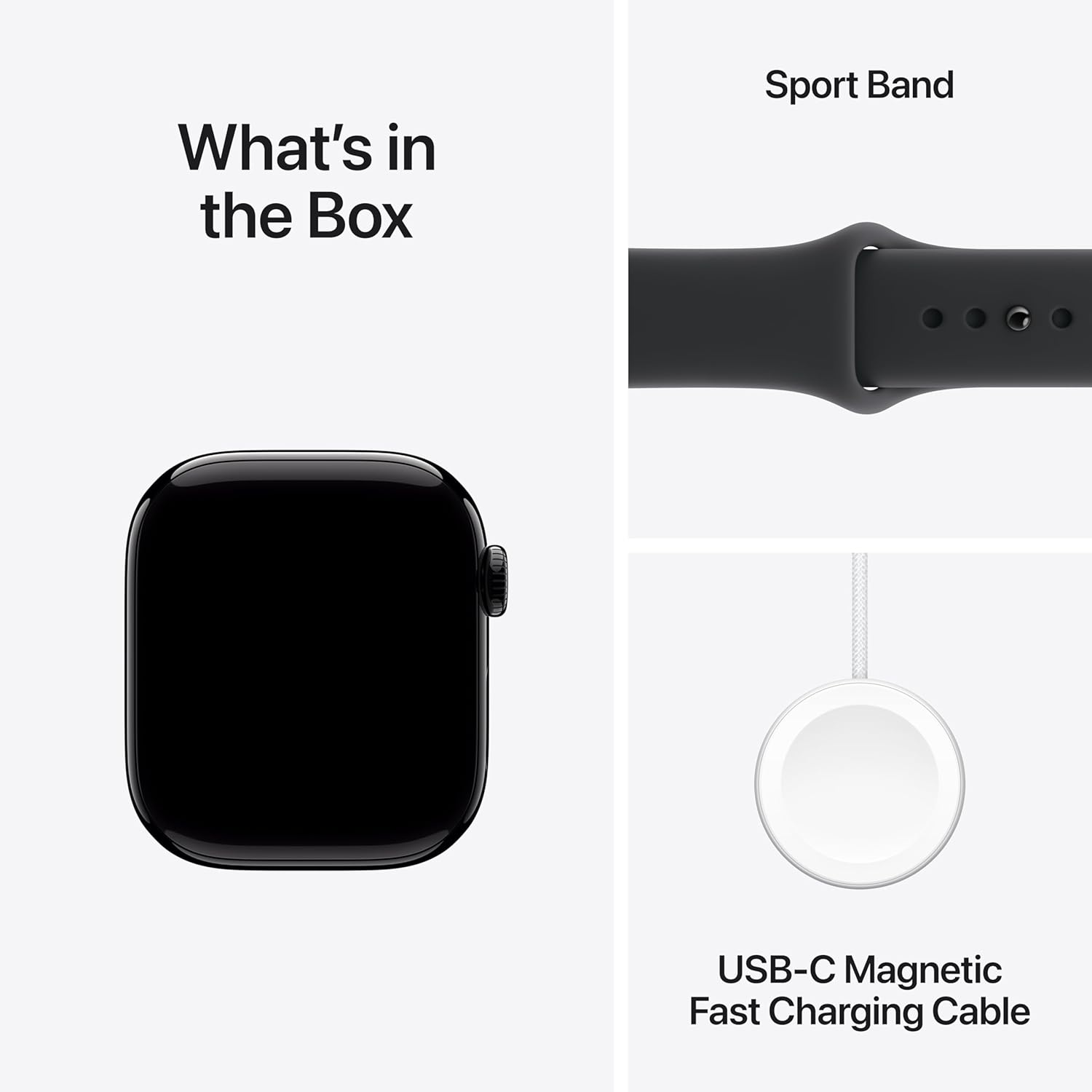
Image: A visual representation of the Apple Watch Series 11 packaging contents, including the watch case, sport band, and USB-C magnetic fast charging cable.
3. Setup
3.1 Attaching the Band
- Align the band with the watch case slots.
- Slide the band in until you feel and hear a click. Ensure both ends are securely fastened.
3.2 Initial Charging
Before first use, fully charge your Apple Watch. Connect the USB-C Magnetic Fast Charging Cable to a power adapter (sold separately) and attach the magnetic end to the back of your watch. The watch will display a charging indicator.
3.3 Pairing with iPhone
- Turn on your Apple Watch by pressing and holding the side button until the Apple logo appears.
- Bring your iPhone close to your Apple Watch. A pairing screen will appear on your iPhone.
- Follow the on-screen instructions on both devices to complete the pairing process. This includes positioning your iPhone camera over the animation on your watch.
- Choose to set up as a new Apple Watch or restore from a backup.
4. Operating Your Apple Watch
4.1 Basic Navigation
- Digital Crown: Rotate to scroll, zoom, or adjust values. Press once to go to the watch face or app list. Double-press to switch between your last two apps. Press and hold for Siri.
- Side Button: Press once to open the Dock (recently used apps). Double-press for Apple Pay. Press and hold for Emergency SOS or to power off.
- Touch Display: Tap to select, swipe to navigate, force touch for additional options (if available).
4.2 Health Monitoring
The Apple Watch Series 11 offers advanced health insights:
- ECG App: Take an electrocardiogram anytime to check for signs of atrial fibrillation.
- Heart Rate Notifications: Receive alerts for unusually high or low heart rates, and irregular heart rhythms.
- Blood Oxygen App: Measure your blood oxygen levels on demand.
- Vitals App: View overnight health metrics, including heart rate, blood oxygen, and respiratory rate.
- Sleep Tracking: Monitor your sleep patterns and receive a sleep score to understand your sleep quality.

Image: The Apple Watch screen showing current heart rate (68 BPM) and the Vitals app interface with overnight health metrics.

Image: A collage highlighting key features: richer health insights in the Vitals app, up to 24 hours of battery life, sleep score display, and the super-durable display of the Apple Watch.
4.3 Fitness Tracking
Utilize your Apple Watch as a comprehensive fitness partner:
- Activity Rings: Track your daily movement with Move, Exercise, and Stand rings.
- Workout App: Choose from a variety of workout types, including running, cycling, swimming, and more.
- Advanced Metrics: Access detailed metrics like Pacer, Heart Rate Zones, and training load for optimized workouts.
- Workout Buddy: Connect with Apple Intelligence on your nearby iPhone for enhanced workout features.

Image: Two Apple Watch screens side-by-side. One shows the activity rings (Move, Exercise, Stand) and the other shows the Workout app interface for an 'Outdoor Run'.
4.4 Connectivity and Notifications
Stay connected and informed directly from your wrist:
- Notifications: Receive alerts from your iPhone apps, calls, and messages.
- Bluetooth & Wi-Fi: Connect to your iPhone and other accessories via Bluetooth, and access networks via Wi-Fi.
- GPS: Track your location and routes during outdoor activities without your iPhone.
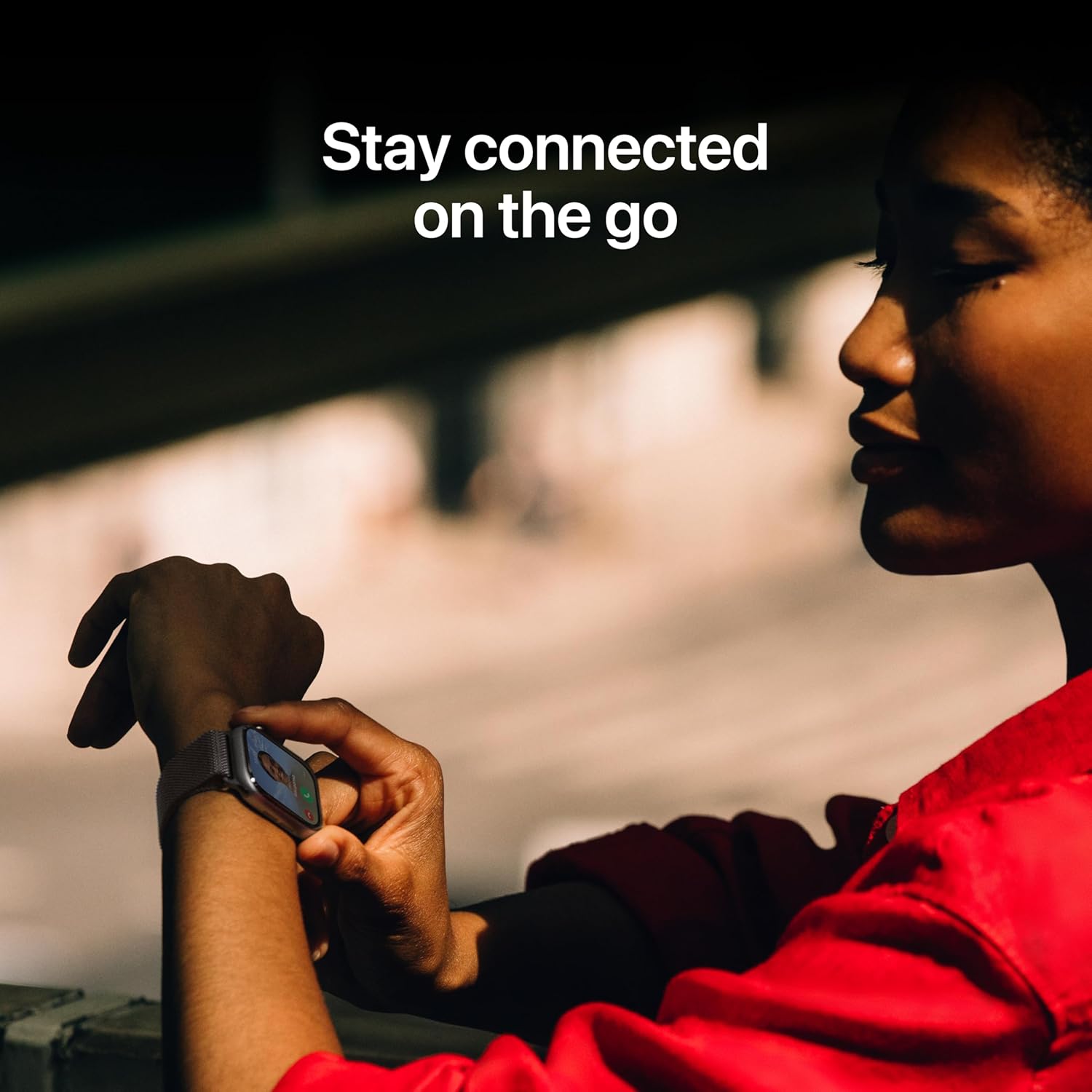
Image: A person wearing an Apple Watch, interacting with the screen to make a call, illustrating the 'Stay connected on the go' feature.
4.5 Battery Life
The Apple Watch Series 11 provides up to 24 hours of normal use on a single charge. Fast charging allows for up to 8 hours of normal use in just 15 minutes.
5. Maintenance
5.1 Cleaning Your Apple Watch
- Watch Case: Wipe with a soft, lint-free cloth. If necessary, lightly dampen the cloth with fresh water.
- Sport Band: Wipe with a soft, lint-free cloth. For deeper cleaning, use mild soap and water, then rinse thoroughly and dry.
- Avoid using abrasive materials, harsh chemicals, or aerosol sprays.
5.2 Software Updates
Keep your Apple Watch software up to date for the latest features and security enhancements. Updates can be managed through the Watch app on your paired iPhone.
5.3 Water Resistance
The Apple Watch Series 11 is water resistant. It can be used for shallow-water activities like swimming in a pool or ocean. It should not be used for scuba diving, waterskiing, or other activities involving high-velocity water or submersion below shallow depths.
6. Troubleshooting
If you encounter issues with your Apple Watch, consider the following general troubleshooting steps:
- Watch Not Responding: Force restart by holding both the Digital Crown and the side button for at least 10 seconds until you see the Apple logo.
- Pairing Issues: Ensure Bluetooth is enabled on your iPhone and both devices are charged. Try restarting both your iPhone and Apple Watch.
- Inaccurate Readings: Ensure the watch is worn snugly on your wrist. Clean the back of the watch and your wrist to ensure good sensor contact.
- Battery Draining Quickly: Check for apps running in the background. Reduce screen brightness or disable 'Always On Display' if not needed.
- Software Glitches: Ensure your watchOS is up to date. If issues persist, consider unpairing and re-pairing your watch with your iPhone.
For more detailed troubleshooting or persistent issues, refer to Apple's official support website or contact customer service.
7. Specifications
| Feature | Detail |
|---|---|
| Brand | Apple |
| Model Number | MEQU4HN/A |
| Operating System | WatchOS |
| Memory Storage Capacity | 64 GB |
| Connectivity Technology | Bluetooth, Wi-Fi |
| Special Features | Activity Tracker, Alarm Clock, Always On Display, Fall Detection, GPS |
| Battery Capacity | 0.1 Milliamp Hours |
| Item Weight | 30.2 g |
| Country of Origin | China |
8. Warranty and Support
8.1 Warranty Information
Your Apple Watch Series 11 is covered by Apple's standard limited warranty. For detailed terms and conditions, please refer to the warranty documentation included with your product or visit Apple's official website.
8.2 AppleCare Protection Plan
An optional 1 Year Protect+ with AppleCare Service by Apple is available for purchase, extending your coverage and providing additional technical support. This plan offers enhanced service options beyond the standard warranty.
8.3 Customer Support
For technical assistance, service, or further inquiries, please visit the official Apple Support website or contact Apple customer service directly. Contact information can typically be found on Apple's website or in your product packaging.
9. Official Product Videos
No embeddable official product videos were found for this product in the provided data.


