
Introduction
Welcome to the user manual for your new Apple iPhone Air 256 GB. This guide provides essential information to help you set up, operate, maintain, and troubleshoot your device. The iPhone Air is designed to be exceptionally thin, remarkably light, and incredibly powerful, featuring a 6.5-inch ProMotion display, the A19 Pro chip, and advanced camera systems.
Key features include a durable design with an ultralight titanium frame and Ceramic Shield, a 48 MP Fusion camera system, an 18 MP Center Stage front camera, all-day battery life, and the intuitive iOS 26 operating system. It also incorporates important safety features like Crash Detection and offers enhanced connectivity with Wi-Fi 7, 5G, Bluetooth 6, and eSIM support.
What's in the Box
Upon unboxing your Apple iPhone Air, you should find the following items:

Image: The iPhone Air and its accompanying USB-C charging cable.
- Apple iPhone Air device
- USB-C Charge Cable
Note: A power adapter is sold separately.
Setup
1. Powering On and Initial Setup
- Press and hold the Side button until the Apple logo appears.
- Follow the on-screen instructions to select your language and region.
- Connect to a Wi-Fi network.
- Set up Face ID or a passcode.
- Sign in with your Apple ID or create a new one.
- Choose to restore data from a backup (iCloud or computer) or set up as a new iPhone.
2. eSIM Activation
The iPhone Air supports eSIM. Contact your carrier for instructions on activating your cellular plan. You can typically activate eSIM by scanning a QR code provided by your carrier or by entering information manually in Settings > Cellular > Add eSIM.

Image: The thin profile of the iPhone Air, showing the side button and volume controls.
Operating Instructions
Basic Navigation
- Home Screen: Swipe up from the bottom edge to go to the Home Screen.
- App Switcher: Swipe up from the bottom edge and pause in the middle of the screen to see open apps.
- Control Center: Swipe down from the top-right corner to access quick settings.
- Notifications: Swipe down from the top-left corner to view notifications.
Camera Usage
The iPhone Air features a 48 MP Fusion camera system and an 18 MP Center Stage front camera. Open the Camera app to capture photos and videos.
- 48 MP Fusion Camera: Utilize the advanced main camera for high-resolution photos and 2x optical quality zoom.
- Center Stage: The front camera automatically keeps you centered during video calls and allows for smarter group selfies.
- Dual Recording: Record video simultaneously with both front and rear cameras.
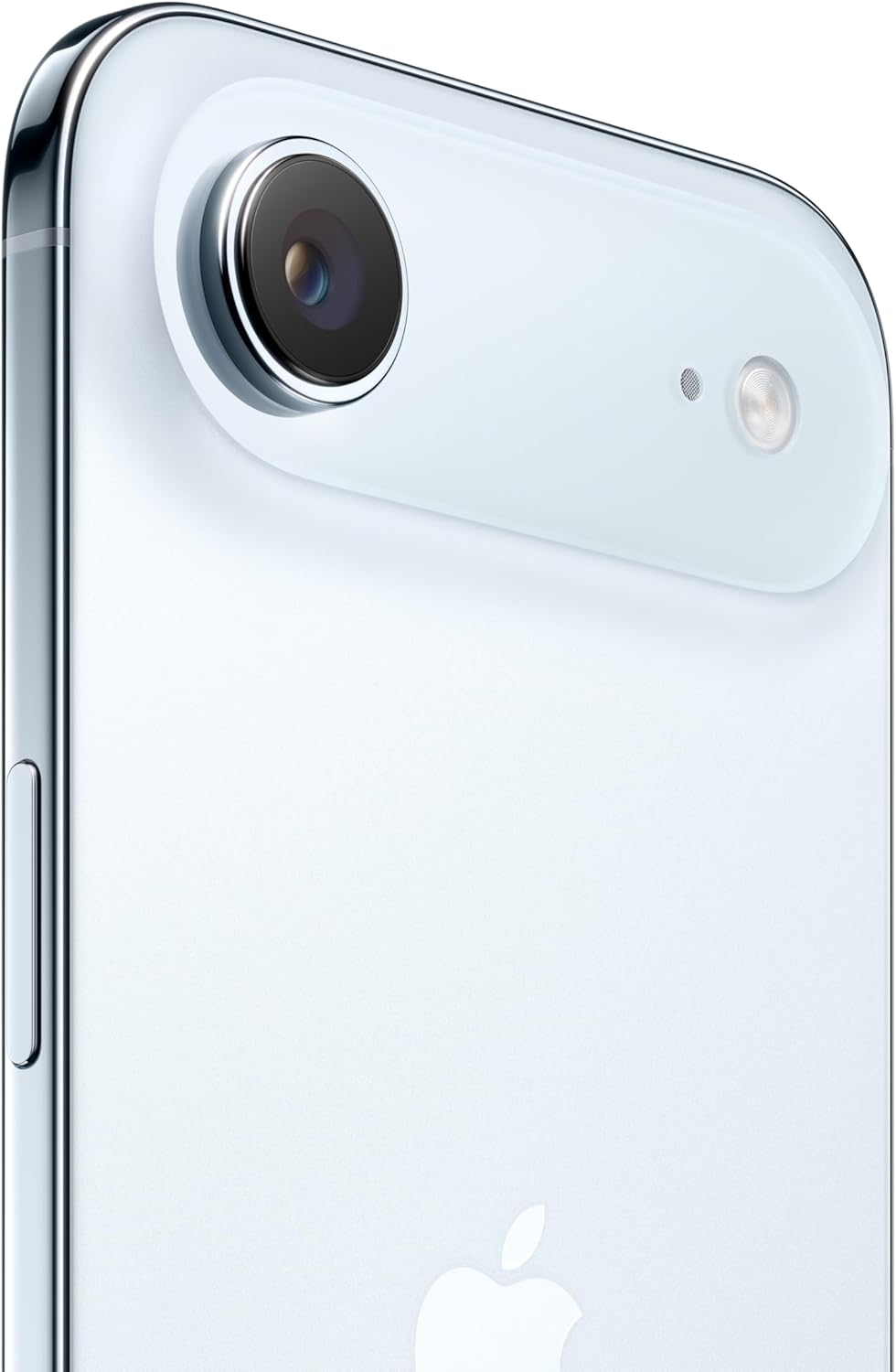
Image: Detail of the iPhone Air's rear camera system.
Battery Management
Your iPhone Air is designed for all-day battery life, offering up to 27 hours of video playback. To optimize battery performance:
- Adjust screen brightness.
- Enable Low Power Mode when needed.
- Monitor battery usage in Settings > Battery.
Connectivity
The iPhone Air supports Wi-Fi 7, 5G networks, and Bluetooth 6 for fast and secure connections. Manage these settings in the Settings app.
iOS 26 Features
Experience the new design with Liquid Glass, a more vibrant Lock Screen, customizable backgrounds, and new features in Messages and Call Filtering.
Maintenance
Cleaning Your iPhone Air
- Use a soft, lint-free cloth.
- Avoid abrasive materials or harsh cleaning agents.
- For stubborn marks, lightly dampen the cloth with water.
Software Updates
Keep your iPhone Air updated to the latest iOS version for optimal performance and security. Go to Settings > General > Software Update.
Water and Dust Resistance
Your iPhone Air is rated IP68 for water and dust resistance. This means it can withstand submersion in water up to 6 meters for 30 minutes. However, water and dust resistance are not permanent conditions and may decrease over time with normal wear. Do not charge a wet iPhone.
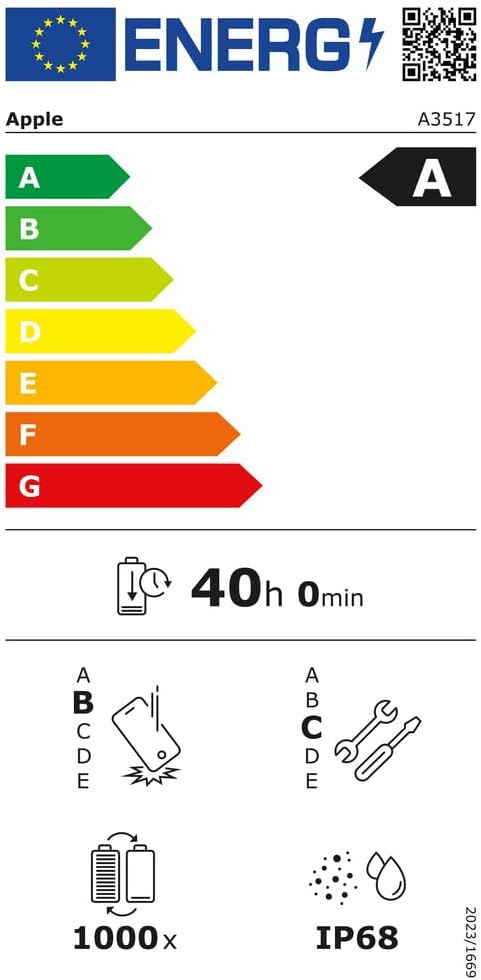
Image: EU Energy Label indicating IP68 water and dust resistance.
Troubleshooting
Common Issues and Solutions
- Device Unresponsive: Force restart your iPhone. Press and quickly release the Volume Up button, press and quickly release the Volume Down button, then press and hold the Side button until you see the Apple logo.
- App Crashing: Close the app from the App Switcher and reopen it. If the issue persists, check for app updates or reinstall the app.
- Connectivity Problems: Toggle Wi-Fi or Bluetooth off and on. Restart your router or forget and rejoin the network.
- Battery Drain: Review battery usage in Settings to identify apps consuming significant power. Reduce screen brightness or enable Low Power Mode.
Crash Detection
Your iPhone Air is equipped with Crash Detection, which can detect a severe car crash and automatically call emergency services if you are unresponsive. Ensure your emergency contacts are up to date in the Health app.
Specifications
| Feature | Detail |
|---|---|
| Brand | Apple |
| Model Name | iPhone Air |
| Storage | 256 GB (as per current variant) |
| Color | Sky Blue (as per current variant) |
| Dimensions (LxWxH) | 6 x 75 x 156 mm |
| Screen Size | 6.5 inches with ProMotion up to 120Hz |
| Processor | A19 Pro Chip |
| Rear Camera | 48 MP Fusion Camera System with 2x optical quality zoom |
| Front Camera | 18 MP Center Stage Screen Camera |
| Battery Life | Up to 27 hours video playback |
| Operating System | iOS 26 |
| Durability | Ultralight Titanium Frame, Ceramic Shield front and back |
| Water/Dust Resistance | IP68 |
| Connectivity | Wi-Fi 7, 5G, Bluetooth 6, eSIM |
| UPC | 195950623192 |

Image: Visual summary of iPhone Air's design, camera, durability, battery, and chip.
Warranty and Support
Your Apple iPhone Air comes with a standard limited warranty. For detailed warranty information, please refer to the documentation included with your device or visit the official Apple website.
For technical support, service, and repair information, please visit the following official Apple support resources:
- Apple Self-Service Repair
- Apple Repair Support (Sweden)
- General Apple Support: support.apple.com
You can also find additional information and contact options through the Apple Support app on your device or by visiting an authorized Apple service provider.