
1. Introduction
The Apple Watch Ultra 3 is a robust and advanced smartwatch designed for sports, adventure, and everyday use. It features a durable titanium case, a bright sapphire crystal display, and comprehensive health and fitness tracking capabilities. This manual provides essential information for setting up, operating, maintaining, and troubleshooting your device.
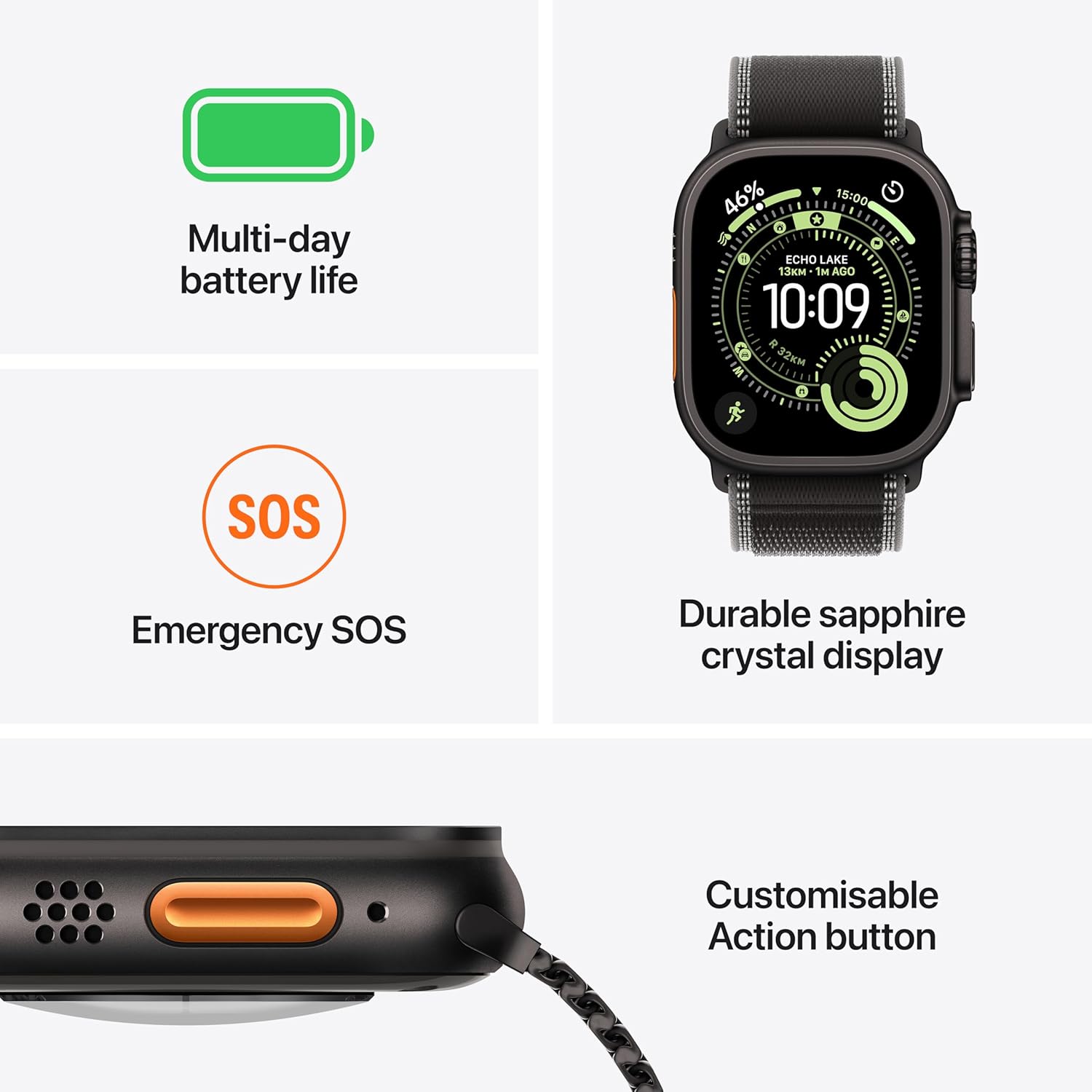
Image: The Apple Watch Ultra 3 with its Milanese Loop band, showcasing its design.
2. What's in the Box
Verify that all components are present in your Apple Watch Ultra 3 package:
- Apple Watch Ultra 3 Case (49mm Natural Titanium)
- Natural Titanium Milanese Loop Band
- 1m Magnetic Fast Charging USB-C Cable

Image: The Apple Watch Ultra 3 packaging contents, including the watch, band, and charging cable.
3. Setup
3.1 Charging Your Apple Watch
- Connect the 1m Magnetic Fast Charging USB-C Cable to a USB-C power adapter (sold separately) and plug it into a power outlet.
- Place the back of your Apple Watch on the magnetic charger. The charger will snap into place automatically.
- The watch display will show a charging indicator. Allow the watch to charge sufficiently before initial use.
3.2 Attaching the Band
To attach the Milanese Loop band:
- Slide the band into the watch case until you feel and hear a click. Ensure the band is inserted correctly and securely.
- Adjust the magnetic closure for a comfortable fit on your wrist.
3.3 Pairing with iPhone
- Ensure your iPhone is updated to the latest iOS version and has Bluetooth and Wi-Fi enabled.
- Turn on your Apple Watch by pressing and holding the Side Button until the Apple logo appears.
- Bring your iPhone near your Apple Watch. A pairing animation will appear on your iPhone. Tap 'Continue'.
- Follow the on-screen instructions on both your iPhone and Apple Watch to complete the pairing process, including setting up cellular service if desired.
4. Operating Your Apple Watch Ultra 3
4.1 Basic Navigation
- Digital Crown: Rotate to scroll, zoom, or adjust values. Press once to go to the watch face or app list. Double-press to switch between recent apps. Press and hold for Siri.
- Side Button: Press once to open the Dock (recent apps). Double-press for Apple Pay. Press and hold for Emergency SOS or to power off.
- Action Button: The customizable orange button on the left side. By default, it can be set to start a workout, mark a Compass Waypoint, begin a Backtrack path, or activate the flashlight. Customize its function in the Settings app on your watch.
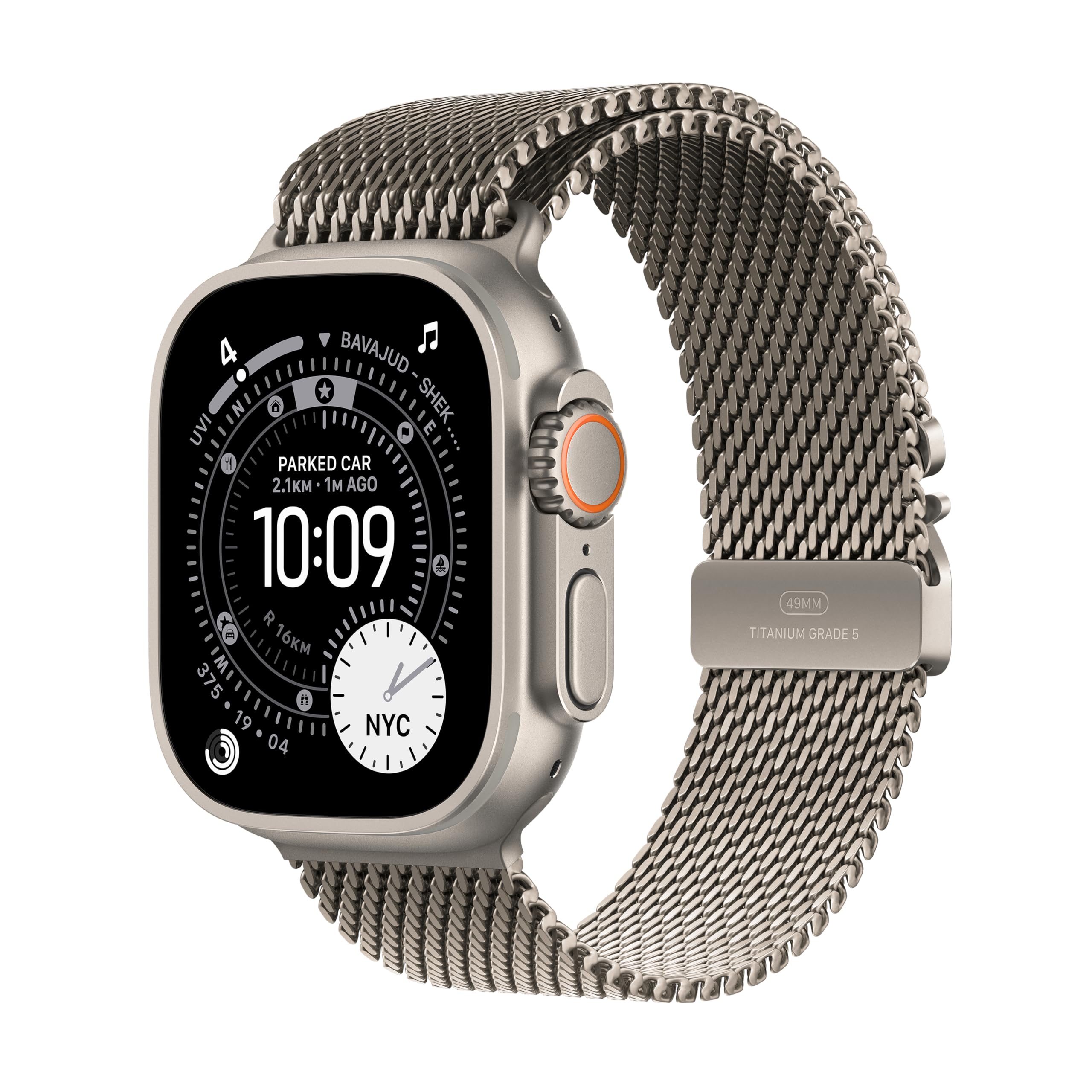
Image: Overview of key features including multi-day battery life, Emergency SOS, durable sapphire crystal display, and the customizable Action button.
4.2 Key Features
- GPS + Cellular: Stay connected, make calls, send messages, and stream music even without your iPhone nearby.
- Multi-day Battery Life: Enjoy extended usage with up to 42 hours in normal use and up to 72 hours in Low Power Mode.
- Durable Sapphire Crystal Display: The large, bright display is protected by a strong sapphire crystal, offering enhanced readability and durability. It can also function as a flashlight.
- Advanced Health & Fitness Tracking: Monitor heart rate, track workouts, set custom workouts, and utilize features like Pacer, Heart Rate Zones, and running power.

Image: The Apple Watch Ultra 3 as an ultimate running companion, displaying advanced metrics such as heart rate, zone, elevation, and pace.
- Safety Features: Includes Emergency SOS, Fall Detection, and Crash Detection, which can automatically connect you to emergency services and notify your emergency contacts. Check In can also notify a loved one when you arrive at your destination.
- Hiking Tools: Utilize features like Backtrack to retrace your steps and access offline maps for navigation in remote areas.

Image: The Apple Watch Ultra 3 showcasing key hiking tools like the compass and offline maps.

Image: A user running outdoors, demonstrating the Apple Watch Ultra 3's capability to provide personalized fitness motivation.
4.3 Water Resistance
The Apple Watch Ultra 3 is water resistant to 100 meters, making it suitable for swimming, diving, and high-speed water sports. It is not recommended for scuba diving below 40 meters or other activities involving high-velocity water impact. After exposure to chlorinated or salt water, rinse the watch with fresh water and dry it thoroughly.
5. Maintenance
5.1 Cleaning Your Apple Watch
- Turn off your Apple Watch and disconnect it from the charger.
- Wipe the watch clean with a soft, lint-free cloth. If necessary, lightly dampen the cloth with fresh water.
- Do not use soaps, cleaning products, abrasive materials, or compressed air.
- Dry the watch thoroughly with a soft, lint-free cloth.
5.2 Cleaning the Milanese Loop Band
- Wipe the band with a soft, lint-free cloth. If needed, lightly dampen the cloth with fresh water.
- Allow the band to air dry completely before reattaching it to your watch.
5.3 Software Updates
Regularly update your Apple Watch to the latest watchOS version to ensure optimal performance, security, and access to new features. Updates can be performed via the Watch app on your paired iPhone.
6. Troubleshooting
6.1 Watch Not Turning On
If your Apple Watch does not turn on, ensure it is sufficiently charged. Place it on the magnetic charger for at least 30 minutes. If it still doesn't turn on, try a force restart by holding both the Side Button and the Digital Crown for at least 10 seconds until the Apple logo appears.
6.2 Pairing Issues
If your watch fails to pair with your iPhone:
- Ensure both devices have Bluetooth and Wi-Fi enabled.
- Restart both your Apple Watch and iPhone.
- Check for any pending software updates on your iPhone.
- If issues persist, unpair the watch from your iPhone (if previously paired) and attempt the pairing process again.
6.3 Battery Drain
If you experience unusual battery drain:
- Check for apps running in the background and close unnecessary ones.
- Reduce screen brightness.
- Enable Low Power Mode in Settings.
- Ensure your watchOS is up to date.
6.4 Factory Reset
To erase all content and settings from your Apple Watch:
- On your Apple Watch, go to Settings > General > Reset.
- Tap Erase All Content and Settings.
- Enter your passcode if prompted.
- Confirm the action. This will unpair your watch from your iPhone and erase all data.
7. Specifications
| Feature | Detail |
|---|---|
| Model Name | Apple Watch Ultra 3 |
| Item Model Number | MEWW4HN/A |
| ASIN | B0FQFJG5CM |
| Manufacturer | Apple |
| Case Material | Titanium |
| Display | Sapphire Crystal |
| Water Resistance | 100 meters |
| Operating System | WatchOS |
| Memory Storage Capacity | 64 GB |
| Battery Capacity | 0.1 Milliamp Hours (up to 42 hours normal use, 72 hours Low Power Mode) |
| Connectivity Technology | Bluetooth, Cellular |
| Special Features | Activity Tracker, Alarm Clock, Always On Display, Fall Detection, GPS |
| Item Weight | 61.6 g |
8. Warranty and Support
8.1 Product Warranty
Your Apple Watch Ultra 3 is covered by a limited manufacturer's warranty. For detailed information regarding warranty terms and conditions, please refer to the documentation provided with your purchase or visit the official Apple website.
8.2 AppleCare Protection Plan
Additional protection plans, such as 1 Year Protect+ with AppleCare Service by Apple, may be available for purchase to extend your coverage and provide additional support options. Please check with your retailer or Apple for availability and details.
8.3 Customer Support
For further assistance, technical support, or service inquiries, please visit the official Apple Support website or contact Apple customer service directly. You can find contact information and support resources at support.apple.com.


