
INPHIC B0FQCFSHPQ
INPHIC Tri-Mode Wireless Mouse User Manual
Model: B0FQCFSHPQ
Introduction
This manual provides comprehensive instructions for the INPHIC Tri-Mode Wireless Mouse, Model B0FQCFSHPQ. It covers setup, operation, maintenance, and troubleshooting to ensure optimal performance and user experience. Please read this manual thoroughly before using the product.
Product Overview
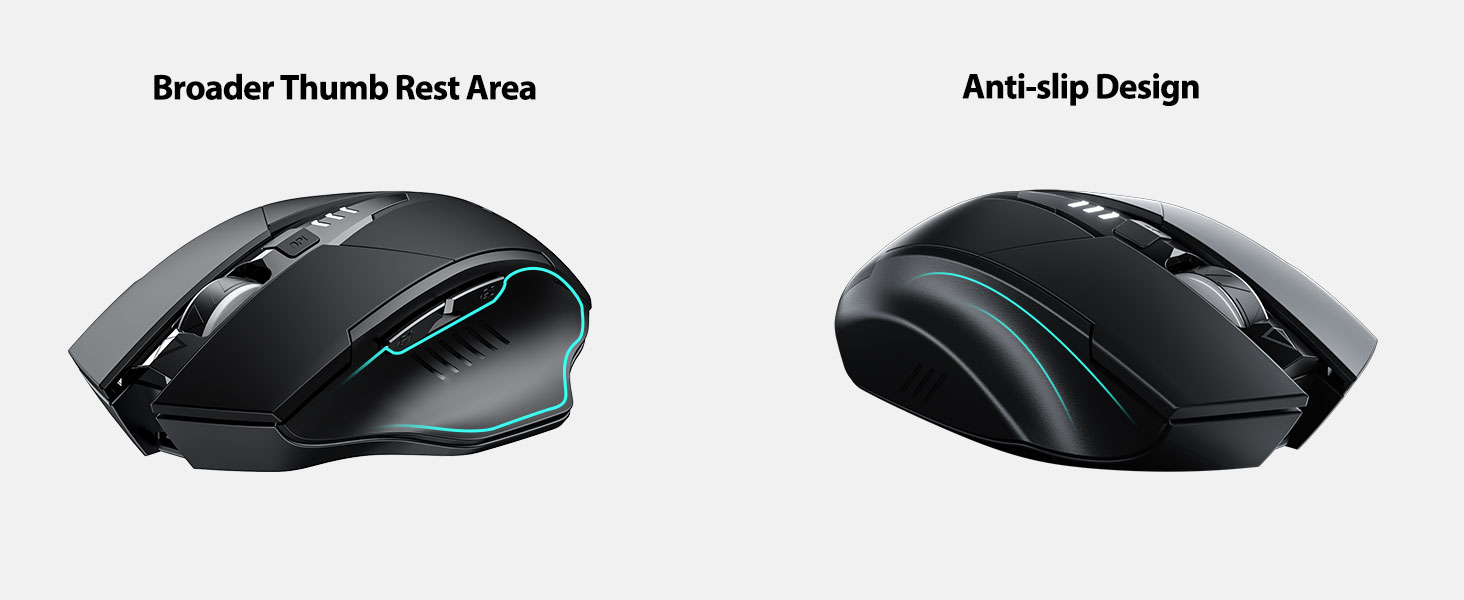
The INPHIC Tri-Mode Wireless Mouse offers versatile connectivity options (Bluetooth 5.0, Bluetooth 4.0, and 2.4G USB) and an ergonomic design for comfortable use. Key features include a visible battery indicator, silent click buttons, and adjustable DPI settings.
Package Contents
- INPHIC Tri-Mode Wireless Mouse
- USB Receiver (stored in the mouse)
- USB-C Charging Cable
- User Manual (this document)
Mouse Components

- Left/Right Click Buttons: Silent operation.
- Scroll Wheel: For vertical scrolling.
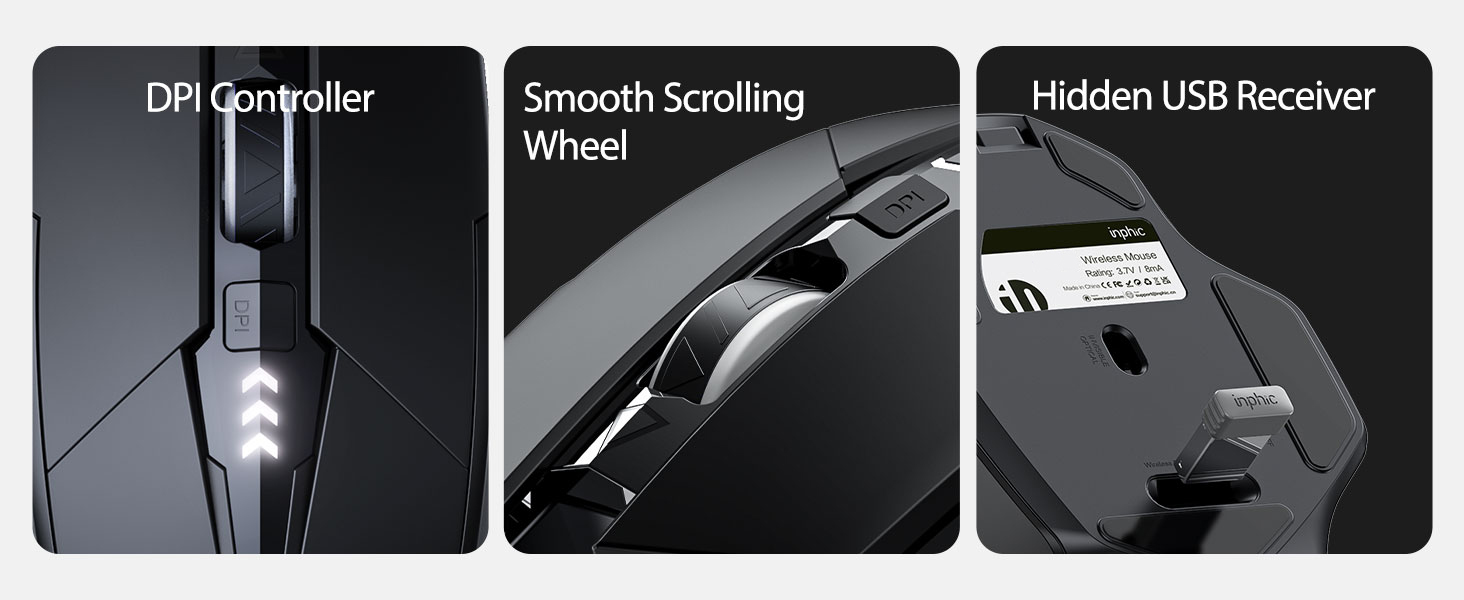
- DPI Button: Adjusts cursor speed (800/1200/1600/2000/2400 DPI).
- Forward/Backward Buttons (Side): For navigation in web browsers or file explorers.
- Battery Indicator: LED lights on top display remaining battery level.
- Connection Type Switch (Bottom): Toggles between 2.4G USB, Bluetooth 4.0, and Bluetooth 5.0 modes.
- Power Switch (Bottom): ON/OFF switch.
- USB Receiver Slot (Bottom): Stores the 2.4G USB receiver.
- Charging Port (Front): USB-C port for recharging the internal battery.
Setup
Initial Charging
Before first use, fully charge the mouse for approximately 1 hour. Connect the USB-C charging cable to the mouse's charging port and to a USB power source (e.g., computer USB port, USB wall adapter).

Connecting the Mouse
The mouse supports three connection modes: 2.4G USB, Bluetooth 4.0, and Bluetooth 5.0. Use the switch on the bottom of the mouse to select your desired mode.
2.4G USB Connection
- Locate the USB receiver stored in the slot on the bottom of the mouse.
- Plug the USB receiver into an available USB port on your computer.
- Switch the connection mode on the bottom of the mouse to "2.4G".
- Turn on the mouse using the power switch. The mouse should connect automatically.
Bluetooth Connection (BT 4.0 / BT 5.0)
- Switch the connection mode on the bottom of the mouse to "BT 4.0" or "BT 5.0".
- Turn on the mouse using the power switch.
- On your device (laptop, tablet, etc.), open Bluetooth settings.
- Search for new Bluetooth devices. The mouse should appear as "INPHIC Mouse" or similar.
- Select the mouse to pair.
- Once paired, the mouse is ready for use.
Note: Bluetooth 5.0 is compatible with Windows 8/10 (not Windows 7 or XP), Android, and Mac OS systems. iOS systems (iPad and iPhone) require iOS 14 or later for Bluetooth 5.0 compatibility.
Operating Instructions
Power On/Off
Use the ON/OFF switch located on the bottom of the mouse to power the device. To conserve battery, turn off the mouse when not in use for extended periods.
Switching Connection Modes
The mode switch button on the bottom of the mouse allows you to cycle between 2.4G USB, Bluetooth 4.0, and Bluetooth 5.0 connections. This enables seamless switching between multiple paired devices.

Adjusting DPI (Cursor Speed)
Press the DPI button located on the top of the mouse, below the scroll wheel, to cycle through 5 adjustable DPI levels: 800, 1200, 1600, 2000, and 2400. This allows you to customize cursor sensitivity to your preference.

Battery Indicator
The mouse features a visible battery indicator on its top surface. LED lights illuminate to show the remaining battery power, providing a clear visual cue for when recharging is needed.

Automatic Sleep Mode
To conserve power, the mouse will automatically enter sleep mode after 5 minutes of inactivity. To wake the mouse, simply click any button.
Maintenance
Cleaning
Wipe the mouse with a soft, dry cloth. For stubborn dirt, a slightly damp cloth can be used, ensuring no moisture enters the internal components. Avoid harsh chemicals or abrasive cleaners.
Battery Care
- Recharge the mouse when the battery indicator shows low power.
- Avoid fully discharging the battery frequently to prolong its lifespan.
- Store the mouse in a cool, dry place when not in use for extended periods.
Troubleshooting
| Problem | Possible Cause | Solution |
|---|---|---|
| Mouse not responding |
|
|
| Cursor movement is erratic or slow |
|
|
| Bluetooth connection issues |
|
|
Specifications
| Feature | Detail |
|---|---|
| Model | B0FQCFSHPQ |
| Connectivity Technology | Bluetooth 5.0 / Bluetooth 4.0 / 2.4G USB Wireless |
| DPI Levels | 800 / 1200 / 1600 / 2000 / 2400 (Adjustable) |
| Buttons | 6 (Left, Right, Scroll Wheel, DPI, Forward, Backward) |
| Battery Type | Rechargeable (400mAh built-in) |
| Charging Port | USB-C |
| Operating Distance | Up to 10 meters (33 feet) |
| Product Dimensions | 4.7 x 3.1 x 0.04 inches |
| Item Weight | 3.36 ounces |
| Compatibility | Windows 7/8/10/XP, Vista, Mac OS. Bluetooth 5.0: Windows 8/10, Android, Mac OS, iOS 14+ (iPad/iPhone). 2.4G USB: Any USB-enabled device. |

Warranty and Support
INPHIC products are designed for reliability and performance. For warranty information and technical support, please refer to the official INPHIC website or contact their customer service directly.
- Manufacturer: INPHIC
- Seller: YingFeiTe (on Amazon)
- Return Policy: Refer to Amazon's current return policy.
- Support Contact: For assistance, visit the INPHIC Store on Amazon or the manufacturer's official website.
Important Safety Information
- Do not expose the mouse to extreme temperatures or humidity.
- Avoid dropping or subjecting the mouse to strong impacts.
- Do not attempt to disassemble or repair the mouse yourself. This may void the warranty.
- Keep out of reach of children.
Product Video
Video Description: An official product video from INPHIC demonstrating the features and usage of the INPHIC Bluetooth Mouse. It shows the mouse being unboxed, its various components, connection methods, and ergonomic design in action.
Related documentsB0FQCFSHPQ


Ask a question about this manual
Ask about setup, troubleshooting, compatibility, parts, safety, or missing instructions. Manuals+ will review the question and use this page’s manual context to help answer it.