
Introduction
Thank you for purchasing the Generic Portable Bluetooth CD Player. This device offers versatile audio playback options, including CDs, USB drives, and Bluetooth connectivity, all in a compact and portable design. Please read this manual carefully to ensure proper use and to maximize your listening experience.
Package Contents
Ensure all items are present in the package:
- Portable CD Player
- User Manual
- Type-C Charging Cable
- Earphones
- Earmuffs (for earphones)
Product Overview
Familiarize yourself with the components and controls of your CD player.

Image: Front and side view of the CD player, highlighting the USB port, HOLD switch, and control buttons. The display shows "04:31".

Image: Detailed side view of the CD player, labeling the Type-C charging port, USB interface, 3.5mm headphone/speaker jack, and the On/Off/Key Lock switch.
Controls and Ports:
- Type-C Charging Port: For connecting the charging cable.
- USB Interface: For connecting a USB flash drive for MP3 playback.
- 3.5mm Headphone/Speaker Jack: For connecting wired headphones or external speakers.
- On/Off/Key Lock Switch (HOLD): Slides to power on/off the device or to lock/unlock buttons.
- Playback Control Buttons: Play/Pause, Skip Forward, Skip Backward, Stop.
- Mode Button (M): To switch between CD, USB, and Bluetooth modes.
- LCD Display: Shows track number, time, and mode.
Setup
1. Charging the Device
Before first use, fully charge the CD player. Connect the provided Type-C charging cable to the charging port on the device and to a 5V-2A USB power adapter (not included). The charging indicator will show the charging status. A full charge provides approximately 2 hours of playback with external release or 5-6 hours with headphones.
Image: Side view of the CD player with labels for Type-C charging port and estimated battery life for different usage scenarios.
2. Powering On/Off
Slide the On/Off/Key Lock switch to the "ON" position to power on the device. To power off, slide it to the "OFF" position.
Operating Instructions
1. CD Playback
- Open the CD compartment cover.
- Insert a CD (CD/CD-R/CD-RW/MP3 format) with the label side facing up.
- Close the CD compartment cover.
- If not already in CD mode, press the Mode (M) button until "CD" appears on the display.
- The player will automatically read the disc and begin playback.
- Use the Play/Pause, Skip Forward, Skip Backward, and Stop buttons to control playback.
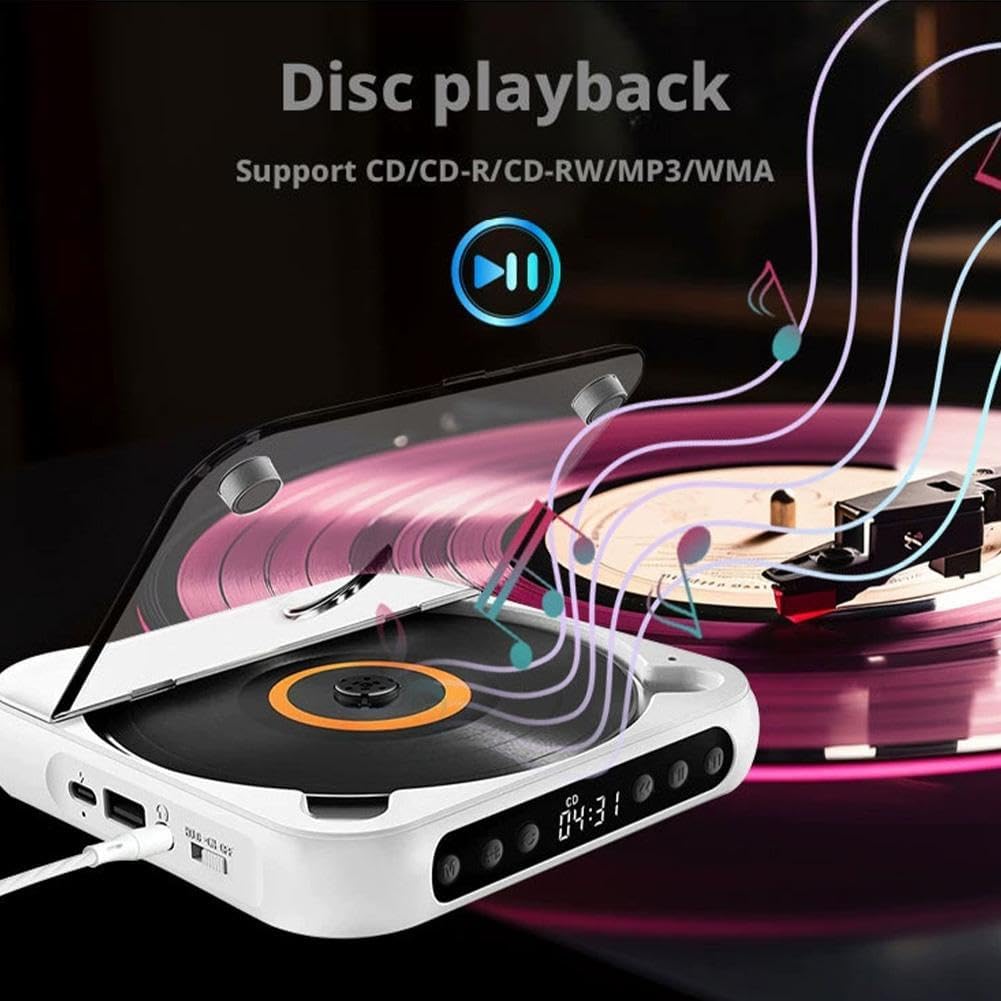
Image: The CD player with a disc spinning, illustrating the disc playback function. Supports CD/CD-R/CD-RW/MP3 formats.
2. USB Playback
- Insert a USB flash drive containing MP3 audio files into the USB interface.
- Press the Mode (M) button until "USB" appears on the display.
- The player will automatically read the USB drive and begin playback of MP3 files.
- Use the Play/Pause, Skip Forward, Skip Backward, and Stop buttons to control playback.

Image: A USB flash drive inserted into the USB port of the CD player, demonstrating USB playback capability for MP3 files.
3. Bluetooth Connection
The CD player can connect wirelessly to Bluetooth speakers or headphones.
- Ensure the CD player is powered on.
- Press the Mode (M) button until "BT" or "Bluetooth" appears on the display. The player will enter pairing mode.
- Turn on your Bluetooth speaker or headphones and set them to pairing mode.
- The CD player will automatically search for and connect to nearby Bluetooth devices. Once connected, the display will indicate a successful connection.
- You can now play audio from the CD player through your connected Bluetooth device.

Image: Illustrations of the CD player connecting to a Bluetooth speaker, Bluetooth headset, external speakers via 3.5mm auxiliary cable, and wired headphones.
4. AUX Connection (Wired Output)
Connect wired headphones or external speakers using the 3.5mm audio jack.
- Plug your 3.5mm wired headphones or an AUX cable connected to external speakers into the 3.5mm headphone/speaker jack on the side of the CD player.
- The audio will automatically output through the connected device.
5. HOLD Key Lock Function
The HOLD function prevents accidental button presses during transport or when the device is in a bag.
- To activate: Slide the On/Off/Key Lock switch to the "HOLD" position. All buttons will be locked.
- To deactivate: Slide the switch back to the "ON" or "OFF" position.
Image: Detail of the HOLD switch, indicating "HOLD" and "ON" positions for locking and unlocking the player's functions.
6. Repeat Function
The repeat function allows you to repeat a single track or the entire disc/playlist.
- During playback, press the Repeat button (often labeled with a loop icon or "REP") to cycle through repeat modes (e.g., repeat one, repeat all, random play). Refer to the display for the current repeat mode.

Image: The CD player with a highlighted repeat button, indicating its use for repeating tracks or entire discs.
Maintenance
- Keep the device clean and free from dust. Use a soft, dry cloth for cleaning.
- Avoid exposing the device to extreme temperatures, direct sunlight, or high humidity.
- Do not disassemble the device. Repairs should only be performed by qualified personnel.
- Handle CDs and USB drives carefully to prevent scratches or damage.
Troubleshooting
| Problem | Possible Cause | Solution |
|---|---|---|
| Device does not power on. | Low battery or power switch in OFF position. | Charge the device. Ensure the On/Off switch is in the "ON" position. |
| No sound from headphones/speakers. | Headphones/speakers not connected properly, volume too low, or incorrect mode. | Check connections. Increase volume. Ensure correct mode (CD, USB, BT) is selected. |
| CD skipping or not playing. | Scratched or dirty CD, incorrect CD format, or device moved during playback. | Clean the CD. Ensure it is a supported format (CD/CD-R/CD-RW/MP3). Avoid moving the player during playback. |
| Bluetooth device not pairing. | Bluetooth device not in pairing mode, too far away, or already connected to another device. | Ensure both devices are in pairing mode and within range. Disconnect from other devices if necessary. |
| USB drive not recognized. | USB drive not formatted correctly, no supported files, or drive damaged. | Ensure USB drive contains MP3 files. Try a different USB drive. |
Specifications
| Model Number | Generic672160 |
| Playback Disc Formats | CD, CD-R, CD-RW, MP3 |
| Supported Audio Format (USB) | MP3 |
| Battery Capacity | 2000mAh Rechargeable |
| Charging Voltage | 5V-2A (Type-C) |
| Bluetooth Version | 5.3 |
| Output Power | 2W |
| Signal-to-Noise Ratio | 70dB |
| Frequency Range | 50Hz-20kHz |
| Dimensions (L x W x H) | 13.5 x 13.5 x 2.5 cm (5.3 x 5.3 x 1.0 inches) |
| Net Weight | 280g (0.62 lbs) |
Warranty and Support
This product comes with a Lifetime Warranty as per manufacturer specifications. For technical support, troubleshooting assistance, or warranty claims, please contact the seller or manufacturer directly through your purchase platform.
Manufacturer Contact Information: CAD-XX-CD-Player (as listed in product specifications).
