
1. Introduction and Overview
The Eurannit Handheld Inkjet Printer E55 is a versatile and portable printing device designed for marking various surfaces. It utilizes quick-drying W6900K ink cartridges, ensuring durable prints that are not prone to fading. The printer features an intelligent interface with 28 language options and supports direct editing on its 4.3-inch high-definition touch screen or importing content via U-disk. It is capable of printing text, dates, logos, serial numbers, batch numbers, QR codes, and barcodes with up to 600 DPI resolution. The E55 is suitable for a wide range of materials including cartons, fabrics, wood, leather, plastic, and metal, making it an efficient tool for various applications.
2. What's in the Box
Upon unboxing your Eurannit Handheld Inkjet Printer E55, you will find the following components:
- 1 x Handheld Inkjet Printer
- 1 x W6900K Ink Cartridge (Black)
- 1 x Power Adapter
- 1 x Location Plate
- 1 x U-disk
- 1 x Touch Pen
- 1 x Protective Suitcase

3. Setup
3.1. Ink Cartridge Installation
To install the ink cartridge, ensure the printer is powered off. Open the cartridge slot cover, carefully insert the W6900K ink cartridge, and then close the cover securely. The machine is unencrypted and supports universal half-inch cartridges.
3.2. Screen Calibration
For optimal touch screen responsiveness, it is recommended to calibrate the screen. This process ensures accurate input and interaction with the printer's interface.
4. Operating
4.1. Basic Printing
The E55 handheld printer is designed for ease of use. Once the ink cartridge is installed and the device is powered on, you can begin creating and printing your desired content. The intuitive interface allows for quick setup and execution of print jobs.
4.2. Editing Content
The printer's 4.3-inch high-definition touch screen allows for direct editing of print content. You can adjust text, dates, and other elements directly on the device. For more complex designs, images and Excel files can be imported using the provided U-disk.
4.3. Supported Content Types
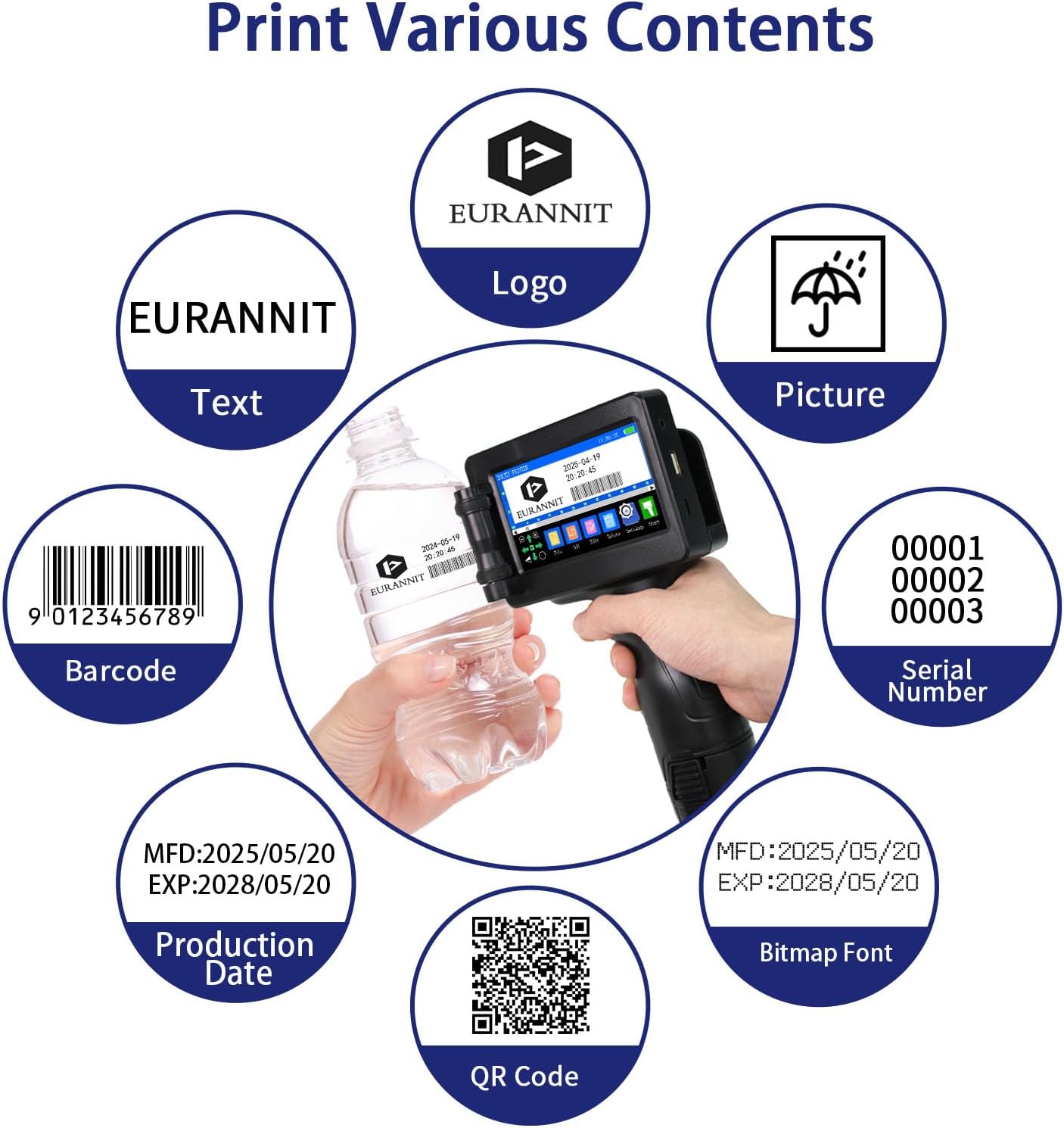
The E55 handheld printer supports a variety of content types, making it highly adaptable for different labeling and marking needs. This includes text, dates, logos, serial numbers, batch numbers, DIY customized QR codes, and barcodes.
4.4. Supported Surfaces
The fast-drying solvent cartridges enable printing on almost any surface. This includes common materials like cartons, fabrics, wooden boards, leather, plastic, and metal. The included location plate assists in precisely positioning prints on various items.
5. Maintenance
5.1. Cartridge Cleaning
Regular cleaning of the ink cartridge is essential to maintain print quality and prevent clogging. Follow the instructions in the video to ensure your W6900K cartridge remains in optimal condition.
6. Printing Capabilities
The E55 printer offers flexible printing capabilities, supporting multi-line editing with a maximum print height of 0.5 inches (12.7mm) and unlimited length. Users can adjust text font and size, allowing for free layout design to meet specific requirements.

6.1. Data Import and Languages
The printer supports importing images and fonts via U-disk, expanding customization options. It also features built-in support for 28 languages, with English as the default. Users can install additional font (.ttf) files for other languages as needed.


7. Technical Specifications
| Specification | Value |
|---|---|
| Product Dimensions | 4.33 x 5.51 x 8.86 inches |
| Item Weight | 2.42 pounds |
| Item Model Number | E55 |
| Batteries | 1 x 9V battery (included) |
| Manufacturer | Eurannit |
| Ink Color | Black |
| Page Yield | 100 |
| Compatible Devices | U-disk |
| Special Feature | Quick Dry |
| Compatibility Options | OEM |
| Color | Black |
| Number of Items | 1 |
8. Troubleshooting
If you encounter any issues with your Eurannit Handheld Inkjet Printer E55, consider the following general troubleshooting steps:
- Poor Print Quality: Ensure the ink cartridge is properly installed and not low on ink. Clean the print nozzle as shown in the maintenance section. Verify that the print surface is clean and suitable for inkjet printing.
- Touch Screen Unresponsive: Recalibrate the touch screen using the steps outlined in the setup section. Ensure the touch pen is being used correctly or try using a finger if applicable.
- Printer Not Powering On: Check the battery level and ensure the device is fully charged. Verify that the power button is pressed and held for the required duration.
- Content Not Printing: Confirm that the print job has been initiated correctly on the screen. Ensure the printer is in the correct printing mode and is making proper contact with the surface.
9. Warranty and Support
The Eurannit Handheld Inkjet Printer E55 comes with a manufacturer's warranty. For specific warranty details, please refer to the documentation included with your product or contact Eurannit customer service. Eurannit provides complete and clear operation video tutorials as well as technical support to assist you with any questions or issues.
For further assistance, please visit the official Eurannit store on Amazon: Eurannit Store

