
1. Introduction
This manual provides instructions for the FiiO/Snowsky Tiny Portable DAC & Headphone Amplifier, Model Tiny A. This device is designed to enhance your audio experience by providing high-resolution digital-to-analog conversion and headphone amplification for various devices.
Please read this manual thoroughly before using the product to ensure proper operation and to maximize its performance.
2. Key Features
- Dual Ports: Equipped with a 3.5mm headphone jack and a Type-C charging port, allowing simultaneous audio playback and device charging. Supports fast charging up to 2A current and 20V voltage.
- Direct Plug-In Design: A minimalist design that plugs directly into your source device, reducing cable clutter and enhancing portability. The T-shaped side output design improves durability.
- 10-Band PEQ Tuning: Features a built-in DSP chip for 10-band Parametric Equalizer (PEQ) adjustment. This functionality is accessible via the FiiO Control app on Android devices or a PC web interface.
- High-Resolution Audio Support: Supports PCM up to 384kHz/32bit and DSD256 decoding, providing high-fidelity audio for mobile and PC use.
- In-Line Control Compatibility: Supports in-line headphone controls for managing music playback, volume, and call functions.
- Lightweight All-Metal Build: Constructed from CNC-machined aluminum with a polished finish, weighing approximately 7g.
- Wide Compatibility: Compatible with Android, iOS (audio only, app not supported), HarmonyOS, Windows, macOS, and Linux devices. Supports UAC2.0 and UAC1.0 protocols.

Image: The FiiO Tiny A DAC in three color variants: silver, black, and gold, showcasing its compact design.
3. Setup Guide
3.1 Connecting to a Source Device
- Locate the USB Type-C connector on the FiiO Tiny A.
- Plug the FiiO Tiny A directly into the USB Type-C port of your smartphone, tablet, or computer. Ensure a secure connection.
- Connect your headphones to the 3.5mm audio jack on the FiiO Tiny A.
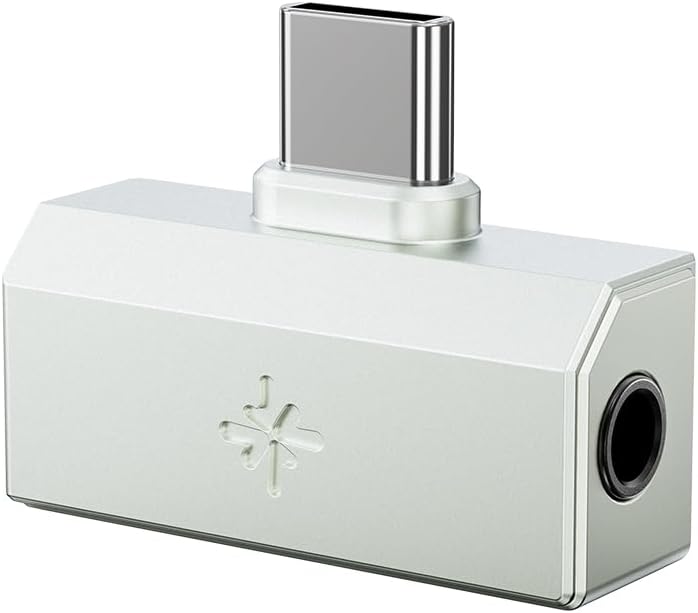
Image: The FiiO Tiny A DAC plugged into a smartphone, with headphones connected to its 3.5mm port.
3.2 Initial Audio Playback
- Once connected, your device should automatically recognize the FiiO Tiny A as an external audio output device.
- Open your preferred music or audio application.
- Start audio playback. Ensure the volume on your source device is set to a moderate level before increasing it on your headphones.
3.3 Installing FiiO Control App (Android Only)
For advanced features like PEQ tuning and UAC mode switching, install the FiiO Control app on your Android device. This app is not available for iOS.
- Search for "FiiO Control" in the Google Play Store.
- Download and install the application.
- Connect your FiiO Tiny A to your Android device.
- Launch the FiiO Control app to access settings and customizations.
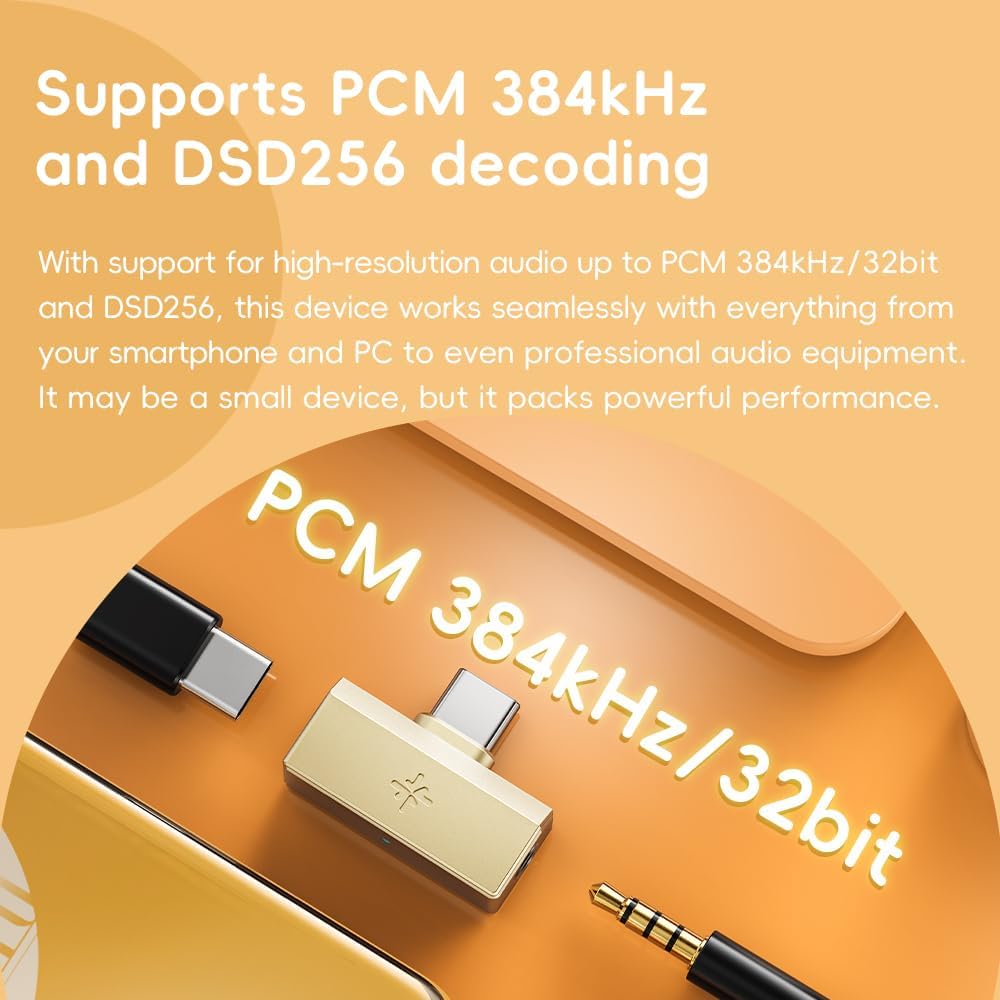
Image: A smartphone screen displaying the FiiO Control app's equalizer interface, demonstrating 10-band PEQ tuning.
4. Operation
4.1 Audio Playback and Charging
The FiiO Tiny A allows you to listen to audio and charge your device simultaneously.
- Connect the FiiO Tiny A to your source device's Type-C port.
- Connect your headphones to the 3.5mm jack.
- To charge, connect a Type-C charging cable to the Type-C port on the FiiO Tiny A. This will pass power through to your source device.

Image: The FiiO Tiny A DAC connected to a smartphone, with a charging cable plugged into its Type-C port, illustrating simultaneous charging and audio.
4.2 Using In-Line Headphone Controls
If your headphones feature in-line controls, the FiiO Tiny A supports their functionality for convenience.
- Music Playback: Use the play/pause button to control audio.
- Volume Control: Adjust volume using the dedicated buttons.
- Call Management: Answer or end calls directly from your headphone controls.

Image: The FiiO Tiny A DAC connected to a smartphone and headphones, highlighting the use of in-line controls for audio management.
4.3 FiiO Control App (Android/PC Web)
The FiiO Control app (Android) or web interface (PC) provides access to advanced settings:
- PEQ Adjustment: Fine-tune the 10-band parametric equalizer to customize your sound profile.
- Preset Switching: Select from various pre-configured sound presets.
- UAC Mode Switching: Toggle between UAC1.0 and UAC2.0 modes depending on your device compatibility and requirements.
- Volume Control: Precise digital volume adjustments.

Image: Two smartphone screens displaying the FiiO Control app, showing options for UAC version selection and detailed audio settings including volume control mode.
5. Maintenance
- Cleaning: Use a soft, dry cloth to clean the device. Avoid using liquids or abrasive cleaners.
- Storage: Store the device in a cool, dry place away from direct sunlight and extreme temperatures.
- Handling: Handle the device with care. Avoid dropping it or subjecting it to strong impacts.
- Port Protection: When not in use, consider using port covers if available to prevent dust and debris from entering the USB-C and 3.5mm ports.
6. Troubleshooting
| Problem | Possible Cause | Solution |
|---|---|---|
| No audio output. |
|
|
| Device not recognized by computer/smartphone. |
|
|
| Charging not working. |
|
|
| FiiO Control app not working (iOS). | App incompatibility. | The FiiO Control app is only supported on Android devices. iOS users cannot use the app for advanced settings. |
7. Specifications
| Model | Tiny A |
| Brand | FiiO |
| Audio Decoding | PCM 384kHz/32bit, DSD256 |
| Output Ports | 3.5mm Headphone Jack |
| Input/Charging Port | USB Type-C |
| Charging Support | Up to 2A current, 20V voltage |
| Control App | FiiO Control (Android only), PC web interface |
| Dimensions (Approx.) | 3.86 x 3.46 x 0.87 inches (Package) |
| Weight (Approx.) | 1.13 ounces (32g) |
| Compatible Devices | Smartphones, MP3 Players, Computers (Android, HarmonyOS, Windows, macOS, Linux) |
| UAC Protocols | UAC1.0, UAC2.0 |
8. Warranty and Support
8.1 Warranty Information
FiiO products typically come with a limited warranty. Please refer to the warranty card included with your product or visit the official FiiO website for detailed warranty terms and conditions specific to your region. Keep your purchase receipt as proof of purchase for warranty claims.
The buybox winner information indicates a 30-day return policy for this product. For specific return details, please consult your retailer's return policy.
8.2 Customer Support
For technical assistance, troubleshooting beyond this manual, or warranty inquiries, please contact FiiO customer support through their official website or the retailer from whom you purchased the product.
Official FiiO Website: www.fiio.com
FiiO Store on Amazon: FiiO Store


