
1. Introduction
This manual provides detailed instructions for the proper setup, operation, and maintenance of your plplaaoo U20 Wired Barcode Scanner. Please read this manual thoroughly before using the device to ensure optimal performance and longevity. The U20 scanner is designed for efficient 1D and 2D barcode recognition in various environments, including retail, logistics, and inventory management.

Figure 1: plplaaoo U20 Barcode Scanner in a typical application setting.
2. Product Overview
2.1 Key Features
- Versatile Application: Suitable for shopping malls, supermarkets, pharmacies, hospitals, restaurants, and clothing stores.
- High Precision Scanning: Equipped with a red light scanning head, boasting an accuracy of 5 mil. Decodes fuzzy, twisted, screen, and reflective barcodes.
- Fast Decoding: High-performance decoder chip for rapid and accurate recognition of 1D and 2D barcodes.
- Ergonomic Design: Comfortable grip for extended use, reducing hand fatigue.
- Compact and Portable: Lightweight design for easy carrying and use in various locations.
2.2 Components
The plplaaoo U20 Wired Barcode Scanner package includes:
- 1 x plplaaoo U20 Wired Barcode Scanner Unit
- 1 x USB Connection Cable
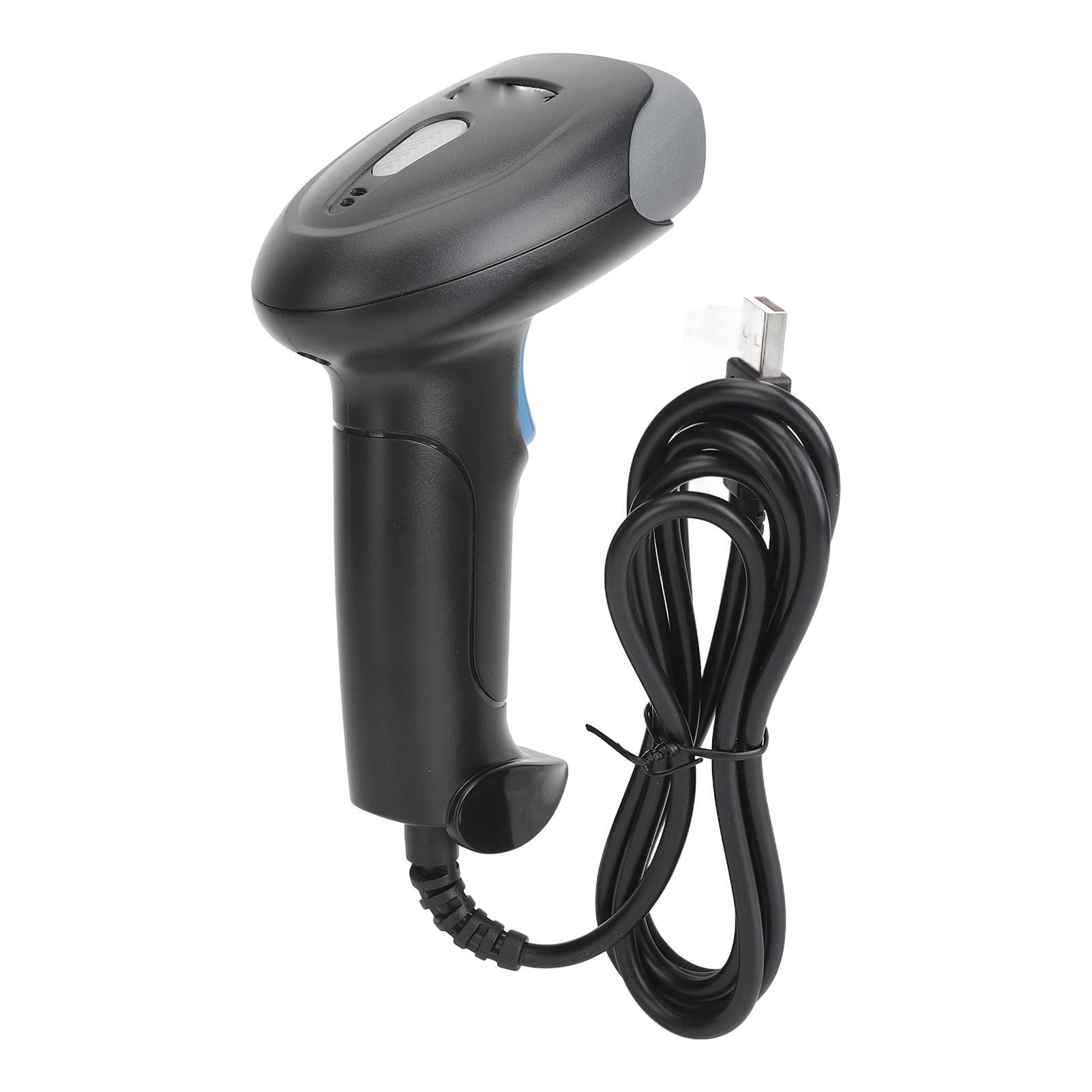
Figure 2: Front view of the scanner, highlighting the red scanning light.

Figure 3: Side view of the scanner, showing the integrated USB cable.
3. Setup
Follow these steps to set up your plplaaoo U20 barcode scanner:
- Connect the USB Cable: Plug the USB connector of the scanner's cable into an available USB port on your computer or host device.
- Driver Installation: The scanner is typically plug-and-play and does not require manual driver installation. Your operating system should automatically detect and install the necessary drivers.
- Confirmation: Once connected, the scanner will emit a short beep, indicating it is ready for use.
4. Operating Instructions
To operate the plplaaoo U20 barcode scanner:
- Power On: The scanner powers on automatically when connected to a USB port.
- Scanning a Barcode:
- Hold the scanner with the scanning window facing the barcode.
- Press and hold the trigger button. A red scanning light will emit from the scanning window.
- Aim the red light beam across the entire barcode.
- Once successfully scanned, the scanner will emit a beep (Buzzer Alert) and the data will be transmitted to your host device.
- Automatic Sleep: The scanner features an automatic sleep function to conserve energy during periods of inactivity. It will reactivate upon pressing the trigger or detecting movement.

Figure 4: Demonstrating the scanning process on a digital barcode.

Figure 5: Visual representation of Buzzer Alert and Automatic Sleep features.
5. Maintenance
Proper maintenance ensures the longevity and optimal performance of your scanner.
- Cleaning: Use a soft, clean cloth slightly dampened with water or a mild cleaning solution to wipe the exterior of the scanner. Do not use abrasive cleaners or solvents. Ensure the scanning window is kept clean and free of dust or smudges for accurate reading.
- Storage: Store the scanner in a cool, dry place away from direct sunlight and extreme temperatures.
- Cable Care: Avoid bending or twisting the USB cable excessively to prevent internal damage.
6. Troubleshooting
If you encounter issues with your scanner, refer to the following common problems and solutions:
| Problem | Possible Cause | Solution |
|---|---|---|
| Scanner does not power on. | USB cable not properly connected or faulty USB port. | Ensure the USB cable is securely plugged into both the scanner and the host device. Try a different USB port. |
| Scanner does not read barcodes. | Barcode damaged, scanning window dirty, incorrect aiming, or unsupported barcode type. | Clean the scanning window. Ensure the barcode is clear and undamaged. Aim the red light directly across the entire barcode. Verify the barcode type is supported (refer to Specifications). |
| Incorrect data is transmitted. | Partial scan or incorrect symbology settings. | Ensure a complete scan of the barcode. If issues persist, consult the manufacturer's website for advanced configuration guides. |
If the problem persists after attempting these solutions, please contact customer support.
7. Specifications
Detailed technical specifications for the plplaaoo U20 Wired Barcode Scanner:
- Model: U20
- Material: ABS
- Scanning Accuracy: 5 MIL
- Decode Types (1D): EAN13, EAN 8, UPC A, UPC E0, UPC E1, Code128, Code39, Code93, Interleaved 2 of 5, Industrial 25, CodeBar, RSS 14, RSS Ltd, RSS Exp, Standard 2 of 5, for Plessey, for ChinaPost 25, for GS1 Composite, etc.
- Decode Types (2D): QR Code, PDF417, for Han Xin, Micro PDF417, Micro QRCode, MaxiCode, for Aztec Code, Code16K, etc.
- Item Weight: 8.9 ounces (approximately 252 grams)
- Package Dimensions: 7.87 x 4.33 x 3.15 inches (approximately 20 x 11 x 8 cm)
8. Warranty and Support
For warranty information and customer support, please refer to the documentation provided with your purchase or contact the seller directly. You may also visit the official plplaaoo website for further assistance and product information.
Manufacturer: plplaaoo