
Introduction
This manual provides detailed instructions for the setup, operation, maintenance, and troubleshooting of your Compaq Qtab PRO Tablet. Please read this manual thoroughly before using your device to ensure proper functionality and to maximize your user experience.
Package Contents
Upon opening the package, verify that all items listed below are present and in good condition:
- Compaq Qtab PRO Tablet (10.95 inches)
- Protective Case
- USB-C Charging Cable
- User Manual / Quick Start Guide (this document)
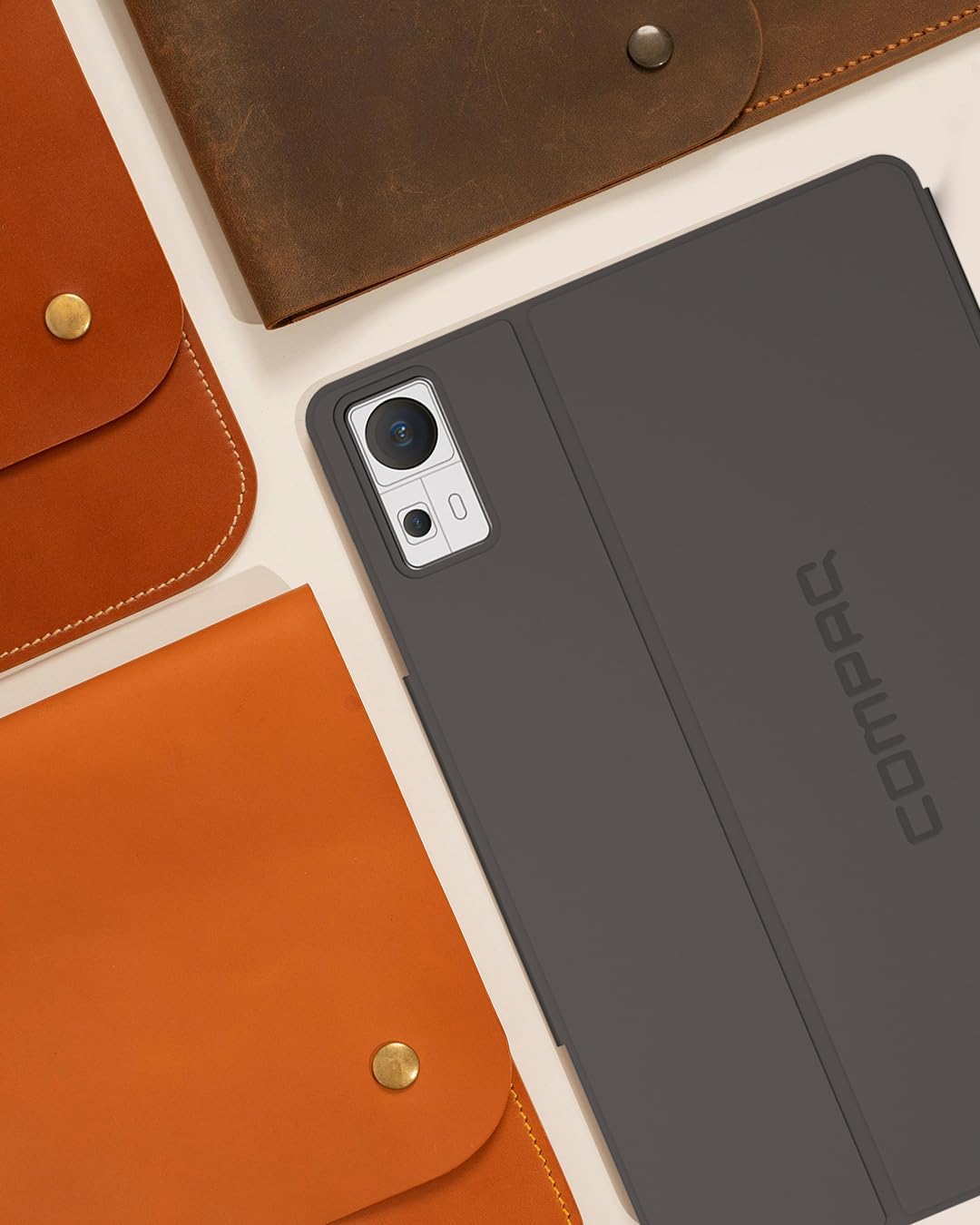
Image: The Compaq Qtab PRO Tablet shown with its protective case. The tablet is dark gray, and the case provides coverage for the back and edges, with a cutout for the camera module.
Setup
1. Initial Charging
Before first use, fully charge the tablet using the provided USB-C charging cable and a compatible power adapter (not included). The tablet supports 18W PD fast charging. A full charge ensures optimal battery performance.
2. Powering On/Off
- To Power On: Press and hold the Power button located on the side of the tablet until the Compaq logo appears on the screen.
- To Power Off: Press and hold the Power button until a menu appears. Select "Power off" from the options.
- To Restart: Press and hold the Power button until a menu appears. Select "Restart" from the options.
3. Initial Setup Wizard
Upon first power-on, the Android 15 setup wizard will guide you through essential configurations:
- Select your language.
- Connect to a Wi-Fi network.
- Sign in with your Google account or create a new one.
- Set up screen lock (PIN, pattern, password).
- Review and accept terms and conditions.
4. Installing SIM and MicroSD Cards
The Compaq Qtab PRO supports Dual 4G LTE for cellular connectivity and expandable storage via a MicroSD card.
- Locate the SIM/MicroSD card tray on the side of the tablet.
- Insert the provided SIM ejector tool into the small hole next to the tray and push gently until the tray pops out.
- Place your Nano-SIM card(s) and/or MicroSD card into the designated slots on the tray, ensuring correct orientation.
- Carefully reinsert the tray into the tablet until it clicks into place.

Image: The back of the Compaq Qtab PRO Tablet, featuring the Compaq logo centrally and the camera module in the upper right corner. This view helps locate physical features like the SIM/MicroSD tray.
Operating Instructions
1. Basic Navigation (Android 15)
Your tablet runs on Android 15. Common gestures include:
- Tap: Select an item or open an app.
- Swipe: Navigate between home screens, scroll through lists, or open notification/quick settings panels.
- Pinch-to-Zoom: Enlarge or reduce content on the screen.
- Long Press: Access contextual menus or move app icons.
2. Connectivity
- Wi-Fi: Access 5G Wi-Fi by navigating to Settings > Network & internet > Wi-Fi. Select your network and enter the password.
- Bluetooth: Pair with Bluetooth 5.0 devices (headphones, keyboards) via Settings > Connected devices > Bluetooth.
- 4G LTE: With a valid SIM card, cellular data can be enabled in Settings > Network & internet > Mobile network.
- GPS: Location services are enabled by default. Manage GPS settings in Settings > Location.
3. Display and Audio
The 11-inch Full HD IPS display (1920x1080 pixels) provides clear visuals. Adjust brightness and display settings in Settings > Display. The tablet features four stereo speakers for immersive audio. Volume controls are located on the side of the device.

Image: The Compaq Qtab PRO Tablet positioned in its protective case, displaying a video on its screen. This illustrates the tablet's display capabilities and how the case can function as a stand.
4. Camera Functionality
The tablet is equipped with a 13MP triple camera system. Open the Camera app to capture photos and videos. Various modes and settings are available within the app interface.
5. Storage and Performance
With 8GB RAM and 256GB internal storage, the tablet offers ample space and smooth multitasking. The Qualcomm Snapdragon 685 Octa-Core processor ensures efficient performance. Storage can be expanded using a MicroSD card (up to specified maximum, check product specifications for details).
Maintenance
1. Cleaning Your Tablet
To clean the tablet, power it off and disconnect all cables. Use a soft, lint-free cloth slightly dampened with water or a screen cleaner. Avoid harsh chemicals, abrasive materials, or excessive moisture.
2. Software Updates
Regularly check for and install software updates to ensure optimal performance, security, and access to new features. Navigate to Settings > System > System update.
3. Battery Care
- Avoid extreme temperatures.
- Do not let the battery completely drain frequently.
- Use only the provided or certified charging cables and adapters.
- For long-term storage, charge the battery to about 50% and power off the device.
4. Storage Management
Periodically review and manage your tablet's storage. Delete unnecessary files, uninstall unused apps, and move large media files to cloud storage or an external MicroSD card to maintain performance. Access storage information in Settings > Storage.
Troubleshooting
This section addresses common issues you might encounter with your Compaq Qtab PRO Tablet.
Device Not Powering On
- Ensure the battery is charged. Connect the tablet to a charger for at least 30 minutes.
- Perform a forced restart: Press and hold the Power button for 10-15 seconds.
Screen Unresponsive or Lagging
- Restart the tablet.
- Close background applications that may be consuming resources.
- Ensure the screen is clean and free of debris.
- If using a screen protector, ensure it is properly applied and not interfering with touch sensitivity.
Wi-Fi or Bluetooth Connectivity Issues
- Toggle Wi-Fi/Bluetooth off and on in Quick Settings or Settings.
- Restart your router/modem for Wi-Fi issues.
- Forget the network/device and reconnect/re-pair.
- Ensure the tablet is within range of the Wi-Fi network or Bluetooth device.
Apps Crashing or Not Responding
- Force close the app: Settings > Apps > See all apps > [App Name] > Force stop.
- Clear the app's cache: Settings > Apps > See all apps > [App Name] > Storage & cache > Clear cache.
- Update the app from the Google Play Store.
- Uninstall and reinstall the app.
Factory Reset
If issues persist, a factory reset may resolve them. Warning: This will erase all data on your tablet. Back up important data before proceeding.
- Go to Settings > System > Reset options.
- Select Erase all data (factory reset).
- Confirm your decision and enter your PIN/password if prompted.
- The tablet will restart and begin the reset process.
Specifications
Key technical specifications for the Compaq Qtab PRO Tablet:
| Feature | Specification |
|---|---|
| Model Name | PRO LTE |
| Operating System | Android 15 |
| Processor | Qualcomm Snapdragon 685 Octa-Core (up to 2 GHz) |
| RAM | 8GB |
| Internal Storage | 256GB |
| Expandable Storage | MicroSD card support |
| Screen Size | 11 Inches |
| Display Resolution | 1920 x 1080 pixels (Full HD IPS) |
| Cameras | 13MP Triple Camera System (Rear), Front Camera (details not specified, assumed for video calls) |
| Battery Capacity | 7000mAh |
| Charging | 18W PD Fast Charging (USB-C) |
| Connectivity | Dual 4G LTE, 5G Wi-Fi (802.11ax), Bluetooth 5.0, GPS |
| Dimensions (LxWxH) | 10.16 x 0.31 x 6.41 inches |
| Weight | 3.08 pounds (approx. 493 grams) |

Image: The screen of the Compaq Qtab PRO Tablet displaying a vibrant, abstract image with gradients of purple, orange, and yellow, highlighting the Full HD IPS display quality.
Warranty Information
The Compaq Qtab PRO Tablet comes with a standard manufacturer's warranty. For specific details regarding warranty coverage, duration, and terms, please refer to the warranty card included in your product packaging or visit the official Compaq website. Additional protection plans may be available for purchase separately.
Support
For further assistance, technical support, or to view frequently asked questions, please visit the official Compaq support website or contact customer service. You can also visit the Compaq Store on Amazon for product information and updates.