1. Introduction
This manual provides essential information for the safe and efficient operation of your INNOCN 27G2T 27-inch QHD 320Hz IPS Gaming Monitor. Please read this manual thoroughly before using the product and retain it for future reference.
The INNOCN 27G2T is a high-performance gaming monitor designed for an immersive visual experience, featuring a 2560x1440P QHD resolution, a rapid 320Hz refresh rate, and a 1ms response time. It incorporates an IPS panel for wide viewing angles and vibrant colors, supports HDR 400, and includes eye care technologies.
2. Safety Information
- Ensure the monitor is placed on a stable, level surface to prevent accidental falls.
- Do not expose the monitor to rain, moisture, or extreme temperatures.
- Avoid blocking ventilation openings to prevent overheating.
- Use only the power adapter and cables provided by the manufacturer.
- Disconnect the power cord from the outlet before cleaning the monitor.
- Do not attempt to repair the monitor yourself. Refer all servicing to qualified personnel.
- Keep the monitor away from strong magnetic fields.
3. Package Contents
Verify that all items are present in your package:
- INNOCN 27G2T Monitor
- Monitor Stand (Base and Neck)
- Power Cable
- Power Adapter
- DisplayPort (DP) Cable
- HDMI Cable
- USB-C Cable
- User Manual (this document)

4. Setup
4.1. Assembling the Stand
- Carefully remove the monitor from its packaging, keeping the screen protected.
- Attach the stand neck to the monitor panel. Ensure it clicks securely into place or is fastened with screws if applicable (refer to specific instructions in the quick start guide for screw details).
- Attach the stand base to the stand neck, tightening any screws as necessary.
- Place the assembled monitor on a stable desk or surface.
4.2. VESA Wall Mounting (Optional)
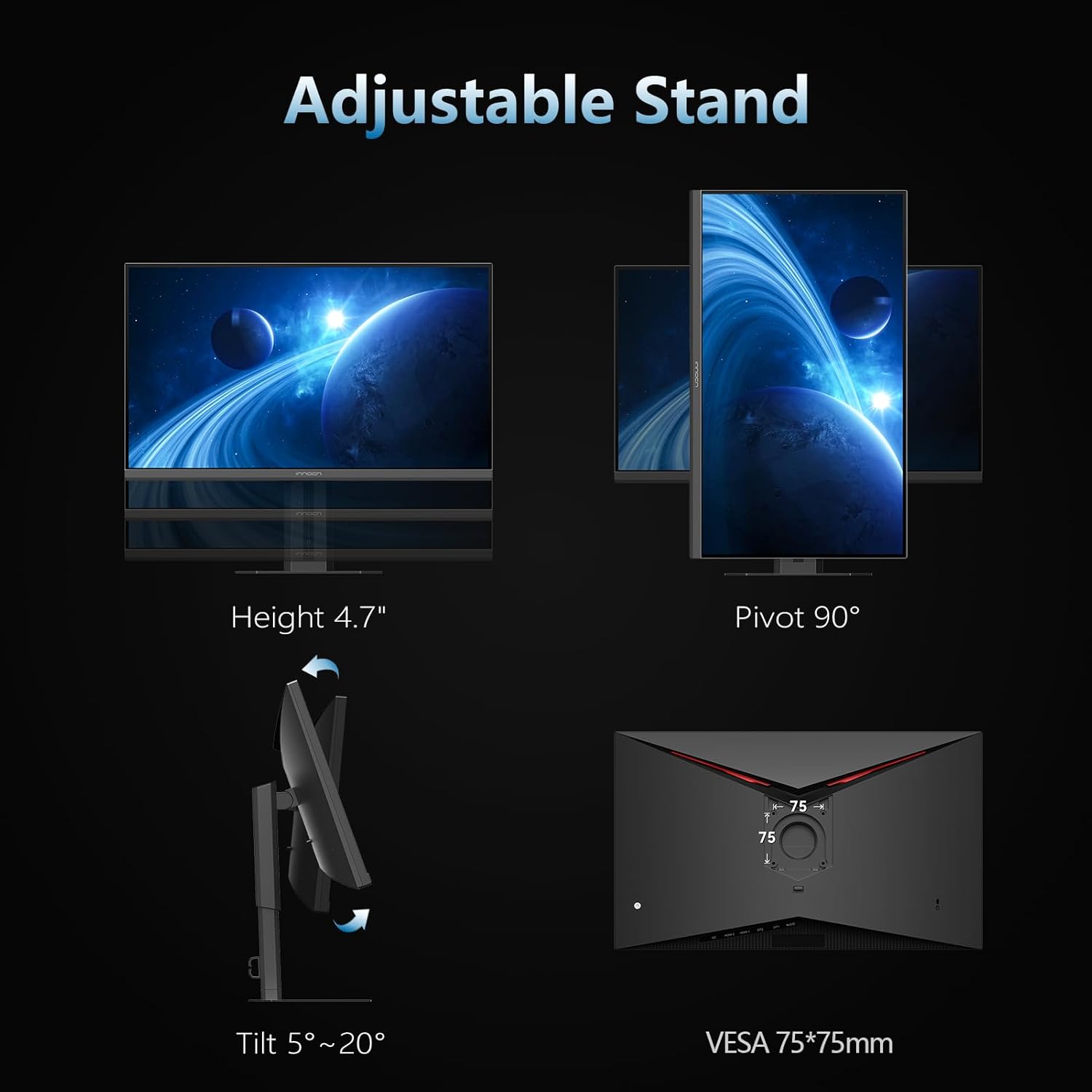
The monitor supports VESA mounting (75x75mm). If using a VESA mount, remove the stand and attach the monitor to a compatible VESA bracket (not included) following the mount manufacturer's instructions.
4.3. Connecting to a Device
The INNOCN 27G2T monitor offers multiple connectivity options:
- DisplayPort (DP 1.4 x 2): For optimal performance, especially at 320Hz refresh rate. Connect one end of the DP cable to the monitor's DP input and the other end to your computer's DP output.
- HDMI (HDMI 2.1 x 2): Supports high refresh rates and resolutions. Connect one end of the HDMI cable to the monitor's HDMI input and the other end to your device's HDMI output.
- USB-C: For video, data, and power delivery (if supported by your device). Connect a USB-C cable from your device to the monitor's USB-C port.
- Audio Out: Connect external speakers or headphones to the 3.5mm audio jack.

4.4. Power Connection
- Connect the power adapter to the monitor's DC 19V input.
- Plug the power cable into the power adapter.
- Plug the other end of the power cable into a power outlet.
5. Operating Instructions
5.1. Power On/Off
Press the power button (usually located on the back or bottom of the monitor) to turn the monitor on or off. The power indicator light will illuminate when the monitor is on.
5.2. OSD Menu Navigation
The On-Screen Display (OSD) menu allows you to adjust various monitor settings. Navigate the menu using the joystick or buttons typically found on the back or bottom of the monitor.
- Press the joystick/button to open the OSD menu.
- Move the joystick up/down or use corresponding buttons to navigate through menu options.
- Move the joystick left/right or use corresponding buttons to adjust values or enter sub-menus.
- Press the joystick/button again to confirm a selection or exit a sub-menu.
5.3. Input Source Selection
If multiple devices are connected, you can switch between input sources (DP1, DP2, HDMI1, HDMI2, USB-C) via the OSD menu or a dedicated input selection button.
5.4. Picture Settings
Adjust settings such as Brightness, Contrast, Color Temperature, Gamma, and Sharpness to optimize your viewing experience.

5.5. Gaming Features
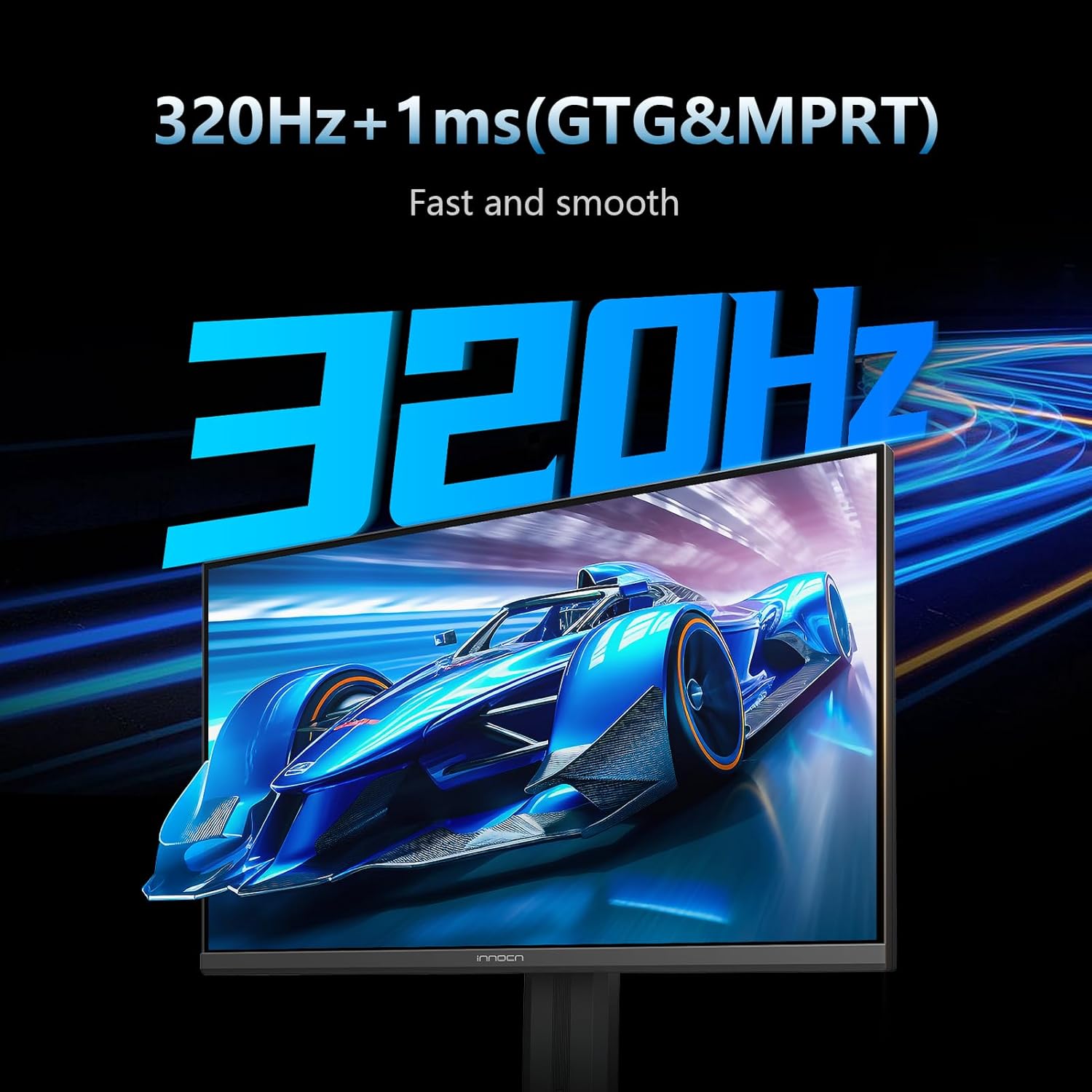
- Refresh Rate: The monitor supports up to 320Hz. Ensure your graphics card and connection cable support this refresh rate.
- Response Time: Features 1ms (GTG & MPRT) response time for reduced motion blur.
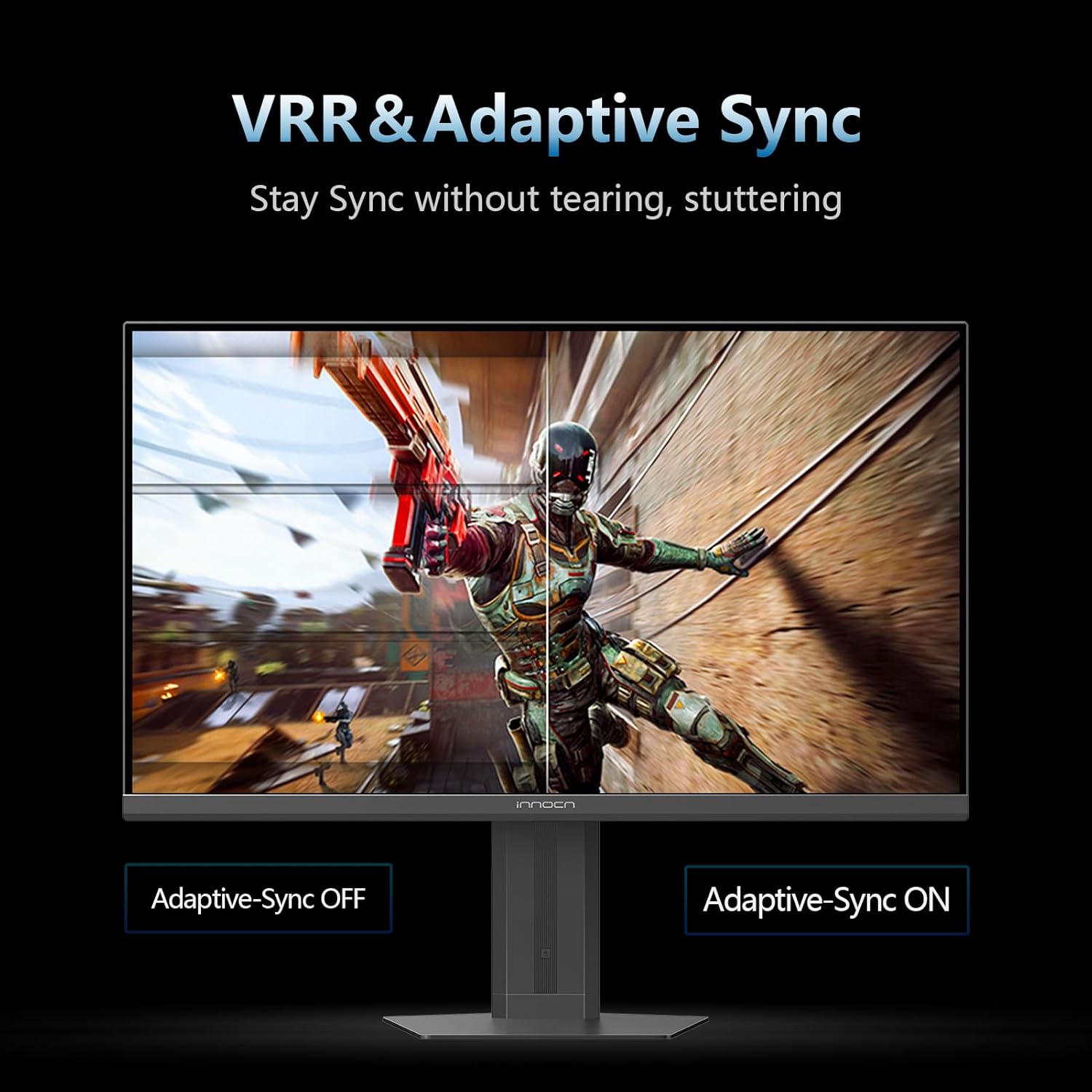
- Adaptive Sync: Compatible with G-Sync for a tear-free and low-latency gaming experience. Enable this feature in the OSD menu and your graphics card settings.
- Game Assist Functions: Includes features like AI Aiming, High Refresh Rate display, Timer Function, Vision Mode, Magnifier Mode, and All Game Mode for an enhanced gaming experience.
5.6. Productivity Features
- Picture-in-Picture (PIP) / Picture-by-Picture (PBP): Allows displaying content from multiple input sources simultaneously on the screen. Refer to the OSD menu for configuration options.
5.7. Eye Care Features
The monitor includes Blue Light Reduction and Flicker-Free technology to minimize eye fatigue and irritation during extended use.
6. Maintenance
- Cleaning the Screen: Gently wipe the screen with a soft, lint-free cloth. For stubborn marks, use a monitor-specific cleaning solution applied to the cloth, not directly to the screen.
- Cleaning the Casing: Use a soft, dry cloth to wipe the monitor casing. Avoid abrasive cleaners or solvents.
- Storage: If storing the monitor for an extended period, disconnect it from power, cover it to protect from dust, and store in a cool, dry place.
7. Troubleshooting
| Problem | Possible Cause | Solution |
|---|---|---|
| No image on screen | Power cable disconnected, incorrect input source, device not powered on. | Check power connections, select correct input source via OSD, ensure connected device is on. |
| Image is blurry or distorted | Incorrect resolution, faulty cable, graphics driver issue. | Set display resolution to 2560x1440, try a different cable, update graphics drivers. |
| Flickering screen | Refresh rate mismatch, faulty cable, interference. | Ensure refresh rate is set correctly (e.g., 320Hz), try a different cable, check for nearby electronic interference. |
| No sound | Volume too low, incorrect audio output selected, faulty audio cable. | Adjust monitor volume, select monitor as audio output on your device, check audio cable connection. |
8. Specifications
| Feature | Detail |
|---|---|
| Model Number | 27G2T (Internal: 27S2S) |
| Screen Size | 27 Inches |
| Panel Type | IPS |
| Resolution | 2560 x 1440 Pixels (QHD Wide 1440p) |
| Aspect Ratio | 16:9 |
| Refresh Rate | Up to 320Hz (also supports 120Hz/144Hz/165Hz/180Hz/240Hz) |
| Response Time | 1ms (GTG & MPRT) |
| HDR Support | HDR 400 |
| Color Gamut | 99% sRGB |
| Brightness | 350 Candela |
| Connectivity | 2 x HDMI 2.1, 2 x DisplayPort 1.4, 1 x USB-C, Audio Out |
| Ergonomics | Height/Pivot/Tilt Adjustable |
| VESA Mount | 75 x 75mm |
| Product Dimensions | 7.28 x 24.37 x 20.4 inches |
| Item Weight | 15.97 pounds |
9. Warranty and Support
For warranty information, technical support, or service inquiries, please refer to the official INNOCN website or contact their customer service directly. Keep your purchase receipt as proof of purchase for warranty claims.
You can visit the INNOCN Store on Amazon for more product information and support resources.


