1. Introduction
This manual provides detailed instructions for the setup, operation, and maintenance of your INNOCN 24.5" 240Hz 1ms Gaming Monitor (Model 25G2H Plus). Designed for high-performance gaming and productivity, this monitor features a 1080p Fast IPS panel, 240Hz refresh rate, 1ms response time, and Adaptive Sync technology for a smooth visual experience.
2. Package Contents
Please verify that all items listed below are included in your package:
- INNOCN 24.5" Monitor (25G2H Plus)
- Monitor Stand (Base and Neck)
- Power Cable
- Power Adapter
- DisplayPort (DP) Cable
- User Manual (this document)

Image: Monitor dimensions and included accessories, including power cable, adapter, DisplayPort cable, and user manual.
3. Setup Instructions
3.1. Assembling the Stand
- Carefully remove the monitor and stand components from the packaging.
- Attach the stand neck to the monitor panel. Ensure it clicks securely into place.
- Connect the stand base to the stand neck. Tighten any screws as indicated in the quick start guide.
3.2. Connecting to a Device
The monitor supports HDMI and DisplayPort connections. Choose the appropriate cable for your device.
- HDMI Connection: Connect one end of the HDMI cable to the HDMI port on your computer or console, and the other end to an HDMI port on the monitor.
- DisplayPort Connection: Connect one end of the DisplayPort cable to the DisplayPort on your computer or console, and the other end to the DisplayPort on the monitor.
- Power Connection: Connect the power adapter to the monitor's DC 12V input, then plug the power cable into a power outlet.

Image: Rear view of the monitor, highlighting the HDMI, DisplayPort, DC 12V power input, and Audio out ports.
4. Operating Instructions
4.1. Power On/Off
Press the power button, usually located on the back or bottom of the monitor, to turn the monitor on or off. The power indicator light will illuminate when the monitor is on.
4.2. OSD Menu Navigation
The On-Screen Display (OSD) menu allows you to adjust various monitor settings. Use the joystick or buttons (refer to your quick start guide for exact location) to navigate the menu:
- Press the joystick/button to open the OSD menu.
- Move the joystick/buttons up/down/left/right to navigate through options.
- Press the joystick/button again to select an option or confirm a setting.
4.3. Basic Display Settings
Within the OSD menu, you can adjust:
- Brightness: Adjust the overall luminance of the screen.
- Contrast: Modify the difference between the brightest and darkest areas of the image.
- Color Temperature: Select from preset modes (e.g., Warm, Cool, User) or adjust RGB values manually.
- Input Source: Manually select between HDMI and DisplayPort inputs.
5. Features Overview
5.1. High Refresh Rate & Response Time
Experience fluid visuals with a 240Hz refresh rate and a rapid 1ms response time, crucial for fast-paced gaming.
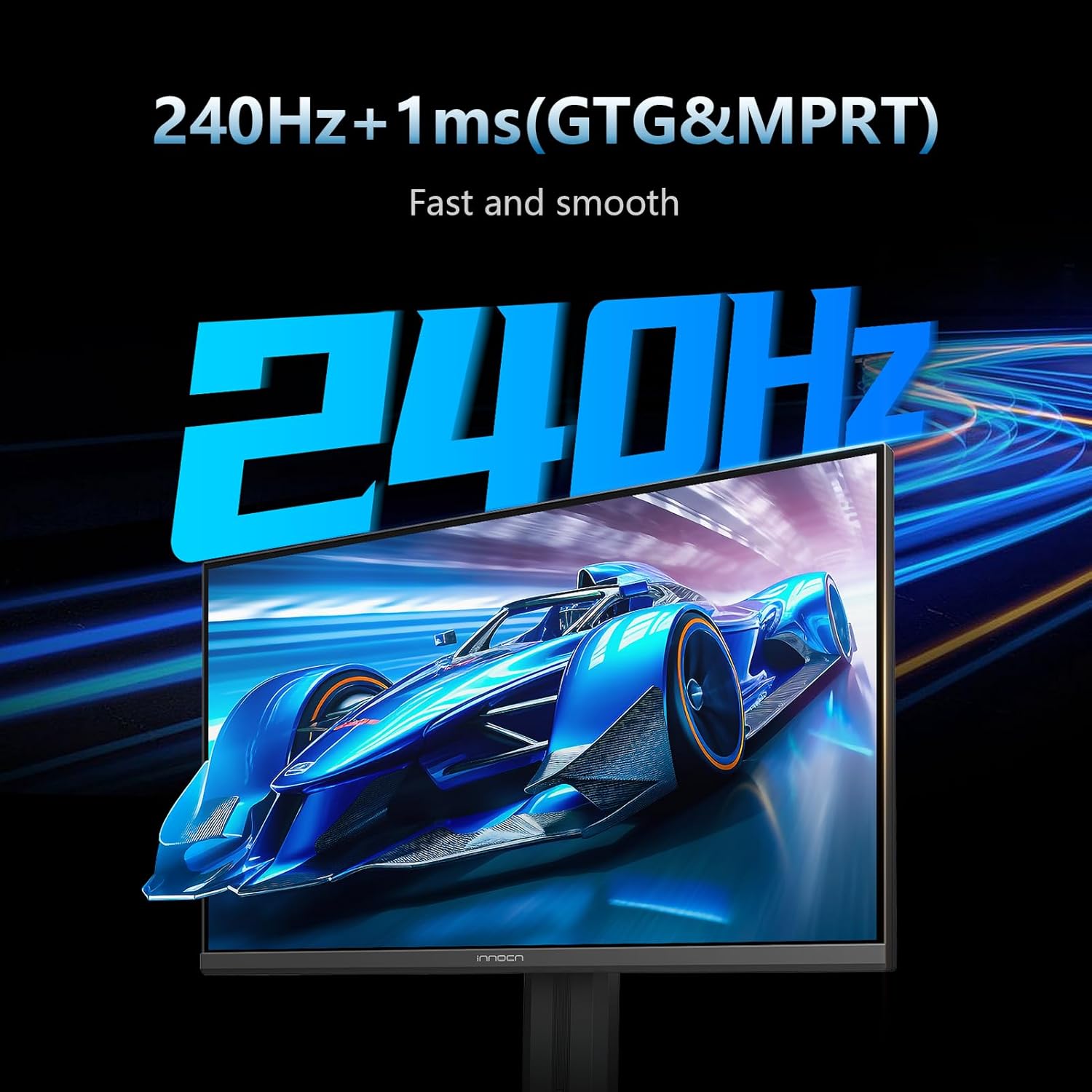
Image: The monitor screen showing a fast-moving car, illustrating the 240Hz refresh rate and 1ms response time for smooth visuals.
5.2. Adaptive Sync (G-Sync Compatible)
Eliminate screen tearing and stuttering with Adaptive Sync technology, ensuring a seamless gaming experience by synchronizing the monitor's refresh rate with your GPU's frame rate.
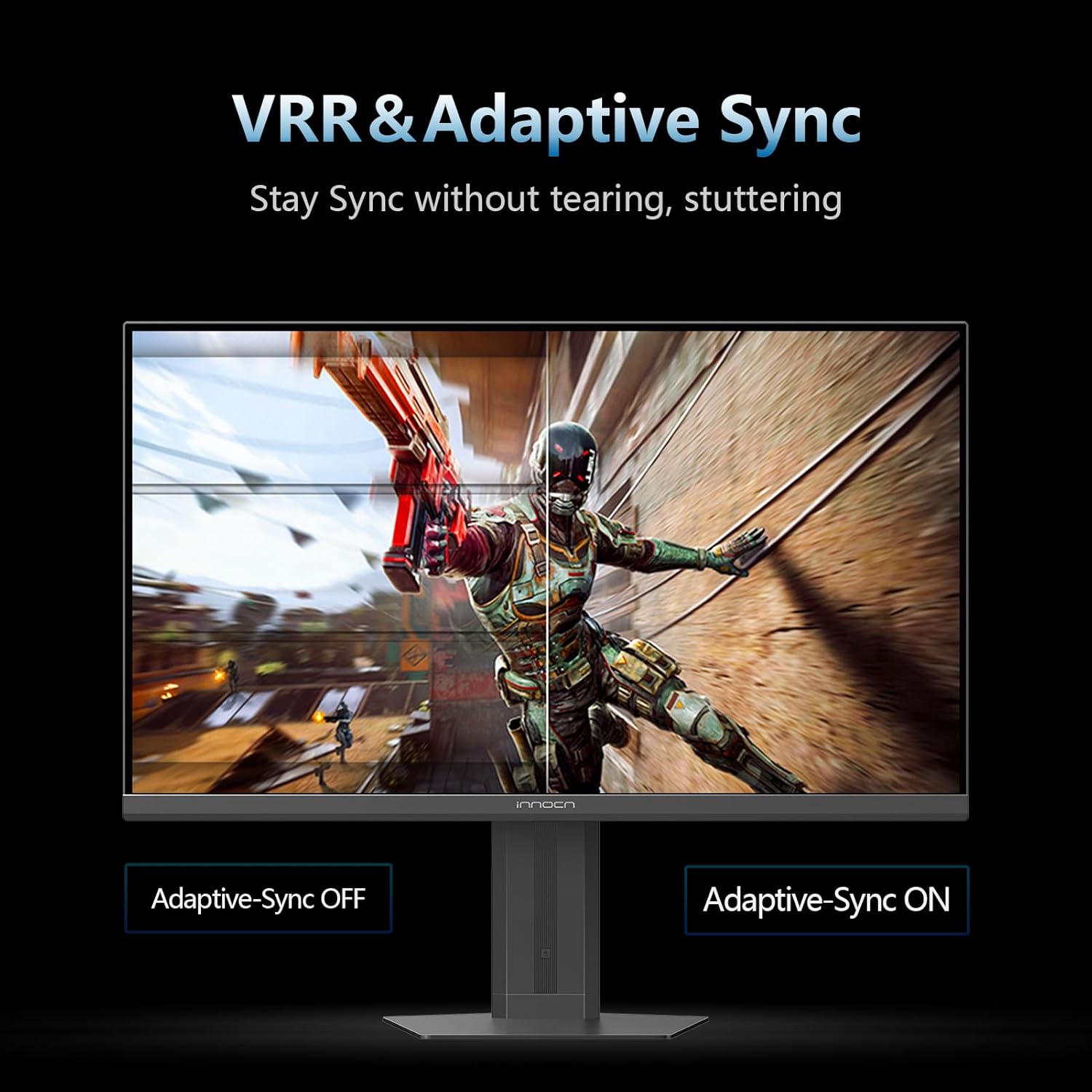
Image: A split screen comparison demonstrating Adaptive Sync technology, with one side showing screen tearing (Adaptive Sync OFF) and the other showing a smooth image (Adaptive Sync ON).
5.3. IPS Panel & Color Performance
The Fast IPS panel delivers wide viewing angles and accurate color reproduction, covering 99% sRGB for vibrant and lifelike images at 1920x1080p resolution.

Image: The monitor displaying a colorful nebula, highlighting its excellent color performance with 16.7 million colors and 99% sRGB coverage.
5.4. HDR400 Support
Enjoy enhanced contrast and brightness with HDR400 support, revealing more detail in both dark and bright scenes.
6. Connectivity
The monitor offers versatile connectivity options:
- 2 x HDMI 2.1 Ports: For connecting gaming consoles, PCs, and other HDMI-enabled devices.
- 1 x DisplayPort 1.4: For high-bandwidth connections to PCs, supporting the full 240Hz refresh rate.
- Audio Out: A 3.5mm jack for connecting external speakers or headphones.

Image: A close-up of the monitor's rear panel, showing the various input ports including HDMI, DisplayPort, and Audio out.
7. Adjustable Stand
The ergonomic stand allows for flexible positioning to optimize your viewing comfort:
- Height Adjustment: Adjust the monitor's height by up to 3.93 inches.
- Pivot: Rotate the screen 90 degrees for portrait mode viewing.
- Tilt: Adjust the screen angle from 5° to 20° (forward/backward).
- Swivel: Rotate the monitor horizontally.
- VESA Mountable: Compatible with 75x75mm VESA mounts for alternative mounting solutions.

Image: A diagram illustrating the various adjustments of the monitor stand, including height, pivot, tilt, and VESA mounting options.
8. Eye Care Features
The monitor incorporates features designed to reduce eye strain during extended use:
- Blue Light Reduction: Minimizes harmful blue light emissions.
- Flicker-Free Technology: Reduces screen flickering for a more comfortable viewing experience.
9. Gaming Features
Enhance your gaming performance with dedicated features:
- AI Aiming: Changes the color of the reticle in real-time to match the screen's center.
- High Refresh Rate Display: Shows the display refresh rate in real-time during gameplay.
- Timer Function: Easily manage game time with a count-up/down timer.
- Vision Mode: Highlights map areas in MOBA and FPS games to enhance visibility.
- Magnifier Mode: Enlarges the center of the screen to see details.
- All Game Mode: Supports 1:1 display and freely switches screen specifications.
10. Specifications
| Feature | Specification |
|---|---|
| Screen Size | 24.5 Inches |
| Resolution | 1920 x 1080 Pixels (FHD 1080p) |
| Aspect Ratio | 16:9 |
| Refresh Rate | 240Hz |
| Response Time | 1ms |
| Panel Type | IPS |
| HDR Support | HDR400 |
| Connectivity | HDMI 2.1, DisplayPort 1.4 |
| Mounting Type | VESA Wall Mountable (75x75 mm) |
| Adjustments | Height, Pivot, Swivel, Tilt |
| Product Dimensions | 7.08 x 21.89 x 19.29 inches |
| Item Weight | 13.01 pounds |
| Model Number | 25S2H |
11. Maintenance
- Cleaning the Screen: Use a soft, lint-free cloth lightly dampened with water or a screen cleaner. Avoid harsh chemicals.
- Cleaning the Casing: Wipe the monitor casing with a soft, dry cloth.
- Ventilation: Ensure the monitor's ventilation openings are not blocked to prevent overheating.
12. Troubleshooting
If you encounter issues with your monitor, refer to the following common solutions:
- No Power: Ensure the power cable and adapter are securely connected to the monitor and a working power outlet.
- No Signal: Verify that the video cable (HDMI/DisplayPort) is correctly connected to both the monitor and your device. Check the input source in the OSD menu.
- Flickering Screen: Ensure the video cable is securely connected. Try a different cable or input port. Check your device's display settings for refresh rate compatibility.
- Image Distortion/Poor Quality: Adjust resolution and refresh rate settings on your connected device. Reset monitor settings to factory defaults via the OSD menu.
13. Warranty and Support
INNOCN is committed to providing excellent customer service and product reliability.
- Warranty Coverage: This product includes 12 months of coverage from the date of purchase.
- Returns: Enjoy 30 days of free returns from the date of purchase.
- Technical Support: Lifetime technical support is available for this product.
For further assistance, please contact INNOCN customer support through their official website or the contact information provided in your product packaging.


