
1. Introduction
This instruction manual provides essential information for the safe and proper operation of your KAIWEETS HT100s-R Non-Contact Voltage Tester and KAIWEETS KT301T GFCI Outlet Tester. Please read this manual thoroughly before use and retain it for future reference. These devices are designed to assist in electrical testing and ensure safety in various applications.
2. Safety Information
Always prioritize safety when working with electricity. Follow all local electrical codes and safety regulations. Do not use the testers if they appear damaged or are not functioning correctly. Always wear appropriate personal protective equipment (PPE).
- Do not exceed the maximum voltage ratings specified for each device.
- Ensure the battery compartment is securely closed before use.
- Do not attempt to repair or modify the devices. Contact customer support for assistance.
- Verify the tester's operation on a known live circuit before testing an unknown circuit.
3. KAIWEETS HT100s-R Non-Contact Voltage Tester
3.1 Product Features
- Non-Contact AC Voltage Detection (NCV)
- Adjustable Sensitivity Modes (High: 12-1000V, Low: 70-1000V)
- Visual and Audible Alarms
- Live/Null Wire Identification
- Breakpoint Test Function
- Integrated LED Flashlight
- Automatic Power-Off
3.2 Setup and Battery Installation
The HT100s-R requires 2 AAA batteries (included). To install or replace batteries:
- Twist the tail cap counter-clockwise to open the battery compartment.
- Insert two AAA batteries, observing the correct polarity (+/-).
- Replace the tail cap and twist clockwise to secure it.
3.3 Operating Instructions
3.3.1 Power On/Off
Press the power button (⏻) to turn the device on. Press and hold the power button to turn it off. The device will automatically power off after a period of inactivity to conserve battery.
3.3.2 Non-Contact Voltage (NCV) Detection
Place the tip of the tester near the conductor, outlet, or wire you wish to test. If AC voltage is detected, the tip will glow red, and an audible beep will sound. The frequency of the beeps and the percentage value on the screen will increase with higher voltage or closer proximity to the source.

Image: The HT100s-R tester being used to detect voltage in an electrical outlet. The tip glows red, indicating voltage presence.
3.3.3 Sensitivity Adjustment
The HT100s-R features two sensitivity modes:
- High Sensitivity Mode (12-1000V): Suitable for detecting lower voltages or detecting voltage through insulation.
- Low Sensitivity Mode (70-1000V): Ideal for distinguishing live wires in close proximity or for higher voltage detection.
The screen color indicates voltage level: Red for high voltage/live wire, Green for low voltage/null wire.

Image: Illustrations demonstrating the HT100s-R in both high and low sensitivity modes, indicating detection of null and live wires with corresponding visual and audible feedback.
3.3.4 Breakpoint Test
To perform a breakpoint test, move the tester along an insulated wire. The tester will indicate the presence of voltage up to the point of the break, helping to locate faults in cables.

Image: The HT100s-R being used to perform a breakpoint test on an insulated electrical cable, illustrating its ability to detect breaks.
3.3.5 LED Flashlight
Press the flashlight button (💡) to turn on the integrated LED flashlight. This feature is useful for illuminating dimly lit work areas.

Image: The HT100s-R's bright LED flashlight illuminating a dark electrical panel, demonstrating its utility in low-light conditions.
4. KAIWEETS KT301T GFCI Outlet Tester
4.1 Product Features
- GFCI Test Function
- Standard Outlet Wiring Condition Detection
- Clear LCD Display with Real-time Voltage
- Bottom Indicator Lights for Enhanced Visibility
- Auto-Hold Data Function (5 minutes)
- Low Battery Alert
- 5-Minute Auto Power-Off
- CAT II 110-125V Safety Rating

Image: An overview of the KAIWEETS KT301T GFCI Outlet Tester, highlighting its key features such as auto-hold, GFCI testing, LCD display, and low battery alert.
4.2 Setup and Battery Installation
The KT301T requires 2 AAA batteries (included). To install or replace batteries, open the battery compartment located on the back of the device, insert the batteries with correct polarity, and close the compartment securely.
4.3 Operating Instructions
4.3.1 Standard Outlet Testing
Plug the KT301T directly into a standard 3-prong outlet. The LCD display will immediately show the real-time voltage and the wiring condition. The bottom indicator lights will also provide a quick visual status (e.g., green for correct, orange for faults).
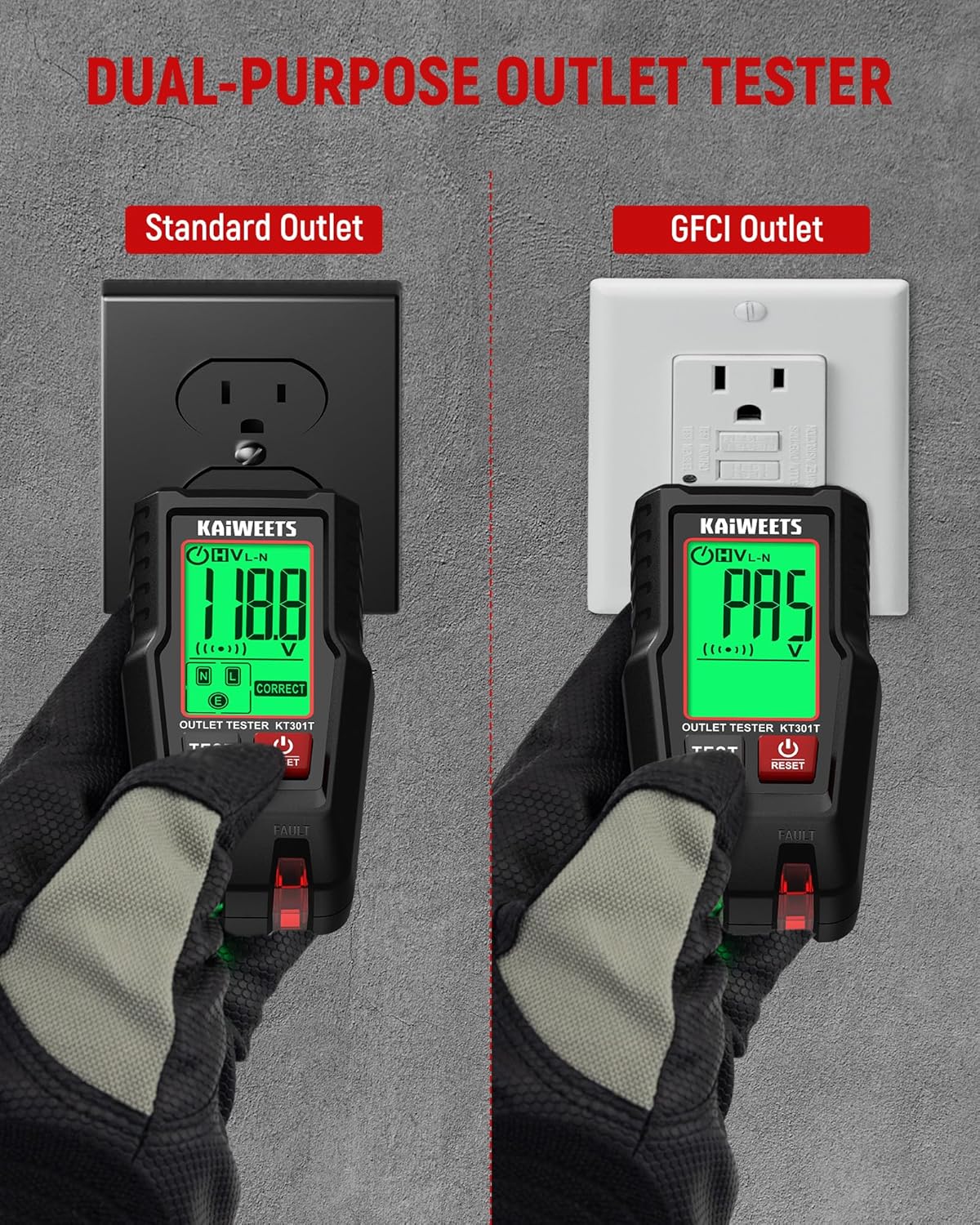
Image: The KT301T in use, demonstrating its capability to test both standard electrical outlets and GFCI outlets, displaying voltage and wiring status.
4.3.2 GFCI Outlet Testing
After plugging the KT301T into a GFCI outlet and observing the initial wiring status, press the TEST button. A correctly functioning GFCI outlet should trip, cutting power to the outlet. Press the RESET button on the GFCI outlet to restore power. If the GFCI does not trip, it indicates a fault.
4.3.3 LCD Display and Indicators
The 1.8-inch backlit LCD color screen provides clear readings of voltage and wiring status. Green indicates correct wiring, while orange indicates a fault. The bottom indicator lights offer additional visual cues, especially in dark environments.

Image: A close-up of the KT301T's 1.8-inch backlit LCD color screen, showing a clear display of voltage and correct wiring status, suitable for various lighting conditions.
4.3.4 Auto-Hold Data
The auto-hold function captures and locks the test results on the screen for 5 minutes, allowing for easy viewing even in hard-to-reach locations or after removing the tester from the outlet.

Image: The KT301T demonstrating its hands-free data hold feature, which locks the reading on the screen for convenient viewing after testing an outlet.
5. Maintenance
- Cleaning: Wipe the devices with a dry, soft cloth. Do not use abrasive cleaners or solvents.
- Battery Replacement: Replace batteries when the low battery indicator appears or if the device does not power on. Always use new, high-quality AAA batteries.
- Storage: Store the testers in a cool, dry place, away from direct sunlight and extreme temperatures. Remove batteries if storing for extended periods to prevent leakage.
6. Troubleshooting
| Problem | Possible Cause | Solution |
|---|---|---|
| Device does not power on. | Dead or incorrectly installed batteries. | Replace batteries, ensuring correct polarity. |
| HT100s-R gives inconsistent readings. | Interference from nearby electrical fields; incorrect sensitivity mode. | Move away from other electrical devices; switch to low sensitivity mode if appropriate. |
| KT301T shows a fault, but outlet seems to work. | Hidden wiring fault (e.g., open ground, open neutral, reverse polarity). | Consult a qualified electrician to inspect the wiring. |
| KT301T GFCI test does not trip. | Faulty GFCI outlet or incorrect wiring. | Do not use the outlet. Have a qualified electrician inspect and repair/replace the GFCI outlet. |
7. Specifications
7.1 KAIWEETS HT100s-R Non-Contact Voltage Tester
- AC Voltage Range: 12V - 1000V (High Sensitivity), 70V - 1000V (Low Sensitivity)
- Frequency: 50/60Hz
- Alarm Mode: Sound and Light
- Flashlight: Yes, LED
- Auto Power-Off: Yes
- Battery: 2 x AAA (included)
- Safety Rating: CAT III 1000V, CAT IV 600V
7.2 KAIWEETS KT301T GFCI Outlet Tester
- Operating Voltage: 110V - 125V AC
- GFCI Trip Current: 5mA
- Display: 1.8-inch Backlit LCD Color Screen
- Wiring Indications: Correct, Open Ground, Open Neutral, Open Hot, Hot/Ground Reverse, Hot/Neutral Reverse
- Auto-Hold: Yes (5 minutes)
- Auto Power-Off: Yes (5 minutes)
- Battery: 2 x AAA (included)
- Safety Rating: CAT II 125V
8. Warranty and Customer Support
KAIWEETS provides a 3-year warranty for these products. If you encounter any issues or have questions regarding the operation, maintenance, or troubleshooting of your HT100s-R Voltage Tester or KT301T GFCI Outlet Tester, please contact KAIWEETS customer support for professional assistance.
For support, visit the official KAIWEETS website or refer to the contact information provided with your product packaging.


