
Introduction
This manual provides essential information for the safe and efficient use of your Google Pixel 9 Pro 5G smartphone. Please read these instructions carefully before operating your device.

Figure 1: Front view of the Google Pixel 9 Pro 5G.
What's in the Box
Verify that all items are present in the packaging:
- Google Pixel 9 Pro Smartphone
- USB-C to USB-C Cable (1m, USB 2.0)
- SIM Tray Ejector Tool
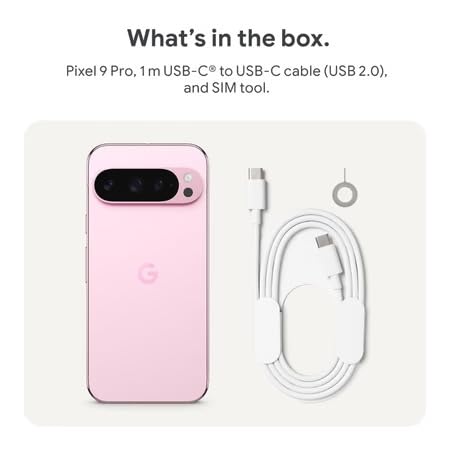
Figure 2: Included items in the Pixel 9 Pro packaging.
Setup
1. SIM Card Insertion
- Locate the SIM tray on the side of your Pixel 9 Pro.
- Insert the provided SIM ejector tool into the small hole on the SIM tray and press gently until the tray pops out.
- Place your Nano-SIM card into the tray with the gold contacts facing down. Ensure it is seated correctly.
- Carefully push the SIM tray back into the device until it is flush.
2. Initial Charging
Before first use, it is recommended to fully charge your device.
- Connect the USB-C cable to the charging port at the bottom of your phone.
- Connect the other end of the cable to a compatible USB power adapter (sold separately) and plug it into a power outlet.
- The battery icon on the screen will indicate charging status.
3. Powering On/Off
- To Power On: Press and hold the Power button (located on the right side) until the Google logo appears on the screen.
- To Power Off: Press and hold the Power button, then tap 'Power off' on the screen.
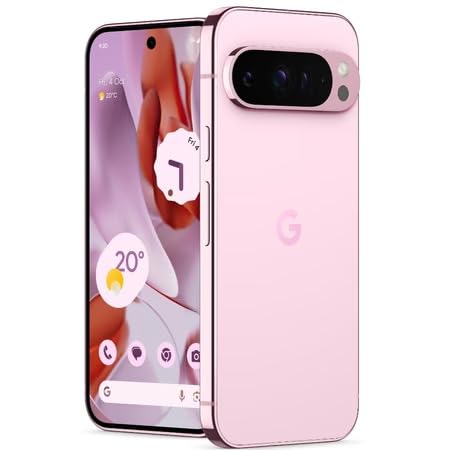
Figure 3: Power and volume buttons on the side of the device.
4. First-Time Setup Wizard
Upon powering on for the first time, follow the on-screen instructions to:
- Select your language and region.
- Connect to a Wi-Fi network.
- Sign in with your Google account or create a new one.
- Set up security features such as fingerprint unlock, face unlock, PIN, pattern, or password.
- Transfer data from an old device (optional).
Operating Instructions
Basic Navigation
- Touchscreen Gestures: Interact with the device using taps, swipes, pinches (for zoom), and long presses.
- Home Screen: Access your applications, widgets, and customize your layout.
- Notifications: Swipe down from the top of the screen to view notifications.
- Quick Settings: Swipe down twice from the top of the screen to access quick settings toggles (Wi-Fi, Bluetooth, etc.).
Camera Operation
The Pixel 9 Pro features a powerful triple rear camera system.
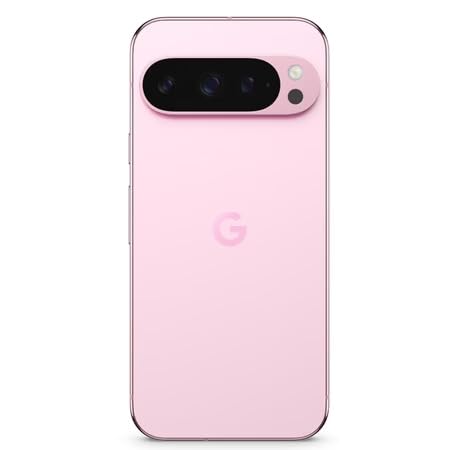
Figure 4: Rear camera system of the Pixel 9 Pro.
- Opening the Camera: Tap the Camera app icon on your home screen or lock screen.
- Switching Lenses: Tap the icons on the viewfinder to switch between wide, ultrawide, and 5x telephoto lenses.
- Shooting Modes: Select from various modes such as Night Sight for low-light conditions, Astrophotography for capturing stars, Macro for close-up shots, Long Exposure for creative effects, and Portrait for depth-of-field effects.
- Super Res Zoom: Pinch the screen to digitally zoom up to 30x. For video, Super Res Zoom supports up to 20x.
- Pro Controls: Access advanced camera settings like shutter speed and manual focus for greater creative control.
Battery Management
- Checking Battery Level: View the battery percentage in the status bar or in Settings > Battery.
- Extreme Battery Saver: Enable this mode in Settings > Battery > Extreme Battery Saver to significantly extend battery life.
- Charging: Use the provided USB-C cable and a compatible power adapter for optimal charging speed.
Security Features
Your Pixel 9 Pro incorporates multiple hardware security layers to protect your data.
- Fingerprint Unlock: Register your fingerprints in Settings > Security & privacy > Device unlock.
- Face Unlock: Set up facial recognition for convenient unlocking.
- PIN/Pattern/Password: Always set a strong screen lock method.
- Software Updates: Regularly install system updates to ensure your device has the latest security patches.
Temperature Sensor
The Pixel 9 Pro includes a thermometer for measuring temperature.
- Open the dedicated Thermometer app.
- Follow the on-screen instructions to measure body temperature or the temperature of objects.
- Temperature data can be saved and tracked within the Fitbit application.
Maintenance
Cleaning Your Device
- Use a soft, lint-free cloth to clean the screen and body of your phone.
- Avoid using abrasive materials, harsh chemicals, or aerosol sprays.
- Do not submerge the device in water, despite its water-resistant rating.
Software Updates
Google regularly releases software updates to improve performance, add features, and enhance security.
- To check for updates, go to Settings > System > System update.
- Ensure your device is connected to Wi-Fi and has sufficient battery charge before installing updates.
Physical Care
The Pixel 9 Pro is built with Corning Gorilla Glass Victus 2 and is water-resistant, offering durability against everyday drops and spills.
- While durable, avoid excessive impacts or drops to prevent damage.
- Consider using a screen protector and a protective case for additional safeguarding.
Troubleshooting
Device Not Responding
If your phone becomes unresponsive, perform a force restart:
- Press and hold the Power button for approximately 10-15 seconds until the device restarts.
Apps Crashing or Freezing
- Close the problematic app and reopen it.
- Clear the app's cache: Go to Settings > Apps > See all apps > [App Name] > Storage & cache > Clear cache.
- Ensure the app is updated to its latest version from the Google Play Store.
- Restart your phone.
Network Connectivity Issues (Wi-Fi/Cellular)
- Toggle Wi-Fi or cellular data off and then back on.
- Restart your phone.
- Verify that your SIM card is correctly inserted.
- Reset network settings: Go to Settings > System > Reset options > Reset Wi-Fi, mobile & Bluetooth.
Battery Draining Quickly
- Check battery usage in Settings > Battery to identify power-consuming apps.
- Reduce screen brightness and screen timeout duration.
- Disable unnecessary features like GPS, Bluetooth, and Wi-Fi when not in use.
- Enable Extreme Battery Saver mode.
Factory Reset (Last Resort)
Warning: A factory reset will erase all data from your phone. Back up all important data before proceeding.
- Go to Settings > System > Reset options > Erase all data (factory reset).
- Confirm your decision when prompted.
Specifications
| Feature | Detail |
|---|---|
| Brand | |
| Model | Pixel 9 Pro |
| Operating System | Android 15 |
| Processor | Google Tensor G4 (3.1 GHz) |
| RAM | 16 GB |
| Internal Storage | 256 GB |
| Display | 6.3 Inches LTPO OLED (Actua), 1280 x 2856 Pixels, 120 Hz Refresh Rate |
| Rear Camera | 50 MP wide + 48 MP ultrawide (Macro) + 48 MP 5x telephoto |
| Front Camera | 42 MP |
| Battery Capacity | 4700 Milliamp Hours (up to 24 hours average life) |
| Connectivity | 5G, Wi-Fi 7, Bluetooth 5.3, NFC, UWB, USB-C |
| SIM Card | Single Nano SIM |
| Water Resistance | Water Resistant |
| Dimensions | 8 x 72 x 153 Millimeters |
| Weight | 198 Grams |
Warranty and Support
Warranty Information
Your Google Pixel 9 Pro 5G comes with a 1 Year Manufacturer Warranty from the date of purchase. This warranty covers manufacturing defects under normal use. Please retain your proof of purchase for warranty claims.
Customer Support
For technical assistance, warranty claims, or other support inquiries, please contact Google customer service:
- Manufacturer: Google LLC, 1600 Amphitheatre Parkway, Mountain View, CA 94043, USA
- Phone Support (India): +91 7718892303
- Importer Contact (India): Nexora Axis Private Limited (+91 7718892303)
For the most up-to-date support information, please visit the official Google Pixel support website.


