
1. Introduction
The Amzfast AMZG27F5Q is a 27-inch WQHD (2560 x 1440p) gaming monitor designed for an immersive visual experience. Featuring a Fast IPS panel, it delivers a high 200Hz refresh rate and a rapid 1ms response time, ensuring smooth and fluid gameplay. This monitor is compatible with both FreeSync and G-SYNC technologies to reduce screen tearing and stuttering. It supports HDR400, offers 132% sRGB and 96% DCI-P3 color gamut, and includes eye care features such as low blue light, anti-flicker, and anti-glare to protect your vision during extended use. Built-in speakers and a retractable headphone holder enhance convenience.
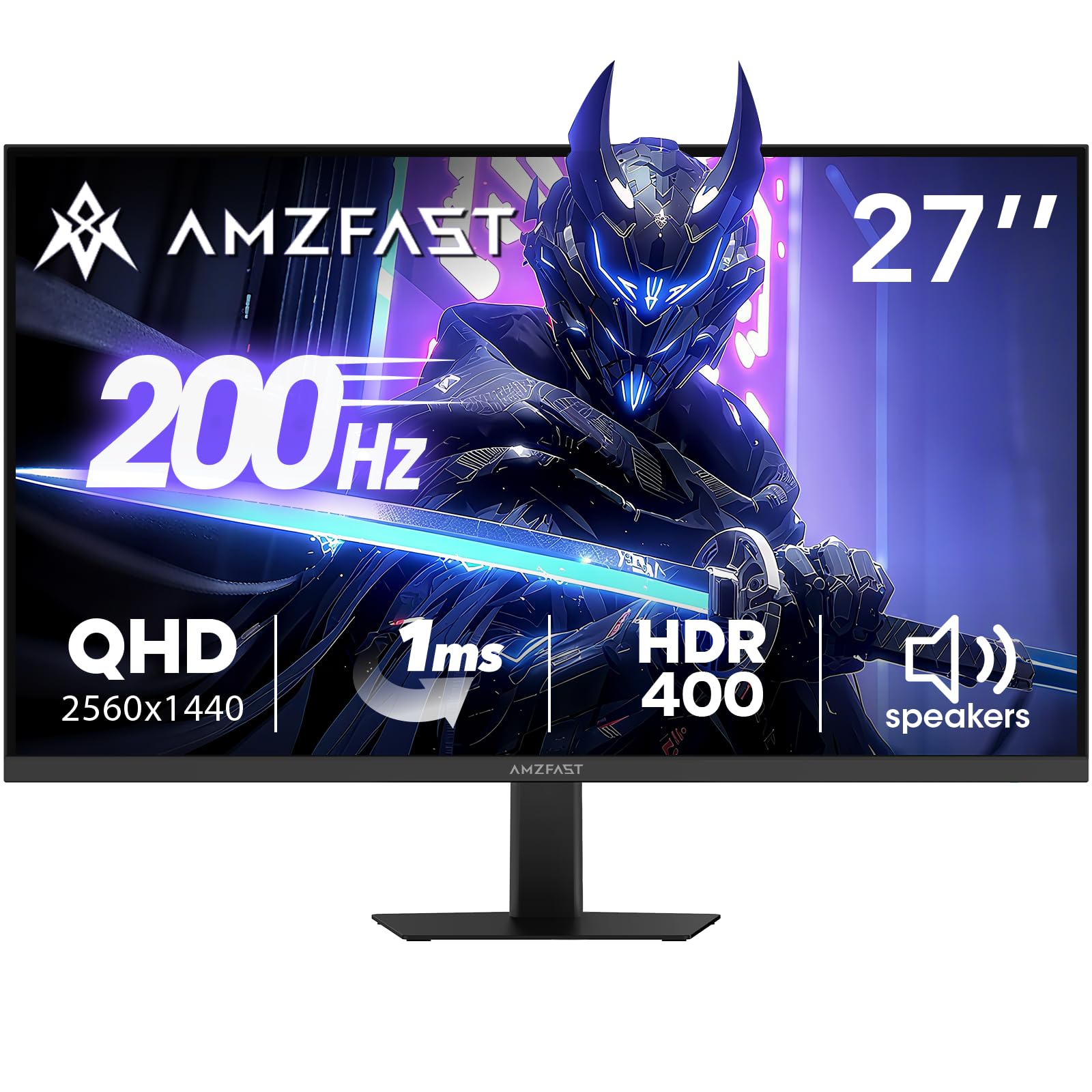
Image: Amzfast 27-inch gaming monitor displaying a vibrant game scene.
2. What's in the Box
Please check the package contents upon unboxing to ensure all items are present:
- Amzfast AMZG27F5Q 27-Inch Gaming Monitor
- Adaptor x 1
- DP Cable (1.5m) x 1
- User Manual
- Quick Start Guide
3. Setup
3.1 Assembling the Stand
Carefully remove the monitor and stand components from the packaging. Attach the stand base to the stand neck, then secure the assembled stand to the back of the monitor. Ensure all screws are tightened appropriately to prevent instability.
3.2 Connecting the Monitor
The monitor supports multiple input options. Connect your device (PC, game console, laptop) to the monitor using one of the following cables:
- DisplayPort (DP 1.4): For resolutions up to 2560x1440 at 200Hz.
- HDMI (HDMI 2.0): For resolutions up to 2560x1440 at 144Hz.
Connect the power adapter to the monitor's DC input and then to a power outlet.

Image: Rear view diagram of the monitor showing port locations and dimensions.
3.3 VESA Mounting
The monitor is compatible with 100mm x 100mm VESA mounts. If using a VESA mount, remove the stand and attach the monitor to your VESA-compatible arm or wall mount using appropriate screws (not included).

Image: Rear view of the Amzfast 27-inch monitor, highlighting the VESA mounting points.
3.4 Setup Overview Video
Video: An official overview of the Amzfast 27 Inch QHD 200Hz Gaming Monitor, demonstrating its features and setup.
4. Operating the Monitor
4.1 Power On/Off
Press the power button, usually located on the back or bottom of the monitor, to turn it on or off. The power indicator light will illuminate when the monitor is active.
4.2 On-Screen Display (OSD) Menu
The OSD menu allows you to adjust various monitor settings. Typically, a joystick or a set of buttons on the back or bottom of the monitor is used for navigation. Common settings include:
- Picture Settings: Brightness, Contrast, Sharpness, Gamma, Color Temperature.
- Color Settings: sRGB, DCI-P3, HDR modes.
- Gaming Settings: Overdrive (response time), Adaptive Sync (FreeSync/G-SYNC compatible), AI Crosshair, Night Vision.
- Input Source: Select between DP and HDMI inputs.
- Audio: Volume control for built-in speakers and headphone output.
4.3 Key Features
- 200Hz Refresh Rate & 1ms Response Time: Experience ultra-smooth visuals and reduced motion blur, crucial for fast-paced gaming.
- Adaptive Sync: Synchronizes the monitor's refresh rate with your GPU's frame rate to eliminate screen tearing and stuttering. Ensure this feature is enabled in both the monitor's OSD and your graphics card settings.
- HDR400 Display: Provides enhanced contrast and color accuracy for a more vibrant and realistic viewing experience.
- Game Assist Modes: Utilize features like AI Crosshair for improved aiming and Night Vision for enhanced visibility in dark game scenes.
- Built-in Speakers & Headphone Holder: Convenient integrated 2W speakers for audio output and a retractable holder to keep your headphones organized.
- Eye Care Technology: Features Low Blue Light, Anti-glare, and Anti-flicker technologies to reduce eye strain during prolonged use.

Image: Visual representation of 200Hz refresh rate in a racing game.

Image: Illustration of 1ms response time and Adaptive Sync technology.

Image: Display showcasing HDR400 and 10-bit color depth capabilities.

Image: Demonstration of AI Crosshair and Night Vision features in gaming scenarios.

Image: Rear view of the monitor highlighting the built-in speakers and retractable headphone holder.

Image: User interacting with the monitor, emphasizing eye care features.
5. Maintenance
5.1 Cleaning the Screen
To clean the monitor screen, gently wipe it with a soft, lint-free cloth. For stubborn marks, lightly dampen the cloth with water or a mild, non-abrasive screen cleaner. Avoid using harsh chemicals, alcohol, or ammonia-based cleaners, as these can damage the screen surface.
5.2 Cleaning the Casing
Use a soft, dry cloth to wipe the monitor casing. If necessary, a slightly damp cloth can be used, followed by a dry cloth to remove any moisture. Do not allow liquids to enter the monitor's vents or ports.
6. Troubleshooting
If you encounter issues with your Amzfast AMZG27F5Q monitor, refer to the following common solutions:
| Problem | Possible Cause | Solution |
|---|---|---|
| No image on screen | Power cable disconnected, input source incorrect, video cable loose. | Ensure power cable is securely connected. Select the correct input source via the OSD menu. Check video cable connections (DP/HDMI) at both the monitor and your device. |
| Flickering or distorted image | Faulty video cable, incorrect refresh rate, Adaptive Sync issue. | Try a different video cable. Adjust the refresh rate in your device's display settings. Disable/enable Adaptive Sync in the OSD menu and graphics card settings. |
| No sound from speakers/headphones | Volume too low, audio output not selected, faulty cable. | Increase volume via OSD menu or your device. Ensure the monitor is selected as the audio output device on your computer. Check headphone connection. |
| Monitor not turning on | Power adapter issue, power button malfunction. | Verify the power adapter is working and connected correctly. Try a different power outlet. |
7. Specifications
| Feature | Detail |
|---|---|
| Product Dimensions | 7.28 x 24.13 x 17.68 inches |
| Item Weight | 12.97 pounds |
| Model Number | AMZG27F5Q |
| Screen Size | 27 Inches |
| Resolution | 2560 x 1440 Pixels (WQHD) |
| Aspect Ratio | 16:9 |
| Refresh Rate | 200Hz |
| Response Time | 1ms |
| Panel Type | Fast IPS |
| Brightness | 450 Candela per Square Meter (cd/m²) |
| Contrast Ratio | 1000:1 (Static) |
| Color Gamut | 132% sRGB, 96% DCI-P3 |
| Color Depth | 10-bit (8bit+FRC) |
| HDR Support | HDR400 |
| Adaptive Sync | FreeSync & G-SYNC Compatible |
| Connectivity | DP 1.4 x 2, HDMI 2.0 x 2, Earphone Jack, DC Input |
| VESA Mount | 100mm x 100mm |
| Built-in Speakers | Yes (2W x 2) |
| Eye Care Features | Low Blue Light, Anti-glare, Anti-flicker |
| Manufacturer | EXPRESS LUCK INDUSTRIAL(ZHONGSHAN)LIMITED |
8. Warranty & Support
The Amzfast AMZG27F5Q monitor comes with a 1-year warranty. Additionally, a 30-day free return/replacement policy is offered. For further assistance, technical support, or warranty claims, please visit the official Amzfast store or contact customer service.
Official Amzfast Store: Amzfast Store


