
1. Introduction
This manual provides essential information for the safe and efficient operation of your CHiQ 40QA10 QLED 40 Inch Full HD Google TV. Please read it thoroughly before using the television and retain it for future reference.
1.1 Safety Information
- Ensure the television is placed on a stable surface to prevent tipping.
- Do not block ventilation openings. Maintain adequate space around the television for proper airflow.
- Avoid exposing the television to rain or moisture to prevent electric shock or fire.
- Do not open the television casing. Refer all servicing to qualified personnel.
- Unplug the power cord during lightning storms or when unused for long periods.
2. Product Overview
The CHiQ 40QA10 is a 40-inch Full HD QLED Google TV, offering vibrant visuals and smart functionalities.
2.1 Key Features
- Quantum Dot Color Technology: Delivers a wide color gamut for vibrant and realistic images.
- Full HD with HDR10: Provides sharp, detailed resolution with enhanced brightness and contrast.
- Google TV Smart Experience: Access streaming apps, integrated WiFi and Bluetooth, and Google Assistant for voice control.
- Dolby Audio and DBX-TV: Offers immersive sound with clear dialogues and rich effects.
- Chromecast Built-in: Allows content casting from compatible devices.
2.2 Package Contents
Verify that all items are present in the packaging:
- CHiQ 40QA10 QLED TV
- Remote Control
- Power Adapter
- User Manual (this document)
- TV Stands and Screws

Figure 2.2.1: TV dimensions, remote control, and included accessories.
2.3 TV Ports and Connections
Familiarize yourself with the available ports on your television:

Figure 2.3.1: Rear panel connections.
- AV: For multimedia players or small projectors.
- COMMON INTERFACE: For digital multimedia players.
- HDMI 1.4 * 3: For Blu-ray players, game consoles, or AV receivers.
- ANT1: Antenna input.
- ANT2 SATELLITE: Satellite input.
- USB 2.0 * 2: For multimedia playback from USB drives.
- LAN: For wired network connections.
- CUFFIE (Headphones): For headphones and external speakers.
- DIGITAL AUDIO OUT: For digital audio output.
3. Setup
3.1 Installing the TV Stands
- Carefully place the TV face down on a soft, flat surface to prevent screen damage.
- Align the stands with the corresponding slots on the bottom of the TV.
- Secure the stands using the provided screws.

Figure 3.1.1: Views of the TV, including stand installation area.
3.2 Wall Mounting (Optional)
The TV supports VESA 200x200mm wall mounts. Ensure you use a compatible wall mount and follow the instructions provided with the mount. Professional installation is recommended.

Figure 3.2.1: Example of wall-mounted TV.
3.3 Initial Power-On and Google TV Setup
- Connect the power adapter to the TV and a power outlet.
- Press the power button on the remote control or TV.
- Follow the on-screen instructions to complete the initial Google TV setup, including language selection, network connection (Wi-Fi or Ethernet), and Google account sign-in.
4. Operating
4.1 Basic TV Functions
- Power On/Off: Use the power button on the remote.
- Volume Control: Use the Volume +/- buttons.
- Channel Selection: Use the Channel +/- buttons or number pad.
- Input Source: Press the 'Source' button to select HDMI, AV, Tuner, etc.
4.2 Google TV Interface
Navigate the Google TV home screen to access apps, streaming services, and settings.

Figure 4.2.1: Google TV home screen.
4.3 Google Assistant
Use the built-in Google Assistant for voice commands. Press the Google Assistant button on your remote and speak into the microphone.

Figure 4.3.1: Using Google Assistant with the remote control.
4.4 Audio Settings
The TV features Dolby Audio and dbx-tv for enhanced sound. Adjust audio settings in the TV menu to optimize your listening experience.

Figure 4.4.1: Dolby Audio experience.

Figure 4.4.2: dbx-tv audio customization.
5. Connectivity
5.1 Wi-Fi and Bluetooth
The TV supports dual-band Wi-Fi for internet access and Bluetooth 5.0 for connecting wireless accessories like headphones or game controllers.
5.2 Chromecast Built-in
Cast content directly from your Android, iOS, or Mac devices to the TV using Chromecast. Ensure your device and TV are on the same Wi-Fi network.
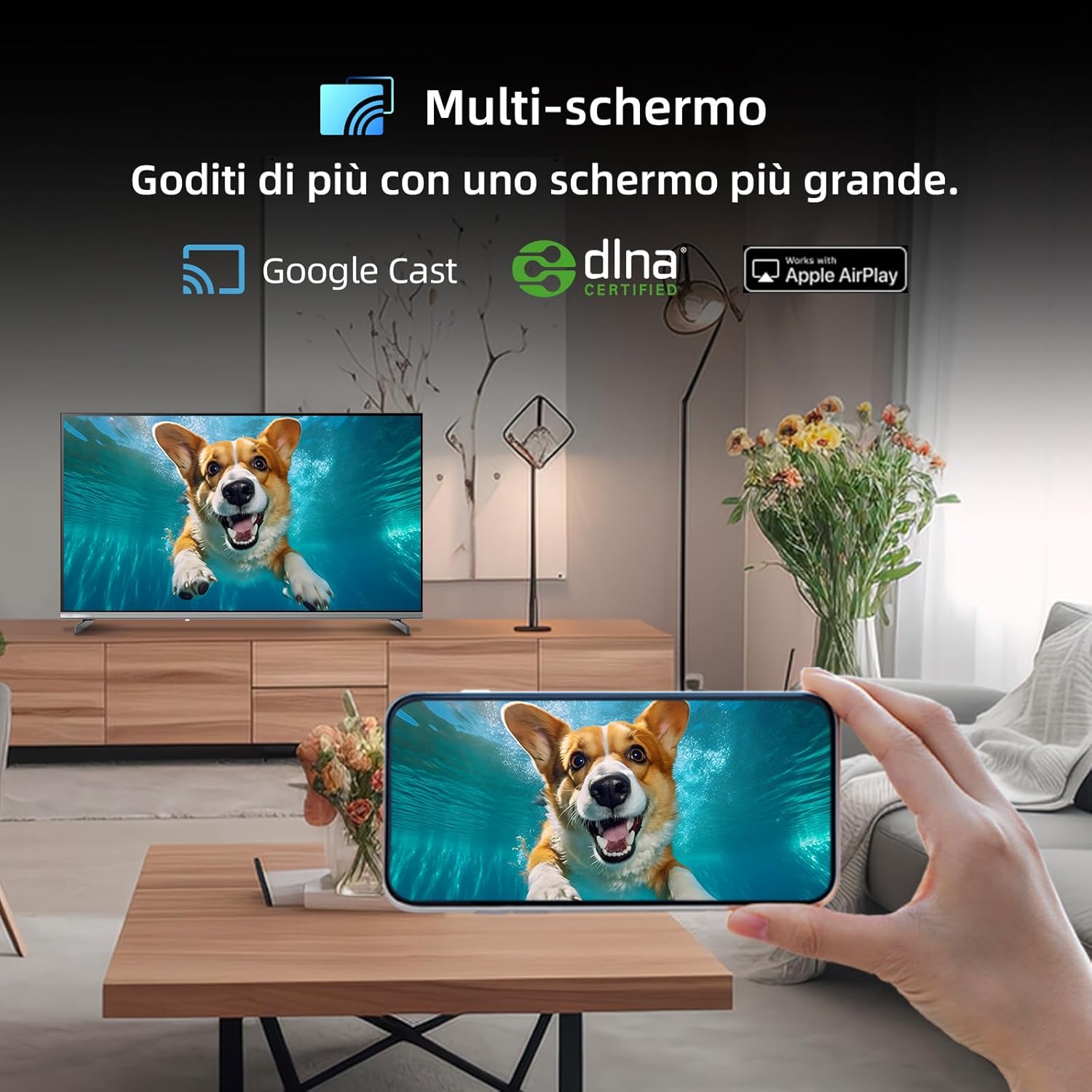
Figure 5.2.1: Multi-screen functionality with Google Cast.
6. Maintenance
6.1 Cleaning the Screen
- Turn off the TV and unplug the power cord.
- Gently wipe the screen with a soft, lint-free cloth.
- For stubborn marks, lightly dampen the cloth with water or a specialized screen cleaner. Do not spray liquid directly onto the screen.
6.2 Cleaning the Casing
Wipe the TV casing with a soft, dry cloth. Avoid using abrasive cleaners or solvents.
7. Troubleshooting
If you encounter issues with your television, refer to the following common problems and solutions:
| Problem | Possible Cause | Solution |
|---|---|---|
| No power | Power cord disconnected, power outlet issue | Check power cord connection, try a different outlet. |
| No picture, but sound is present | Incorrect input source, faulty cable | Verify input source, check HDMI/AV cable connections. |
| No sound, but picture is present | Volume muted, external audio system issue | Unmute volume, check external audio connections. |
| Remote control not working | Dead batteries, obstruction | Replace batteries, remove obstructions between remote and TV. |
| Smart features slow or unresponsive | Network issue, temporary software glitch | Restart TV, check Wi-Fi connection, update software. |
8. Specifications
Detailed technical specifications for the CHiQ 40QA10 QLED TV:
| Feature | Specification |
|---|---|
| Model | 40QA10 |
| Screen Size | 40 Inches |
| Display Technology | QLED, IPS |
| Resolution | 1080p Full HD (1920 x 1080) |
| Refresh Rate | 60 Hz |
| HDR Support | HDR10 |
| Operating System | Google TV |
| Audio Technology | Dolby Audio, dbx-tv |
| Connectivity | Wi-Fi (Dual Band), Bluetooth 5.0, Ethernet, HDMI (x3), USB (x2) |
| Tuner Technology | DVB-C/T/T2/S/S2 |
| Additional Features | Chromecast Built-in, DLNA |
| Power Consumption | 55 watts |
| Energy Efficiency Class | E |
| Product Dimensions (WxDxH) | 89.18 x 7.07 x 50.86 cm (without stand) |
| Weight | 5 kg |

Figure 8.1: Energy Efficiency Label. For more details, visit EPREL Database.

Figure 8.2: Detailed Product Information Sheet. For more details, visit EPREL Database.
9. Warranty and Support
9.1 Warranty Information
The CHiQ 40QA10 TV typically comes with a manufacturer's warranty. Please refer to the warranty card included with your product for specific terms and conditions, including warranty duration and coverage details. Keep your proof of purchase for warranty claims.
9.2 Customer Support
For technical assistance, troubleshooting beyond this manual, or warranty service, please contact CHiQ customer support. Contact information can usually be found on the official CHiQ website or in your product documentation.
- Manufacturer: Changhong Europe Electric s.r.o.
- Address: Dělnická 213/12, 17000 Praha 7, Czech Republic
- Website: www.chiq.com
- Email: info@chiq.com
- Telephone: +420233325611


