
Polarlander T95CW
Polarlander 10.26" Portable Car Stereo Instruction Manual
Model: T95CW
1. Introduction
This manual provides comprehensive instructions for the installation, operation, and maintenance of your Polarlander 10.26" Portable Car Stereo. Please read this manual thoroughly before using the device to ensure proper function and safety. Keep this manual for future reference.
2. Product Overview
The Polarlander 10.26" Portable Car Stereo is designed to enhance your in-car entertainment and connectivity. It features a high-definition touchscreen and supports wireless CarPlay and Android Auto for seamless smartphone integration.
Key Features:
- 10.26" 1080P Full HD Touchscreen: A large, responsive display for clear visuals and easy interaction.
- Wireless CarPlay & Android Auto: Connect your smartphone wirelessly for navigation, calls, messages, and music.
- Flexible Audio Output: Built-in speaker, Bluetooth, AUX, and FM transmission options for audio output.
- Universal Compatibility: Designed for 9-32V vehicles, including cars, trucks, vans, and RVs.
- Phone Mirror Link: Display your smartphone screen directly on the stereo.
- Dual Bluetooth Technology: Allows simultaneous connection for CarPlay/Android Auto and original car Bluetooth audio.
System Functions Overview:
The device supports various functions as indicated by the system icons.

Image: Overview of system functions supported by the device, including Android Auto, CarPlay, Bluetooth, and more.
3. Safety Information
- Do not operate the device in a manner that distracts you from driving. Always prioritize road safety.
- Ensure the device is securely mounted and does not obstruct your view or interfere with vehicle controls.
- Use only the provided power adapter or a compliant high-quality cigarette charger to prevent damage or injury.
- Avoid exposing the device to extreme temperatures, direct sunlight for prolonged periods, or moisture.
- Do not attempt to disassemble or repair the device yourself. Refer all servicing to qualified personnel.
4. Setup and Installation
This portable car stereo is designed for easy installation on your dashboard using the provided self-adhesive brackets.
Installation Steps:
- Choose Mounting Location: Select a flat, clean area on your dashboard that does not obstruct your view or vehicle controls.
- Attach Bracket: Secure the self-adhesive bracket to the chosen location. Ensure it is firmly attached.
- Mount Device: Attach the car stereo to the bracket.
- Power Connection: Connect the power cable to the device and then to your vehicle's cigarette lighter socket. Use only the original or a compliant high-quality charger to prevent issues from insufficient voltage or heat.

Image: Wiring instructions for connecting the car stereo to the vehicle's power source.
5. Operating Instructions
5.1. Wireless CarPlay / Android Auto
This device supports wireless connection to Apple CarPlay and Android Auto, allowing you to access smartphone features safely while driving.
- Enable Bluetooth: Ensure Bluetooth is enabled on your smartphone.
- Pair Device: On the car stereo, navigate to the Bluetooth settings and pair with your smartphone.
- Initiate CarPlay/Android Auto: Once paired, the system will prompt you to start CarPlay or Android Auto. Follow the on-screen instructions.
- Automatic Reconnection: The device will automatically attempt to connect to the last paired phone when powered on.

Image: Wireless CarPlay interface and connection method.
5.2. Bluetooth/AUX/FM Transmission
You can output audio from the car stereo to your vehicle's sound system using several methods:
- Built-in Speaker: The device has an integrated speaker for direct audio output.
- Bluetooth Pairing: Pair the car stereo with your vehicle's original Bluetooth system for louder, higher-quality sound through your car speakers.
- AUX Cable Connection: Connect an AUX cable from the car stereo's AUX output to your vehicle's AUX input.
- FM Frequency Synchronization: Transmit audio via FM radio.
Setting up FM Transmitter:
- Turn on the FM Transmitter function on the SmartScreen. The built-in speaker will be muted.
- Tune your car radio to the same FM frequency displayed on the SmartScreen.
- Enjoy music through your car speakers.
- Ensure the original car charger or step-down cable is used for this function to work correctly.

Image: FM Radio interface and setup instructions.
5.3. Phone Mirror Link
The Mirror Link function allows you to display your smartphone's screen directly onto the car stereo's display.
- Connect via USB: Use a USB cable to connect your Android phone or iPhone to the car stereo.
- Activate Mirror Link: Select the Mirror Link option on the car stereo's interface.
- Screen Synchronization: Your phone's screen content will be synchronized and displayed on the car stereo.

Image: Demonstration of the Mirror Link function displaying smartphone content.
6. Specifications
| Feature | Specification |
|---|---|
| Model Number | T95CW |
| Display Size | 10.26 inches |
| Display Resolution | 1080P Full HD |
| Dimensions (approx.) | 250mm (Width) x 110mm (Height) |
| Power Compatibility | 9-32V DC |
| Processor | Quad-core AI processor (Rockchip RV1126, 1.5GHz, 4-core 32-bit ARM Cortex-A7) |
| Connectivity | Wireless CarPlay, Android Auto, Bluetooth, AUX, FM, WiFi |

Image: Product dimensions and physical overview.
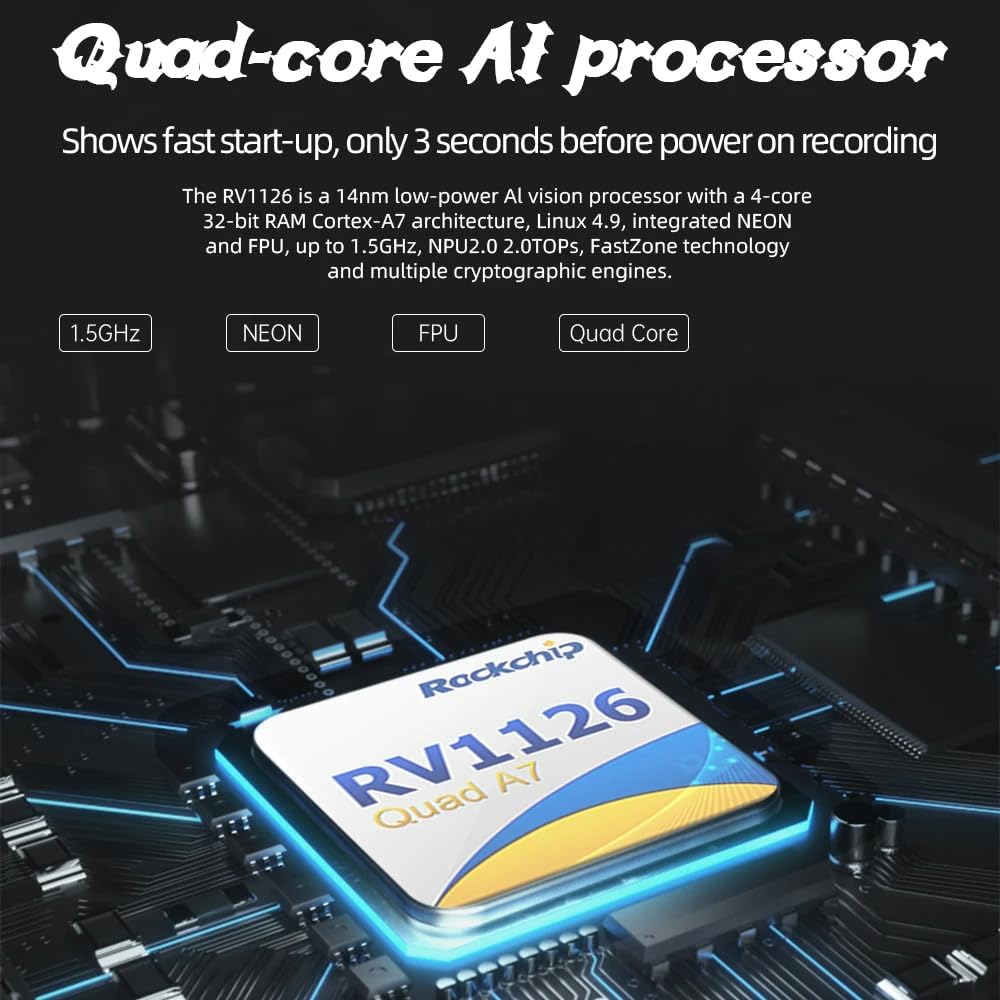
Image: Illustration of the device's quad-core AI processor.
7. Troubleshooting
If you encounter issues with your Polarlander Portable Car Stereo, refer to the following common problems and solutions:
- No Power:
- Ensure the power cable is securely connected to both the device and the vehicle's cigarette lighter socket.
- Check the vehicle's cigarette lighter fuse.
- Verify that the vehicle's ignition is on.
- No Audio Output:
- Check volume settings on both the car stereo and your vehicle's audio system.
- If using Bluetooth, ensure the device is correctly paired with your car's audio system.
- If using AUX, ensure the cable is properly connected and your car's audio input is set to AUX.
- If using FM transmission, verify that the car stereo's FM transmitter frequency matches your car radio's frequency.
- CarPlay/Android Auto Not Connecting:
- Ensure Bluetooth and Wi-Fi are enabled on your smartphone.
- Forget the device in your phone's Bluetooth settings and re-pair.
- Restart both your smartphone and the car stereo.
- Ensure your phone's operating system is up to date.
- Touchscreen Unresponsive:
- Restart the device.
- Ensure the screen is clean and free from debris or moisture.
8. Maintenance
- Cleaning: Use a soft, dry cloth to clean the screen and exterior of the device. Do not use abrasive cleaners or solvents.
- Storage: If storing the device for an extended period, disconnect it from power and store it in a cool, dry place.
- Cable Care: Regularly inspect power and audio cables for any signs of wear or damage. Replace damaged cables immediately.
9. Warranty and Support
For warranty information, please refer to the documentation provided at the time of purchase. If you require technical support or have questions not covered in this manual, please contact Polarlander customer service through the retailer where the product was purchased or visit the official Polarlander support website.
Related documentsT95CW


Ask a question about this manual
Ask about setup, troubleshooting, compatibility, parts, safety, or missing instructions. Manuals+ will review the question and use this page’s manual context to help answer it.