
1. Product Overview
The Lenovo IdeaCentre AIO 3i 22 Desktop PC is an all-in-one computer designed for efficiency and space-saving. It features a 21.5-inch Full HD display and comes with a solid-state drive for fast performance. This manual provides essential information for setting up, operating, and maintaining your device.

Figure 1.1: Front view of the Lenovo IdeaCentre 3 All-in-One Desktop Computer. This image shows the sleek design of the monitor and its integrated base, suitable for various environments.
Key Features
- 21.5" FHD (1920x1080) IPS 250nits Anti-glare Display: Provides brilliant picture quality with wide viewing angles.
- Intel Pentium 8505 Processor: Enables confident multi-tasking and efficient performance.
- 512GB Solid State Drive (SSD): Offers ample storage space, faster boot times, and quieter operation compared to traditional hard drives.
- 2x2 802.11AX Wi-Fi 6e Technology: Ensures reliable and fast wireless internet connectivity.
- Integrated Keyboard and Mouse: Included for immediate use.
2. Setup Guide
2.1 Unpacking
- Carefully remove the computer and all accessories from the packaging.
- Ensure all components listed in the packing slip are present.
- Place the computer on a stable, flat surface.
2.2 Connecting Peripherals
Connect the included keyboard and mouse to the available USB ports on the back of the computer. If using wired peripherals, ensure they are securely plugged in. For wireless peripherals, follow their specific pairing instructions.
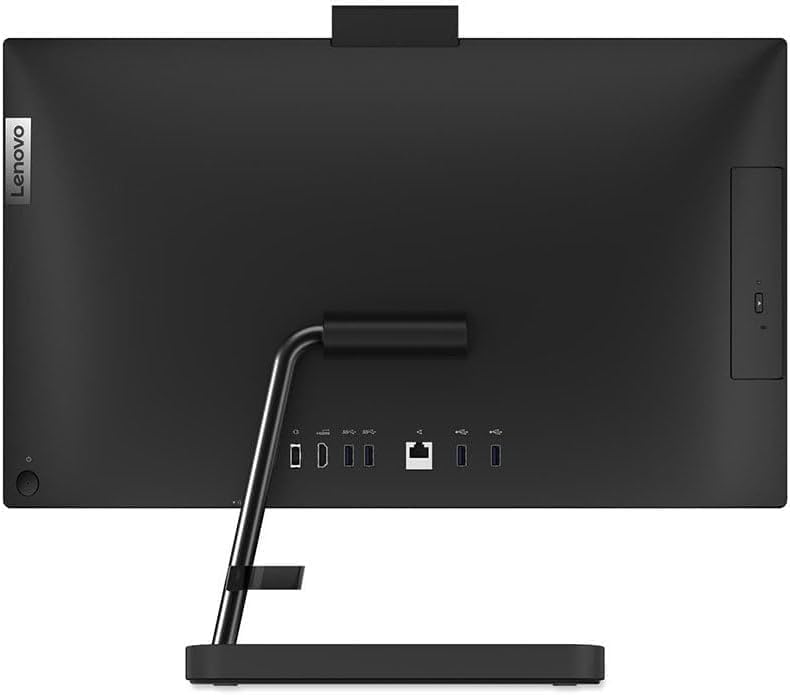
Figure 2.1: Rear view of the Lenovo IdeaCentre 3 All-in-One Desktop Computer, highlighting the various ports for connectivity. This includes USB ports, HDMI, and Ethernet.
2.3 Initial Power On
- Connect the power adapter to the computer's power input and then to a power outlet.
- Press the power button, usually located on the side or back of the display.
- The computer will boot up, and you will see the Windows 11 setup screen.
2.4 Operating System Setup
Follow the on-screen instructions to complete the Windows 11 setup. This typically involves selecting your region, connecting to a Wi-Fi network, creating a user account, and accepting the license agreement.
3. Operating Instructions
3.1 Basic Operation
- Power On/Off: Press the power button to turn the computer on. To shut down, click the Start button, then Power > Shut down.
- Sleep Mode: To put the computer to sleep, click the Start button, then Power > Sleep.
- Restart: To restart the computer, click the Start button, then Power > Restart.
3.2 Adjusting Display
The display of your IdeaCentre 3 All-in-One computer can be tilted to achieve an optimal viewing angle. Gently adjust the top or bottom edge of the screen to tilt it forward or backward.
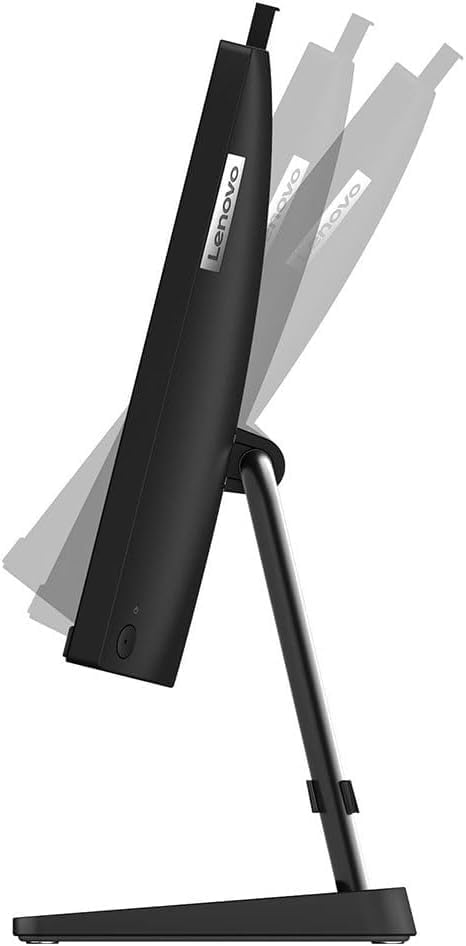
Figure 3.1: Side view illustrating the tilt functionality of the Lenovo IdeaCentre 3 display. The screen can be adjusted for ergonomic viewing.
3.3 Using Integrated Webcam
Your computer includes an integrated webcam, typically located at the top center of the display. Ensure privacy settings in Windows 11 allow applications to access the camera when needed for video calls or recording.
4. Maintenance
4.1 Cleaning
- Screen: Use a soft, lint-free cloth slightly dampened with water or a screen cleaner. Avoid harsh chemicals.
- Chassis: Wipe with a soft, dry cloth. Do not use abrasive cleaners.
- Vents: Periodically clean dust from ventilation openings using compressed air to ensure proper airflow.
4.2 Software Updates
Regularly check for and install Windows updates and driver updates to ensure optimal performance and security. Go to Settings > Windows Update to manage updates.
4.3 Data Backup
It is recommended to regularly back up your important data to an external drive or cloud storage to prevent data loss.
5. Troubleshooting
| Issue | Possible Solution |
|---|---|
| Computer does not power on | Ensure the power cable is securely connected to both the computer and the power outlet. Test the outlet with another device. |
| No display on screen | Check power connection. If external monitor is connected, ensure correct input is selected. Restart the computer. |
| Keyboard or mouse not responding | For wired devices, ensure they are plugged into a working USB port. For wireless devices, check batteries and pairing. Try different USB ports. |
| Slow performance | Close unnecessary applications. Check for background processes. Ensure sufficient free space on the SSD. Run a virus scan. |
| No internet connection | Check Wi-Fi settings and ensure you are connected to the correct network. Restart your router/modem. Ensure Wi-Fi drivers are up to date. |
6. Technical Specifications
| Feature | Specification |
|---|---|
| Brand | Lenovo |
| Model Number | F0GG000333 |
| Operating System | Windows 11 Home |
| CPU Model | Intel Pentium Gold 8505 |
| CPU Speed | 1.2 GHz |
| RAM Memory Installed | 16 GB DDR4 |
| Memory Storage Capacity | 512 GB SSD |
| Graphics Coprocessor | Intel UHD Graphics (Integrated) |
| Screen Size | 21.5 Inches (22 Inches listed in some specs) |
| Display Resolution Maximum | 1920x1080 (FHD) |
| Display Type | IPS LCD Anti-glare |
| Wireless Technology | Wi-Fi 6e (802.11ax), Bluetooth |
| Hardware Interface | HDMI, USB |
| Total USB Ports | 4 |
| Total HDMI Ports | 1 |
| Color | Black |
| Item Dimensions | 23 x 9 x 20.3 inches |
| Item Weight | 21.7 Pounds |
7. Warranty and Support
7.1 Warranty Information
This Lenovo IdeaCentre 3 All-in-One Desktop Computer comes with a 1 Year Seller Warranty. Please retain your proof of purchase for warranty claims.
7.2 Customer Support
For technical assistance, troubleshooting, or warranty inquiries, please contact Lenovo customer support. Refer to the official Lenovo website for the most up-to-date contact information and support resources.


